Products & Inventory Settings
Two short reference screens: browsing product data from within Inventory, and configuring who needs to approve what.
1. Browsing products in Inventory
Inventory → Products gives you a read-only way to search and view product/SKU details while you're working — there's no create, edit, or delete option here.
- Go to Inventory → Products to see the list.
- Click a product to open its read-only detail view.
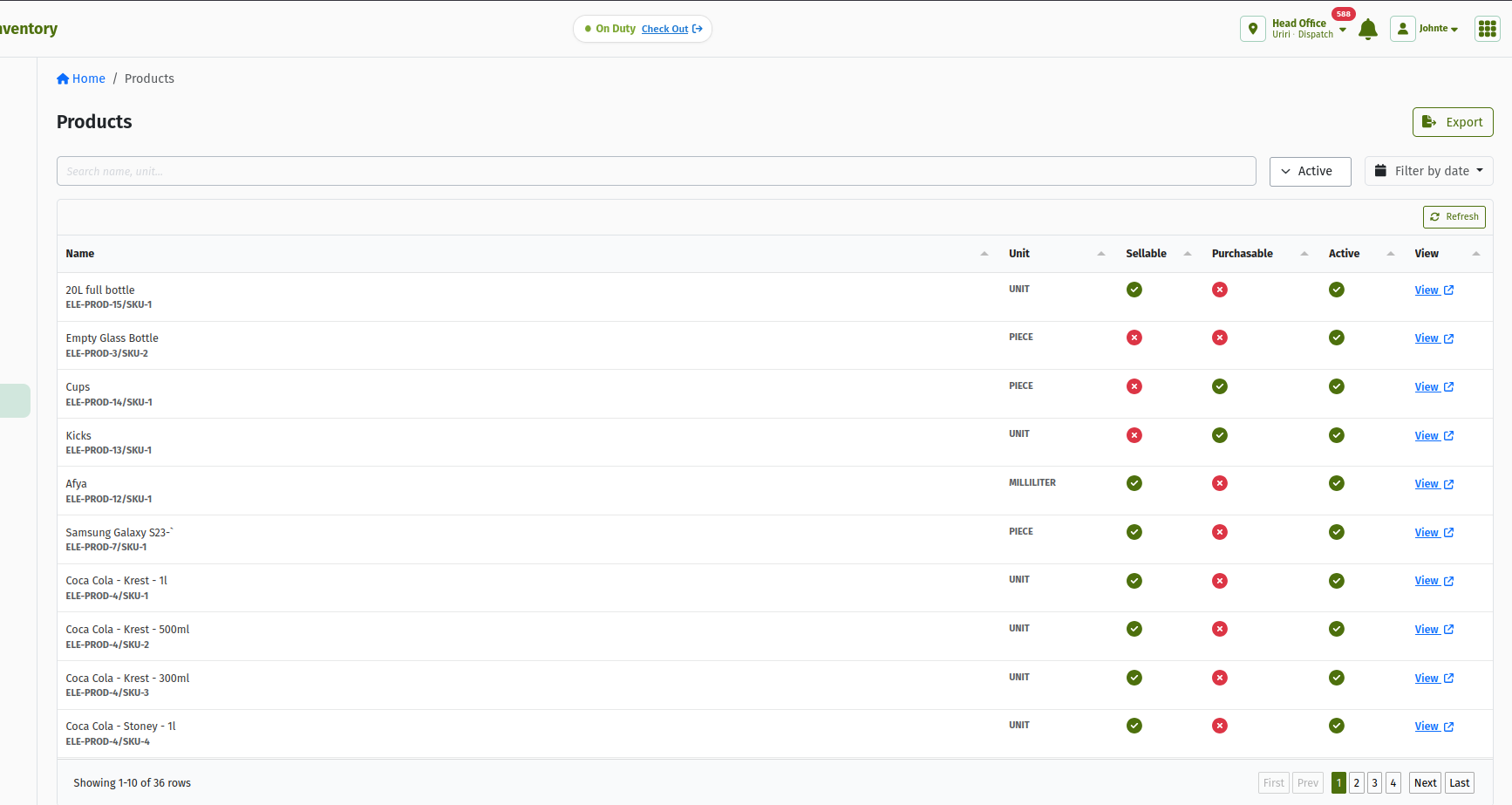 The Products list under Inventory — read-only.
Creating and editing products isn't part of Inventory — that's managed elsewhere in TradeStack.
2. Inventory Settings — sign-off rules
Inventory → Inventory Settings is where sign-off rules are configured — who needs to approve a document before it can move from Ready to Approved, for each Stock Movement document type and for Stock Take.
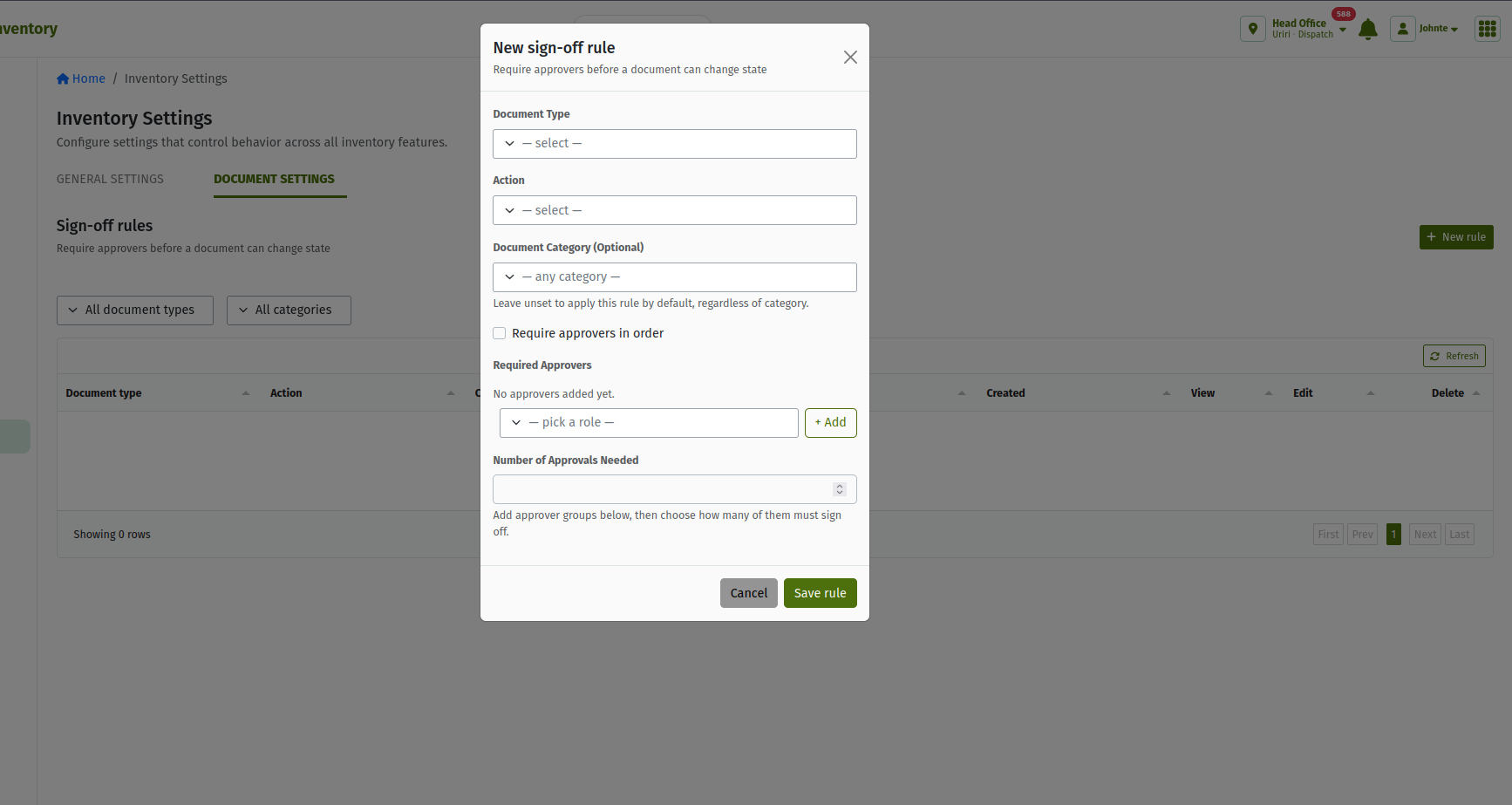 The Inventory Settings sign-off rules panel.
These rules are what decide whether a single Approve click is enough, or whether a document needs sign-off from more than one person before it becomes Approved.
3. Quick reference
- SKU — a specific product/variant that can be stocked — what you search for on a movement line.
- Sign-off rule — a configured requirement for who must approve a document type before it can proceed.
4. Frequently asked questions
Can I create a new product from here?
No — the Products screen under Inventory is read-only. Product creation and editing happens elsewhere in TradeStack.
Does every document type need the same sign-off rule?
No — sign-off rules are configured per document type, so Adjustments, Transfers, Stock Take, and the rest can each have their own requirement.