Delivery Orders
This guide walks you through the Delivery Order: what it is, the two ways to create one, how it gets approved, how you put it on a Trip, and what the system does with it from the moment the vehicle leaves until the goods are delivered. If you dispatch, plan trips, or approve orders, this is the document you will handle most.
The Delivery Order is one step in a longer chain. For the end-to-end picture — Sales Order to Delivery Order to Trip to Shipment to Reconciliation — start with the Trip Lifecycle guide. This page goes deep on the Delivery Order itself and on getting it onto a trip.
1. What is a Delivery Order?
A Delivery Order is the instruction to take specific products from one of your own locations to a specific place belonging to a customer. It answers three questions:
- What is being delivered — the line items (products, units, quantities, prices, returnables).
- From where — the sender and origin: your own business (the branch's own partner) and one of its locations, usually the branch depot.
- To where — the recipient and destination: the customer and one specific Customer Location (a shop, a site, a warehouse) of that customer.
A Delivery Order does not move stock by itself, and it does not choose a vehicle. Those things happen when you put it on a Trip. When the trip is approved, the system creates a Shipment for the order on that trip — the Shipment is the record of that particular delivery run, and it is the Shipment that the driver delivers.
Sales Order (approved, Requires Delivery)
   ↓  Generate Delivery Order            ← or create a Delivery Order directly with + Order
Delivery Order  (Draft → Ready → Approved)
   ↓  Assign Trip / Trip Orders tab      ← quantity is reserved ("Dispatched")
Trip  (Draft → Ready → Approved)
   ↓  trip approved
Shipment  (one per Delivery Order per trip, created automatically)
   ↓  trip starts                        → Delivery Order becomes In Progress
Delivered                                → Delivery Order becomes Complete
How a Delivery Order relates to the documents around it:
- Sales Order — an approved Sales Order with Requires Delivery selected can generate one Delivery Order. See the Sales Orders guide. A Sales Order that does not require delivery is fulfilled with an Issue Request instead, and never produces a Delivery Order.
- Customer and Customer Location — the order targets one specific, active Customer Location, not just the customer. A customer with five shops needs the right shop on each order. See Customers and Locations.
- Route — a Delivery Order has no route field. Its route comes from its destination location: if that Customer Location is on a trip's Route, the order shows up straight away when you open that trip's Trip Orders tab, which starts filtered to the trip's route. See Routes.
- Trip and Shipment — one Delivery Order can travel on more than one trip (a split delivery), and each trip it travels on gets its own Shipment for it. See Trips and Shipments.
2. Before you start
| Requirement | Details |
|---|---|
| Branch and territory | Every Delivery Order belongs to the branch and territory you are logged into when it is created. Trips can only pick up orders from the branch and territory you are working in, so check you are in the right one before you start. |
| Customer and location | The customer must be Approved and the destination Customer Location must be active. A location that is still waiting for approval, or that belongs to a customer that isn't Approved yet, is not offered. See Customers and Locations. |
| Products | Only active goods products can be put on a Delivery Order line. Service products are never delivered. |
| Delivery Order Manager | Optional. If you want to name one, only users whose user type has "Can manage deliveries" enabled can be selected. |
| Permissions | Creating an order needs ADD_DELIVERY_ORDER. Every status action on the order — including Submit Order — needs APPROVE_DELIVERY_ORDER. See section 11. |
| Failure reasons | Only needed if you will ever fail an order. An administrator defines them in Logistics → Logistics Settings → Failure Reasons for the document type Delivery Order. |
3. The Delivery Orders list
Go to Logistics → Delivery Orders. The list shows every Delivery Order in your organisation that you are allowed to see.
- + Order — starts the standalone create wizard (see section 5).
- Search — the "Search deliveries, origin..." box.
- Status filter — Template, Draft, Ready, Approved, In progress, Complete, Returned, Rejected, Failed, Cancelled.
- Filter by date — narrows the list by date.
- Columns — Delivery Order number, sender, recipient, status, tags, and a View action that opens the order.
Archived orders are not shown on the list; archiving is how a completed order is put away.
The Tags column shows labels the system attaches to an order, for example Loading Request Bypassed, a holiday or closed-period label when the scheduled date falls on one, and the re-delivery counter (for example "1/3 Retries") when a delivery attempt has failed. Each tag is explained where it arises later in this guide.
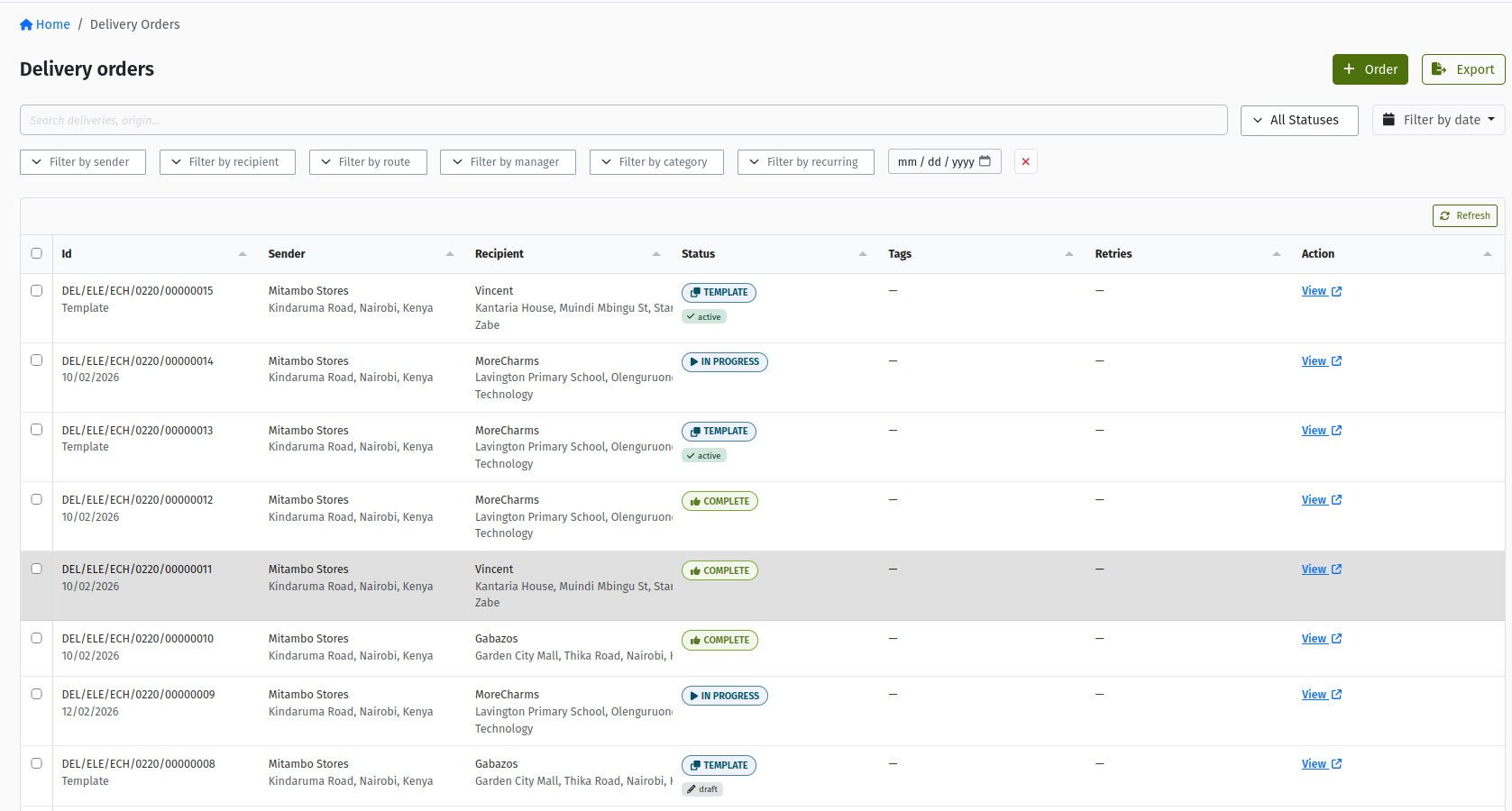 The Delivery Orders list under Logistics, with the + Order button, the "Search deliveries, origin..." box, the status filter, and the Tags column.
If you approve orders in batches, you can select several rows on the list and use the bulk actions — Submit or Approve for Draft orders, and Approve or Reject for Ready orders. These need the same APPROVE_DELIVERY_ORDER permission as the buttons on the order page.
4. Creating a Delivery Order from a Sales Order
Most Delivery Orders start life as a Sales Order. When a customer's order has been approved and it needs to be delivered, the Sales Order hands it over to logistics by generating a Delivery Order.
- Open the approved Sales Order. It must have Requires Delivery selected and at least one product line that can be delivered.
- Click Generate Delivery Order.
- Review the confirmation page. It lists the "Items to be delivered" — the goods lines that will be copied.
- Click Generate Delivery Order again to confirm.
The new Delivery Order appears on the Sales Order's Delivery Order tab, and you can open it from there. On the Delivery Order's header, the "Order: …" link takes you back to the Sales Order.
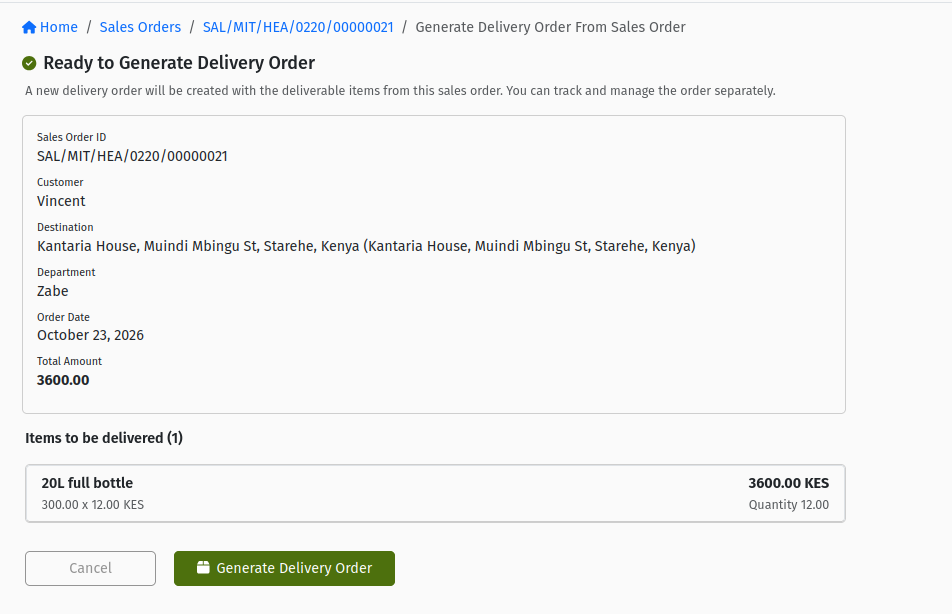 The Sales Order's Generate Delivery Order confirmation page, listing the "Items to be delivered" that will be copied onto the new Delivery Order.
What the generated order contains
| Taken from | What you get on the Delivery Order |
|---|---|
| Your branch | Sender is your own business (the branch's partner). Branch and territory are the Sales Order's. |
| The Sales Order customer | Recipient is the Sales Order's customer. |
| The Sales Order locations | Origin and Destination are copied from the Sales Order, so the destination is the Customer Location chosen on the Sales Order. |
| The Sales Order lines | One Delivery Order line per active goods line. Service lines are left out — they are invoiced, never delivered. |
| Line details | Product, unit, quantity, prices and tax, and the return and tracking flags. Any quantity already fulfilled is carried across as delivered. |
| Other header values | Sales person, totals, currency, and document category. |
Some values are not copied and take their defaults: the scheduled delivery date is the day you generate the order, the delivery type is Delivery, and there is no Delivery Order Manager.
It arrives Ready — it still needs approving
A generated Delivery Order skips Draft and lands in READY. That is deliberate: the commercial side has already been approved on the Sales Order, and the Delivery Order now waits for logistics to check and accept it.
A Ready Delivery Order cannot be put on a trip. Someone with the APPROVE_DELIVERY_ORDER permission must open it and click Approve Order first (see section 7). This is the most common reason a "missing" order doesn't appear when building a trip.
A Sales Order generates only one Delivery Order. After it has been generated, the Generate Delivery Order button no longer appears on that Sales Order — confirm it only once.
5. Creating a Delivery Order from scratch
Use this path for deliveries that don't come from a Sales Order — for example a stock replenishment to a customer site, or a delivery agreed outside the sales process. On the Delivery Orders list, click + Order. A short wizard guides you through the header, then you add the products.
The progress bar across the top shows three steps — Customer details, Delivery details, Recurring details — and the third step only appears when you are creating a recurring template.
5.1 Step 1 — Sender & recipient details
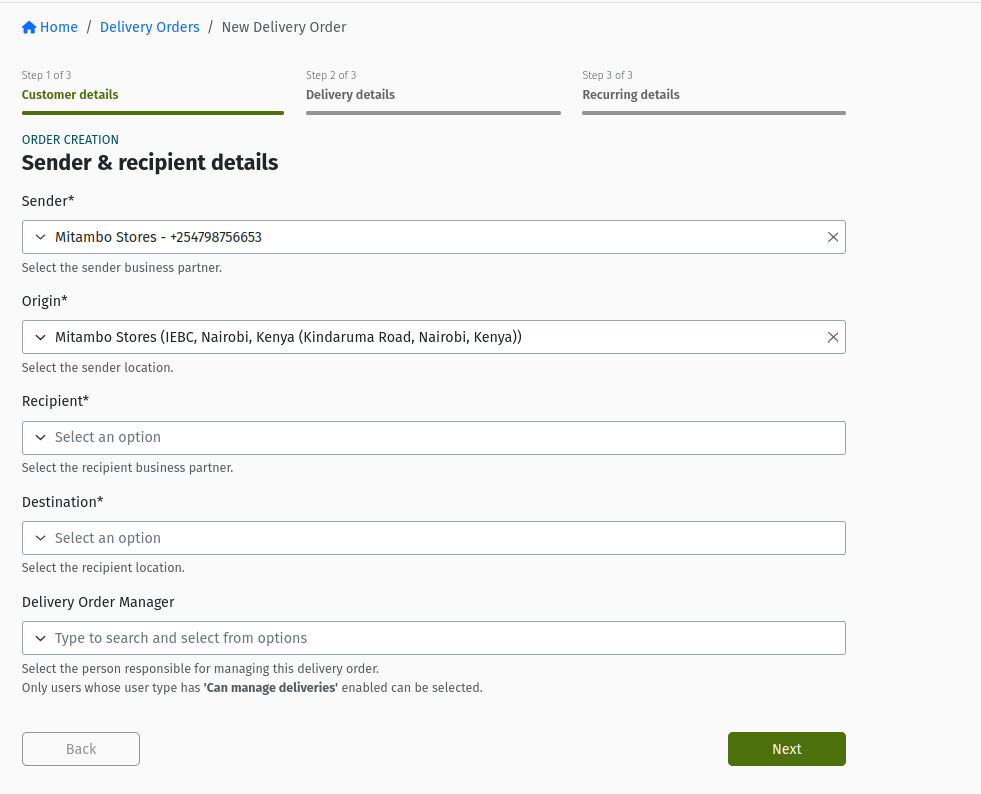 Step 1 of the + Order wizard, "Sender & recipient details", with the sender and origin pre-filled from your branch and the Delivery Order Manager dropdown.
| Field | Required? | Meaning and rules |
|---|---|---|
| Sender | Yes | Who the goods come from. Pre-filled with your own business (your branch's partner). Leave it unless you have a specific reason to change it. |
| Origin | Yes | Where the goods leave from. Pre-filled with your branch's own location. Only locations of the selected sender are offered. |
| Recipient | Yes | The customer receiving the goods. |
| Destination | Yes | The exact Customer Location to deliver to. Only active locations of the selected recipient are offered. This is the field that decides which routes the order belongs to. |
| Delivery Order Manager | No | The person responsible for this order. Only users whose user type has "Can manage deliveries" enabled are listed. |
Click to continue. The order is saved as a Draft at this point — it already exists, with the branch and territory you are logged into. If you stop here, you will find it on the list in DRAFT.
5.2 Step 2 — Delivery details
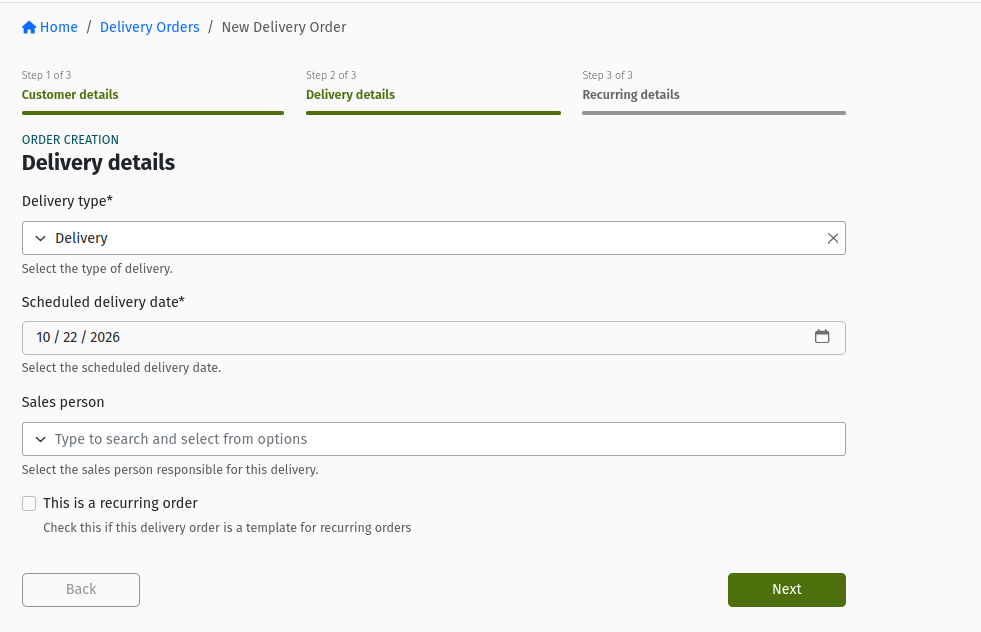 Step 2 of the wizard, "Delivery details", showing the delivery type, scheduled delivery date, sales person, and the "This is a recurring order" checkbox.
| Field | Required? | Meaning and rules |
|---|---|---|
| Delivery type | Yes | Delivery (the default) or Pickup and Delivery. Pure collections from a customer are created under Logistics → Collections, not here. |
| Scheduled delivery date | Yes | The day the customer expects the goods. Defaults to today and cannot be in the past. Trip planners can filter by it, so set it accurately. |
| Sales person | No | Only users whose user type is Sales Staff are listed. |
| This is a recurring order | No | Tick only if this order is a template for a repeating delivery. Leave it clear for a normal one-off order. |
When you save, the system checks the scheduled date against your organisation's calendar. If the date falls on a public holiday or in a closed period, the order is tagged accordingly so planners can see it at a glance. Then you are taken to the order's Items tab.
5.3 Step 3 — Recurring details (templates only)
This step only appears if you ticked This is a recurring order. You set up the repeat schedule, and the order becomes a TEMPLATE. A template is never delivered itself; instead, the system creates a fresh Delivery Order from it on each scheduled date, and those generated orders arrive in READY, ready for approval. Recurring templates are beyond the scope of this guide — for everyday orders, leave the box clear.
5.4 Adding line items
The new order opens on the Items tab with the alert "Add delivery line items to confirm this order." An order with no lines cannot be submitted or approved — in fact, the Submit Order and Approve Order buttons only appear once the order has at least one line.
- On the Items tab, click Add line.
- Fill in the Add line item panel.
- Save. Repeat for every product.
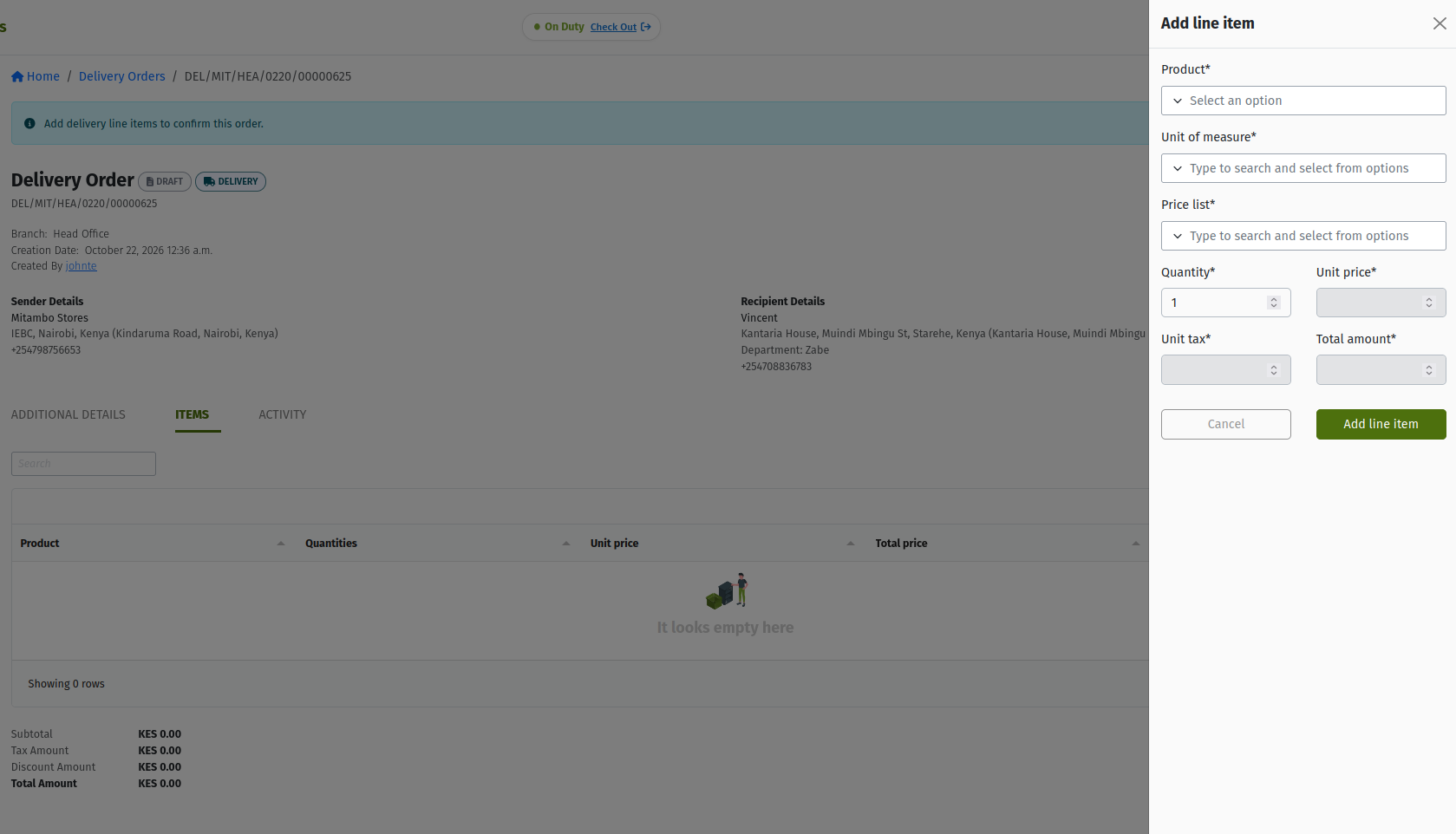 The "Add line item" panel on a Draft Delivery Order's Items tab, showing product, unit of measure, price list, quantity, unit price, unit tax, total, and the "Collect returnables" and "Track returnables" options.
| Field | Required? | Meaning and rules |
|---|---|---|
| Product | Yes | An active goods product. |
| Unit of measure | Yes | The unit you are ordering in, for example Piece or Carton. |
| Price list | No | Used to price the line, including its tax. |
| Quantity | Yes | How many units to deliver. This is the ordered quantity that trips will draw down. |
| Unit price | Yes | Usually filled from the price list. |
| Unit tax, Total | Calculated | Worked out for you from the price and tax. |
| Collect returnables | No | Tick when the customer must hand back the returnable item that goes with this product (for example empty crates or gas cylinders). The order will show a Returnables tab with the expected return quantities. |
| Track returnables | No | Tick to track the individual trackable asset that goes with this item. You cannot collect and track on the same line. |
Weight and volume come from the product, and the order's totals (amount, tax, weight, volume) add up automatically as you add lines. The weight and volume are what the trip shows as its load.
You can't have two active lines for the same product with the same returnable settings — edit the existing line instead. To remove a line, open it and click Remove line item.
6. The Delivery Order detail page
Click View on any row of the list to open an order.
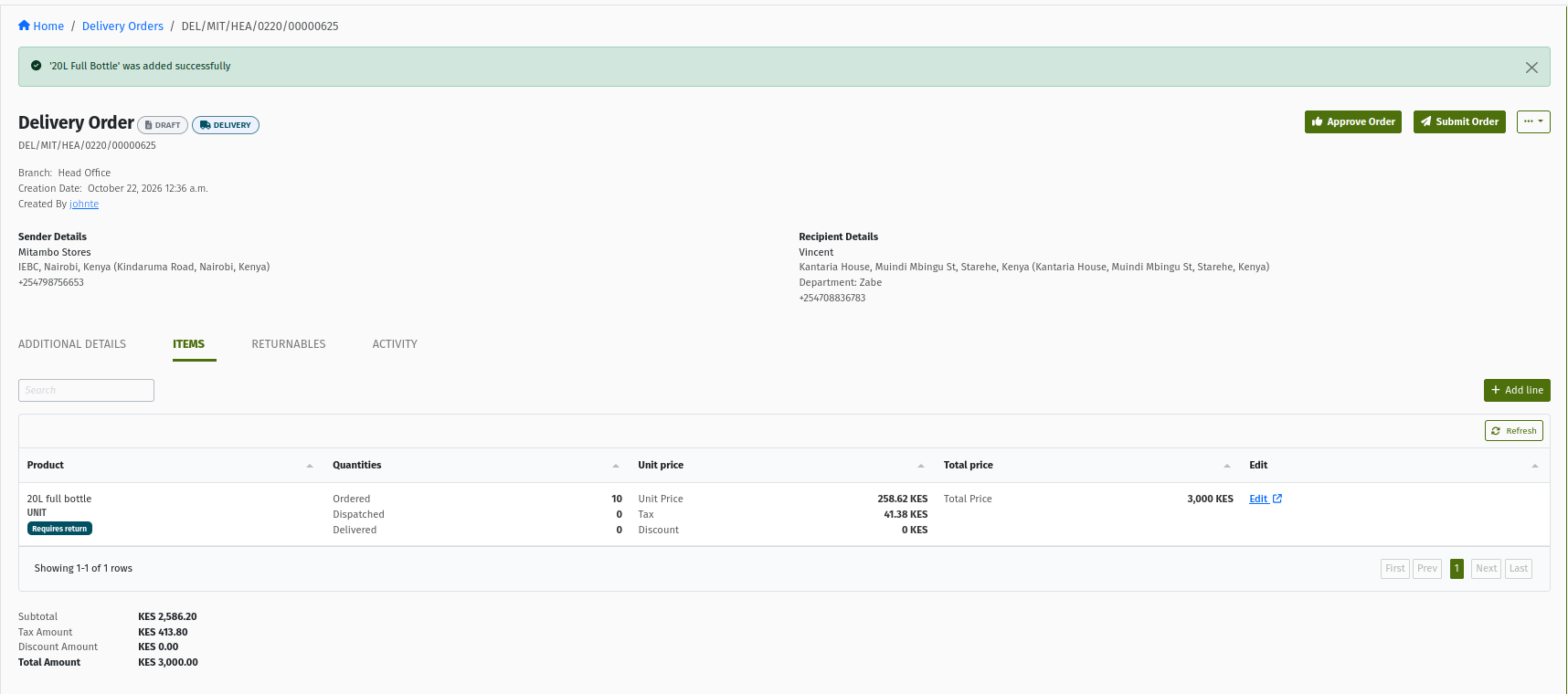 A Delivery Order's detail page: status and type chips, the "Order: …" link to its Sales Order, Branch, Creation Date, Created By and Order Manager, the Sender Details and Recipient Details panels, and the tabs.
Header — the status and delivery-type chips, the document category, the link to the related Sales Order ("Order: …"), the branch, creation date, creator, Order Manager, and any tags.
Sender Details and Recipient Details — the two parties and their locations.
Tabs:
| Tab | When you see it | What it shows |
|---|---|---|
| Additional details | Always | Salesperson, scheduled delivery date, weight, volume, consignment note number, payment term, description. |
| Items | Always (opens by default) | The lines, with Ordered, Dispatched and Delivered quantities, unit price and totals. |
| Returnables | When any line collects returnables | Expected and actual return quantities. |
| Shipments | Any status except Draft and Template | Every Shipment created for this order, one per trip it travelled on. Empty until a trip carrying it has been approved. |
| Activity | Always | The history of the order: who did what and when, including the notes entered on returns, rejections and failures. |
| Generated Orders, Logs, Other Templates for this Recipient | Templates only | The orders a recurring template has produced and its schedule history. |
The three quantity columns on the Items tab are the quickest way to understand where an order stands:
- Ordered — what the customer should receive.
- Dispatched — how much has been put on trips so far (reserved, whether or not it has left yet).
- Delivered — how much has actually been delivered, filled in by the system as shipments are completed.
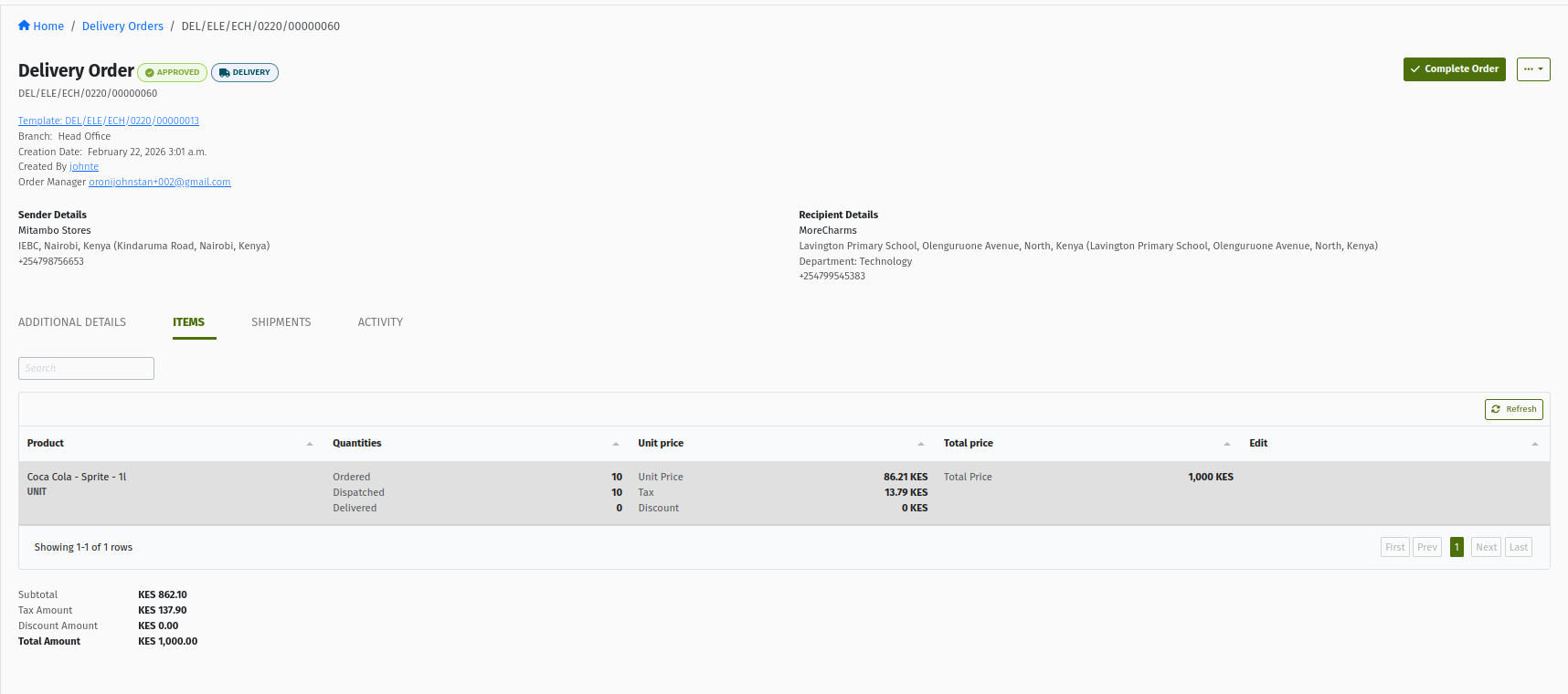 The Items tab of an Approved Delivery Order that is partly on a trip, showing Ordered, Dispatched and Delivered quantities side by side.
7. Submitting and approving
Building and correcting the order
You build and edit a Delivery Order while it is DRAFT:
- Header (sender, recipient, locations, delivery details) — use Edit order, which is available on a Draft order before its first line is added. Once lines exist, the header is fixed; if it is wrong, cancel the order and create a new one.
- Lines — add, edit, and remove them on the Items tab while the order is Draft.
Once you submit, the order is with the approver. If the approver spots something that needs fixing, they return it to you with a note; you make the correction on the Items tab and click Resubmit Order. After approval, the order's content is settled — what changes from then on is only how much has been dispatched and delivered.
Submitting
When all the lines are in, use the action buttons at the top of the order:
- Submit Order — sends the order for approval. It becomes READY.
- Approve Order — on a Draft order, submits and approves in one step. It becomes APPROVED.
 The action buttons on a Draft Delivery Order with at least one line: Approve Order and Submit Order, with Download and Cancel Order in the "…" menu.
Every action opens a short confirmation screen — for example "Submit Order — Submit the delivery order" — where you confirm, and add a note when one is required.
Approving, returning, or rejecting a Ready order
Approval is controlled by the Approve Delivery Order permission (APPROVE_DELIVERY_ORDER): anyone who holds it can approve, and there is no separate multi-step sign-off sequence for Delivery Orders. On a Ready order the approver has three choices:
| You are here | You click | It becomes | When to use it |
|---|---|---|---|
| READY | Approve Order | APPROVED | Everything is correct. The order can now go on a trip. |
| READY | Return Order | RETURNED | Something needs fixing — wrong quantity, wrong location. Explain what in the note. |
| READY | Reject Order | REJECTED | The order should not go ahead at all. A rejected order can only be cancelled. |
Return Order and Reject Order are in the … menu.
 A Ready Delivery Order showing the Approve Order button, with Reject Order and Return Order in the "…" menu.
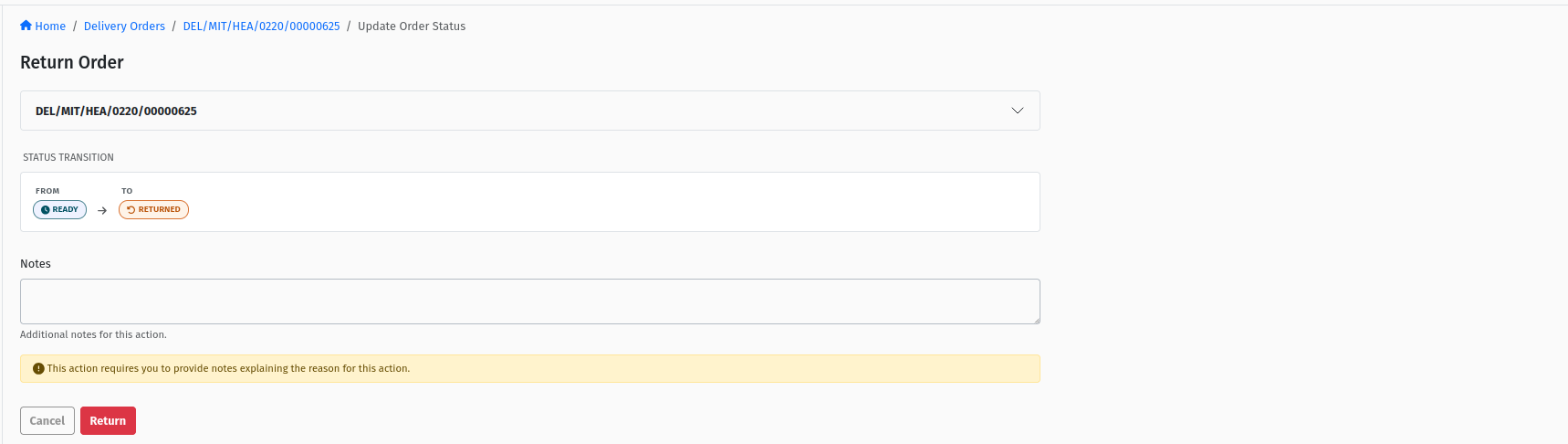 The Return Order confirmation screen ("Return the delivery order for adjustments"), with the required notes box.
Return, Reject, Cancel, and Fail always require a note. The note is saved on the order's Activity tab, so write it for the person who will pick the order up next — say what is wrong and what you expect them to do.
When an order is submitted, approved, or rejected, the system notifies the people involved (for example the Delivery Order Manager and the approvers) in the background.
8. Putting a Delivery Order on a Trip
This is where planning meets the Delivery Order. Read this section carefully — most "why can't I find my order?" questions are answered here.
8.1 Which orders can go on a trip
A Delivery Order can be added to a trip only when all of these are true:
| Condition | Why |
|---|---|
| Status is APPROVED or IN_PROGRESS | Draft, Ready, and Returned orders have not been accepted by logistics yet. In Progress orders can still have a remainder to send. |
| It has undispatched quantity | At least one line's Ordered quantity is more than its Dispatched quantity. A fully dispatched order has nothing left to put on a trip. |
| Same branch and territory | The order must belong to the branch and territory you are logged into. |
| Re-delivery attempts remain | If re-delivery retries are switched on and the order has used them all, it is no longer listed on the Trip Orders tab (see section 9.5). |
The order does not have to be on the trip's Route. When you open a trip's Trip Orders tab, the route filter is already set to the trip's route, so at first you only see orders whose destination is on that route. Clear the route filter to see the other eligible orders too — they carry an Outside Route tag and can be added just the same. (The Assign Trip screen on the order does not filter by route at all.)
8.2 Which trips can take orders
| Trip status | Can you add orders? | Notes |
|---|---|---|
| DRAFT | Yes | The usual time to build the trip. Orders are held on the trip until it is approved. |
| RETURNED | Yes | The trip was sent back; you can adjust its orders before resubmitting. |
| READY | No | The trip is waiting for approval. Approve or return it first. |
| APPROVED | Yes | Shipments are created straight away. Check loading — see 8.8. |
| LOADED | No | The vehicle has been loaded; the order list is closed. |
| IN_PROGRESS | Yes | The vehicle is on the road. Shipments go straight to In Progress, and you must get the stock on board. |
| Complete, Failed, Reconciled, Archived, Cancelled | No | The trip is over. |
Only delivery trips in your branch are offered, and a trip that already carries this order is not offered again.
8.3 Way 1 — from the order: Assign Trip
Use this when you are working order by order and want to put everything that is left on one trip.
- Open the Approved (or In Progress) Delivery Order.
- Click Assign Trip. The button only appears while the order still has undispatched quantity.
- On the Add order to trip screen, find the trip. Use "Search by trip number..." or the filters — status (Draft / Returned / Approved / In Progress), route, route manager, and Filter by departure. Each trip card shows its route, vehicle, and departure.
- Select the trip under "Select the trip for this delivery order".
- If the selected trip already has a Loading Request, a Collection warehouse column appears for each product: pick the warehouse the goods will be collected from, or use Apply to all rows. The counter ("X of N warehouses filled") tells you how many are still missing. Alternatively tick This order does not require a loading request — see below.
- Click Submit.
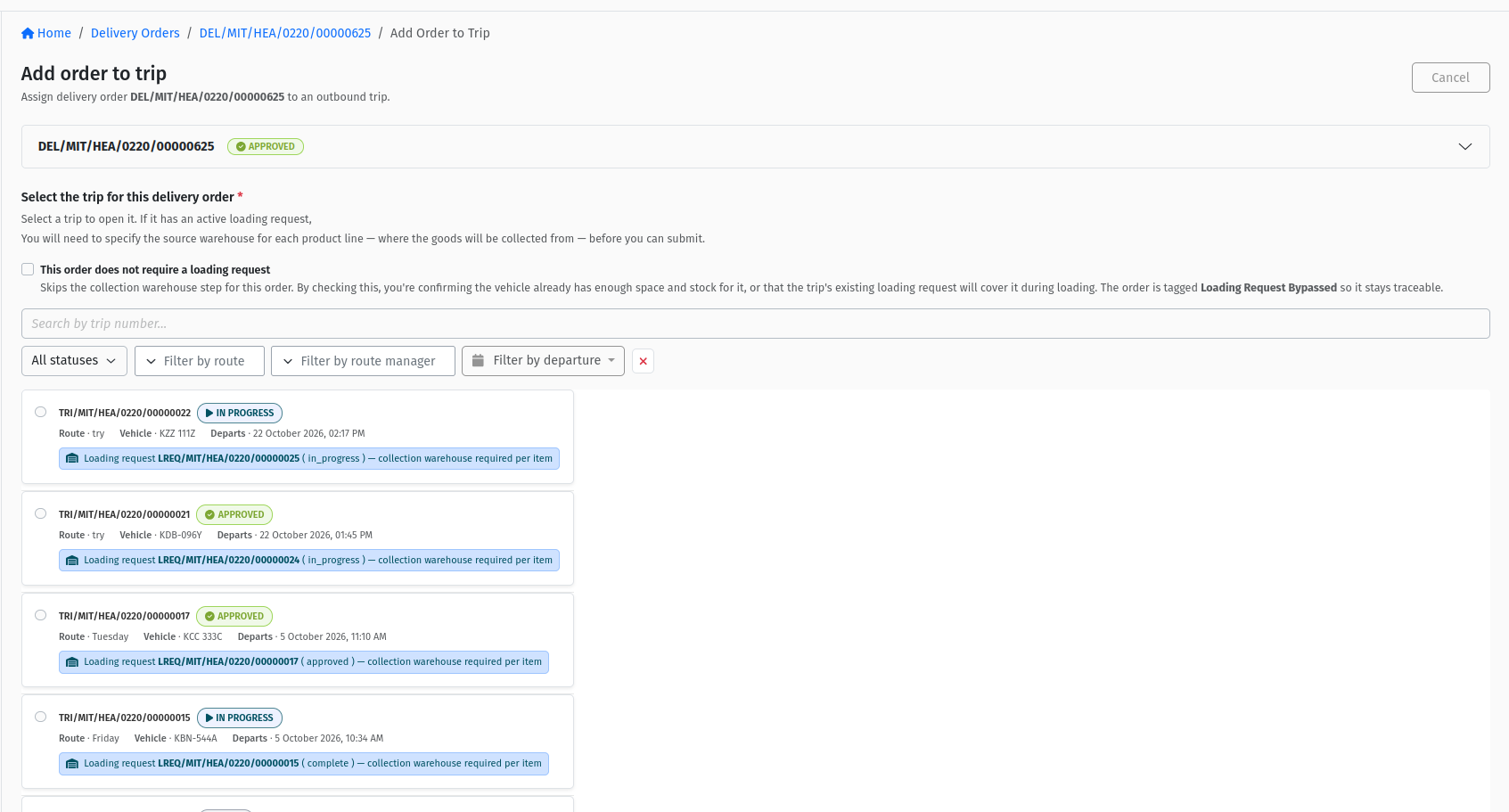 The "Add order to trip" screen: trip search and filters, the trip cards showing Route · Vehicle · Departs, and the "This order does not require a loading request" checkbox.
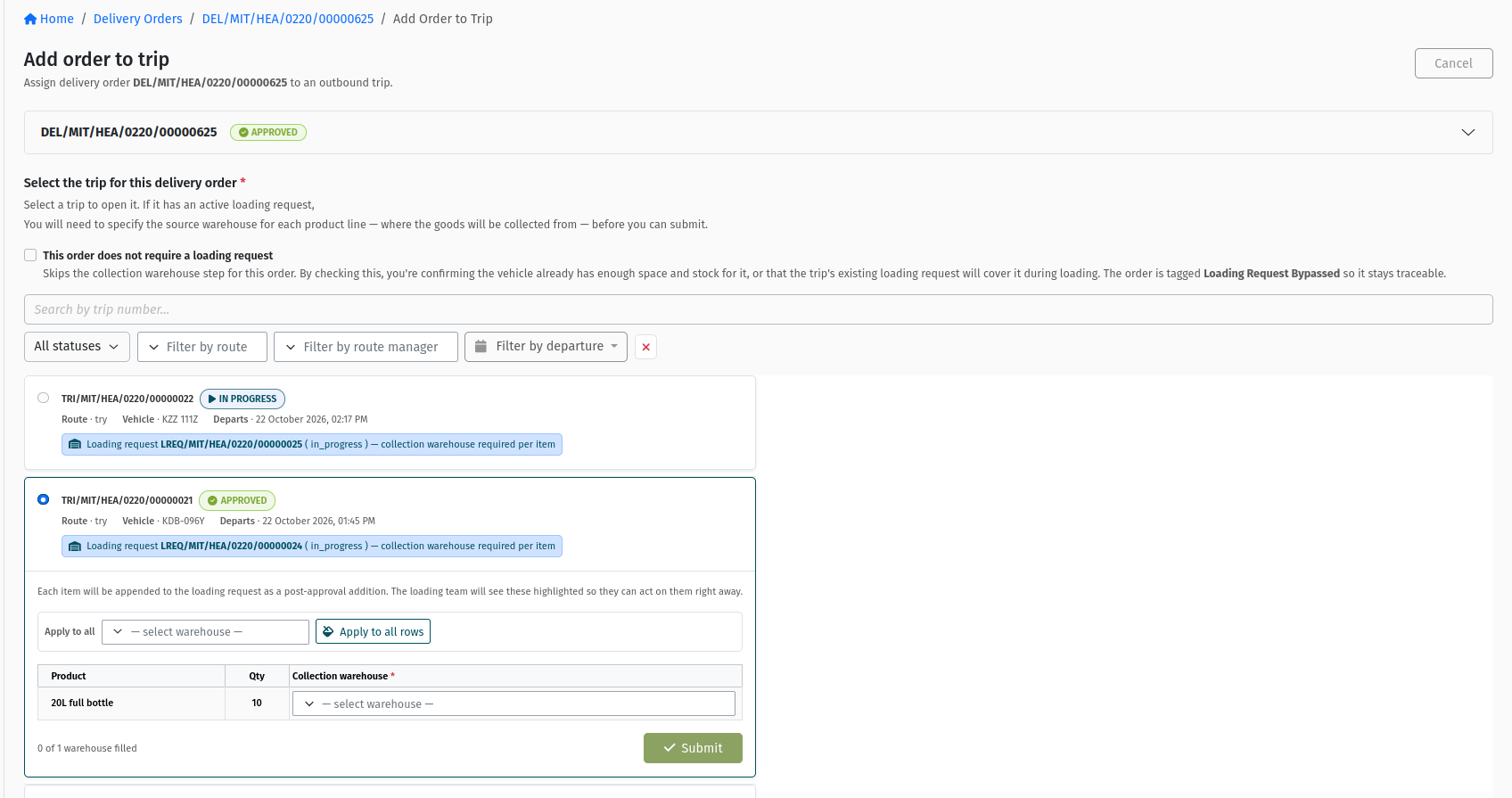 The Collection warehouse table that appears when the selected trip already has a Loading Request, with "Apply to all rows" and the "X of N warehouses filled" counter.
This path always adds the whole pending quantity of every line — Ordered minus what is already Dispatched. If you want to send only part of the order on this trip, use the Trip Orders tab instead.
If no trip qualifies, the screen says "No trips available for assignment". Check the trip's status and branch against 8.2.
When to tick "This order does not require a loading request"
Normally, goods for a trip are put on the vehicle through a Loading Request (when your organisation uses the loading process — see Loading Requests). Ticking this box tells the system not to add this order's products to the trip's Loading Request, and tags the order Loading Request Bypassed so it stays traceable.
Tick it only when one of these is true:
- the stock for this order is already on the vehicle (for example surplus stock carried on board), or
- the trip's existing Loading Request already covers these goods.
Leave it clear in every other case. If you bypass and the goods are not actually on the vehicle, the driver will not be able to deliver them and the trip cannot be closed cleanly.
8.4 Way 2 — from the trip: the Trip Orders tab
Use this when you are building a trip and want to choose orders — and quantities — for it.
- Open the trip and go to its Trip Orders tab.
- The table lists candidate order lines. When the tab opens, the route filter is set to the trip's route, so only orders whose destination is on the route are shown. Clear the route filter to also see eligible orders outside the route, tagged Outside Route. You can also filter by sender, recipient, recipient location, manager, scheduled date, and whether lines are already on the trip.
- For each line you want, select it and enter the To Dispatch quantity — anything up to its Available for Dispatch quantity.
- Click Add or Update. If the trip already has an active Loading Request, a small box asks whether "These orders do not require a loading request" — the same decision as in 8.3. Click Confirm.
The Tags column then shows Added to trip against the lines on this trip, and Not added for the rest. In a Draft or Returned trip, the tab reminds you: "Select the orders you want to add to this trip and specify the quantity for each, then click Add. Once you're happy with the selection, click Approve — shipments will be generated automatically."
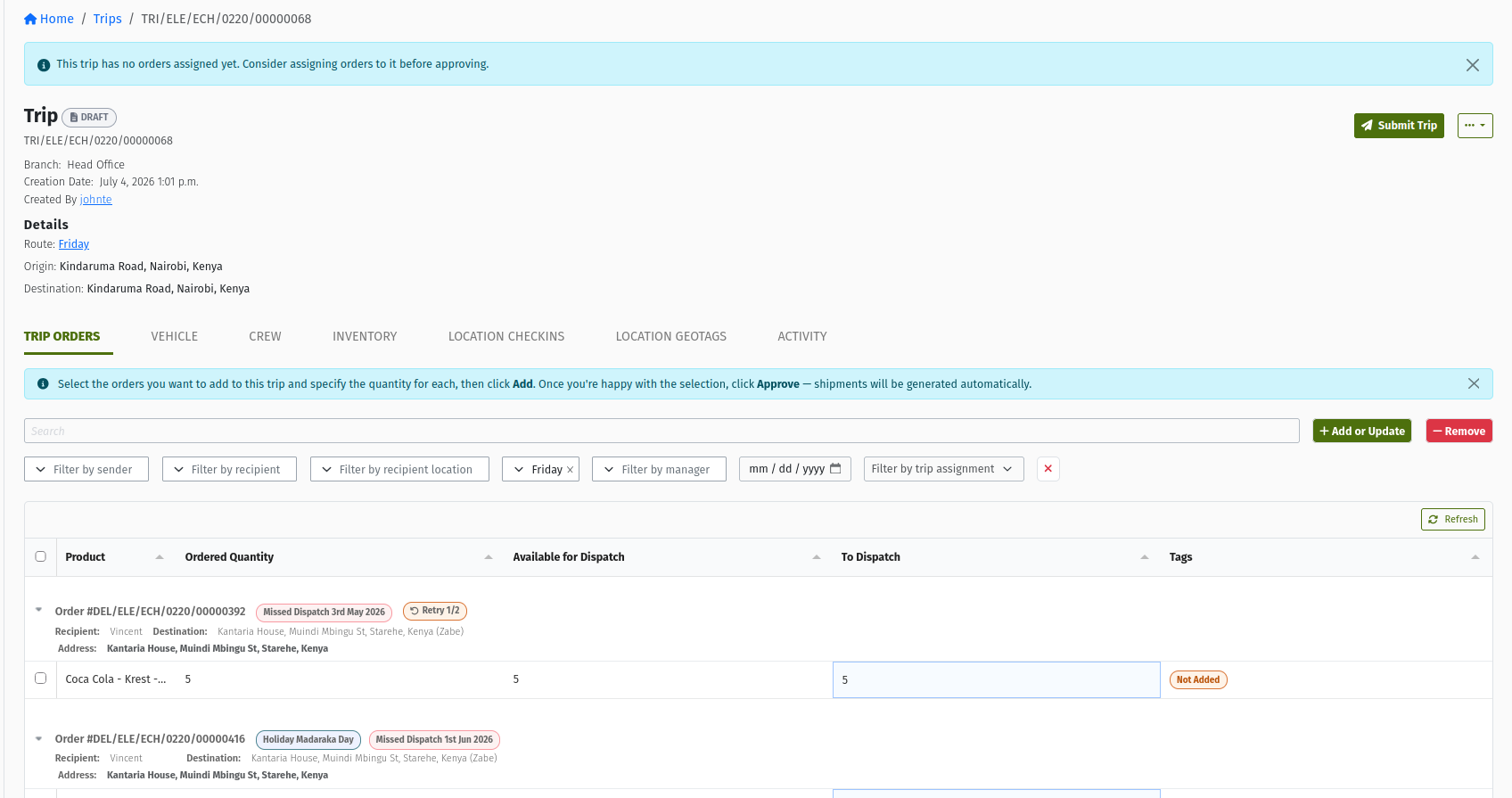 A Draft trip's Trip Orders tab, showing Product, Ordered Quantity, Available for Dispatch, the editable To Dispatch column, the Tags column ("Added to trip" / "Not added"), and the Add or Update and Remove buttons.
8.5 What "Dispatched" means
Adding an order to a trip does not change the order's status. An Approved order stays Approved. What changes is the line's Dispatched quantity: the quantity you put on the trip is reserved for it, so it can't be put on another trip at the same time. Available for Dispatch on the Trip Orders tab is simply Ordered minus Dispatched.
"Dispatched" therefore means committed to a trip, not left the depot. The goods physically leave when the trip starts.
8.6 Splitting an order across trips
Because you choose quantities line by line on the Trip Orders tab, one Delivery Order can be split: for example 60 cartons on Monday's trip and the remaining 40 on Wednesday's. Each trip gets its own Shipment for the order when it is approved, and the order's Shipments tab lists them all. The order completes once all of it has been delivered (see section 9).
8.7 Removing orders from a trip
You can take orders back off a trip only while the trip is Draft or Returned:
- Open the trip's Trip Orders tab.
- Select the lines that are Added to trip.
- Click Remove.
The reserved quantity is released and the order is available for other trips again. Once a trip is approved, its orders have become Shipments and the Remove button is no longer shown. If an order must come off an approved trip, that is handled on the trip and its Shipment, not on the Delivery Order — see Trips and Shipments.
If a whole trip is cancelled before it departs, all its orders are released automatically and return to the pool of orders available for dispatch. Their status does not change.
8.8 Adding orders to a trip that is already approved or on the road
You can add orders to an Approved or In Progress trip. The system creates the Shipment straight away, but the goods still have to get onto the vehicle. In summary (when your organisation uses the loading process):
- If the trip has a draft Loading Request, the new products are added to it — review and submit it.
- If the trip has no draft but has an approved or in-progress Loading Request, the system creates a new draft Loading Request for the extra goods — submit it and load it.
- If the trip has no Loading Request yet, create it as normal; it will include the new order.
- If the trip's Loading Requests are all finished, or the trip is already on the road, create a manual Loading Request for the extra goods (Add Item) — or tick the bypass option if the stock is already on board.
The Trip Lifecycle guide is the authority on these rules and walks through each situation in detail.
9. From trip approval to delivery
After the order is on a trip, the rest is driven by the trip. You do not normally need to touch the Delivery Order again.
9.1 Trip approved — Shipments are created
When the trip is approved, the system creates — in the background — one Shipment for each Delivery Order on the trip, containing the quantities you put on that trip. The order's Shipments tab shows it within moments. The Delivery Order itself stays APPROVED.
9.2 Trip starts — the order becomes In Progress
When the trip departs, its Shipments move to In Progress, and the Delivery Order moves to IN_PROGRESS automatically. The system also notifies the people involved that the order has been dispatched.
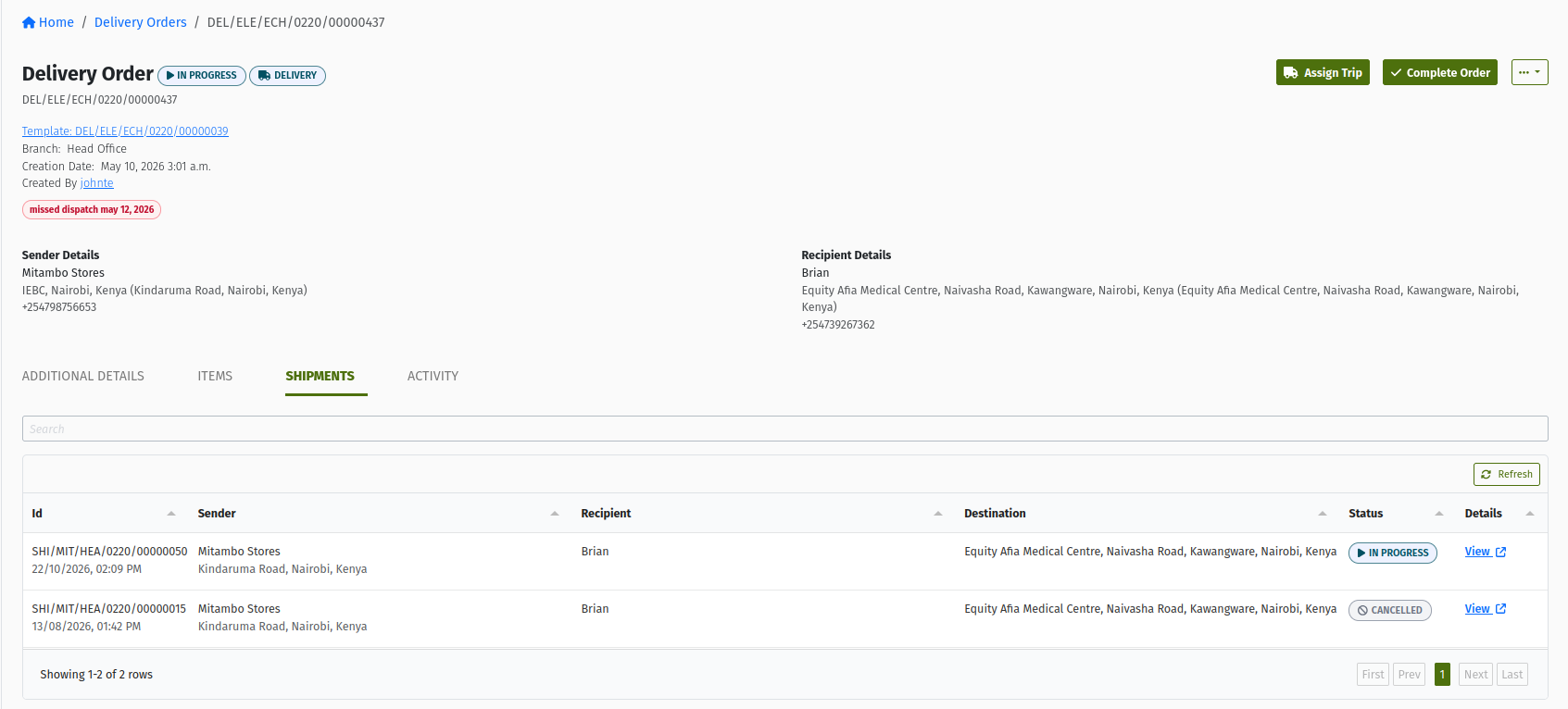 The Shipments tab of an In Progress Delivery Order, listing the Shipment created for it on the trip that has departed.
9.3 Delivered — the order completes automatically
The driver records the delivery against the Shipment (normally in the mobile app). When a Shipment is completed, its delivered quantities are added to the order's Delivered column. The order moves to COMPLETE automatically once:
- every Shipment of the order is finished, and
- the whole order has been accounted for — every line is fully delivered, or every line has been fully put on trips and all of those Shipments were completed.
So an order that was split across two trips stays In Progress after the first trip and completes when the second delivery is done.
If a Delivery Order was created directly (not from a Sales Order), the system creates a Sales Order from it automatically when it completes, so the delivery is still recorded on the sales side.
9.4 Completing an order manually
Sometimes the system can't complete the order on its own — typically because part of it was never put on a trip, or because a delivery failed and the remainder will not be re-sent. In that case the order stays In Progress and you close it yourself:
- Make sure every Shipment of the order is finished — check the Shipments tab.
- Click Complete Order.
- On the confirmation screen, review the table under "Update 'Delivered' or 'Returned' quantities" and correct the delivered and returned quantities to what really happened.
- Confirm. The order becomes COMPLETE.
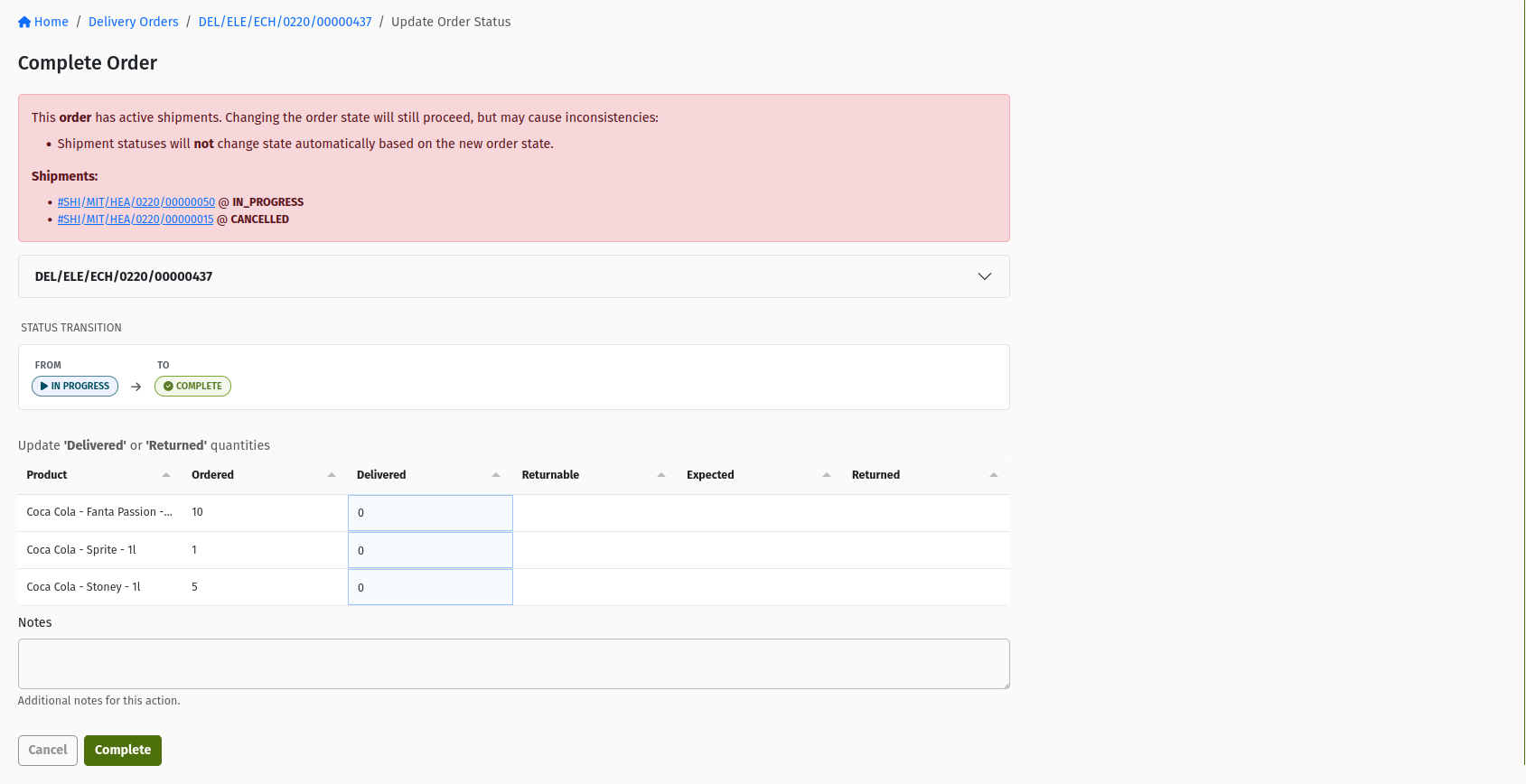 The Complete Order screen, with the editable table to "Update 'Delivered' or 'Returned' quantities".
If you see "This order has active shipments" on the Complete Order screen, stop. Completing the order does not change its Shipments, so a Shipment still on the road would be left out of step. Let the trip finish its deliveries first.
9.5 When a delivery fails
If a Shipment fails — the customer was closed, refused the goods, the vehicle broke down — the quantity on that Shipment is released back to the order. The order's Dispatched quantity drops, the order stays Approved or In Progress, and it becomes available for another trip. You can put it on a later trip the usual way.
Your organisation can also switch on re-delivery retries (off by default) — this is setting-driven, under Logistics → Logistics Settings → Delivery Order Retry (Enable Delivery Order Redelivery Retry and Max Redelivery Attempts). When it is on:
- An order whose Shipment fails is tagged Needs Redelivery, shown as a counter such as "1/3 Retries", so planners can spot it.
- Each further failed Shipment increases the counter. When the maximum is reached, the order is no longer offered on the Trip Orders tab for new trips.
- Each failure reason defined in Failure Reasons has a Retryable option. If a Shipment fails for a reason that is not retryable, the Delivery Order is failed automatically instead of being tagged for re-delivery.
When the setting is off, failed Shipments still release their quantity, but no tag or counter is applied.
9.6 Failing an order yourself
An order that is IN_PROGRESS and will not be delivered can be failed by hand: open the … menu and click Fail Order. You must choose a Failure Reason from the list your administrator has set up; if none exist you will see "No failure reasons have been defined for Delivery Order. Ask your admin to add them in Logistics Settings › Failure Reasons". The order becomes FAILED, which is final — there are no further actions on a failed order.
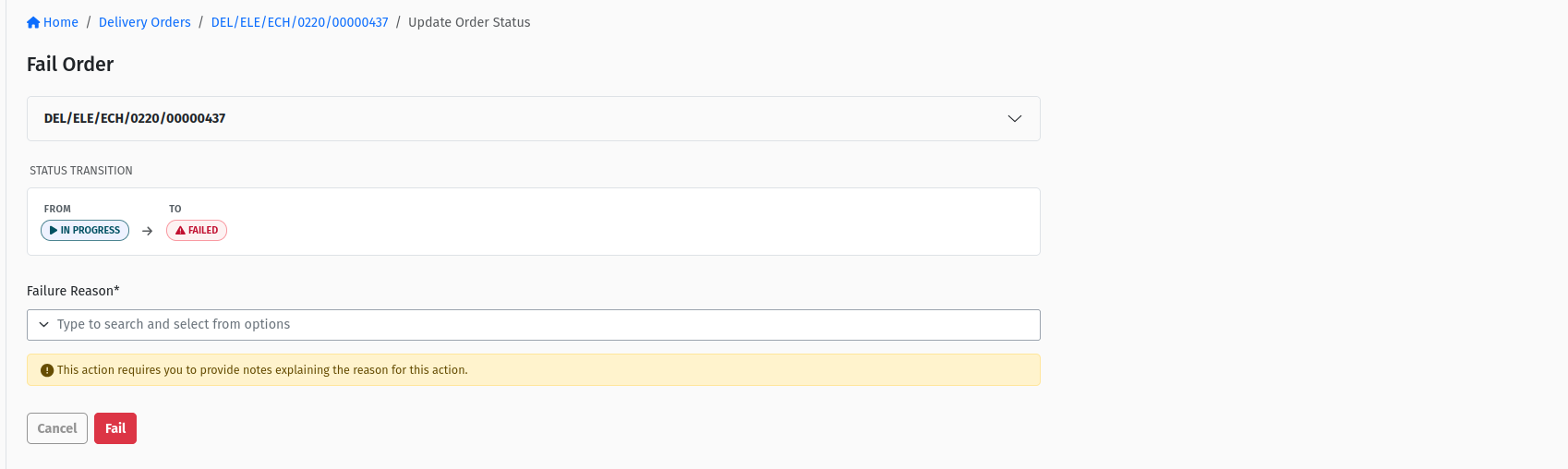 The Fail Order screen for an In Progress Delivery Order, with the required Failure Reason dropdown.
Failing is for orders already in progress. Decide whether an order should go ahead before you approve it — that is what Return Order, Reject Order, and Cancel Order are for. If an approved order turns out not to be needed, keep it off trips (remove it from any Draft or Returned trip) and ask your supervisor or administrator to close it.
10. Statuses and transitions
10.1 What each status means
| Status | Meaning |
|---|---|
| DRAFT | Being built. Lines can be added and edited. |
| READY | Submitted, waiting for approval. Orders generated from a Sales Order start here. |
| RETURNED | Sent back for correction, with a note. Fix and resubmit. |
| REJECTED | Declined by the approver. Can only be cancelled. |
| APPROVED | Accepted by logistics. Can be put on trips. Stays Approved while it sits on a trip that hasn't left yet. |
| IN_PROGRESS | At least one Shipment of the order is on the road. Set automatically when the trip departs. |
| COMPLETE | Delivered. Set automatically, or by Complete Order. |
| ARCHIVED | Put away after completion. No longer shown on the list. |
| FAILED | Will not be delivered. Final. |
| CANCELLED | Called off. Final. |
| TEMPLATE | A recurring template. Never delivered itself; it generates new orders on schedule. |
10.2 The flow at a glance
DRAFT ──Submit Order──→ READY ──Approve Order──→ APPROVED
DRAFT ──Approve Order (submit and approve in one step)──→ APPROVED
DRAFT ──Cancel Order──→ CANCELLED

READY ──Return Order──→ RETURNED ──Resubmit Order──→ READY
READY ──Reject Order──→ REJECTED ──Cancel Order──→ CANCELLED

APPROVED ──(trip departs, automatic)──→ IN_PROGRESS
IN_PROGRESS ──(all delivered, automatic) or Complete Order──→ COMPLETE ──Archive Order──→ ARCHIVED
IN_PROGRESS ──Fail Order──→ FAILED
10.3 Transitions you make in the console
| You are here | You click | It becomes | Note required? |
|---|---|---|---|
| DRAFT | Submit Order | READY | No |
| DRAFT | Approve Order | APPROVED | No |
| DRAFT | Cancel Order | CANCELLED | Yes |
| READY | Approve Order | APPROVED | No |
| READY | Return Order | RETURNED | Yes |
| READY | Reject Order | REJECTED | Yes |
| RETURNED | Resubmit Order | READY | No |
| REJECTED | Cancel Order | CANCELLED | Yes |
| IN_PROGRESS | Complete Order | COMPLETE | No |
| IN_PROGRESS | Fail Order | FAILED | Failure Reason |
| COMPLETE | Archive Order | ARCHIVED | No |
10.4 Transitions the system makes for you
| You are here | What happens | It becomes |
|---|---|---|
| — | You generate it from a Sales Order | READY |
| APPROVED | A trip carrying it departs | IN_PROGRESS |
| IN_PROGRESS | Its last Shipment is completed and the whole order is accounted for | COMPLETE |
| IN_PROGRESS | A Shipment fails for a non-retryable reason (re-delivery retries switched on) | FAILED |
10.5 Actions available at each status
| Action | From | Preconditions | Result |
|---|---|---|---|
| Edit order | Draft | No lines added yet; CHANGE_DELIVERY_ORDER | Header (sender, recipient, details) can be changed. |
| Add line | Draft, Returned | — | A new line on the Items tab. |
| Submit Order | Draft | At least one line; APPROVE_DELIVERY_ORDER | Ready. |
| Approve Order | Draft, Ready | At least one line; APPROVE_DELIVERY_ORDER | Approved. |
| Return Order | Ready | Note; APPROVE_DELIVERY_ORDER | Returned. |
| Reject Order | Ready | Note; APPROVE_DELIVERY_ORDER | Rejected. |
| Resubmit Order | Returned | APPROVE_DELIVERY_ORDER | Ready. |
| Cancel Order | Draft (with lines), Rejected | Note; APPROVE_DELIVERY_ORDER | Cancelled. |
| Assign Trip | Approved, In Progress | Undispatched quantity; CHANGE_DELIVERY_ORDER | Whole pending quantity reserved on the chosen trip. |
| Complete Order | In Progress | All Shipments finished; APPROVE_DELIVERY_ORDER | Complete, with the delivered and returned quantities you enter. |
| Fail Order | In Progress | Failure Reason; APPROVE_DELIVERY_ORDER | Failed. |
| Archive Order | Complete | APPROVE_DELIVERY_ORDER | Archived. |
| Download | Any status except Failed and Cancelled (in the … menu) | — | A PDF of the order. |
11. Permissions reference
| Permission | Controls |
|---|---|
VIEW_DELIVERY_ORDER | Seeing the Delivery Orders list and opening orders. |
ADD_DELIVERY_ORDER | Creating Delivery Orders with + Order. |
CHANGE_DELIVERY_ORDER | Edit order on a Draft order, and the Assign Trip button. |
APPROVE_DELIVERY_ORDER | Every status action on an order: Submit, Approve, Return, Reject, Resubmit, Cancel, Complete, Fail, and Archive — including the bulk actions on the list. |
ADD_TRIP | Adding orders to a trip from the trip's Trip Orders tab (Add or Update). |
CHANGE_SALES_ORDER | Generate Delivery Order on an approved Sales Order. |
Because APPROVE_DELIVERY_ORDER also covers Submit Order, a user who can build orders but does not hold it will not see the Submit button. If that is you, ask an approver to submit or approve the order, or ask your administrator about your role.
12. Common mistakes and troubleshooting
| Message / symptom | Cause | What to do |
|---|---|---|
| The order doesn't appear on the trip's Trip Orders tab | The order is still Ready (common for orders generated from a Sales Order), Draft, or Returned. | Approve the order first. |
| The order still doesn't appear, though it is Approved | The route filter is set to the trip's route and the order's destination is not on it. | Clear the route filter. The order shows with an Outside Route tag and can still be added. |
| …and still not there | The order belongs to another branch or territory, is fully dispatched, or has used up its re-delivery attempts. | Check you are logged into the right branch and territory; check the Dispatched column; check the Needs Redelivery counter. |
| Assign Trip button is missing | The order is not Approved or In Progress, or every line is already fully dispatched. | Approve the order, or look at the Shipments tab and Dispatched column — it may already be on a trip. |
| "No trips available for assignment" | No delivery trip in your branch is Draft, Returned, Approved, or In Progress — or the only candidates are Ready or Loaded. | Create a trip, or return a Ready trip to add orders to it. |
| Submit Order / Approve Order buttons are missing on a Draft order | The order has no lines, or you don't hold APPROVE_DELIVERY_ORDER. | Add at least one line on the Items tab; otherwise ask an approver. |
| "Add delivery line items to confirm this order." | The order has no lines yet. | Click Add line on the Items tab. |
| The destination dropdown is empty or the location is missing | The location belongs to a different customer, or it is not active yet. | Pick the recipient first; ask for the Customer Location to be activated. See Customers and Locations. |
| "No failure reasons have been defined for Delivery Order…" | Your organisation has no Delivery Order failure reasons. | Ask an administrator to add them in Logistics Settings → Failure Reasons. |
| Order stays In Progress after the trip ended | Part of the order was never put on a trip, or one of its Shipments failed. | Put the remainder on another trip, or close it with Complete Order and the real delivered quantities. |
| "This order has active shipments" on the Complete Order screen | A Shipment of the order is still open. | Wait for the trip to finish that delivery before completing the order. |
| The order's products were not added to the trip's Loading Request | This order does not require a loading request was ticked (the order is tagged Loading Request Bypassed), or the trip's Loading Requests were already finished. | Make sure the stock is on the vehicle; if not, create a manual Loading Request. See Loading Requests. |
| The header is wrong but Edit order is gone | Lines have already been added. | Cancel the order (with a note) and create a correct one. |
13. Best practices
- Approve generated orders promptly. Orders from Sales Orders arrive Ready and are invisible to trip planning until approved.
- Pick the exact Customer Location. The destination decides the route the order is listed under and where the driver goes.
- Set a realistic scheduled delivery date. Planners filter on it when building trips.
- Check the header before adding the first line — it can't be changed afterwards.
- Write useful notes on returns, rejections, cancellations, and failures; they are the only explanation the next person sees.
- Use Assign Trip for whole orders, the Trip Orders tab for partial quantities.
- Only bypass the Loading Request when the stock is genuinely on the vehicle or already covered by the trip's Loading Request.
- Build trips while they are Draft. Removing orders is only possible while the trip is Draft or Returned, so settle the order list before approving the trip.
- Let the system complete orders. Use Complete Order only when the order is stuck In Progress and all its Shipments are finished, and enter the real delivered quantities.
- Decide before approval. Use Return, Reject, or Cancel while the order is still Draft or Ready; failing is for orders that are on the road.
14. Quick reference
| Step | Action | Watch out for |
|---|---|---|
| Create (from SO) | Sales Order → Generate Delivery Order → confirm | Lands Ready — must be approved. |
| Create (standalone) | Logistics → Delivery Orders → + Order → Sender & recipient → Delivery details | Saved as Draft after step 1. Destination = exact Customer Location. |
| Add lines | Items tab → Add line | Header locks after the first line. |
| Submit / approve | Submit Order or Approve Order | Needs APPROVE_DELIVERY_ORDER. |
| Put on a trip | Assign Trip (whole order) or the trip's Trip Orders tab (partial) | Order Approved/In Progress; trip Draft, Returned, Approved, In Progress. |
| Remove from a trip | Trip's Trip Orders tab → Remove | Only while the trip is Draft or Returned. |
| Delivery | Automatic: In Progress on departure, Complete on delivery | Split orders complete after the last delivery. |
| Close manually | Complete Order → enter delivered/returned quantities | Only once all Shipments are finished. |
| Archive | Archive Order | Archived orders leave the list. |
Status meanings
- DRAFT — being built.
- READY — waiting for approval.
- RETURNED — sent back for correction.
- REJECTED — declined; can only be cancelled.
- APPROVED — ready to put on trips.
- IN_PROGRESS — on the road.
- COMPLETE — delivered.
- ARCHIVED — put away.
- FAILED — will not be delivered.
- CANCELLED — called off.
- TEMPLATE — recurring template.
Glossary
- Delivery Order — the instruction to deliver specific products from your location to a customer's location.
- Sender / Origin — your own business and the location the goods leave from.
- Recipient / Destination — the customer and the specific Customer Location receiving the goods.
- Delivery Order Manager — the person responsible for the order; must have "Can manage deliveries".
- Ordered quantity — what the customer should receive on a line.
- Dispatched quantity — how much of a line has been put on trips (reserved), whether or not it has left yet.
- Available for Dispatch — Ordered minus Dispatched; what can still go on a trip.
- Delivered quantity — how much has actually been delivered, filled in from completed Shipments.
- Shipment — the record of one Delivery Order on one trip, created automatically when the trip is approved.
- Split delivery — one Delivery Order delivered over several trips, with one Shipment per trip.
- Outside Route — tag on a candidate order whose destination is not on the trip's Route; it can still be added.
- Loading Request Bypassed — tag on an order whose goods were not added to the trip's Loading Request.
- Needs Redelivery — tag (shown as "x/y Retries") on an order whose Shipment failed, when re-delivery retries are switched on.
- Failure Reason — a reason from the list set up in Logistics Settings, required when failing an order.
- Collect returnables / Track returnables — line options for returnable items to bring back, or trackable assets to follow.
15. Frequently asked questions
I generated a Delivery Order from a Sales Order. Why can't I add it to a trip?
Generated orders start in Ready. Someone with the Approve Delivery Order permission has to open it and click Approve Order. Once it is Approved it appears on the Trip Orders tab and the Assign Trip button appears.
Does adding an order to a trip change its status?
No. The order stays Approved and its Dispatched quantity goes up. It becomes In Progress only when the trip actually departs.
Can I send part of an order today and the rest later?
Yes. On the trip's Trip Orders tab, enter a smaller To Dispatch quantity. The rest stays available for a later trip. Each trip gets its own Shipment, and the order completes after the last delivery.
Does the order have to be on the trip's route?
No. The Trip Orders tab opens with its route filter set to the trip's route, so at first you only see on-route orders. Clear the route filter to see every eligible order; the ones outside the route carry an Outside Route tag and can be added just the same.
Why can't I add orders to a Ready or Loaded trip?
A Ready trip is waiting for its approval decision, and a Loaded trip has already been loaded. Return a Ready trip if it needs changes. For a Loaded trip, plan the order onto another trip.
How do I take an order off a trip?
While the trip is Draft or Returned, select the order's lines on the trip's Trip Orders tab and click Remove. After the trip is approved, the order is a Shipment on that trip — handle it from the trip and the Shipment.
What happens to my order if the delivery fails?
The failed Shipment's quantity is released, so the order becomes available for another trip. If your organisation has re-delivery retries switched on, the order is tagged Needs Redelivery with a retry counter, and once the maximum is reached it is no longer offered for new trips.
Should I click Complete Order after every delivery?
No. The system completes the order automatically when its deliveries are done. Use Complete Order only when an order is stuck In Progress — for example, the remainder will not be sent — and all its Shipments are finished.
Can I change the customer or the delivery location after adding lines?
No. The header can only be edited on a Draft order before the first line is added. Cancel the order with a note and create a new one.
When should I tick "This order does not require a loading request"?
Only when the stock for the order is already on the vehicle, or the trip's existing Loading Request already covers it. Otherwise leave it clear, so the goods are loaded through the Loading Request.
Do Delivery Orders use sign-off rules like Sales Orders?
No. Approval is controlled by the Approve Delivery Order permission: anyone who holds it can approve a Ready order in one step.