Loading Requests
This guide walks you through loading a delivery vehicle for a Trip using a Loading Request — from creating it out of an approved Trip, through filling in and submitting the Loading Sheet, starting loading, moving the stock onto the vehicle, and finishing so the Trip can be marked as loaded and dispatched. It also explains exactly what to do when more orders are added to a trip after loading has been planned.
Loading is one stage of the full delivery journey. If you're new to Logistics, read the Trip Lifecycle overview first — it shows where loading sits between approving a Trip and dispatching its Shipments.
1. What is a Loading Request?
A Loading Request is the document that gets the stock for a Trip out of your warehouse(s) and onto the vehicle assigned to that Trip. It's what turns "these shipments are planned" into "the truck actually has the goods on board."
Every Vehicle has its own Vehicle Warehouse — a mobile stock location named after the vehicle (for example "VDD 800 Warehouse") that holds whatever is on board. A Loading Request always points at the Vehicle Warehouse of the Trip's vehicle: it lists the products and quantities that need to arrive there before the vehicle leaves.
Loading itself is a stock Transfer. When the loading team dispatches a line, the system creates a Transfer from the source warehouse into the Vehicle Warehouse. The stock only actually moves when that Transfer is approved and completed — exactly like any other Transfer (see Stock Movements).
A Loading Request always belongs to, and is created from, a specific Trip. There is no "New" form for Loading Requests like there is for Transfer Requests or Issue Requests — you always start from the Trip's Loading Request tab.
Behind the scenes, a Loading Request is the same kind of document as a Transfer Request (its own guide) — it uses the same product-line view, the same fulfilment buttons and the same progress badges. What's different is how it gets created, the extra checks on the vehicle before loading can start, and the buttons tied to the vehicle and the Trip, which this guide focuses on.
A Loading Request has no "returnable item" concept (like collecting empty bottles on an Issue Request) — it only ever moves stock from your warehouses onto a vehicle.
Why loading matters for delivery
Loading is not just paperwork. When a driver delivers a Shipment, the system issues the delivered goods out of the Vehicle Warehouse with a Goods Issue Note. If the goods were never loaded into the Vehicle Warehouse, there is nothing there to issue: the delivery's Goods Issue Note can't be completed, and End Trip stays blocked until it is. Loading the vehicle properly up front is what makes clean deliveries and a clean trip close-out possible. Section 13 covers this in more detail.
Where to find Loading Requests
- On the Trip itself: the Loading Request tab on the Trip's detail page.
- In the full list: Logistics → Loading Requests, or Inventory → Requests → Loading Requests. Both show the same requests, grouped by Trip, with search, a status filter, date and departure filters, and Filter by vehicle / Filter by route.
 The Loading Requests list — requests are grouped under their Trip (with the vehicle, route and departure time on each group row), and can be filtered by status, date, departure, vehicle and route.
2. The loading process is a setting
Whether your organisation uses Loading Requests at all is controlled by an organisation setting: Enable Loading Sheet Process, under Logistics → Logistics Settings.
| Setting | What happens on an approved Trip |
|---|---|
| On (the default) | The Trip has a Loading Request tab. A Loading Request must be created, submitted and loaded before the Trip can be marked Loaded and then started with Start Trip. |
| Off | There is no Loading Request tab and no Loading Request is used. Start Trip is available straight from APPROVED, and the Trip goes directly to IN_PROGRESS. |
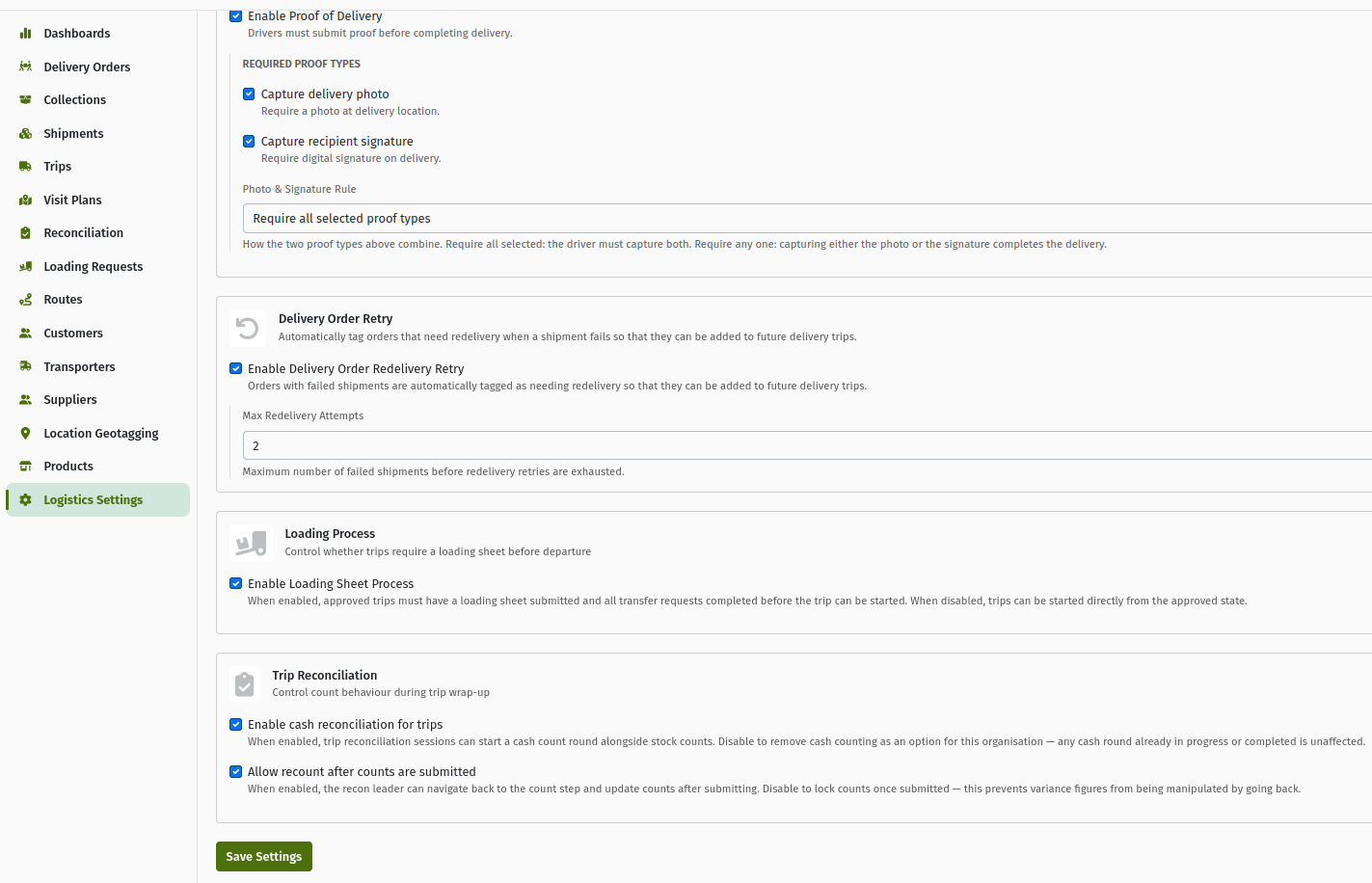 The Logistics settings page, showing the "Enable Loading Sheet Process" option and its description.
The rest of this guide assumes the setting is on.
3. Before you start
| Requirement | Details |
|---|---|
| The Trip is approved | A Loading Request can only be created from a Trip in APPROVED (additional, manual ones can also be created for LOADED and IN_PROGRESS Trips — see section 5). The Trip's Loading Request tab is hidden while the Trip is Draft or Ready. |
| The Trip has a vehicle | The Trip's vehicle decides which Vehicle Warehouse the stock goes to. Every status change on a Trip (other than cancelling or archiving) needs a vehicle, so an approved Trip always has one. |
| Shipments have been generated | When a Trip is approved, the system generates its Shipments in the background — one per Delivery Order. The pre-filled Loading Request is built from those Shipments, so wait until the Shipments tab shows them. |
| Stock is available | The source warehouses need enough stock: the Transfers that load the vehicle are checked for sufficient stock when they are approved and completed. |
| Permissions | See section 15. |
4. Creating the Loading Request (from the Trip)
Approving a Trip does not create its Loading Request. Someone has to create it, and until they do the Trip shows a banner: "This trip is approved but doesn't have a loading request yet. Head to the Loading Request tab to create one — a submitted loading request is required before the trip can be loaded and started."
- Open the Trip (Logistics → Trips, then the Trip) — it must be APPROVED.
- Go to the Loading Request tab. You'll see "No Loading Request For Trip".
- Click Create Loading Request.
 An approved Trip with no Loading Request yet — the blue banner asks you to create one, and the "Loading Request" tab shows "No Loading Request For Trip" with the Create Loading Request button.
The system creates a DRAFT Loading Request with one line per product, adding up the quantities of that product across all of the Trip's delivery Shipments. Quantities are pre-filled for you — there is nothing to type in to create it.
A few things are deliberately left out of the pre-filled lines:
- Pickup / collection shipments — only delivery shipments need stock loaded.
- Orders marked "does not require a loading request" — when an order is added to a trip with that option ticked, the order is tagged Loading Request Bypassed and its quantities are not requested (see section 11).
If the Trip is not Approved, the tab instead says "A loading request can only be created while the trip is Approved."
Each Loading Request has its own number starting LREQ/ (for example LREQ/IBU/HEA/0001/00000016). That's the number you'll see on the Trip, in the list and on the detail page.
5. Additional and automatic Loading Requests
A Trip can have more than one Loading Request. Apart from the first, pre-filled one, there are two other ways a Loading Request appears on a Trip.
5.1 Manual (additional) Loading Requests
Once a Trip has at least one Loading Request and none of them is a draft, the Loading Request tab shows a second Create Loading Request button above the existing request(s). This one creates an empty manual Loading Request that you fill in yourself. It is available while the Trip is APPROVED, LOADED or IN_PROGRESS — so it can also be used to top up a vehicle that is already on the road.
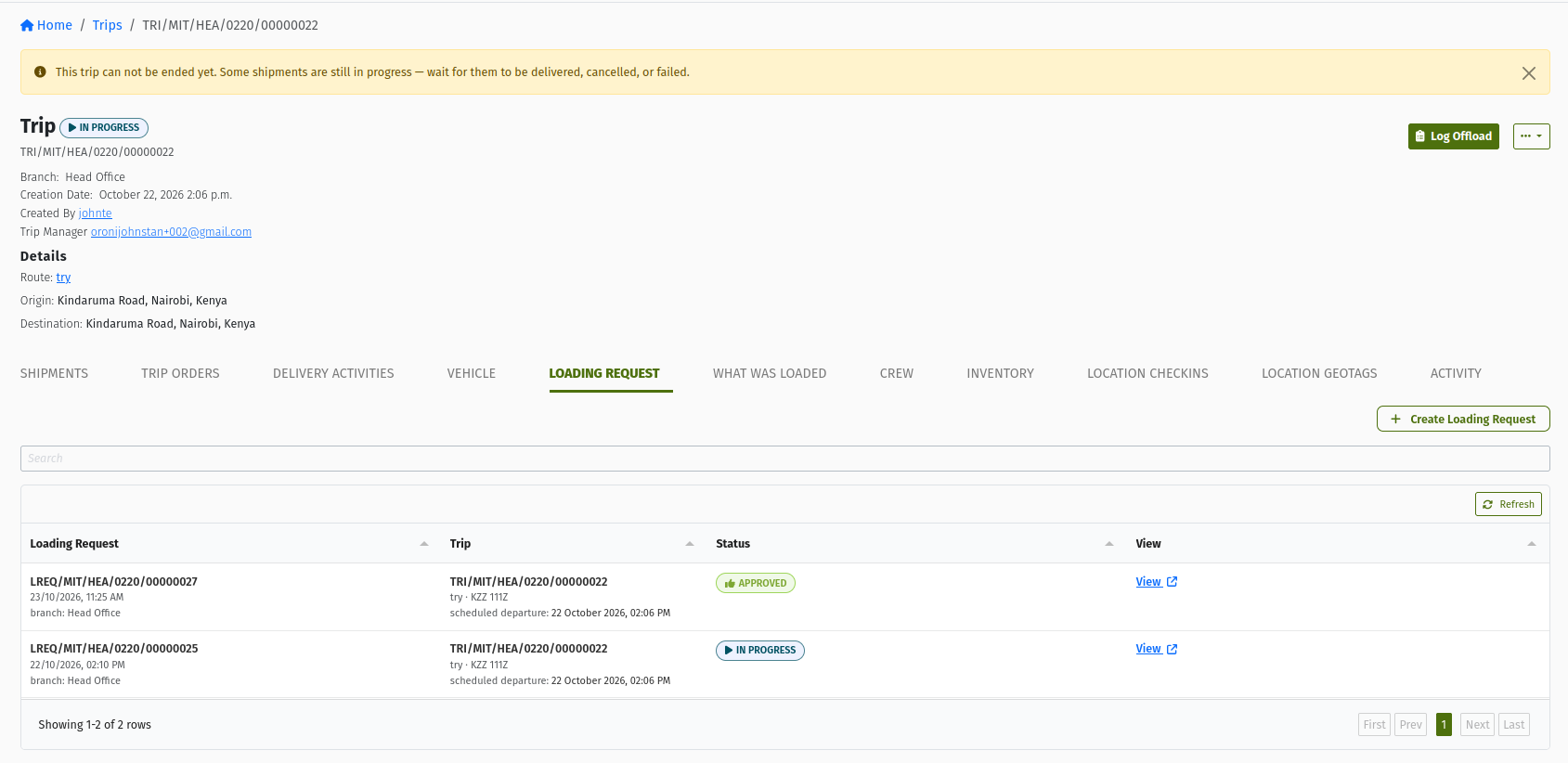 The Trip's Loading Request tab when the Trip already has an approved Loading Request — the outlined "+ Create Loading Request" button above the existing request creates an additional, empty one.
To build a manual Loading Request:
- Click the Create Loading Request button above the existing request(s). A new, empty DRAFT appears.
- In the Add Item row, pick the Product, enter the Quantity, choose the Warehouse it should come from, and click Add Item. Adding the same product and warehouse again increases the existing line instead of creating a duplicate.
- Repeat for every extra product, then submit as in section 7.
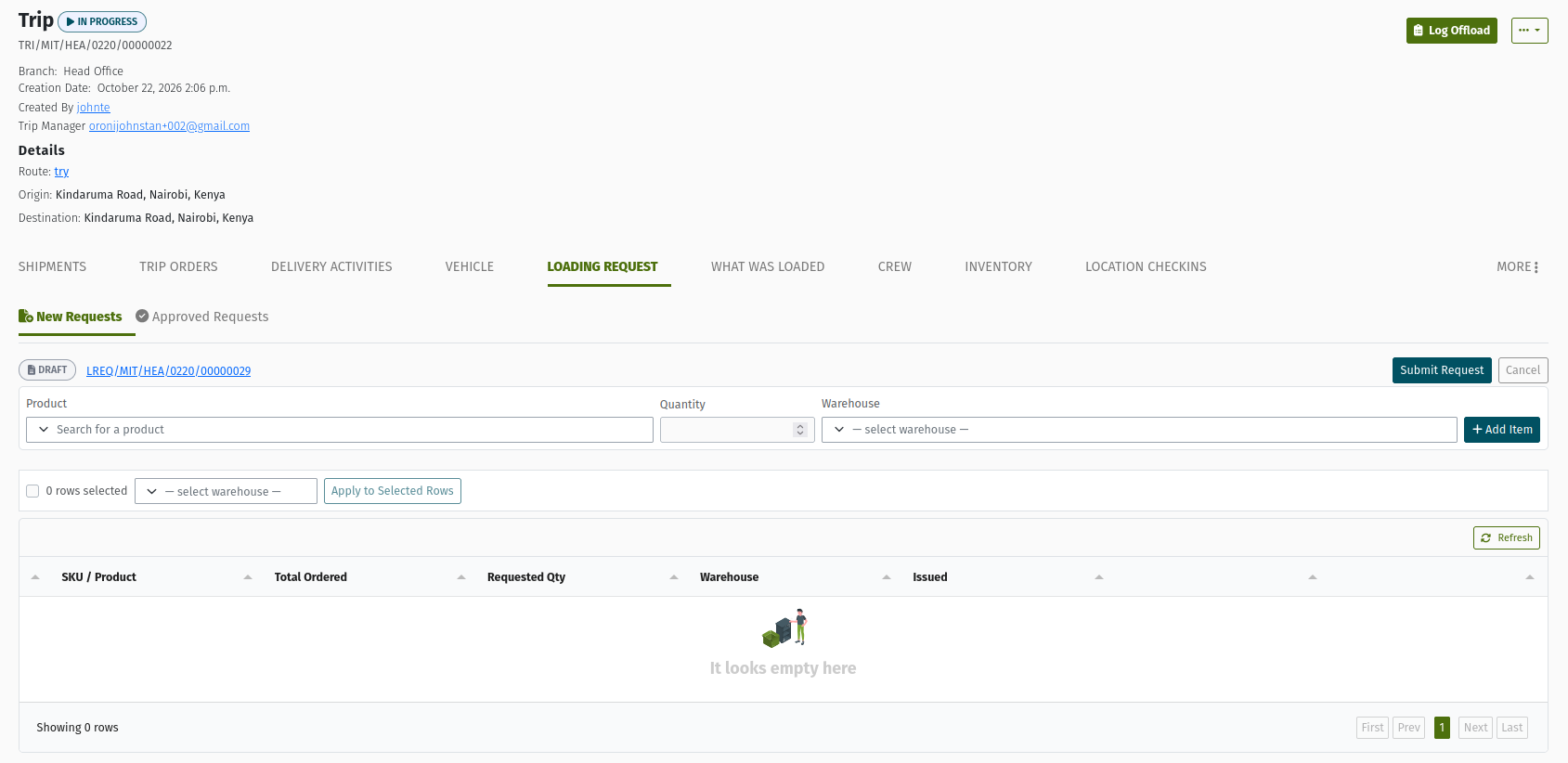 A manual (additional) draft Loading Request — the Add Item row with Product, Quantity and Warehouse fields sits above the Loading Sheet.
A manual Loading Request should contain only the extra items you need on the vehicle — never re-enter everything on the Trip. Anything already covered by an approved, in-progress or complete Loading Request would be requested, and loaded, a second time.
5.2 The automatic draft when orders are added later
When more Delivery Orders are added to a Trip that is already Approved or In Progress, the system generates their Shipments and then updates the Trip's loading plan automatically:
- If the Trip already has a draft Loading Request, the new quantities are added into it.
- If there is no draft but there is an Approved or In Progress Loading Request, the system creates a new draft Loading Request automatically containing just the new orders' quantities. Existing Loading Requests are never changed.
When a Trip has both a draft and other Loading Requests, the tab shows two pills: New Requests (the draft waiting to be submitted) and Approved Requests (the Loading Requests that have already been submitted — approved, in progress or finished).
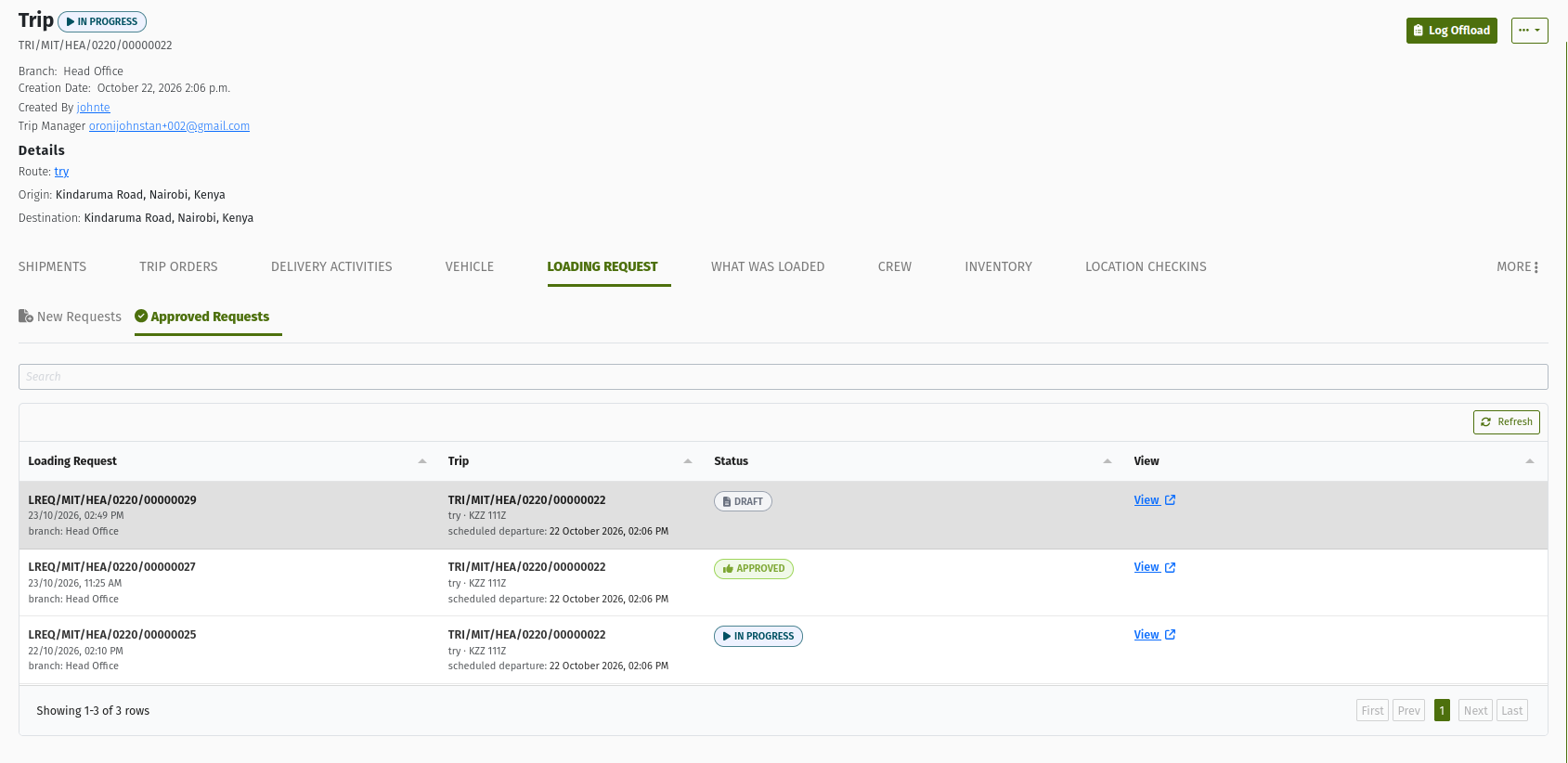 The Trip's Loading Request tab with an automatically created draft — the "New Requests" pill shows the draft with its Submit Request button, and the "Approved Requests" pill holds the Loading Request that was already submitted.
The full rules — including when nothing is created automatically — are in section 11.
5.3 Only one draft at a time
A Trip can only have one draft Loading Request at a time. While a draft exists, the additional Create Loading Request button is not shown and any new quantities go into that draft. Submit (or cancel) the draft before creating another one.
6. Filling in the Loading Sheet
The Loading Sheet is the editable table of a draft Loading Request on the Trip's Loading Request tab. You work directly in the rows — no side panel needed. It shows, for each product: Total Ordered, Requested Qty, Warehouse and Issued.
- For each row, choose the Warehouse the stock should come from, and adjust Requested Qty if needed.
- To set the same warehouse on several rows at once, tick their checkboxes, pick the warehouse in the toolbar and click Apply to Selected Rows.
- Click Save on a row to save your change to it. (Submitting also saves every row for you.)
- Use Refresh to reload the table, for example after orders were added to the Trip.
Every row needs a warehouse and a quantity greater than zero before the request can be submitted.
 A draft Loading Sheet on the Trip's Loading Request tab — Total Ordered, Requested Qty, Warehouse and Issued columns with a Save button per row, the "Apply to Selected Rows" toolbar, and the Submit Request and Cancel buttons. The banner at the top reminds you the draft hasn't been submitted yet.
The warehouse you pick on the Loading Sheet is a suggestion for the loading team. When they dispatch the line, the form shows it as "Suggested warehouse", and they can choose a different source if the stock is somewhere else.
When extra quantities are added into a draft after you've already set a warehouse on a product, they can arrive as a separate row for the same product without a warehouse. Set the warehouse on that row too before you submit.
7. Submitting the Loading Request
There are two ways to submit a draft. Most teams use the first.
7.1 Submit Request (from the Trip)
- On the Trip's Loading Request tab, click Submit Request.
- If any row is missing a warehouse or has an invalid quantity, you're told how many rows need fixing before you can continue.
- Confirm the dialog: "Submit loading request? Once submitted, this request will be approved and visible to dispatch staff." — click Yes, submit.
 The "Submit loading request?" confirmation dialog, with Cancel and Yes, submit.
This one click saves every row and approves the request in one go — the request passes through READY and lands in APPROVED, ready for the loading team. To be approved, the request needs at least one line, and every line needs a requested quantity greater than zero.
7.2 Submit, then Approve (from the detail page)
You can also work from the Loading Request's own detail page (click its LREQ/ number). On a draft that has at least one line, the detail page shows Submit, which moves the request to READY (the confirmation screen is "Mark transfer request as ready"). A Ready request then shows Approve, which moves it to APPROVED. Use this path if your team wants one person to prepare the request and another to approve it.
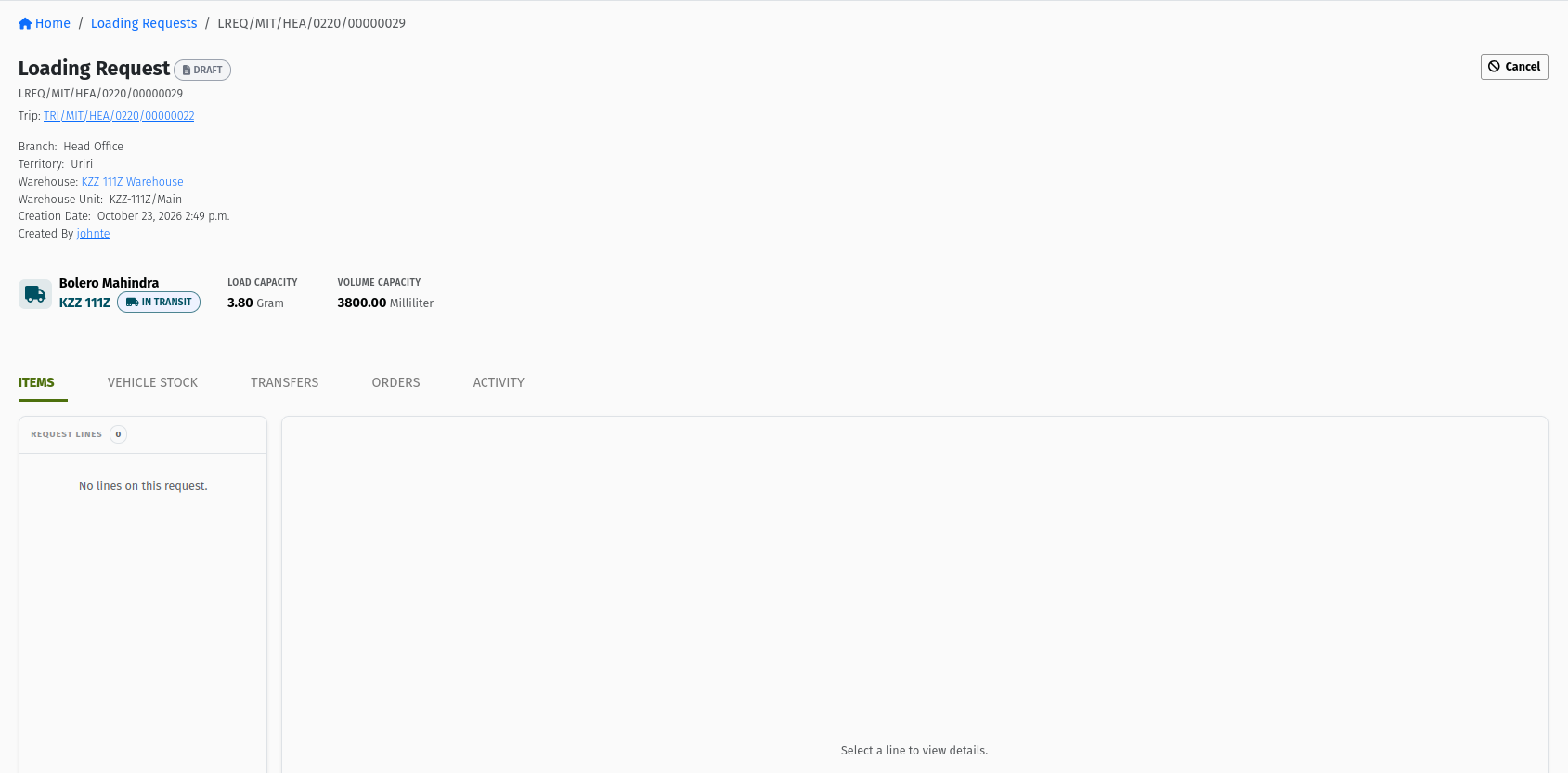 A draft Loading Request's detail page, with the Submit and Cancel buttons at the top right.
7.3 The approved Loading Request
 An approved Loading Request's detail page — the Trip link, the Vehicle Warehouse and unit it loads into, the vehicle block, the Start Loading / Change Vehicle / Cancel buttons, and the Items tab showing "Fulfillment is locked".
The detail page shows the Trip it belongs to, the destination Warehouse and Warehouse Unit (the vehicle's own warehouse), the vehicle with its load and volume capacity, and these tabs: Items, Vehicle Stock, Transfers, Orders and Activity.
8. Start Loading
Once APPROVED, nothing can be dispatched until someone clicks Start Loading. This is the moment the loading team takes the request on and the vehicle is committed to this Trip.
Before you click Start Loading, the Items tab shows: "Fulfillment is locked. Use the Start Loading button to begin dispatching stock." — this is expected, not a fault.
 The Items tab of an approved Loading Request — each line shows NOT STARTED and "Fulfillment is locked" until Start Loading is clicked.
- On the Loading Request detail page, click Start Loading.
- On the Start Loading screen, check the Vehicle panel (it confirms the vehicle assigned to this Trip). Optionally use the Assign crew panel to add or remove crew — crew changes save immediately and don't depend on you clicking Start Loading.
- Optionally add Notes, then click Start Loading to confirm.
 The "Start Loading" screen — the Vehicle panel, the optional Assign crew panel, optional Notes, and the Go back / Start Loading buttons.
The request moves to IN_PROGRESS and the vehicle's status moves from Reserved to Loading.
8.1 What Start Loading checks
Before letting loading begin, the system checks that the vehicle is genuinely free to load for this Trip. Start Loading is refused if:
| Check | Why | Example message |
|---|---|---|
| The Trip is no longer live | Loading is only possible while the Trip is Approved, Loaded or In Progress. A cancelled, failed or finished Trip can't load (and the Start Loading button isn't shown). | "… is CANCELLED — loading request … can no longer load." |
| The vehicle has an earlier trip awaiting reconciliation | A vehicle's previous Trip (Complete or Failed) must be reconciled before it can be loaded again, so the stock count of the vehicle isn't mixed up with new stock. | "Vehicle … cannot be used until … is reconciled." |
| The Vehicle Warehouse is locked by a stock count | While the vehicle's stock is being counted (for example during reconciliation), nothing may be loaded into it. | "Warehouse '…' is locked for a stock count. Loading cannot begin until the stock count is complete." |
| The vehicle is loaded or out for another trip | A vehicle that is Loaded for, or out on, a different Trip can't start loading for this one. | "Vehicle '…' is currently out on trip … Loading cannot begin until that trip is complete." |
| The vehicle is being loaded for another trip | Only one Trip can be loading a vehicle at a time. | "Vehicle '…' already has a loading request in progress (…) for trip …" or "… is currently being loaded for trip … Loading for this request cannot begin until that loading is complete." |
Two things are deliberately allowed:
- Mid-route top-up for its own Trip. If this Loading Request belongs to the Trip the vehicle is currently out on (the Trip is In Progress), loading can start — that's how you top up a vehicle on the road.
- Several Loading Requests on the same Trip. Loading Requests of the same Trip don't block each other; they can be in progress and loaded in parallel.
 The Start Loading screen refusing to start — the red banner explains that vehicle 'VDD 800' is currently out on another trip and loading cannot begin until that trip is complete.
The Trip page also shows warning banners for these situations — for example "Vehicle … is awaiting reconciliation on trip …" or "Vehicle warehouse is locked for a stock count…" — so you can see the problem before you get to Start Loading. In every case, wait for the situation to clear (or speak to whoever is handling the conflicting trip or stock count).
9. Dispatching stock (fulfilling lines)
Once IN_PROGRESS, the loading team dispatches the stock one line at a time from the Items tab.
Click a product line on the left. On the right you see its Requested, Fulfilled and Outstanding quantities, a "covered" percentage, and the fulfilment buttons:
 A selected line once loading has started — the Requested / Fulfilled / Outstanding summary and the Fulfill via MO and Fulfill via Transfer buttons (Receive from Supplier also appears here for users with that permission).
| Button | Use it when | What it creates |
|---|---|---|
| Fulfill via Transfer | The stock is already in one of your warehouses — the everyday case. | A Transfer from the source warehouse unit into the Vehicle Warehouse. |
| Fulfill via MO | The product still has to be produced before it can be loaded. | A Manufacturing Order. |
| Receive from Supplier | The goods come straight from a supplier onto the vehicle. Only shown to users with the permission to fulfil via receive. | A Receive (goods receipt) from the supplier directly into the Vehicle Warehouse. |
Only one fulfilment can be in progress per line at a time. While one is open, the line shows "A transfer fulfillment is already in progress for this line. Finish it before starting another." and the buttons are greyed out until it finishes.
9.1 Fulfill via Transfer
- Click Fulfill via Transfer.
- In the Fulfill request line panel, check the "Suggested warehouse" (the one chosen on the Loading Sheet) and the Requested / Committed / Fulfilled / Outstanding figures.
- Fill in:
- Source Warehouse unit — where the stock is being taken from.
- Quantity — how much to load now. It can't be more than what is still outstanding and not already committed to another open fulfilment.
- Click Submit.
 The "Fulfill request line" panel for a transfer — the suggested warehouse, the Requested / Committed / Fulfilled / Outstanding figures, and the Source Warehouse unit and Quantity fields.
The system creates a Transfer (number starting TRF/) from the source unit into the Vehicle Warehouse, in READY status. If you dispatch several lines from the same source warehouse, they're grouped onto the same ready Transfer.
Creating the Transfer does not move any stock yet. The Transfer has to be approved and completed under Inventory → Transfers (follow the Transfer link in the line's Fulfillment Chain) — see Stock Movements. Only when the Transfer is complete does the stock arrive in the Vehicle Warehouse, and only then does the line's Fulfilled (issued) quantity go up. Until then the quantity shows as committed / "in pipeline", and the line can still say NOT STARTED.
 A line with a Transfer raised but not yet completed — the Fulfillment Chain shows the Stock Transfer (Head_Office/Main → VDD-800/Main) in READY, "Committed 1 · Fulfilled 0", the line still NOT STARTED, and the "already in progress" warning greying out the buttons.
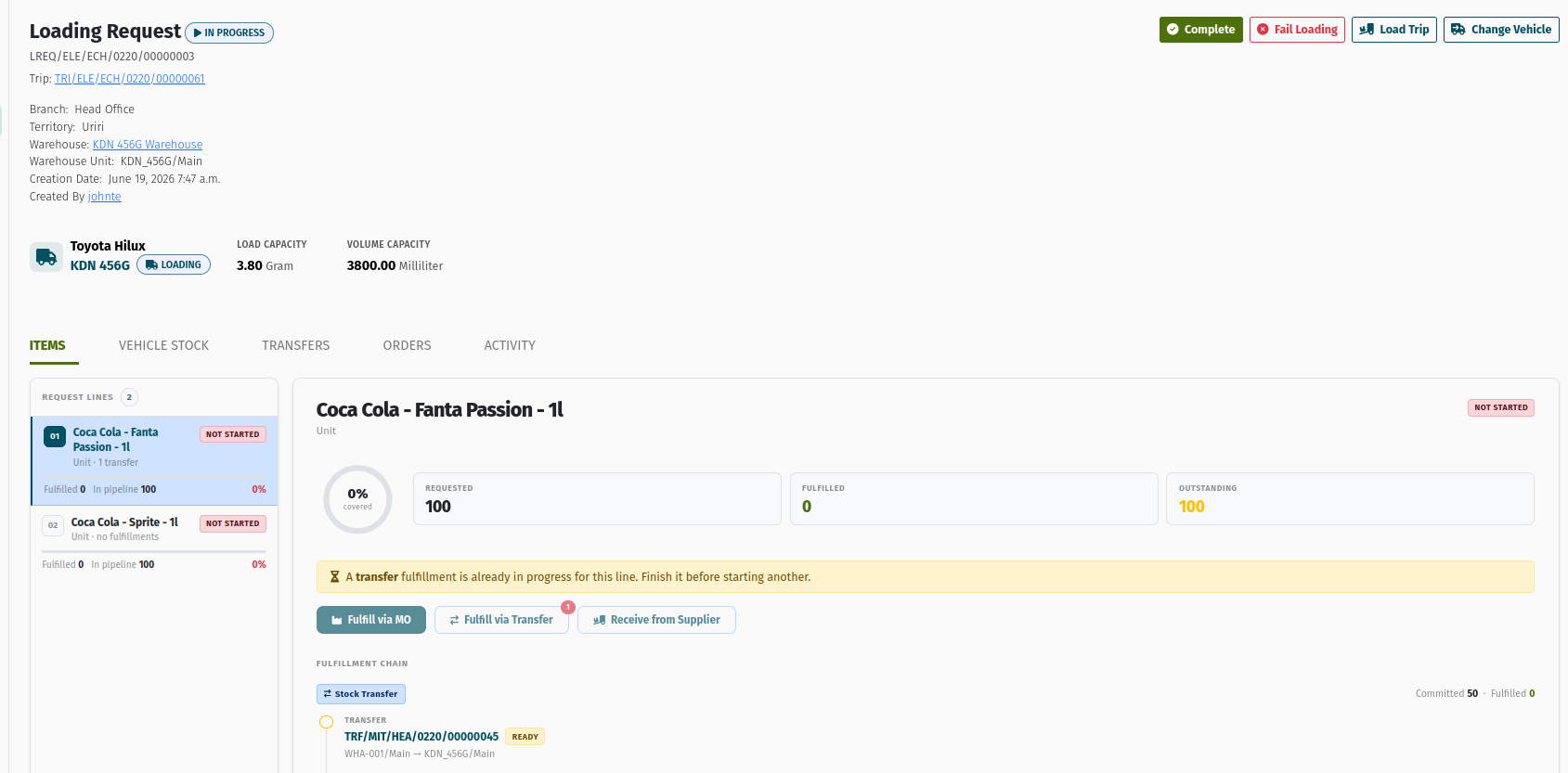 The Transfer generated by a Loading Request, opened from the Fulfillment Chain — its source unit and the Vehicle Warehouse as destination, with the button to move it on towards Complete.
9.2 Fulfill via Manufacturing Order
Use this when the product still needs to be produced before it can be loaded. See the Manufacturing Orders guide and Bill of Materials guide for how production works.
- Click Fulfill via MO.
- Fill in Bill of Materials (BOM), Manufacturing Warehouse Unit, Quantity and Finished Goods Warehouse Unit.
- Click Submit to raise the order.
Each step of production (materials in, the order itself, finished goods out) is recorded in the line's Fulfillment Chain. The line only counts as loaded once the finished goods have actually arrived in the Vehicle Warehouse through a completed transfer.
9.3 Receive from Supplier
Use this when a supplier delivers the goods straight onto your vehicle.
- Click Receive from Supplier (only visible if you have the permission).
- Choose the Supplier and enter the Quantity.
- Click Submit.
The system creates a Receive document from the supplier into the Vehicle Warehouse. As with a Transfer, the line's Fulfilled quantity only goes up once that Receive is completed (under Inventory → Issue & Receive → Receive).
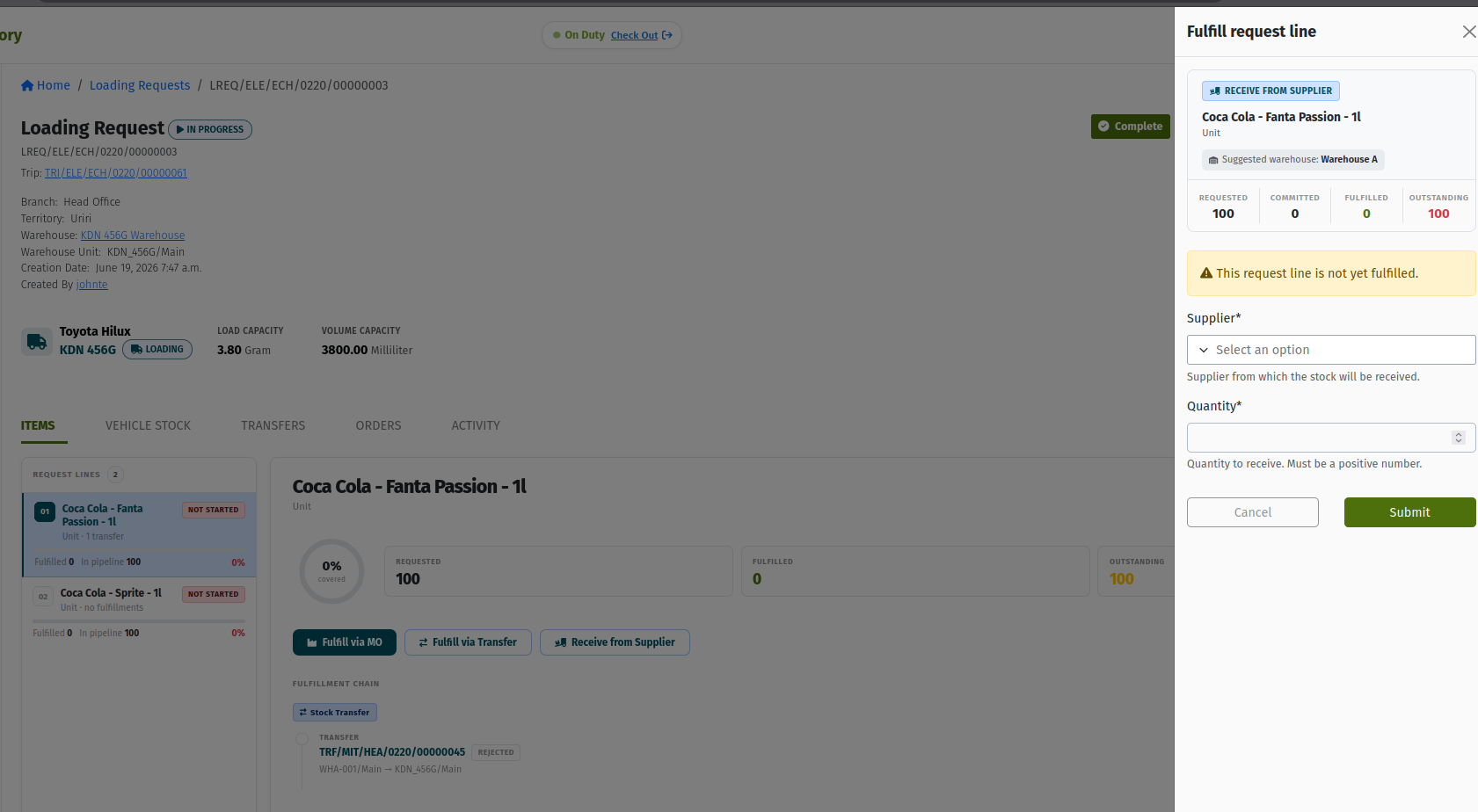 The "Fulfill request line" panel for a supplier receive — the Supplier and Quantity fields.
9.4 Line progress
As stock arrives in the Vehicle Warehouse, each line's badge moves from NOT STARTED (nothing fulfilled yet) to IN PROGRESS (part of it fulfilled) to DONE (nothing outstanding). Each line in the left-hand list also shows "Fulfilled" and "In pipeline" figures and a percentage, and the Fulfillment Chain under the selected line records every transfer, receive or manufacturing step taken for it.
The Vehicle Stock tab shows what is currently in the Vehicle Warehouse, and the Transfers tab lists the documents raised for this request.
Several Loading Requests on the same Trip can be in progress at the same time — for example the original request and an extra one for orders added later. The loading team can work on them in parallel.
10. Finishing loading, and getting the Trip to Loaded
While IN_PROGRESS, the Loading Request's detail page shows Complete, Fail Loading, Load Trip (only while the Trip is still Approved) and Change Vehicle. Complete and Load Trip do genuinely different things — this is the part most worth learning carefully.
 An in-progress Loading Request whose lines are all DONE — the Complete, Load Trip and Change Vehicle buttons at the top right.
10.1 Complete (Finish Loading) — finishes this Loading Request
Finishing a Loading Request is always a manual step. Even when every line is DONE, the request stays In Progress until someone clicks Complete.
- Click Complete.
- The Finish loading screen asks you to "Confirm all stock has been dispatched to the vehicle." It shows the Vehicle panel and the optional Assign crew panel again.
- Add Notes if needed and click Finish Loading.
 The "Finish loading" screen — "Confirm all stock has been dispatched to the vehicle.", the Vehicle and optional Assign crew panels, Notes, and the Go back / Finish Loading buttons.
Rules when finishing:
- Every fulfilment must be settled first. Any Transfer, Receive or Manufacturing Order raised for this request must be completed, rejected or cancelled. Otherwise you'll see "Can't complete …: … still pending — … Complete, reject or cancel them first."
- If nothing was loaded, a note is required. The screen warns "No stock has been loaded onto the vehicle for this request. Add a note explaining why you're completing it without dispatching anything."
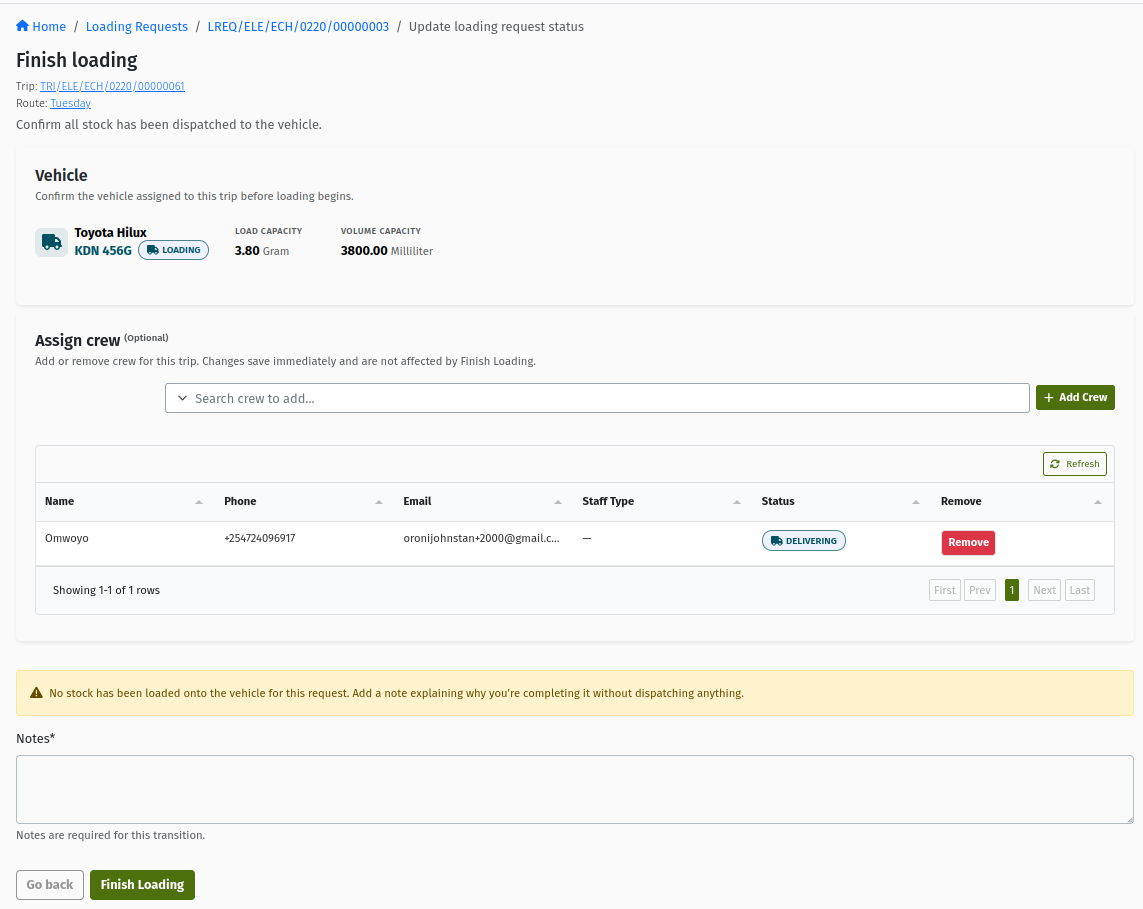 The "Finish loading" screen for a request where nothing was dispatched — the yellow warning asking for a note explaining why.
When a Loading Request completes, the system records a snapshot of what was loaded (visible on the Trip's What Was Loaded tab once the Trip is Loaded).
10.2 The Trip moves to Loaded
The Trip moves to LOADED automatically when its last open Loading Request is completed — that is, when the Trip is still Approved and none of its other Loading Requests is still Draft, Ready, Approved or In Progress. If another Loading Request is still open (for example an automatic draft for added orders), completing one request does not load the Trip.
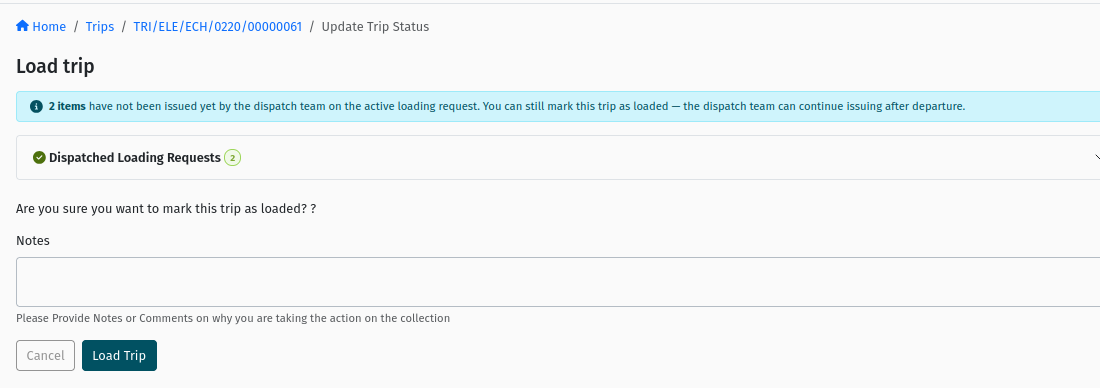
When you need to mark the Trip as loaded before every Loading Request has finished, there are two buttons that open the same Load trip confirmation:
| Button | Where | When it's shown |
|---|---|---|
| Load Trip | On an in-progress Loading Request's detail page | While that Loading Request is In Progress and the Trip is still Approved |
| Mark Trip as Loaded | On the Trip's detail page | When the Trip is Approved, has more than one Loading Request, and at least one of them is In Progress or Complete |
The Load trip screen summarises the loading so far — for example "All items have been issued by the dispatch team. You're good to mark this trip as loaded.", or warnings that some items haven't been issued yet, that a Loading Request is still in draft ("Some items were never sent to the warehouse."), or that one was cancelled. Expand Dispatched Loading Requests to see each product's requested and dispatched quantities, then click Load Trip.
 The Trip's "Load trip" confirmation — the green "All items have been issued by the dispatch team" banner, the Dispatched Loading Requests section (2), Notes, and the Load Trip button.
 An approved Trip with more than one Loading Request — the Mark Trip as Loaded button at the top of the Trip page.
Most of the time you won't need Load Trip or Mark Trip as Loaded at all — complete every Loading Request and the Trip becomes Loaded on its own. Read the Load trip screen's warnings carefully if you do use them: anything not yet issued is not on the vehicle.
10.3 Dispatching the Trip
Once the Trip is LOADED, the Trip page shows Start Trip. Starting the trip asks for the vehicle's current Mileage (km), moves the Trip to IN_PROGRESS and the vehicle to In Transit. See the Trips guide for dispatch and closure.
10.4 What happens to Loading Requests as the Trip moves on
| Trip event | What happens to its Loading Requests |
|---|---|
| Trip departs (Loaded → In Progress) | Approved Loading Requests that never started loading are cancelled with the note "Trip departed." Drafts and Ready requests are kept, so they can still be used for a mid-route reload. In-progress requests stay open. |
| Trip ends or fails on the road (In Progress → Complete / Failed) | Draft, Ready and Approved Loading Requests are cancelled. |
| Trip fails before departure (Approved → Failed) | Open Loading Requests are cancelled and the vehicle is held for reconciliation. A Trip can't be failed while one of its Loading Requests is In Progress — complete it or use Fail Loading first. |
| Trip is cancelled (Approved → Cancelled) | Its Loading Requests are cancelled, along with its Shipments and the vehicle reservation. An Approved Trip can only be cancelled before loading has started; once loading has started it must be failed instead. |
Finish (or fail) every in-progress Loading Request before you end the Trip, so the loading record matches what's actually on the vehicle.
11. Additional orders and additional Loading Requests
Orders are often added to a Trip after loading has been planned — a late order, a split delivery, a customer top-up. This section explains when that needs a new Loading Request and when it doesn't. The Trip Lifecycle guide is the authority on the overall rules for adding orders to trips; this section covers what it means for loading.
Orders can be added to Trips that are Draft, Returned, Approved or In Progress — not Ready and not Loaded. (Use the Trip's Trip Orders tab and Add or Update, or Assign Trip on the Delivery Order — see Delivery Orders.) For Approved and In Progress Trips, the system generates the new Shipments in the background and then applies these rules:
| Situation when the order is added | Does the system update loading? | What you do |
|---|---|---|
| Trip is Draft or Returned | Nothing to update yet — the order simply joins the Trip. | Nothing extra. After approval, Create Loading Request includes it. |
| Trip is Approved, no Loading Request yet | No Loading Request exists to update. | Click Create Loading Request — the pre-filled request includes the new order. |
| A draft Loading Request exists | Yes — the new quantities are added into the draft. | Review the draft (set warehouses on any new rows) and Submit Request. |
| No draft, but an Approved or In Progress Loading Request exists | Yes — a new draft Loading Request is created automatically with just the new quantities (shown under New Requests). | Submit that draft, then Start Loading and dispatch it like any other. Don't create another one. |
| None of the above — e.g. every Loading Request is already Complete, or the Trip is In Progress and its approved requests were cancelled when it departed | No — nothing is created. | Create a manual Loading Request (section 5.1) and Add Item for the extra products only — or, if the stock is already on the vehicle, tick "does not require a loading request" when adding the order. |
| Trip is Loaded | Orders can't be added. | Start the Trip and add the order once it's In Progress (then use a manual Loading Request to top up), or put the order on another Trip. |
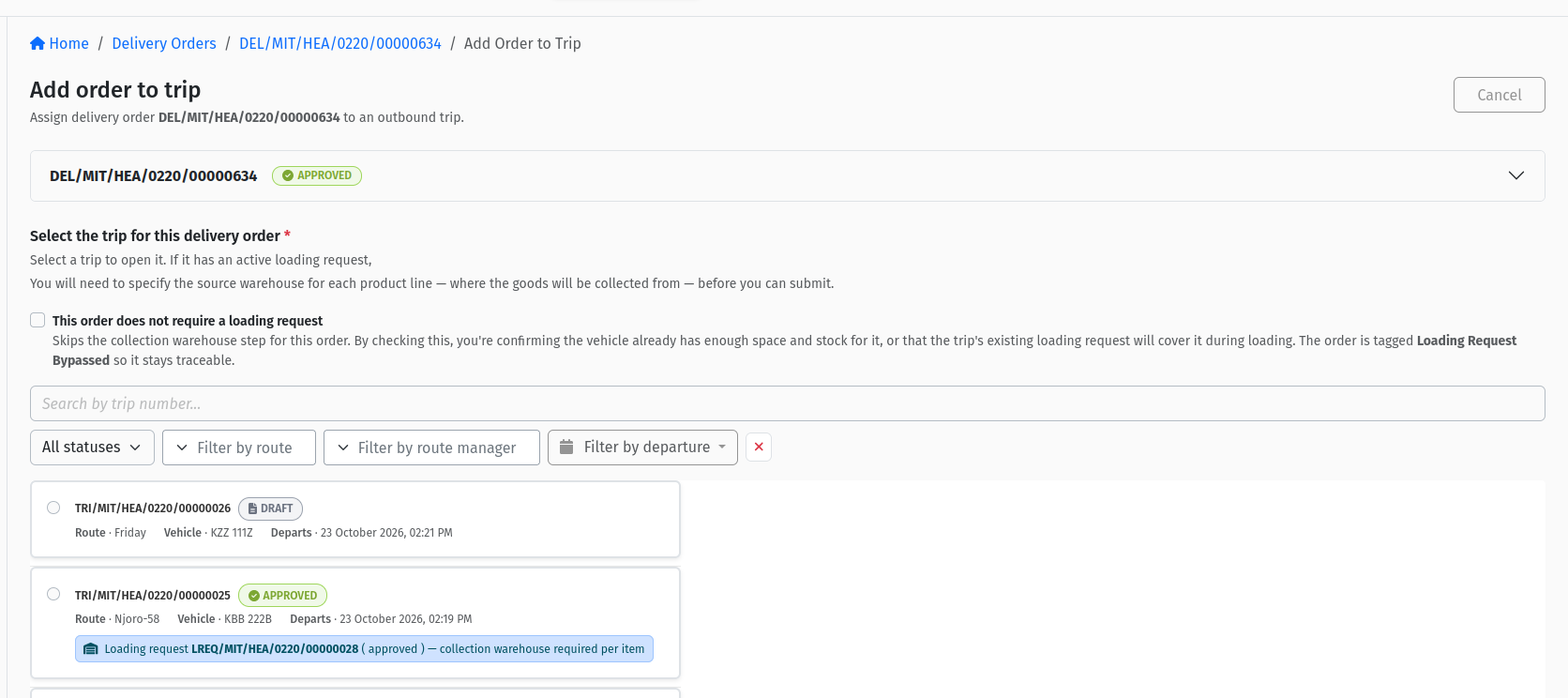 The Trip Orders tab after clicking Add or Update on a Trip that already has a Loading Request — the "These orders do not require a loading request" option with Cancel and Confirm.
11.1 The golden rules
- Never create a second full Loading Request while the Trip has one that is Approved, In Progress or Complete. A full, pre-filled Loading Request requests all of the Trip's stock — creating another one would request (and load) everything again. The pre-filled Create Loading Request is meant to be used once per Trip; don't use it from an old browser tab that still shows the empty state.
- For added orders, use the automatic draft when the system creates one — submit it rather than making another.
- When no draft is created, use a manual Loading Request containing only the extra items.
- Only tick "does not require a loading request" when you're sure the stock is already on the vehicle (or already covered by an existing Loading Request). Those orders are tagged Loading Request Bypassed and their quantities are never requested for loading.
11.2 Worked example
Trip TRI/…/014 is Approved. Its first Loading Request (LREQ/…/016) is In Progress and the loading team is halfway through. A dispatcher adds two more Delivery Orders to the Trip.
- The system generates two new Shipments and creates a new draft Loading Request containing just those two orders' products. The Trip's Loading Request tab now shows New Requests and Approved Requests.
- The dispatcher opens New Requests, sets the warehouse on each row and clicks Submit Request.
- The loading team clicks Start Loading on the new request — it can run alongside LREQ/…/016 — and dispatches its lines.
- When LREQ/…/016 is completed, the Trip does not become Loaded yet, because the new request is still open. When the new request is completed too, the Trip moves to Loaded automatically. (If the vehicle must leave earlier, Mark Trip as Loaded is available on the Trip page.)
12. Change Vehicle, Cancel and Fail Loading
12.1 Change Vehicle (wizard)
If the vehicle has to be swapped once loading is planned, use the Change Vehicle button on the Loading Request's detail page. It's shown when the Loading Request is Approved, In Progress or Complete and the Trip hasn't finished (it isn't Complete, Reconciled, Failed, Archived or Cancelled).
The Trip's Vehicle tab also has a Change Vehicle button, but it's hidden as soon as the Trip has a Loading Request that isn't finished. From that point on, the vehicle is changed with this wizard on the Loading Request instead — it takes care of the stock already on board.
The wizard has three steps (you can Cancel switch at any point):
- Pick & transfer stock — choose the vehicle in Switch to (only Available or Reserved vehicles are listed) and add optional Notes, then click Switch vehicle. If the current vehicle already has stock on board, choose whether to transfer it to the new vehicle (the default) or switch without transferring (you must give a reason).
- Reassign Crew — decide who's staying on the Trip.
- Summary — review and finish. If a stock transfer was created, the switch finishes automatically once that transfer is completed.
When the switch finishes, the Trip's vehicle is updated and any open Loading Requests are re-pointed at the new vehicle's Vehicle Warehouse. See the Vehicles guide for the full wizard and its rules.
 The first screen of the Change Vehicle wizard — the Trip's current vehicle, the "Switch to" vehicle picker, optional Notes, and the Cancel / Switch vehicle buttons.
12.2 Cancelling a Loading Request
A Loading Request can be cancelled while it is DRAFT (the Cancel button on the Loading Sheet or detail page) or APPROVED (the Cancel button on the detail page). Once loading has started it can't be cancelled — use Complete or Fail Loading instead.
A note is required, and the screen warns: "Cancelling this loading request assumes the vehicle or warehouse already holds enough stock to satisfy the delivery requests on this trip. Add a note confirming this before proceeding." Read it carefully: the system trusts that you've confirmed the stock is still covered another way.
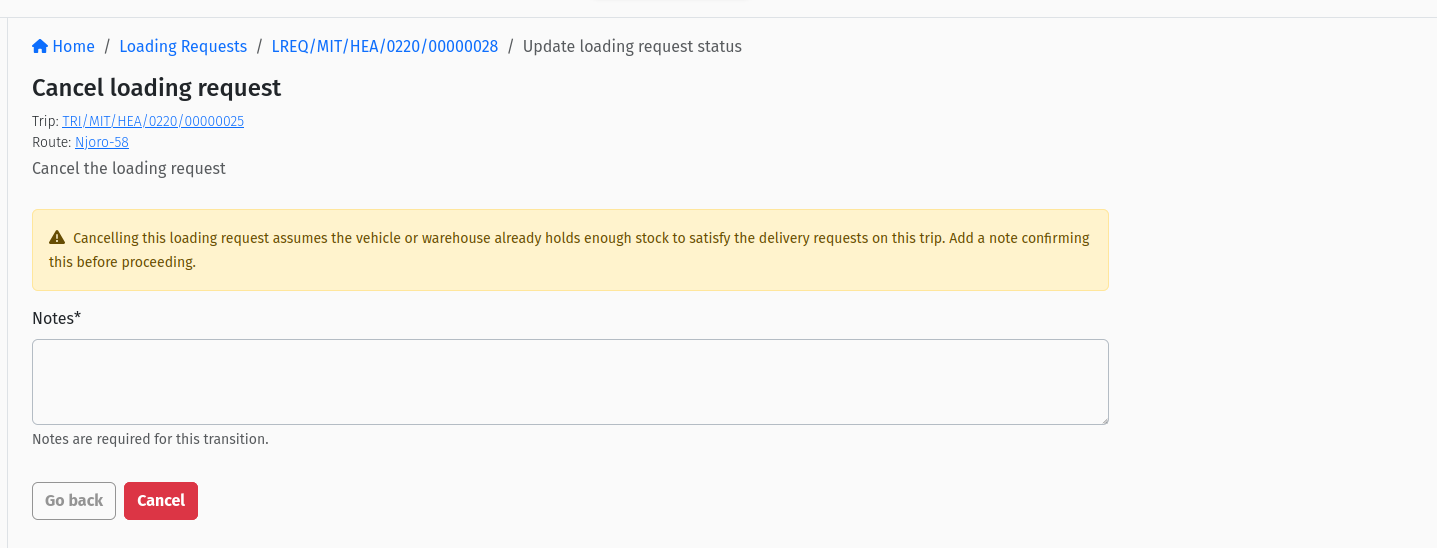 The "Cancel loading request" screen — the stock-assumption warning, the required Notes field, and the Cancel button.
12.3 Fail Loading
Fail Loading (on an in-progress Loading Request) abandons the request when loading can't go ahead. The Fail request screen explains: "Abandon this request. Every transfer, receive note and manufacturing order raised against it must be completed, rejected or cancelled first." A note is required; confirm with Fail Request. The request becomes FAILED — a final status — and the vehicle is released back to Reserved where appropriate.
13. How loading enables dispatch and delivery
Loading Request lines
   ↓  Fulfill via Transfer / MO / Receive from Supplier
Transfer (or Receive) completed  →  stock is in the Vehicle Warehouse
   ↓
Loading Request completed  →  Trip LOADED  →  Start Trip  →  Trip IN_PROGRESS
   ↓
Driver delivers a Shipment  →  Goods Issue Note out of the Vehicle Warehouse
   ↓
All Shipments finished and their Goods Issue Notes complete  →  End Trip  →  Reconciliation
- Every delivered Shipment issues its goods out of the Vehicle Warehouse through a Goods Issue Note. Like any issue, it needs the stock to be there.
- If a product was never loaded — its Transfer was never completed, or an added order was never put on a Loading Request — the delivery's Goods Issue Note can't be completed for lack of stock, and End Trip stays blocked until it is.
- After the Trip ends, Reconciliation counts what is left in the Vehicle Warehouse. Good loading records make that count straightforward.
See Shipments for delivery and the Trips guide for ending and reconciling a Trip.
14. Statuses and transitions
DRAFT ──Submit Request──────────────→ APPROVED
DRAFT ──Submit──→ READY ──Approve──→ APPROVED
APPROVED ──Start Loading──→ IN_PROGRESS ──Complete──→ COMPLETE ──→ ARCHIVED
                              │
                              └──Fail Loading──→ FAILED
DRAFT / APPROVED ──Cancel──→ CANCELLED
READY ──→ REJECTED ──→ CANCELLED
14.1 Status meanings
| Status | What it means | What you can do |
|---|---|---|
| DRAFT | Being prepared — pre-filled from the Trip, created manually, or created automatically for added orders. Not yet visible to the loading team as work to do. | Edit the Loading Sheet, Add Item (manual requests), Submit Request, Submit, Cancel. |
| READY | Submitted from the detail page and waiting for approval. (Submit Request on the Loading Sheet passes straight through this status.) | Approve. |
| APPROVED | Signed off and visible to the loading team. Fulfilment is locked until Start Loading. | Start Loading, Change Vehicle, Cancel. |
| IN_PROGRESS | Loading is underway; the vehicle is Loading (or on the road, for a top-up). Lines can be fulfilled. | Fulfil lines, Complete, Fail Loading, Load Trip (Trip still Approved), Change Vehicle. |
| COMPLETE | Loading finished for this request. The Trip becomes Loaded automatically if this was its last open Loading Request. | Change Vehicle (while the Trip isn't finished). |
| ARCHIVED | A completed request that has been archived. Read-only. | Nothing. |
| CANCELLED | Cancelled before loading started — by a user, or automatically when the Trip departed, ended, failed or was cancelled. Final. | Nothing. |
| FAILED | Loading was abandoned with Fail Loading. Final. | Nothing. |
| REJECTED | A Ready request that was turned down instead of approved. | It can only be cancelled. |
14.2 Transitions
| You are here | You click | It becomes |
|---|---|---|
| DRAFT | Submit Request (Loading Sheet) → Yes, submit | APPROVED |
| DRAFT | Submit (detail page) | READY |
| READY | Approve | APPROVED |
| DRAFT or APPROVED | Cancel (note required) | CANCELLED |
| APPROVED | Start Loading | IN_PROGRESS |
| IN_PROGRESS | Complete → Finish Loading | COMPLETE |
| IN_PROGRESS | Fail Loading → Fail Request (note required) | FAILED |
14.3 Actions at a glance
| Action | From | Preconditions | Result |
|---|---|---|---|
| Create Loading Request (pre-filled) | Trip, Loading Request tab | Trip Approved; no Loading Request yet | Draft with one line per product from the delivery Shipments |
| Create Loading Request (additional) | Trip, Loading Request tab | Trip Approved, Loaded or In Progress; at least one Loading Request and no draft | Empty manual draft with an Add Item row |
| Submit Request | Loading Sheet | Draft; every row has a warehouse and a quantity above zero | Approved |
| Start Loading | Loading Request page | Approved; Trip live; vehicle checks pass (section 8.1) | In Progress; vehicle Loading |
| Fulfill via Transfer / MO / Receive from Supplier | Items tab | In Progress; no other fulfilment open on the line | Transfer, Manufacturing Order or Receive raised; line updates when it completes |
| Complete | Loading Request page | In Progress; every fulfilment settled; note if nothing loaded | Complete; Trip Loaded if it was the last open request |
| Load Trip | Loading Request page | Request In Progress; Trip Approved | Trip Loaded |
| Mark Trip as Loaded | Trip page | Trip Approved; more than one Loading Request; one In Progress or Complete | Trip Loaded |
| Change Vehicle | Loading Request page | Request Approved, In Progress or Complete; Trip not finished | Vehicle switch wizard |
| Cancel | Loading Sheet / Loading Request page | Draft or Approved; note | Cancelled |
| Fail Loading | Loading Request page | In Progress; every fulfilment settled; note | Failed |
15. Permissions reference
| Permission | What it lets you do |
|---|---|
VIEW_TRANSFER_REQUEST | See the Loading Requests list and open a Loading Request. |
CHANGE_TRIP | Create Loading Requests from the Trip; Load Trip and Mark Trip as Loaded; Start Trip. |
CHANGE_TRANSFER_REQUEST | Edit, add and remove lines on a draft Loading Sheet. |
APPROVE_TRANSFER_REQUEST | Submit and Approve from the detail page; Start Loading, Complete and Fail Loading. |
FULFILL_TRANSFER_REQUEST_VIA_RECEIVE | See and use Receive from Supplier on a line. |
ADD_TRIP or CHANGE_TRIP | Use the Change Vehicle wizard. |
The loading team also needs access to the source warehouses, and whoever completes the generated Transfers needs the usual Transfer permissions (see Stock Movements).
16. Common mistakes and troubleshooting
| Message / symptom | Cause | What to do |
|---|---|---|
| "This trip is approved but doesn't have a loading request yet…" | Approval doesn't create the Loading Request. | Open the Loading Request tab and click Create Loading Request. |
| "A loading request can only be created while the trip is Approved." | The Trip is not Approved. | Approve the Trip first (see Trips). |
| There's no Loading Request tab on the Trip | The Trip is still Draft or Ready, or your organisation has the loading sheet process switched off. | Approve the Trip; if the setting is off, start the Trip directly from Approved. |
| "… row(s) are missing a warehouse or have an invalid quantity." | A Loading Sheet row has no warehouse or a zero / invalid quantity. | Fix the rows, then Submit Request again. |
| "Fulfillment is locked…" | The request is Approved but loading hasn't started. | Click Start Loading. |
| Start Loading refused with a vehicle or warehouse message | One of the checks in section 8.1. | Wait for the other trip, reconciliation or stock count to finish, or change vehicle. |
| A line still shows NOT STARTED after dispatching | The Transfer (or Receive) has been raised but not completed. | Approve and complete it under Inventory → Transfers (or Receive). |
| The fulfilment buttons are greyed out | Another fulfilment on that line is still open. | Finish (complete, reject or cancel) the open one first. |
| "Can't complete …: … still pending — … Complete, reject or cancel them first." | A Transfer, Receive or Manufacturing Order for this request is still open. | Settle each listed document, then Complete again. |
| The Trip didn't become Loaded after completing a Loading Request | Another Loading Request on the Trip is still Draft, Ready, Approved or In Progress. | Finish that request too, or use Mark Trip as Loaded / Load Trip. |
| An added order isn't on any Loading Request | The Trip had no draft and no Approved / In Progress request when the order was added (section 11). | Create a manual Loading Request with Add Item for those products only. |
| End Trip is blocked and a delivery's Goods Issue Note won't complete | The goods were never loaded into the Vehicle Warehouse. | Load the missing stock (manual Loading Request or Transfer into the Vehicle Warehouse), then complete the Goods Issue Note. |
| The Trip's Vehicle tab has no Change Vehicle button | The Trip has an unfinished Loading Request. | Use Change Vehicle on the Loading Request instead. |
17. Best practices
- Create the Loading Request as soon as the Trip is approved and its Shipments are generated, so the loading team has time to prepare.
- Set realistic source warehouses on the Loading Sheet — the loading team sees them as suggestions.
- Complete the Transfers promptly. A raised Transfer is not loaded stock — the Fulfilled figure only moves when the Transfer is complete.
- Always click Complete when a Loading Request is fully dispatched; it doesn't finish by itself.
- Use the automatic draft for added orders, and keep manual Loading Requests to the extra items only.
- Never create a second full Loading Request for a Trip that already has an approved, in-progress or complete one.
- Read the Load trip warnings before using Load Trip or Mark Trip as Loaded.
- Change vehicles through the Loading Request's Change Vehicle wizard once loading is planned, and transfer the stock on board unless the wrong vehicle was assigned.
18. Quick reference
Status meanings
| Status | What it means |
|---|---|
| DRAFT | Being prepared; edit the Loading Sheet and submit. |
| READY | Submitted from the detail page; waiting for Approve. |
| APPROVED | Signed off. Fulfilment is locked until Start Loading. |
| IN_PROGRESS | Loading is underway — lines can be fulfilled. |
| COMPLETE | Loading finished. The Trip becomes Loaded if this was its last open request. |
| ARCHIVED | Completed and archived; read-only. |
| CANCELLED | Cancelled before loading started. |
| FAILED | Loading abandoned with Fail Loading. |
| REJECTED | Turned down while Ready; can only be cancelled. |
Glossary
- Loading Request — the document listing what must be loaded onto a Trip's vehicle; numbered LREQ/….
- Loading Sheet — the editable table of a draft Loading Request on the Trip's Loading Request tab.
- Vehicle Warehouse — the vehicle's own mobile warehouse, named after the vehicle, holding whatever is on board. A Loading Request always loads into it.
- Manual (additional) Loading Request — an empty Loading Request created with the second Create Loading Request button and filled with Add Item.
- Automatic draft — the draft Loading Request the system creates when orders are added to a Trip that already has an Approved or In Progress Loading Request.
- Start Loading — the action that checks the vehicle is free, moves the request to In Progress and unlocks fulfilment.
- Fulfilment — a Transfer, Manufacturing Order or Receive raised against a line to bring the stock to the vehicle.
- Fulfillment Chain — the timeline under a line showing every document raised for it and its status.
- Complete / Finish Loading — the manual action that finishes one Loading Request.
- Load Trip / Mark Trip as Loaded — Trip-level actions that move the Trip to Loaded before every Loading Request has finished.
- Loading Request Bypassed — the tag on an order added with "does not require a loading request"; its quantities are not requested for loading.
- Change Vehicle wizard — the three-step switch of a Trip's vehicle, launched from a Loading Request.
- Enable Loading Sheet Process — the organisation setting that switches the whole loading process on (default) or off.
19. Frequently asked questions
Why didn't approving the Trip create a Loading Request?
Approval generates the Trip's Shipments, but the Loading Request is always created by a person, with Create Loading Request on the Trip's Loading Request tab. The Trip shows a banner until you do.
What's the actual difference between Complete and Load Trip?
Complete finishes one Loading Request document. Load Trip (and Mark Trip as Loaded on the Trip page) moves the Trip to Loaded. Completing the Trip's last open Loading Request moves the Trip to Loaded automatically, so you'll usually only use Load Trip when the vehicle needs to be marked loaded before every request has finished.
All my lines say DONE — why is the Loading Request still In Progress?
Finishing is always manual. Click Complete and confirm with Finish Loading.
I dispatched a line but it still says NOT STARTED.
Dispatching creates a Transfer (or Receive); the stock only moves when that document is approved and completed. Open it from the line's Fulfillment Chain, or find it under Inventory → Transfers, and take it through to Complete.
Why are my fulfilment buttons greyed out or missing?
Either Start Loading hasn't been clicked yet (fulfilment stays locked until then), another fulfilment is already open on that line, or the line is already DONE. Receive from Supplier only appears if you have the permission for it.
An order was added to the Trip after loading started. Do I need a new Loading Request?
Usually the system creates a draft for you — look under New Requests on the Trip's Loading Request tab and submit it. If no draft appeared (for example because every Loading Request was already complete, or the Trip is already on the road), create a manual Loading Request with only the extra items. Never create another full one. See section 11.
Can I top up a vehicle that's already out on its trip?
Yes. While the Trip is In Progress, create a manual Loading Request, Add Item for what's needed, submit it and Start Loading — a vehicle can load for the Trip it's currently out on. Then dispatch and complete the Transfer into the Vehicle Warehouse as usual.
A banner says the vehicle is already loading or out on another trip — what do I do?
A vehicle can only load for one Trip at a time, and can't load for a new Trip while it's out on (or loaded for) another one or its previous Trip is still awaiting reconciliation. Wait for that situation to clear, or use Change Vehicle to move this Trip to a free vehicle.
Can I cancel a Loading Request once loading has started?
No. Cancel is only available while the request is Draft or Approved. Once it's In Progress, either Complete it (with a note if nothing was loaded) or use Fail Loading.
Why can't I create a Loading Request without a Trip?
A Loading Request exists to load a specific vehicle for a specific Trip — it needs the Trip's Shipments and vehicle. To move stock between warehouses without a trip, use a Transfer Request instead.
Our organisation doesn't see a Loading Request tab at all.
The loading process is controlled by the Enable Loading Sheet Process setting. When it's off, Trips start directly from Approved with Start Trip and no Loading Request is used.