Shipments
This guide explains the Shipment, the record of delivering one Delivery Order on one Trip. You will learn where Shipments come from, where to find them, what each status means, how the Trip moves them along, what happens when a delivery is completed or fails, and when (rarely) you should act on a Shipment yourself.
For the big picture, start with Trip Lifecycle. For the trip itself, see Trips.
1. What is a Shipment?
A Shipment is one Delivery Order travelling on one Trip. It records who sends and who receives the goods, the origin and destination locations, the products and quantities going out on this trip, and, once the stop has been visited, what was delivered and returned.
- Shipments are generated automatically. In normal operation you never create one by hand. The system creates them when the trip is approved.
- One Shipment per Delivery Order per Trip. If an order is split across two trips, each trip has its own Shipment for it. If a delivery fails and the order goes out again later, the new trip gets a new Shipment.
- Each Shipment is a stop on the trip. It is what the crew sees and works through in the mobile app.
- Its quantities are the trip quantities. A Shipment's lines carry the To Dispatch quantities you set on the trip's Trip Orders tab, which may be less than the whole order.
Delivery Order (Approved) ──added to──→ Trip (Draft)
                                         │ trip approved
                                         ↓
                           Shipment (Approved), one per Delivery Order
                                         │ trip loaded → trip started
                                         ↓
                           Shipment In Progress  →  delivered (Complete)
                                                 →  not delivered (Failed)
How a Shipment relates to its neighbours:
- The Delivery Order is the customer's order. The Shipment delivers some or all of it. See Delivery Orders.
- The Trip carries the Shipment and drives most of its status changes. See Trips.
- The Loading Request loads the stock for the trip's delivery Shipments onto the vehicle. See Loading Requests.
2. Where to find Shipments
You can reach Shipments from three places:
- The trip's Shipments tab. Open a trip that is Approved or later and select Shipments. This is the list you will use most.
- Logistics → Shipments. The full list of Shipments across trips. You need the
VIEW_SHIPMENTpermission. - The Delivery Order's Shipments tab. On a Delivery Order, the Shipments tab lists every Shipment made for it, on every trip. This is the quickest way to see how an order has been split or re-delivered.
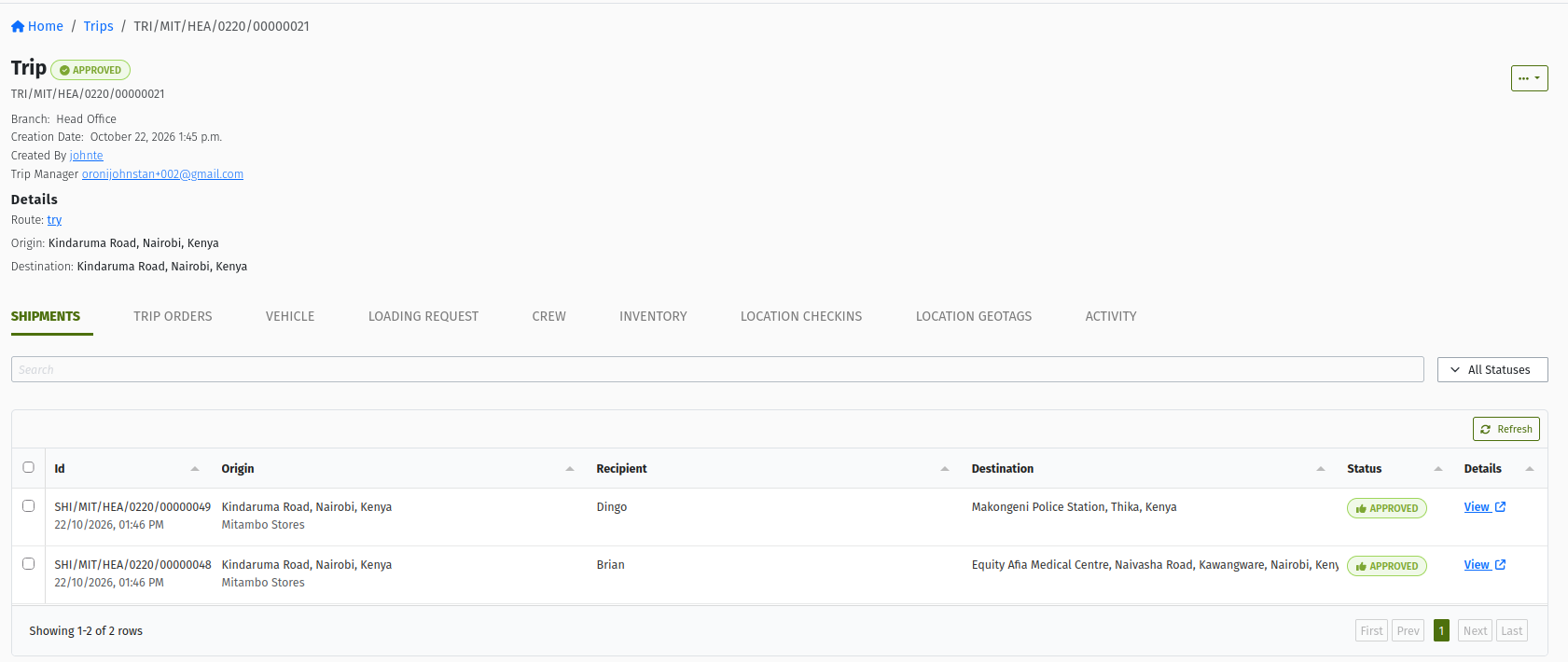 The Shipments tab of an Approved trip, listing one Shipment per Delivery Order with its status.
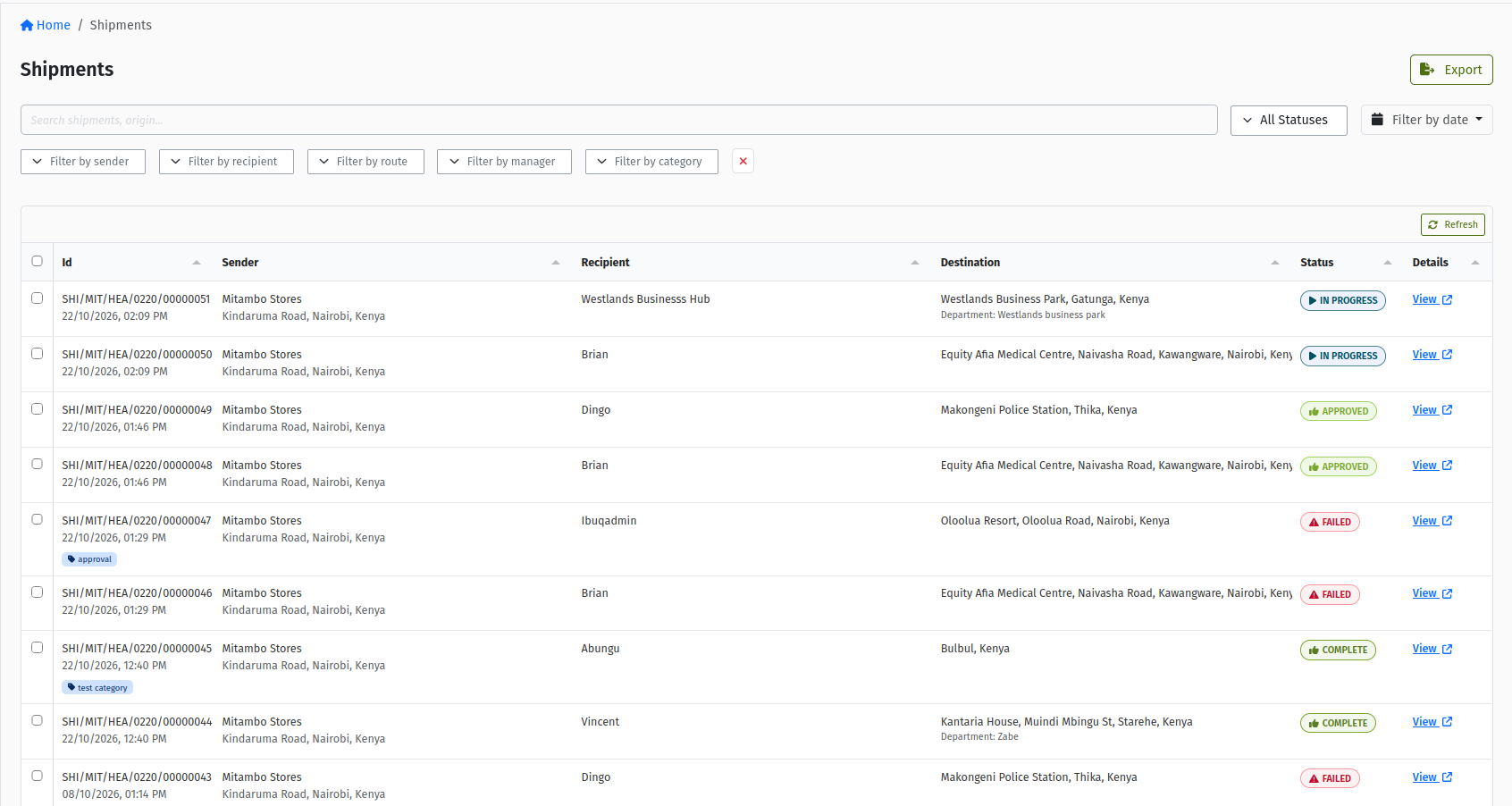 The Logistics → Shipments list showing Shipments from several trips.
Click a Shipment to open its detail page. It shows:
- the header Shipment with the status chip and Shipment number;
- Branch, Creation Date and Created By;
- the sender and recipient panels, with names, addresses and phone numbers;
- the action buttons for the current status, View Trip, and a ⋯ menu with Shipment Waybill (once the Shipment has left Draft) and View Proof of Delivery (for a completed Shipment that has one);
- the tabs Additional details, Items, Returnables, Inventory and Activity.
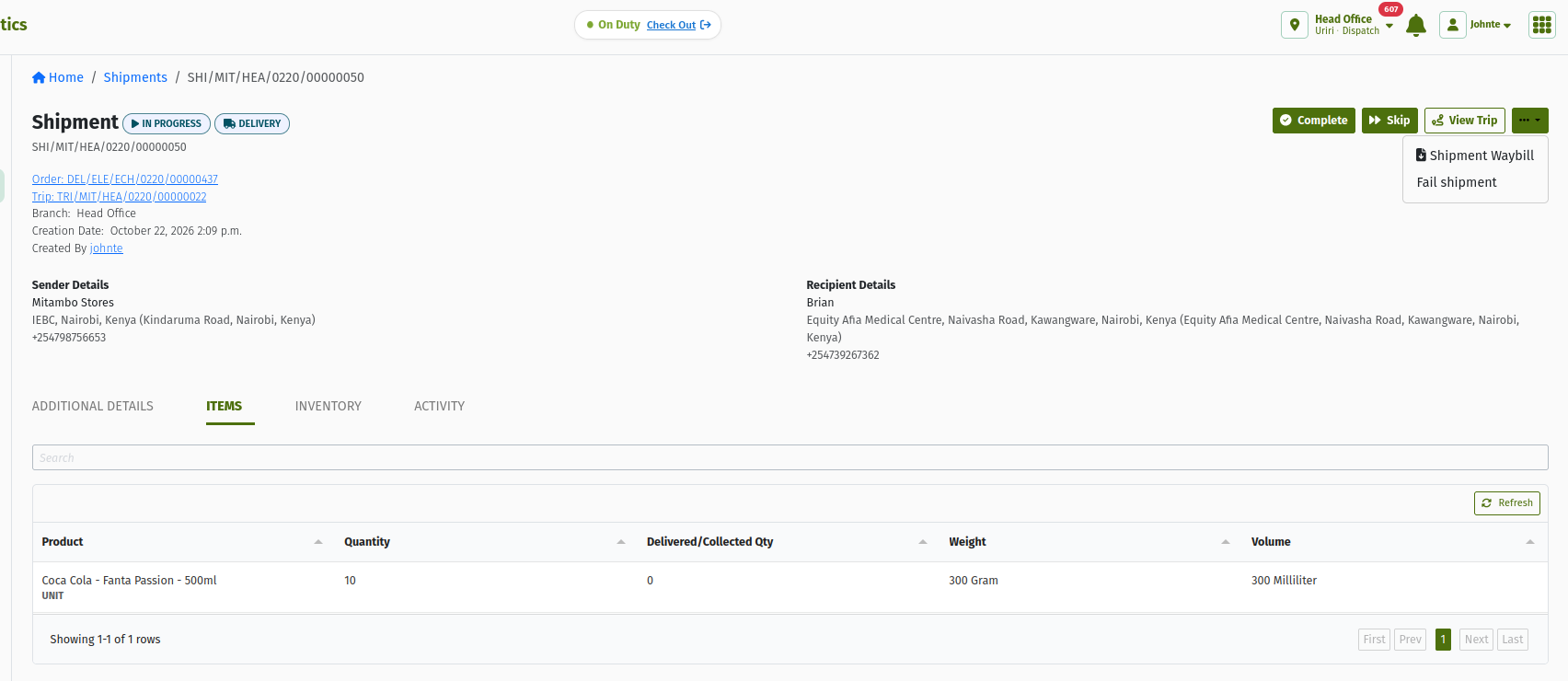 An IN_PROGRESS Shipment with the Complete and Skip buttons, View Trip, and the sender and recipient panels.
3. How and when Shipments are generated
Shipments are created in two situations:
- When the trip is approved. The system creates one Shipment for each Delivery Order on the trip, in the background, a few seconds after approval.
- When you add an order to a trip that is already Approved or In Progress. The Shipment for the new order is generated straight away.
While shipments are being generated, the trip's Shipments tab shows a progress panel with these steps: "Creating shipments for each order", "Building shipment line items", "Approving the shipments", "Assigning the trip manager to each shipment", "Updating the loading request, if one exists", "Sending notifications". The page updates itself when it's done.
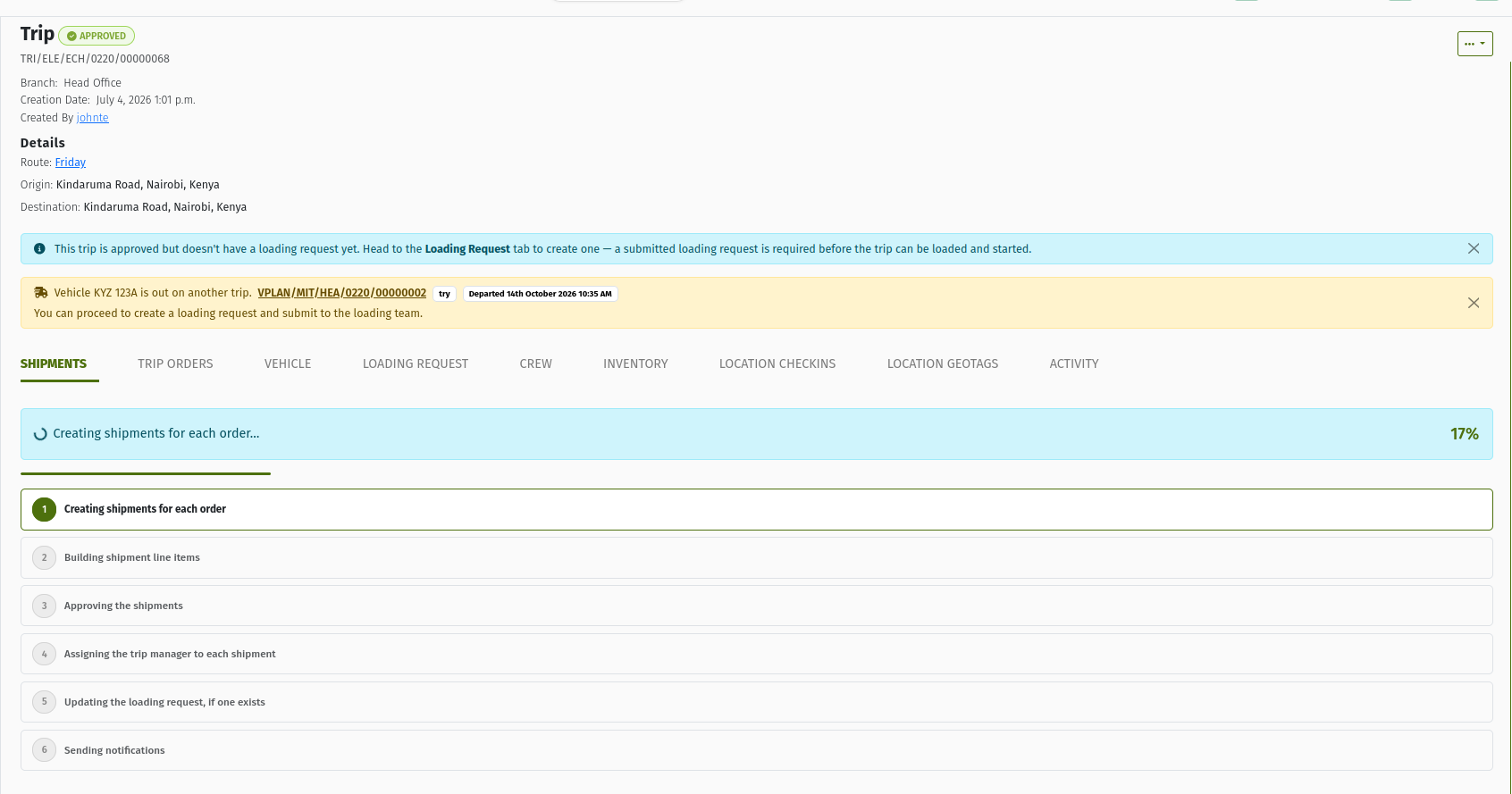 The trip's Shipments tab right after approval, showing the generation progress panel and its named steps.
What a new Shipment looks like:
- On an approved trip, it starts as APPROVED.
- On a trip already on the road, it goes straight to IN_PROGRESS, and its Delivery Order moves to In Progress too.
- The sender, recipient, origin, destination and delivery type are copied from the Delivery Order.
- The trip's Trip Manager becomes the Shipment's manager.
- Each line links back to the matching Delivery Order line.
If the trip has no orders, there is nothing to generate. An approved trip without orders shows "This trip has no orders, so there are no shipments to generate." A trip that isn't approved yet shows "Shipments appear here once the trip has been approved." Both offer Add Trip Orders.
4. Shipment statuses
| Status | What it means |
|---|---|
| DRAFT | Created but not confirmed. Shipments generated by a trip skip this stage. |
| READY | Confirmed and waiting for approval. Trip-generated Shipments skip this stage too. |
| APPROVED | Planned on an approved trip, waiting to be loaded. |
| LOADED | Its goods are on the vehicle and the trip is loaded. |
| IN_PROGRESS | Out for delivery: the trip has started. |
| SKIPPED | The crew passed this stop for now. It still has to be completed or failed, and it stops the trip from being ended. |
| RECEIVED | Marked as received at the destination. The next step is Complete. |
| COMPLETE | Delivered. Delivered quantities are recorded on the Delivery Order. |
| FAILED | Not delivered. The undelivered quantity goes back to the Delivery Order. |
| RETURNED | Sent back from Ready for changes. |
| REJECTED | Turned down at Ready. |
| CANCELLED | Called off, for example because its trip was cancelled. Final. |
| ARCHIVED | A completed Shipment filed away. Final. |
A Shipment counts as finished when it is Complete, Failed, Cancelled, Rejected or Archived. A trip can only be ended when all of its Shipments are finished. Skipped does not count.
4.1 Status graph
DRAFT       → READY, CANCELLED
READY       → APPROVED, RETURNED, REJECTED, IN_PROGRESS, CANCELLED
RETURNED    → READY, CANCELLED
REJECTED    → CANCELLED
APPROVED    → LOADED, IN_PROGRESS, FAILED
LOADED      → IN_PROGRESS, FAILED, APPROVED
IN_PROGRESS → COMPLETE, SKIPPED, RECEIVED, FAILED
SKIPPED     → COMPLETE, FAILED
RECEIVED    → COMPLETE
FAILED      → CANCELLED
COMPLETE    → ARCHIVED
CANCELLED, ARCHIVED → final
The usual path of a trip-generated Shipment is:
APPROVED → LOADED → IN_PROGRESS → COMPLETE
                               ↘ SKIPPED → COMPLETE or FAILED
                               ↘ FAILED
4.2 How the trip drives its Shipments
You rarely move a Shipment yourself. The trip does it:
| When the trip… | Its Shipments… |
|---|---|
| is approved | are generated as Approved. |
| becomes Loaded | move from Approved to Loaded. |
| starts (Start Trip) | move to In Progress. Their Delivery Orders move to In Progress. For loaded Shipments, the recipient is emailed that the delivery is on its way. |
| is on the road | are completed, skipped or failed by the crew, one stop at a time. |
| is ended (End Trip) | must all be finished already. That is the condition for ending. |
| is cancelled while Approved | are cancelled, and their quantities go back to the Delivery Orders. |
| is failed before it left | are cancelled, and their quantities go back to the Delivery Orders. |
5. Delivering on the road
Deliveries are recorded by the crew in the TradeStack mobile app, not in the console. At each stop the driver:
- Completes the Shipment, recording the delivered quantity of each product and any returnables collected. If your organisation has proof of delivery switched on (a Logistics setting), the app also captures it, for example a delivery photo or the recipient's signature, depending on how the setting is configured.
- Skips the stop if it can't be done right now, for example because the customer is closed and the crew will come back later. A skipped Shipment must be completed or failed before the trip can end.
- Fails the Shipment, with a reason, if the delivery won't happen on this trip.
You can follow all of this on the trip's Shipments and Delivery Activities tabs. For a completed Shipment with proof of delivery, open ⋯ → View Proof of Delivery.
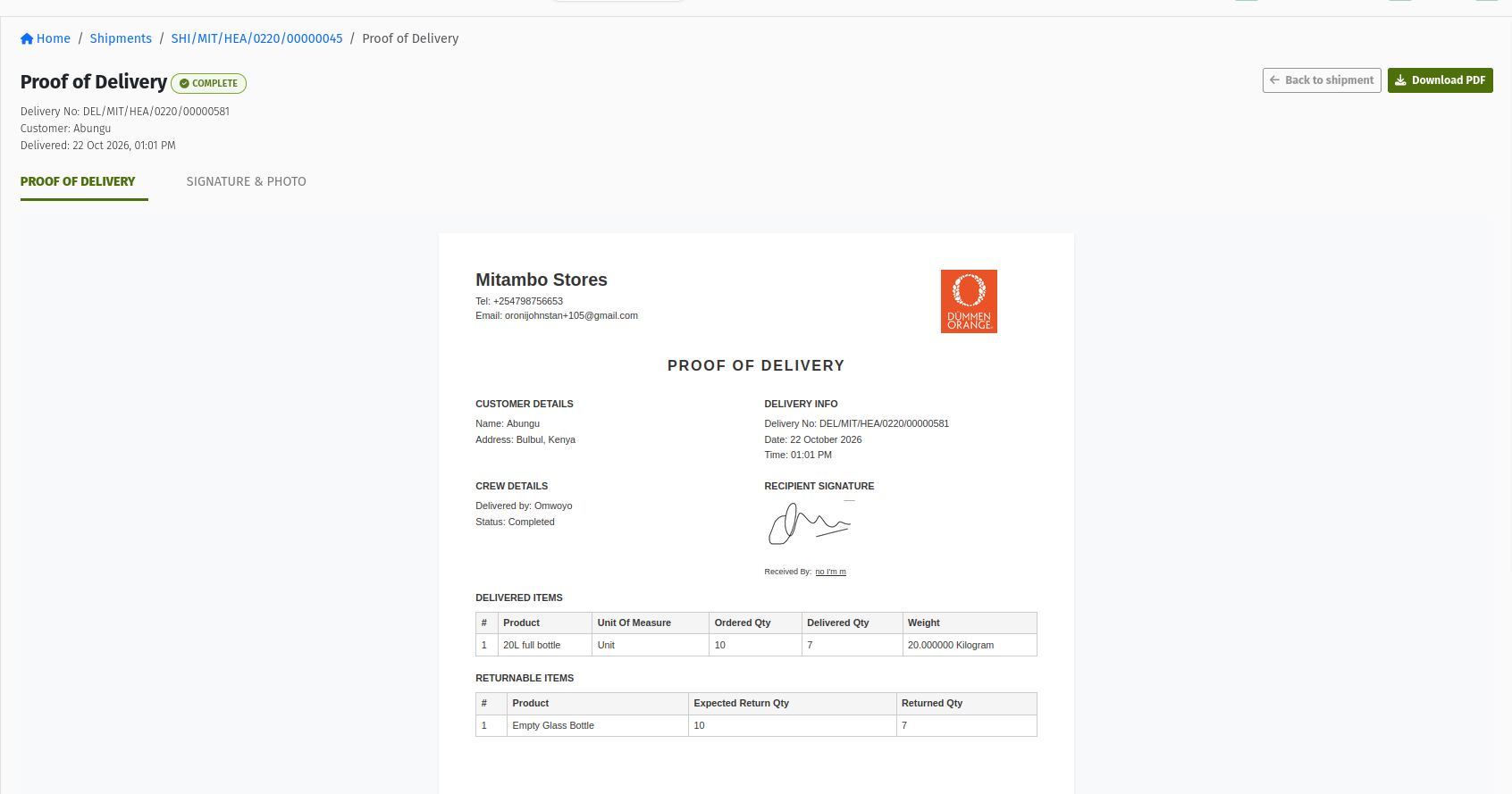 A COMPLETE Shipment's View Proof of Delivery page, showing the captured proof.
6. Console actions on a Shipment
The Shipment page has buttons for each status. All main buttons need the APPROVE_SHIPMENT permission. The ⋯ menu items need CHANGE_SHIPMENT.
| You are here | You click | It becomes |
|---|---|---|
| Draft | Confirm | READY |
| Ready | Approve | APPROVED |
| Approved | Load | LOADED |
| Approved | ⋯ → Fail | FAILED |
| Loaded | Dispatch | IN_PROGRESS |
| In Progress | Complete | COMPLETE |
| In Progress | Skip (note required) | SKIPPED |
| In Progress | ⋯ → Fail shipment | FAILED |
| Skipped | Complete | COMPLETE |
| Skipped | Fail | FAILED |
| Complete | Archive | ARCHIVED |
Each button opens a confirmation page, for example Complete Shipment ("Mark this shipment as complete.") or Fail Shipment ("Mark this shipment as failed."), with an optional notes field.
Normally, let the trip drive its Shipments. Load, dispatch and close out through the trip and its Loading Requests, and let the crew complete stops in the mobile app. The console Complete asks only for a note: it does not record delivered quantities, which come from the driver's delivery record. Use the console buttons for exceptions, mainly failing a Shipment that will not be delivered so the trip can be ended and the order re-planned.
6.1 Failing a Shipment
To fail a Shipment from the console:
- Open the Shipment and click ⋯ → Fail shipment (In Progress), Fail (Skipped) or ⋯ → Fail (Approved).
- Choose a Failure Reason. The list comes from Logistics → Logistics Settings → Failure Reasons (shipment reasons), so ask your administrator to set these up in advance.
- Confirm.
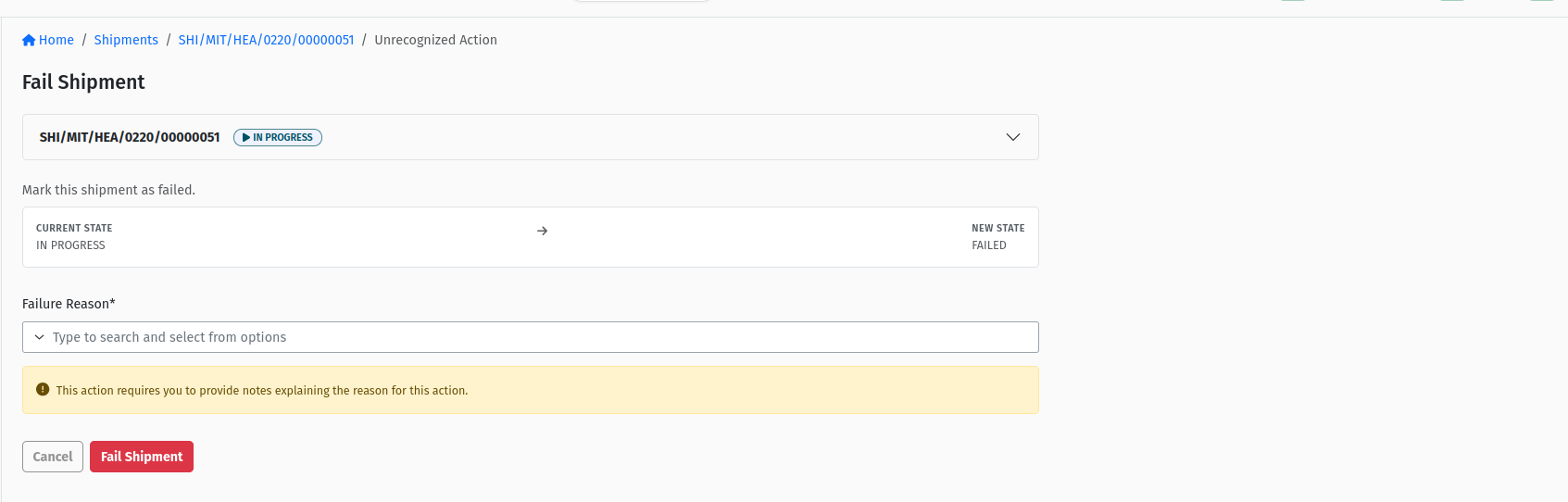 The Fail Shipment page with the required Failure Reason picker.
7. What completing a Shipment triggers
When a Shipment is completed, the system:
- Updates the Delivery Order. The delivered quantities are added to the order's lines. When every Shipment of the order is finished and the order has been fully delivered (or fully dispatched and every Shipment completed), the Delivery Order moves to COMPLETE on its own.
- Creates the stock documents:
- a Goods Issue Note from the Vehicle Warehouse, taking the delivered stock off the vehicle's books;
- a return Goods Receive Note when returnables came back;
- a Goods Receive Note for trackable assets where they apply.
You can see these documents on the Shipment's Inventory tab.
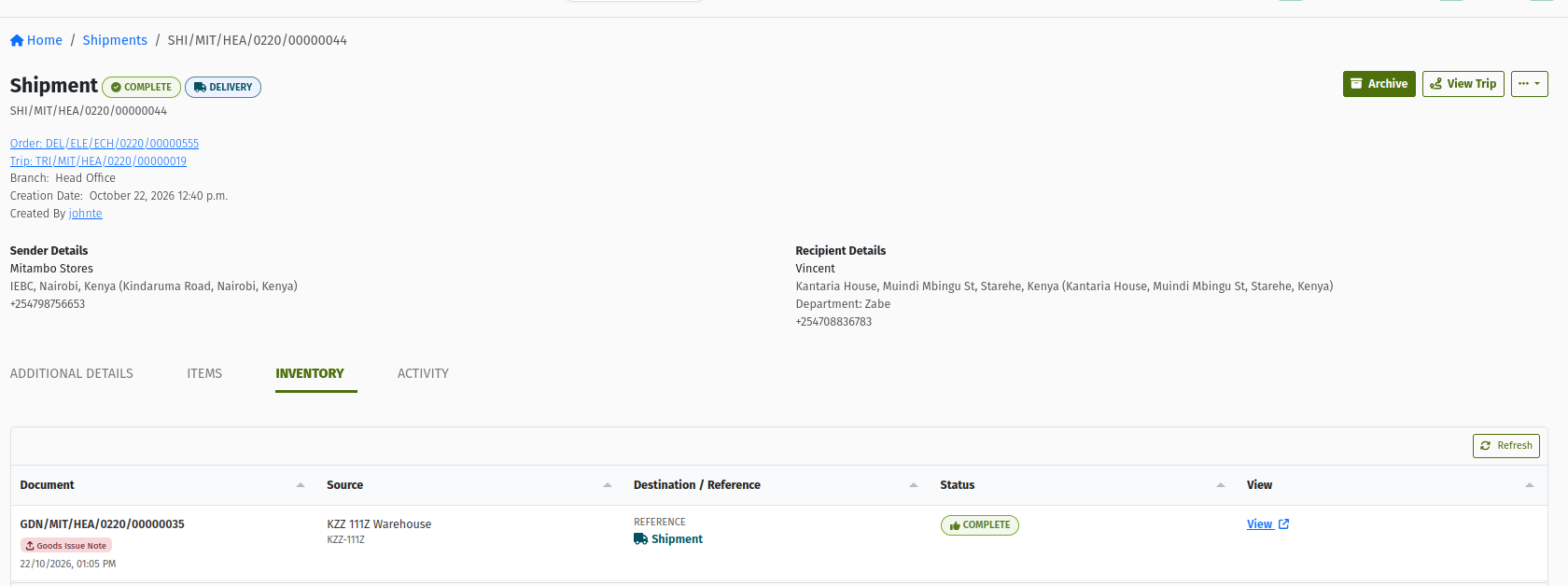 The Inventory tab of a COMPLETE Shipment, showing its Goods Issue Note from the Vehicle Warehouse and its status.
These documents must be complete before the trip can be ended. If one isn't, End Trip is refused with a message such as "Trip {id} has shipments with incomplete goods issue notes." A Goods Issue Note can only be completed if the stock is actually in the Vehicle Warehouse. This is one more reason to load every delivery through a Loading Request. See Loading Requests.
8. Failure and re-delivery
When a Shipment fails:
- The undelivered quantity is released back to the Delivery Order. The order shows that quantity as available again, so you can put it on another trip from the trip's Trip Orders tab or with Assign Trip on the order. The new trip creates a new Shipment. The failed one stays on the old trip as history.
- Redelivery tracking (setting-driven). If your organisation has switched on Enable Delivery Order Redelivery Retry (under Logistics → Logistics Settings → Delivery Order Retry; off by default), a Shipment that fails on the road (from In Progress or Skipped) tags its Delivery Order Needs Redelivery, shown as a counter of failed attempts such as "1/3 Retries". The Max Redelivery Attempts setting gives the maximum number of attempts (3 by default). Once an order has used them up, it no longer appears in the Trip Orders table.
- Non-retryable reasons. With retries switched on, a failure reason can be marked as not retryable. A Shipment failed for such a reason fails its Delivery Order as well, instead of tagging it for redelivery.
A failed Shipment counts as finished, so it no longer blocks End Trip.
9. Shipments and Loading Requests
A Loading Request's quantities come from the trip's delivery Shipments. When you click Create Loading Request on an approved trip, the system adds up the Shipment line quantities per product. When a Shipment is added to a live trip, its quantities go into the trip's draft Loading Request if it has one, or into a new automatic draft when the trip has an Approved or In Progress Loading Request but no draft. Otherwise nothing is added, and a manual Loading Request may be needed. See Loading Requests and Trip Lifecycle.
Orders marked "These orders do not require a loading request" still get a Shipment, but their quantities are left out of Loading Requests. Use this only when the stock is already on the vehicle.
10. Permissions reference
| Permission | What it lets you do |
|---|---|
VIEW_SHIPMENT | See Logistics → Shipments and open View Proof of Delivery. |
APPROVE_SHIPMENT | Use the main status buttons on a Shipment: Confirm, Approve, Load, Dispatch, Complete, Skip, Fail (Skipped) and Archive. |
CHANGE_SHIPMENT | Use the ⋯ menu: Shipment Waybill, Fail / Fail shipment, Return and Reject. |
VIEW_TRIP | Use View Trip to jump to the Shipment's trip. |
11. Quick reference
| Step | What happens | Who does it |
|---|---|---|
| 1 | Orders added to the trip | You, on the trip |
| 2 | Trip approved → Shipments generated as Approved | The system |
| 3 | Loading completes → Shipments Loaded | The system, through the trip |
| 4 | Start Trip → Shipments In Progress | The system, through the trip |
| 5 | Each stop completed, skipped or failed | The crew, in the mobile app |
| 6 | Completion → Delivery Order updated, Goods Issue Note created | The system |
| 7 | End Trip once every Shipment is finished | You, on the trip |
Status meanings
- APPROVED — planned on an approved trip.
- LOADED — on the vehicle.
- IN_PROGRESS — out for delivery.
- SKIPPED — passed for now, still to be completed or failed.
- COMPLETE — delivered.
- FAILED — not delivered, quantity released.
- CANCELLED — called off with its trip.
- ARCHIVED — filed away.
Glossary
- Shipment — the delivery of one Delivery Order on one Trip.
- Stop — how the crew sees a Shipment on the trip in the mobile app.
- Finished Shipment — Complete, Failed, Cancelled, Rejected or Archived. Required for every Shipment before End Trip.
- Proof of delivery — evidence captured by the driver at completion, when your organisation has it switched on.
- Goods Issue Note — the stock document created from the Vehicle Warehouse when a Shipment is delivered.
- Needs Redelivery — a tag (shown as "x/y Retries") on a Delivery Order whose Shipment failed, when redelivery retries are switched on.
- Failure Reason — the reason chosen when failing a Shipment, set up in Logistics → Logistics Settings → Failure Reasons.
- Shipment Waybill — the printable waybill for a Shipment, from the ⋯ menu.
12. Frequently asked questions
How do I create a Shipment?
You don't. Put the Delivery Order on a trip and approve the trip, or add the order to a trip that is already approved or on the road. The Shipment is generated for you.
I approved the trip but the Shipments tab is empty.
Shipments are generated in the background. The tab shows a progress panel while that happens and updates itself. If it says "This trip has no orders, so there are no shipments to generate.", the trip had no orders.
Why can't I end the trip when all deliveries look done?
Check for Skipped Shipments, which still need to be completed or failed, and for Goods Issue Notes or return Goods Receive Notes on the Shipments' Inventory tabs that are not complete.
A delivery failed. How do I send it again?
Failing the Shipment releases the quantity back to the Delivery Order. Add the order to another trip. The new trip creates a new Shipment for it.
Why are there two Shipments for one Delivery Order?
Either the order was split across two trips, or an earlier delivery failed and the order was put on a new trip. Open the order's Shipments tab to see them all.
Should I click Load and Dispatch on each Shipment?
No. The trip does this for all its Shipments when it is loaded and started. Use the Shipment buttons only for exceptions.