Trip Lifecycle
This manual walks you through the whole delivery lifecycle in TradeStack, end to end. It starts with setting up a Customer and finishes with a Trip that has been loaded, dispatched, delivered, reconciled, and archived. Each Logistics module has its own detailed guide. This page connects them: it shows what each step creates, why the next step needs it, and what the system does for you in between.
This page explains how the modules fit together and links to the module guides for the detail. If you need every field, button, or status of one document, use that document's guide: Customers & Locations · Routes · Delivery Orders · Vehicles · Trips · Shipments · Loading Requests.
1. Introduction
Who this manual is for
This manual is for anyone who works on deliveries in the TradeStack web console:
- Order desk and sales staff, who set up customers and raise Delivery Orders.
- Approvers, who approve customers, Delivery Orders, and Trips.
- Dispatchers and Trip Managers, who plan Trips, assign vehicles, and send them out.
- Loading and warehouse teams, who load stock onto vehicles.
- Reconciliation leads, who count the vehicle when it comes back and close the Trip.
How to use it
- New to Logistics? Read Sections 2–4 in order. Section 4 follows a single delivery from start to finish.
- Need to change a trip that has already been approved or dispatched? Go straight to Section 5 — Adding orders to an ongoing trip. Most mistakes happen in this situation, so it is covered in the most detail.
- Need a quick answer? Use the status cheat-sheet, the troubleshooting table, or the FAQ.
The big picture
A delivery passes through three layers of records:
- Master data, which you set up once and reuse. This covers Customers, Customer Locations, Routes, Vehicle Types, and Vehicles.
- Planning documents. The Delivery Order says what goes where. The Trip says which vehicle takes it, on which Route, and when.
- Execution documents, which the system or the loading team creates as the Trip moves forward. A Shipment is the part of a Delivery Order carried on one Trip. A Loading Request gets the stock onto the vehicle. Transfers move that stock into the vehicle's own warehouse, and Goods Issue Notes record the stock leaving the vehicle when it is delivered.
Stock is the thread that ties these together. Every vehicle has its own Vehicle Warehouse. Loading moves stock into that warehouse, and delivering moves it out. If stock was never loaded, it cannot be delivered, and the Trip cannot be closed.
2. The end-to-end workflow
This is the standard flow with the loading-sheet (Loading Request) process switched on, which is the default for every organisation.
 MASTER DATA (set up once)
 Customer ──→ Customer Location ──→ Route          Vehicle Type ──→ Vehicle
  (Approve)     (Activate Location)   (add the        (capacity,        (gets its own
                                       location)       fuel type)        Vehicle Warehouse)
                          │                                                    │
 PLANNING                 ↓                                                    │
 Delivery Order (for a specific Customer Location)                             │
        ↓  Approve Order                                                       │
 Delivery Order APPROVED                                                       │
        ↓                                                                      │
 Trip — step 1 "Route Details" (Route + schedule + Trip Manager)               │
        ↓                                                                      │
 Trip — step 2 "Trip Vehicle Assignment" (Vehicle) ←───────────────────────────┘
        ↓
 Add approved Delivery Orders (Trip Orders tab)   ← quantity reserved on the order
        ↓
 Submit Trip / Approve Trip  →  Trip APPROVED, vehicle RESERVED
        ↓  (automatic, in the background)
 Shipments generated — one per Delivery Order
        ↓
 EXECUTION — LOADING
 Create Loading Request (manual: Loading Request tab)   → Loading Request DRAFT
        ↓  Submit Request
 Loading Request APPROVED
        ↓  Start Loading                                 → vehicle LOADING
 Loading Request IN_PROGRESS
        ↓  Fulfill via Transfer → approve & complete each Transfer
 Stock arrives in the Vehicle Warehouse
        ↓  Finish Loading (Complete)
 Loading Request COMPLETE  →  Trip LOADED (automatic)
        ↓
 EXECUTION — ON THE ROAD
 Start Trip (enter mileage)  →  Trip IN_PROGRESS, vehicle IN_TRANSIT,
        ↓                       Shipments & Delivery Orders IN_PROGRESS
 Deliveries (crew, mobile app) → Shipments COMPLETE, Goods Issue Notes
        ↓                         issue stock from the Vehicle Warehouse
 End Trip (enter mileage)  →  Trip COMPLETE, vehicle AWAITING_RECONCILIATION
        ↓
 CLOSE-OUT
 Reconciliation (count the vehicle, close the session)  →  Trip RECONCILED,
        ↓                                                  vehicle released
 Archive Trip  →  Trip ARCHIVED
The loading-sheet process is an organisation setting (Enable Loading Sheet Process, under Logistics → Logistics Settings). It is on by default. When it is switched off, an Approved Trip shows Start Trip straight away, and you skip the whole Loading Request stage: there is no Loading Request tab and no Loaded step to wait for. Deliveries still issue stock from the Vehicle Warehouse, so the stock has to reach the vehicle some other way, for example with a Transfer. The rest of this manual assumes the setting is on, unless it says otherwise.
3. What must already exist
3.1 Cross-module dependency map
Read each arrow as "is needed by".
Customer (APPROVED)
   └─→ Customer Location (ACTIVE)
          ├─→ Route (location added to the route's customer list)
          └─→ Delivery Order (sender/recipient + origin/destination locations)
                     │
Route ───────────────┼─→ Trip (required at creation; pre-filters the order list)
                     │
Vehicle Type ─→ Vehicle (+ its own Vehicle Warehouse) ─→ Trip (required before any status change except Cancel)
                     │
Delivery Order (APPROVED, undispatched quantity) ─→ Trip Orders ─→ (Trip approved) ─→ Shipments
                                                                                       │
Shipments (delivery quantities per product) ─→ Loading Request (one line per product)  │
                                                     │                                 │
                    Fulfill via Transfer → Transfer (completed) → Vehicle Warehouse stock
                                                                          │
                                         Delivery (Shipment COMPLETE) → Goods Issue Note
                                                                          │
                                                End Trip → Reconciliation → Archive
3.2 Requirements table
| To create or progress… | …this must already exist | …in this state | Why |
|---|---|---|---|
| Customer Location | Customer | Any status to create the location. Customer APPROVED for it to be usable | A location always belongs to one customer. Routes and Delivery Orders only offer locations of approved customers. |
| Route (customer list) | Customer Location | ACTIVE, and its customer APPROVED | Only active locations of approved customers can be added to a Route. |
| Delivery Order | Customer + Customer Location | Customer APPROVED, location ACTIVE | The order is delivered to a specific location, not just to "the customer". |
| Trip | Route | Active (Routes have no status of their own) | The Route is required at creation and can't be changed after the first step. |
| Trip (any status change) | Vehicle (and so a Vehicle Type) | Available, Reserved, Loading, In Transit or Awaiting Reconciliation when you pick it | The Trip can't be submitted, approved, loaded or started without a vehicle. |
| Trip approval | Delivery Orders on the Trip | Order APPROVED or IN_PROGRESS, with undispatched quantity | A Trip can't be approved with no orders. |
| Shipments | Trip with orders | Trip APPROVED (or already IN_PROGRESS) | Shipments are generated automatically only once the Trip is live. |
| Loading Request | Trip with delivery Shipments | Trip APPROVED for the first one. Approved, Loaded or In Progress for an additional one | Its lines are summed from the Trip's Shipments. |
| Vehicle Warehouse stock | Loading Request | IN_PROGRESS (after Start Loading), and each Transfer completed | Stock moves only when the Transfer created by Fulfill via Transfer is completed. |
| Dispatch (Start Trip) | Loaded vehicle | Trip LOADED (or Approved when the loading-sheet setting is off). No unreconciled earlier Trip on the vehicle | Deliveries issue from the Vehicle Warehouse. A vehicle still awaiting reconciliation can't be loaded or dispatched again. |
| Delivery (Shipment complete) | Stock on the vehicle | Enough stock in the Vehicle Warehouse | Each delivery creates a Goods Issue Note from the Vehicle Warehouse, and that needs the stock to be there. |
| End Trip | Every Shipment finished + its inventory documents | Shipments COMPLETE, FAILED or CANCELLED; delivery Goods Issue Notes complete | The Trip can only close when everything it carried is accounted for. |
4. The lifecycle, stage by stage
Every stage below uses the same structure, so you can always find the same information in the same place:
- What is created or changed
- Why it is required
- What must already exist
- Required states
- What you do
- What the system does automatically
- What happens next
- Common mistakes
- Detailed guide
4.1 Stage 1 — Create the Customer
What is created or changed: a Customer, which is a business partner flagged as a customer. It is created in DRAFT.
Why it is required: every Delivery Order names a recipient. Only approved customers can be picked.
What must already exist: an active Customer Segment in your organisation. A corporate customer also needs a Business Partner Category.
Required states: none.
What you do:
- Go to Logistics → Customers (the same list is under Sales → Customers).
- Click + Individual or + Corporate.
- Fill in Full Name, Phone Number, Email Address (optional) and Customer Segment, then click Save.
- You are taken straight to the Create location page. Continue with Stage 2 below.
- When the customer's details and any required documents are complete, an approver opens the customer and clicks Approve.
What the system does automatically: it gives the customer an ID. On approval, it sets up the customer's accounts in the background.
What happens next: the customer becomes APPROVED and can be used on Routes and Delivery Orders.
Common mistakes:
- Not finding the new customer. The Customers list shows Approved customers by default, so change the status filter to Draft to see new ones.
- Reusing a phone number or email address that another business partner already has. This is blocked.
- Trying to approve before the required KYC documents have been uploaded. The console blocks this until they are uploaded.
Detailed guide: Customers & Locations.
4.2 Stage 2 — Create and activate the Customer Location
What is created or changed: a Customer Location, the actual delivery point (for example "Main gate"). It is created as PENDING_APPROVAL.
Why it is required: Delivery Orders and Routes point to a location, not to the customer as a whole. A customer can have many locations.
What must already exist: the Customer.
Required states: the location must be ACTIVE, and its customer APPROVED, before Routes and Delivery Orders will offer it.
What you do:
- On the Create location page, choose the Location Type (Shipping or Billing) and enter a Location name.
- Type the Location Address and pick it from the dropdown. This sets the map position.
- Add the optional details (building, landmark, delivery instructions, photo).
- Click Create, or click Create and Activate if you have permission to activate locations.
- If you clicked Create, someone with permission opens the location and clicks Activate Location.
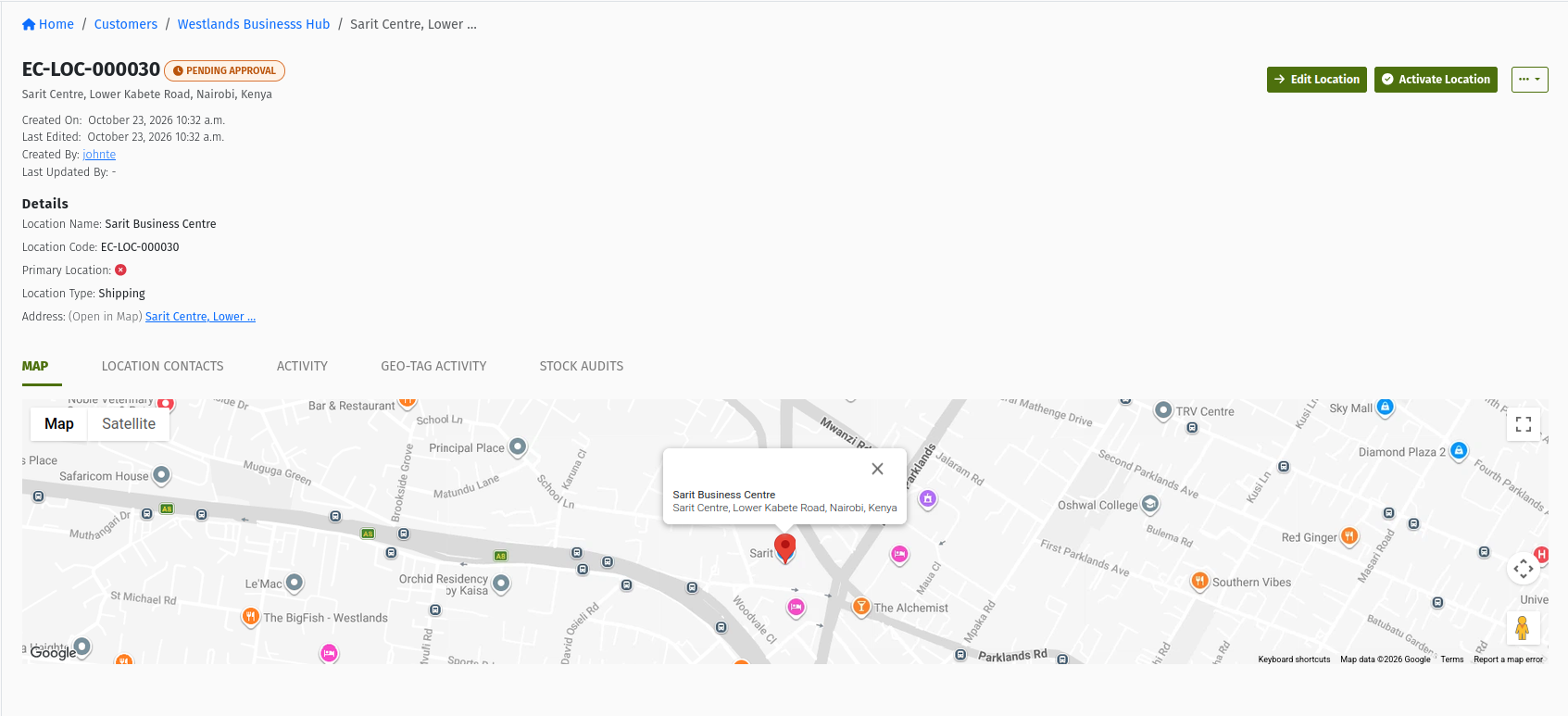 A Customer Location in Pending Approval. Activate Location makes it available to Routes and Delivery Orders.
What the system does automatically: it gives the location a code, matches it to a sales territory from its map position, and sets up its stock location when it is activated.
What happens next: you can add the location to a Route and use it on Delivery Orders.
Common mistakes:
- Typing an address without picking it from the dropdown. You'll see "Invalid latitude. Kindly type and select your location from the dropdown."
- Looking for the new location on the customer's Locations tab. That tab shows Active locations by default, so a pending location is hidden until you change the filter.
Detailed guide: Customers & Locations.
4.3 Stage 3 — Build the Route
What is created or changed: a Route. It has a name, an Origin and a Destination (your own branches or depots), and a list of Customer Locations.
Why it is required: every Trip runs on one Route. When you add orders to a Trip, the order list is pre-filtered to orders whose destination is on the Route.
What must already exist: your branch or depot locations (for Origin and Destination), and active Customer Locations.
Required states: Customer Locations must be ACTIVE, and belong to APPROVED customers. Routes themselves have no status.
What you do:
- Go to Logistics → Routes and click + New.
- Enter the Name, Origin, Destination and an optional Description, then click Create Route.
- On the Customers step, search for each Customer Location and click + Add Customer. Click Done when you have added them all.
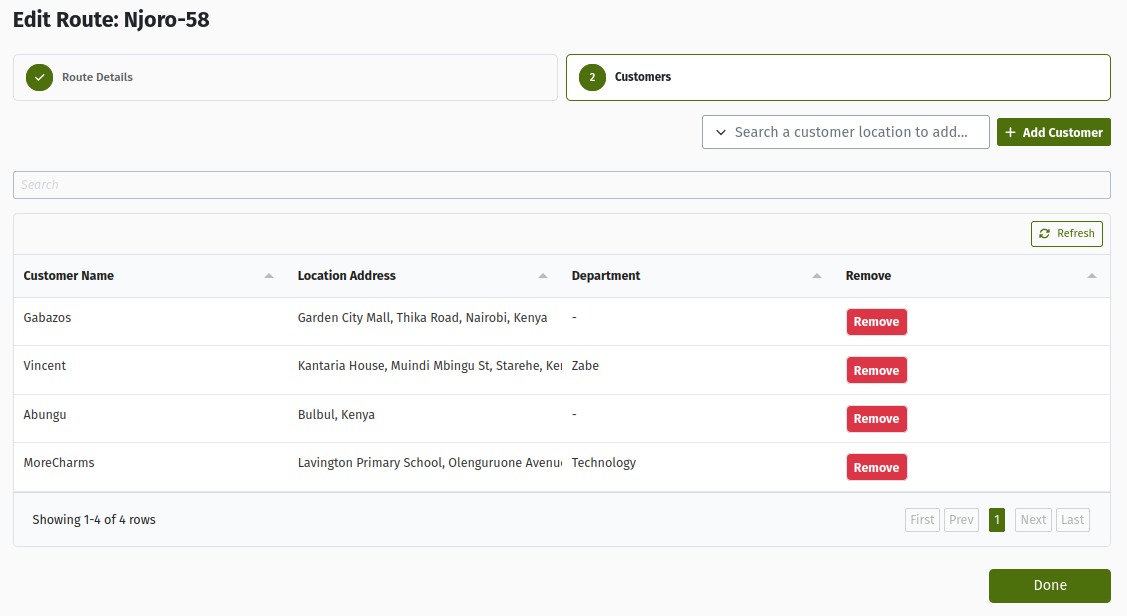 The Route's Customers step. Search for a Customer Location and click + Add Customer to put it on the Route.
What the system does automatically: it fills in the Route's addresses from the Origin and Destination depots.
What happens next: the Route can be picked when you create a Trip.
Common mistakes:
- Expecting the Route to restrict which orders can go on a Trip. It doesn't. The Trip Orders list opens filtered to orders for locations on the Route. Clear the route filter and the other orders appear too, with an Outside Route tag, and you can still add them.
- Expecting the Route to set a delivery sequence. A Route has no stop order.
Detailed guide: Routes.
4.4 Stage 4 — Have Vehicle Types and Vehicles ready
What is created or changed: a Vehicle Type (name, weight and volume capacity with units, fuel type) and a Vehicle (number plate, make, model, type, ownership, starting mileage).
Why it is required: a Trip needs a vehicle before it can move past Draft. The vehicle also carries the stock: each Vehicle automatically gets its own Vehicle Warehouse, and loading and delivery move stock in and out of it.
What must already exist: weight and volume units of measure for the Vehicle Type. For a leased vehicle, an approved third-party logistics partner.
Required states: to be picked for a Trip, the vehicle's Status must be Available, Reserved, Loading, In Transit or Awaiting Reconciliation. It can't be Unavailable or Under Maintenance.
What you do:
- Go to Vehicles → Vehicle Types and create the type.
- Go to Vehicles → Vehicles, click New, and complete the Create Vehicle form.
- Optionally, on the vehicle, add its default Crew and its preferred Routes.
What the system does automatically:
- It creates the Vehicle Warehouse.
- It moves the vehicle's Status as trips progress: Reserved on approval, Loading during loading, In Transit on the road, Awaiting Reconciliation after the trip ends, and released when the trip is reconciled.
What happens next: the vehicle appears in the Trip's vehicle dropdown. Vehicles that prefer the Trip's Route are grouped under "Preferred for this Route".
Common mistakes:
- Expecting the system to stop you overloading a vehicle. Vehicle Type capacity is for information only: it is shown on the Trip, but nothing checks it.
- Forgetting that a vehicle whose last Trip hasn't been reconciled can't be loaded or dispatched again (see Stage 19).
Detailed guide: Vehicles.
4.5 Stage 5 — Create the Delivery Order
What is created or changed: a Delivery Order in DRAFT. It records who sends what, to which Customer Location, and in what quantities.
Why it is required: it is the instruction to deliver. A Trip carries Delivery Orders, and each order becomes a Shipment on the Trip.
What must already exist: an approved Customer with an active Customer Location, and the products.
Required states: Customer APPROVED, location ACTIVE.
What you do: use one of these two ways.
- Standalone:
- Go to Logistics → Delivery Orders and click + Order.
- Complete the wizard:
- Sender & recipient details: the sender and origin default to your branch.
- Delivery details: delivery type, scheduled date and sales person.
- Add the products on the Items tab with Add line.
- From a Sales Order: on an approved Sales Order that requires delivery, click Generate Delivery Order. The new Delivery Order arrives already in READY, with the lines copied over. See Sales Orders.
What the system does automatically: it calculates totals, weight and volume from the lines.
What happens next: the order needs approving before a Trip can take it (Stage 6).
Common mistakes:
- Leaving the order in Draft or Ready and then looking for it on a Trip. Only Approved (or In Progress) orders appear.
- Picking a location that belongs to a different customer. Always check that the recipient location is correct.
Detailed guide: Delivery Orders.
4.6 Stage 6 — Approve the Delivery Order
What is created or changed: the Delivery Order moves to APPROVED.
Why it is required: Trips only accept approved orders. This is the last check on what is promised to the customer before vehicles are planned around it.
What must already exist: a Delivery Order with at least one line.
Required states: DRAFT (with items) or READY.
What you do:
- Open the Delivery Order.
- Approve it:
- From Draft: click Approve Order, which submits and approves in one step. Or click Submit Order to send it to an approver.
- From Ready: an approver clicks Approve Order. They can also use Return Order or Reject Order from the ⋯ menu.
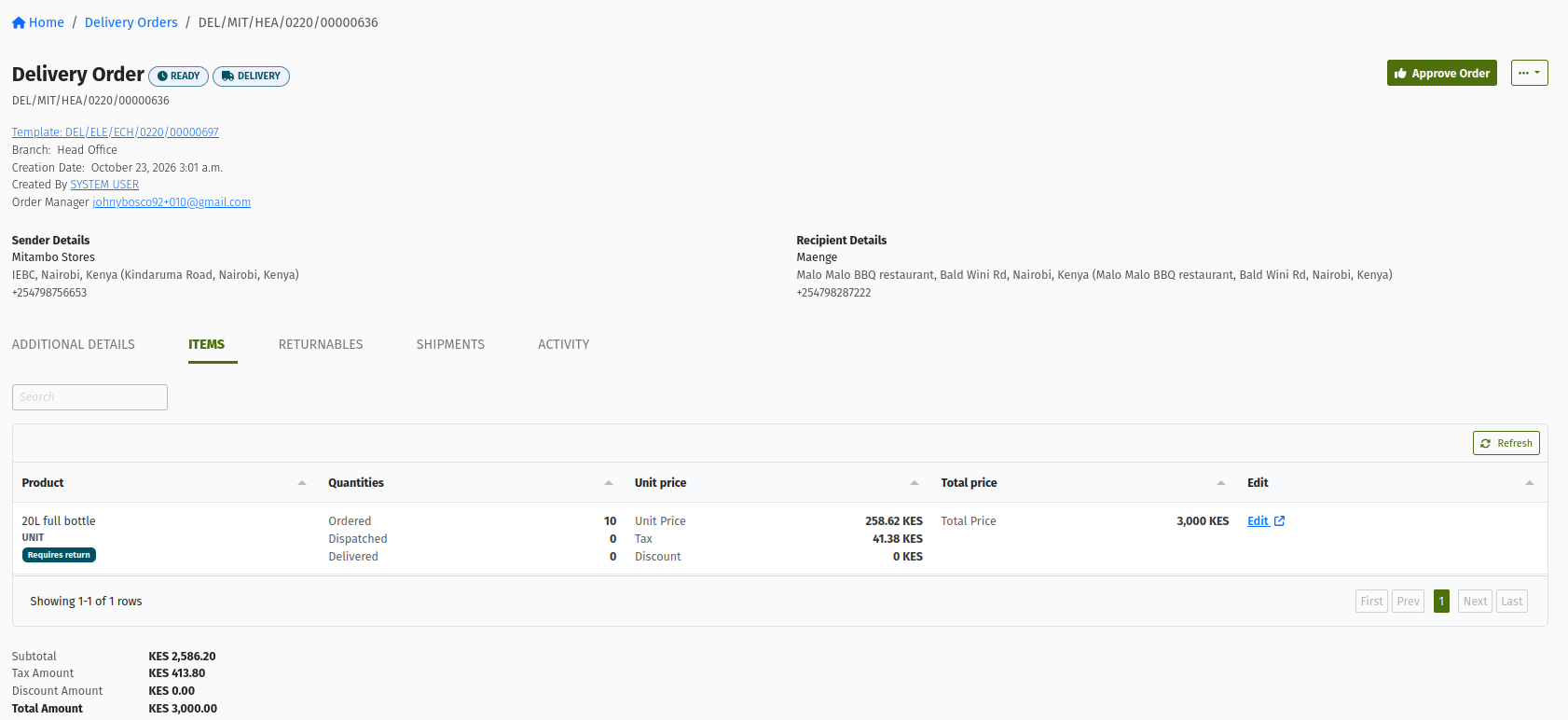 A Delivery Order ready for approval. Approve Order makes it available to Trips; once it is approved, Assign Trip appears.
What the system does automatically: it sends approval notifications.
What happens next: the order can be added to a Trip, either from the Trip's Trip Orders tab or with Assign Trip on the order.
Common mistakes:
- Approving an order generated from a Sales Order twice, or generating it twice. Generate the Delivery Order once, then approve it once.
- Completing the order by hand with Complete Order while it is still due to travel on a Trip. Let the Trip and its Shipment complete the order (Stage 17).
Detailed guide: Delivery Orders.
4.7 Stage 7 — Create the Trip (Route and Trip Manager, then Vehicle)
What is created or changed: a Trip in DRAFT, with a Route, a schedule, a Trip Manager and a Vehicle.
Why it is required: the Trip is the plan that puts orders on a vehicle, on a Route, at a time, under a responsible Trip Manager.
What must already exist: an active Route, a user who is allowed to manage deliveries (to act as Trip Manager), and a suitable Vehicle.
Required states: the vehicle must be in one of the selectable statuses listed in Stage 4.
What you do:
- Go to Logistics → Trips and click + Trip.
- Step 1, Route Details: pick the Route, set the Scheduled departure time and Scheduled return time, and choose the Trip Manager. Click Next.
- Step 2, Trip Vehicle Assignment: the Route is shown read-only. Pick the Vehicle and click Submit.
- Optionally, check the Crew tab and add or remove crew members.
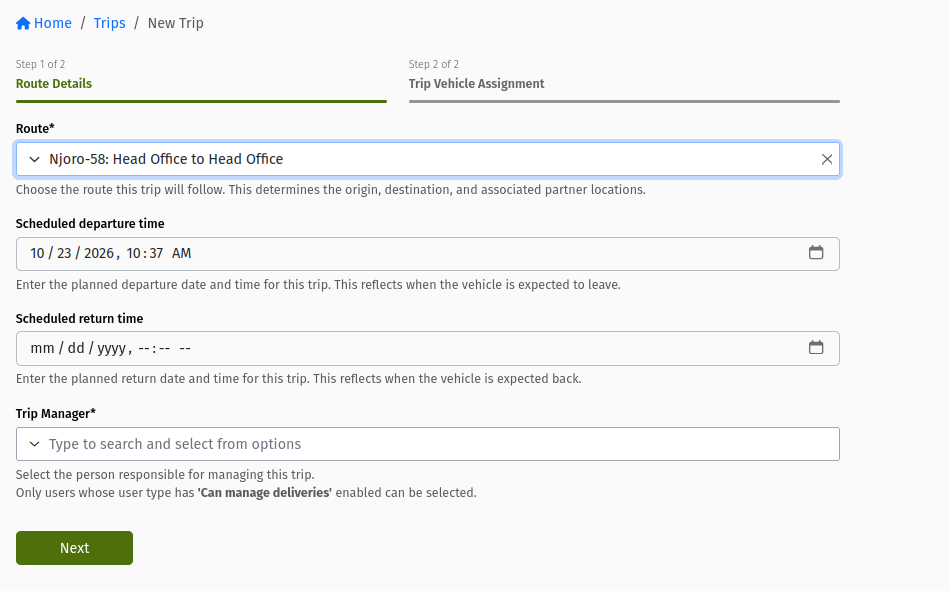 Step 1 of 2, "Route Details": Route, scheduled departure and return, and Trip Manager.
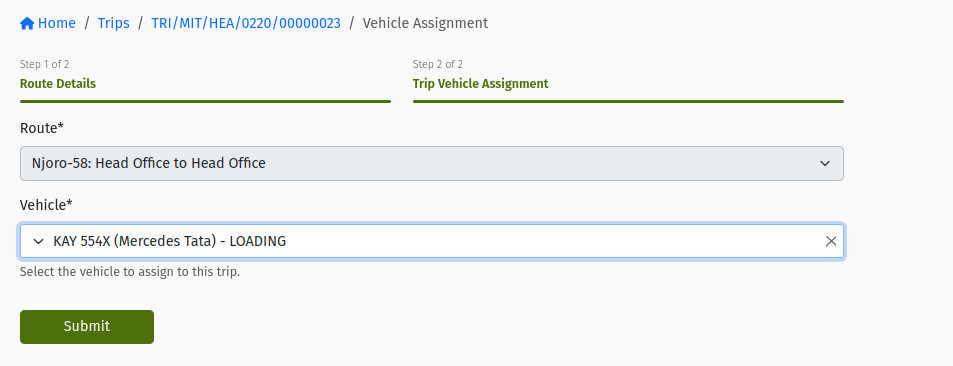 Step 2 of 2, "Trip Vehicle Assignment". Vehicles are grouped "Preferred for this Route" and "Other Vehicles", and each shows its current status.
What the system does automatically:
- It sets the vehicle's active Route.
- It copies the vehicle's default crew onto the Trip and gives them access to the vehicle's stock.
- It does not reserve the vehicle yet. That happens on approval.
What happens next: add orders (Stage 8).
Common mistakes:
- Setting the departure time in the past, or a return time that is not after departure. Both are refused.
- Expecting the vehicle to be blocked for other trips at this point. Several Draft or Approved Trips can name the same vehicle. The system only stops two Trips from loading or being on the road with the same vehicle at the same time.
Detailed guide: Trips.
4.8 Stage 8 — Add approved Delivery Orders
What is created or changed:
- The Delivery Orders, or chosen quantities of them, are linked to the Trip.
- The quantity is reserved on each order line: it counts as Dispatched.
- The Delivery Order's status does not change.
Why it is required: a Trip can't be approved without orders, and the orders decide what Shipments and Loading Request lines will be created.
What must already exist: approved Delivery Orders with quantity not yet placed on any Trip.
Required states:
- Trip DRAFT or RETURNED. You can also add orders while the Trip is APPROVED or IN_PROGRESS, which is covered in Section 5.
- Delivery Order APPROVED or IN_PROGRESS.
What you do:
- Open the Trip's Trip Orders tab. The route filter is pre-set to the Trip's Route, so at first you only see orders whose destination is on the Route. Clear the route filter to see every other eligible order. These carry an Outside Route tag.
- Tick the order lines you want and check the To Dispatch quantity for each. You can send part of a line now and the rest on another Trip.
- Click Add or Update.
You can also do this from the order side: open the Delivery Order, click Assign Trip, pick the Trip and click Submit. This adds all of the order's remaining quantity.
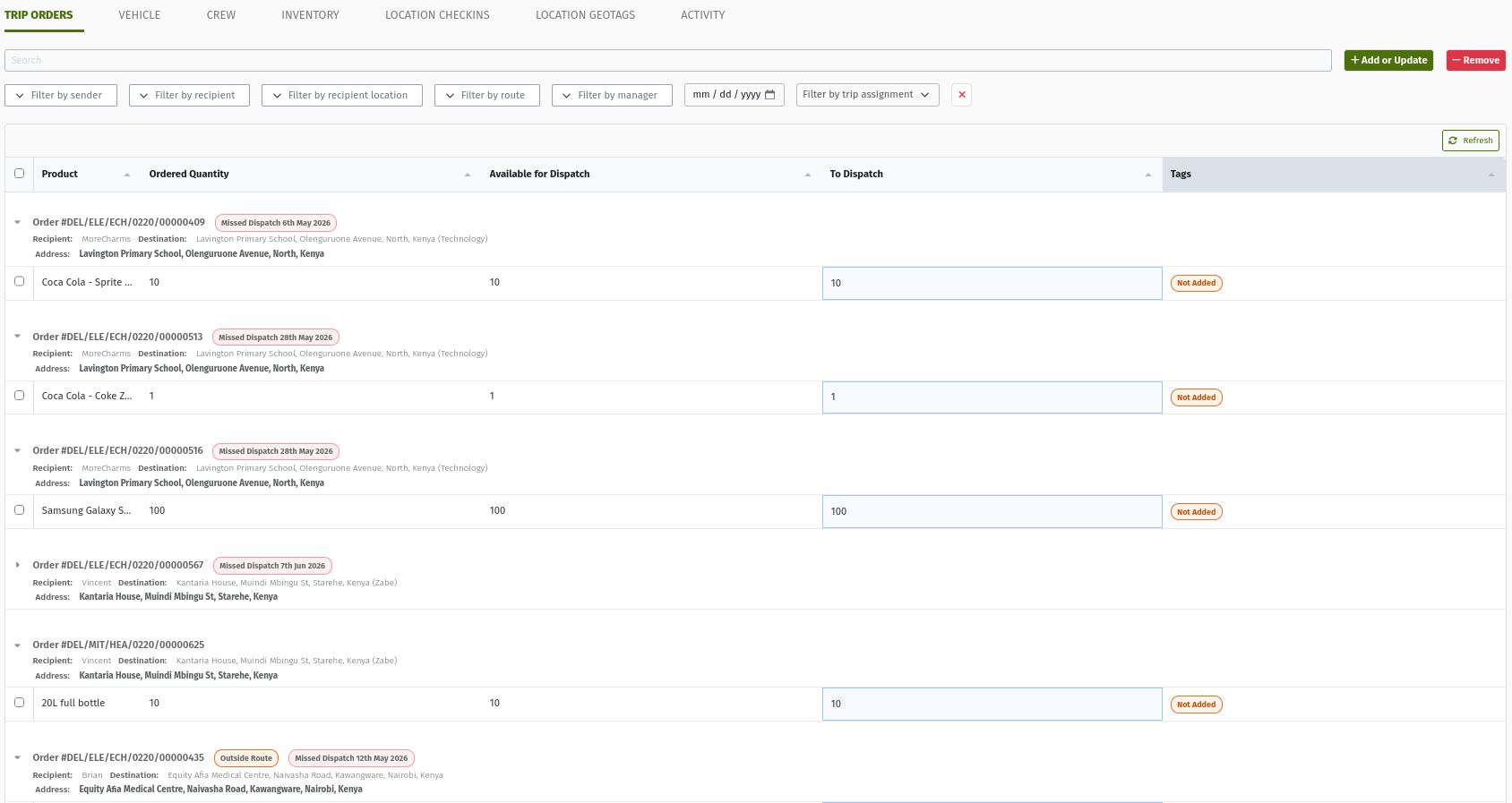 The Trip Orders tab on a Draft Trip, with the route filter cleared: orders for locations off the Route carry an "Outside Route" tag. Check To Dispatch before clicking Add or Update.
What the system does automatically: it reserves the quantity so the same stock can't be put on two Trips. On a Draft or Returned Trip, nothing else happens yet: no Shipment exists until the Trip is approved.
What happens next: submit or approve the Trip (Stage 9).
Common mistakes:
- Assuming an order "can't be added" because it isn't listed. The list opens filtered to the Trip's Route, so clear the route filter to see orders for locations off the Route.
- Planning to remove an order after approval. Remove is only available while the Trip is Draft or Returned, so get the order list right before you approve.
Detailed guide: Trips and Delivery Orders.
4.9 Stage 9 — Submit and approve the Trip
What is created or changed: the Trip moves DRAFT → READY → APPROVED.
Why it is required: approval commits the plan. It reserves the vehicle and turns the orders into Shipments.
What must already exist: a Vehicle and at least one order on the Trip.
Required states: Trip DRAFT (or RETURNED, resubmitted to Ready).
What you do:
- If you have approval permission, click Approve Trip on the Draft Trip. It is submitted and approved in one step.
- Otherwise, click Submit Trip. An approver then opens the Ready Trip and clicks Approve Trip, or clicks Return Trip with a note explaining what to fix.
- Confirm on the "Approve trip" screen.
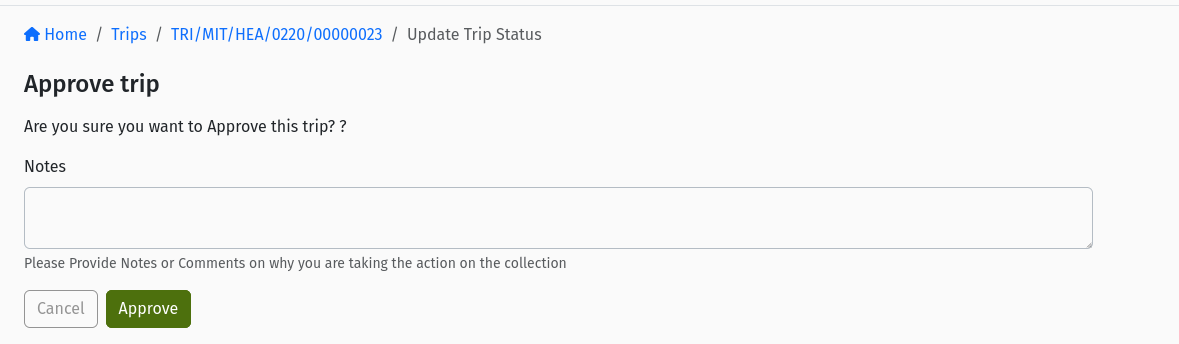 The "Approve trip" confirmation screen: "Are you sure you want to Approve this trip?".
What the system does automatically:
- It reserves the vehicle: an Available vehicle becomes Reserved.
- It starts Shipment generation in the background (Stage 10).
- It sends notifications to the people involved.
What happens next: Shipments appear, and the Trip asks for a Loading Request.
Common mistakes:
- Submitting a Trip without a vehicle. Every status change except Cancel needs a vehicle.
- Approving with no orders. You'll see "This trip has no orders assigned yet…" and the approval form isn't shown.
- Adding orders while the Trip is Ready. Orders can't be added in Ready, so return the Trip or wait until it is approved.
Detailed guide: Trips.
4.10 Stage 10 — Shipments are generated automatically
What is created or changed: one Shipment per Delivery Order on the Trip. Each Shipment has lines for the quantities you put on the Trip. The Shipments start APPROVED.
Why it is required: the Shipment is the record of this Trip's part of a Delivery Order. It is what gets loaded, delivered (or failed), and proven. If an order is split across two Trips, it has a Shipment on each.
What must already exist: an approved Trip with orders.
Required states: Trip APPROVED or IN_PROGRESS.
What you do: nothing. Open the Shipments tab and wait for generation to finish.
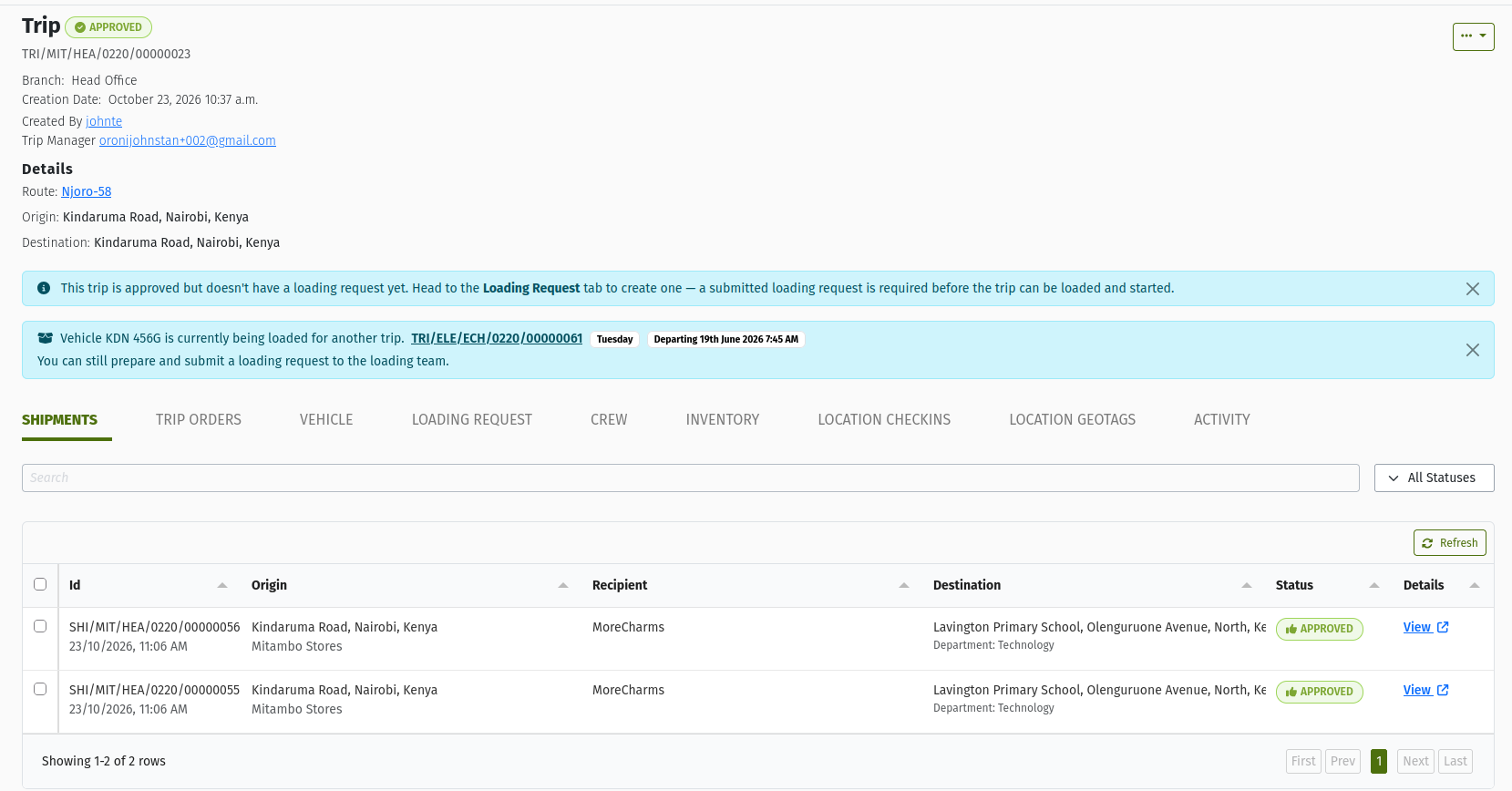 The Shipments tab shortly after approval: one Shipment per Delivery Order. A progress indicator shows while generation is still running.
What the system does automatically: it creates the Shipments in the background, copies the Trip Manager onto them, and sends a "shipments ready" notification. It does not create a Loading Request.
What happens next: the Trip shows a banner asking you to create the Loading Request (Stage 11).
Common mistakes:
- Expecting the Loading Request to appear on its own. It never does. Someone has to create it.
- Acting before generation has finished. Wait until the Shipments tab shows every order.
Detailed guide: Shipments.
4.11 Stage 11 — Create the Loading Request
What is created or changed: a Loading Request in DRAFT. It has one line per product, with quantities summed from all the Trip's delivery Shipments. Its destination is the Trip vehicle's Vehicle Warehouse.
Why it is required: it tells the loading team exactly what to put on the vehicle. Without it the Trip can't be loaded and started (when the loading-sheet setting is on).
What must already exist: an approved Trip whose Shipments have been generated.
Required states: Trip APPROVED. No other Loading Request yet.
What you do:
- Open the Trip's Loading Request tab. It shows "No Loading Request For Trip".
- Click Create Loading Request.
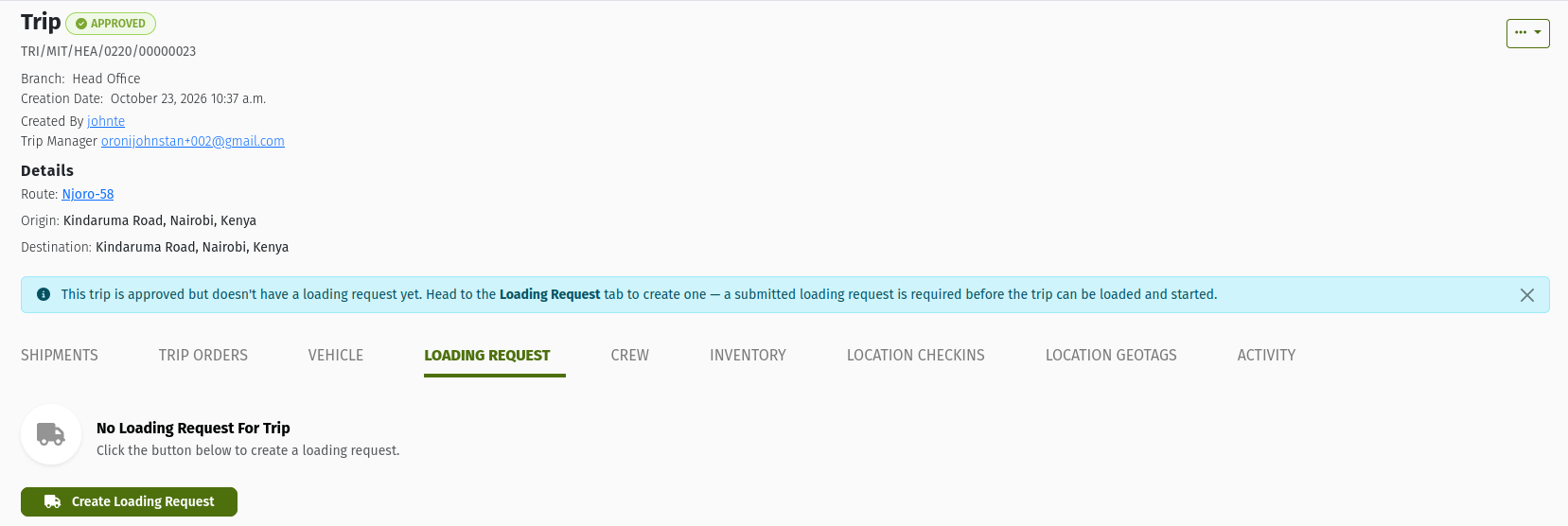 An approved Trip with the banner "This trip is approved but doesn't have a loading request yet…" and the Create Loading Request button on the Loading Request tab.
What the system does automatically: it builds the lines from the Shipments. It leaves out orders marked "does not require a loading request" and collection orders.
What happens next: review the loading sheet and submit it (Stage 12).
Common mistakes:
- Creating it before the Shipments have finished generating. Some products would be missing.
- Clicking the second Create Loading Request button (shown once the Trip has a Loading Request and none of them is a Draft) to "refresh" the request. That button makes an additional, empty Loading Request for a top-up. See Section 6.
Detailed guide: Loading Requests.
4.12 Stage 12 — Submit the Loading Request
What is created or changed: the Loading Request moves DRAFT → APPROVED.
Why it is required: submitting fixes the list and hands it to the loading team.
What must already exist: the Draft Loading Request.
Required states: every line has a quantity greater than zero. Set a source Warehouse on each line as well.
What you do:
- On the loading sheet, set the Warehouse each line comes from. To fill several lines at once, use Apply to Selected Rows.
- Click Submit Request and confirm with Yes, submit.
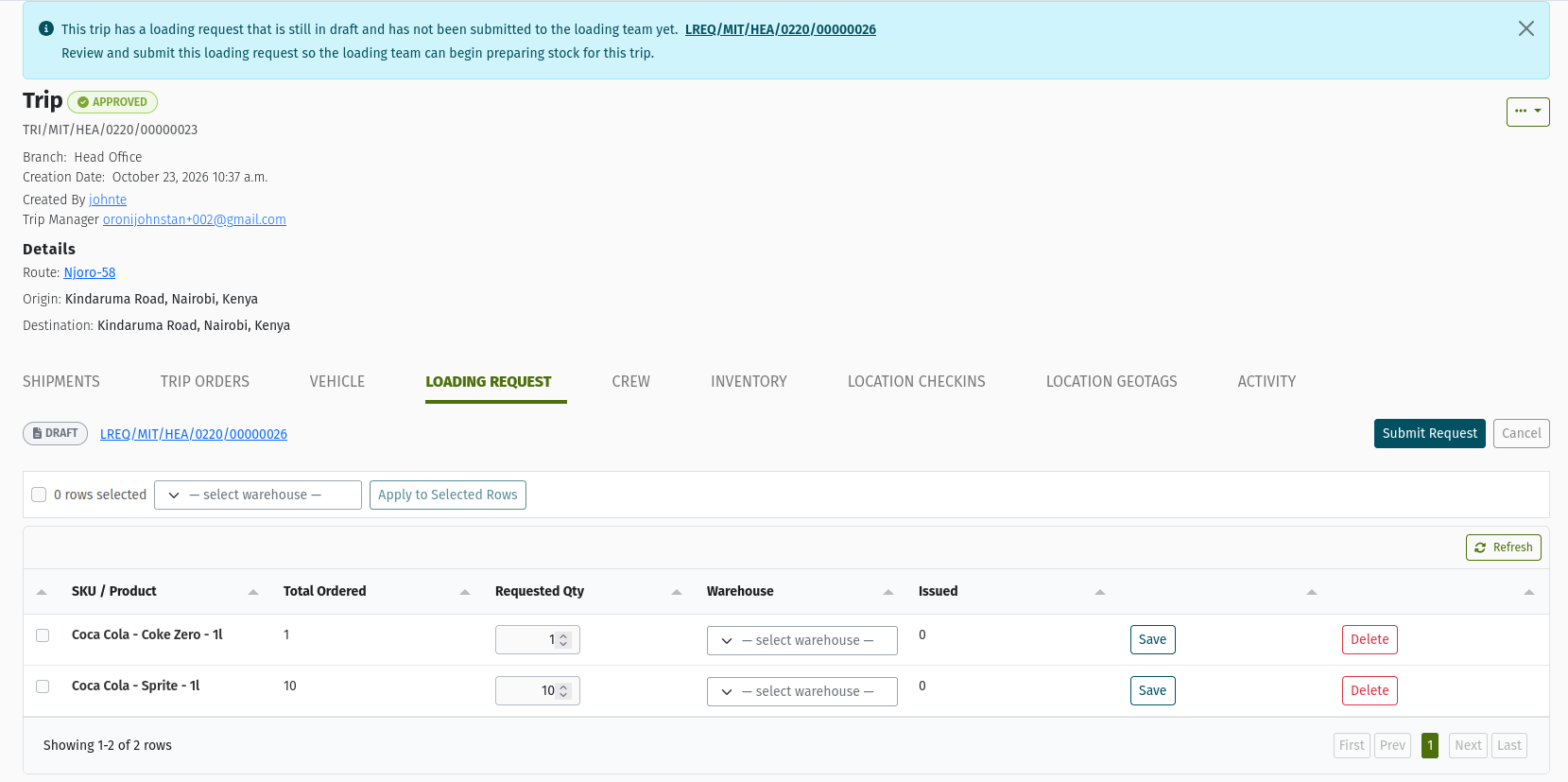 The Draft loading sheet with a source Warehouse set on each line and the Submit Request button.
What the system does automatically: it saves and approves the request in one step.
What happens next: the loading team starts loading (Stage 13).
Common mistakes: leaving lines without a warehouse, or submitting before checking the quantities.
Detailed guide: Loading Requests.
4.13 Stage 13 — Start Loading
What is created or changed:
- The Loading Request moves to IN_PROGRESS.
- The vehicle's status becomes Loading.
- Fulfilment is unlocked.
Why it is required: it reserves the vehicle for this Trip's loading and unlocks the fulfilment buttons. Until then, the Items tab says "Fulfillment is locked. Use the Start Loading button to begin dispatching stock."
What must already exist: an Approved Loading Request.
Required states:
- The Trip is Approved, Loaded or In Progress.
- The vehicle is not being loaded for, or out on, another Trip.
- No earlier Trip on the vehicle is still waiting for reconciliation.
- The Vehicle Warehouse isn't locked for a stock count.
What you do:
- Open the Loading Request and click Start Loading.
- Check the Vehicle panel, optionally adjust crew, and confirm.
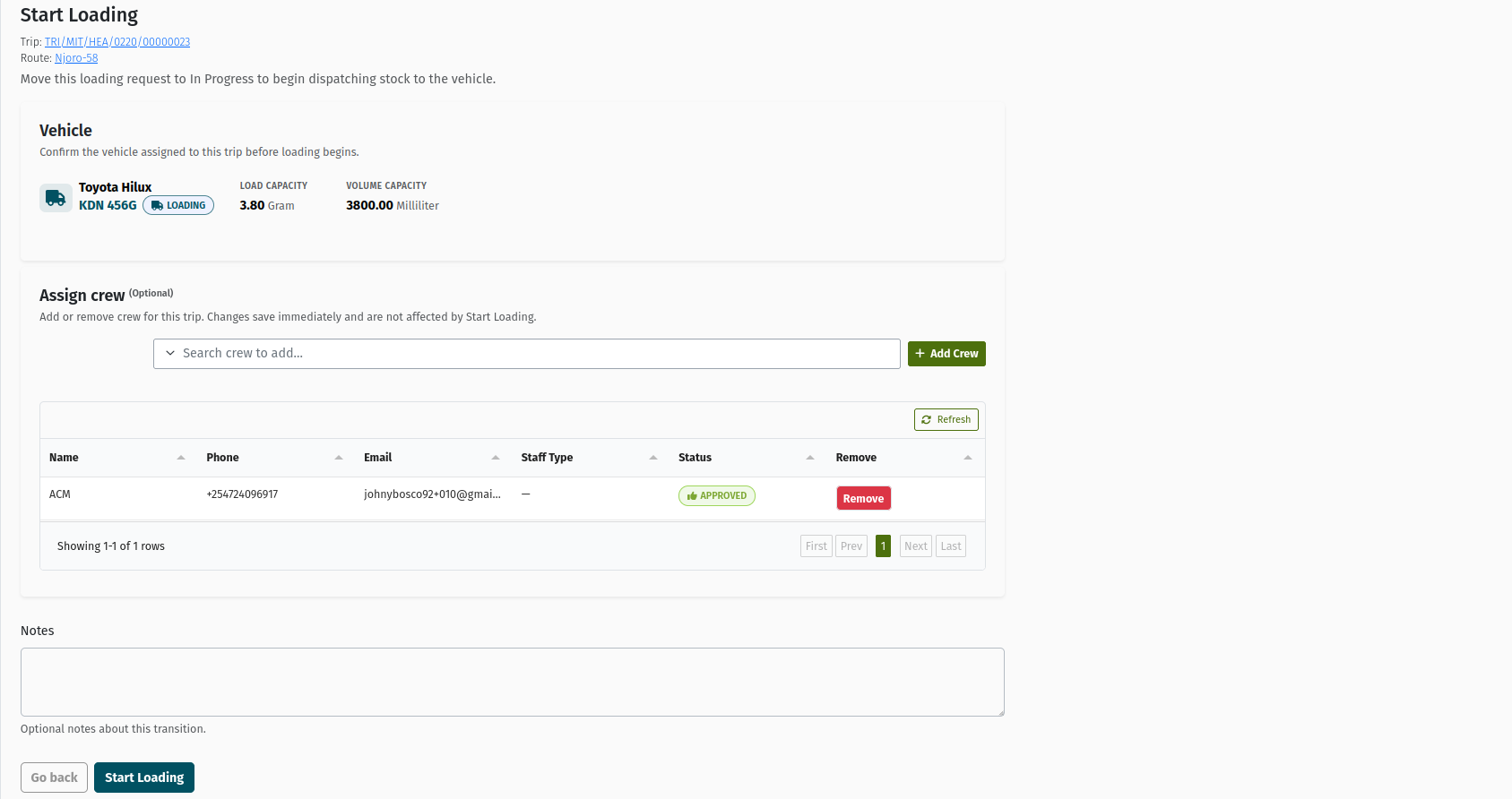 The Start Loading screen, with the Vehicle panel and optional Assign crew panel.
What the system does automatically: it moves the vehicle from Reserved to Loading.
What happens next: fulfil each line (Stage 14).
Common mistakes: trying to load while the vehicle's previous Trip is still unreconciled. The Trip shows a banner saying "Vehicle … is awaiting reconciliation…". Reconcile that Trip first.
Detailed guide: Loading Requests.
4.14 Stage 14 — Fulfil via Transfer, and complete the Transfers
What is created or changed: a Transfer from the source warehouse into the Vehicle Warehouse, for each line you fulfil. When a Transfer is completed, the stock is physically recorded on the vehicle, and the line's issued quantity goes up.
Why it is required: this is the step that actually moves the stock. A Loading Request is only a request. The Transfer is the stock movement.
What must already exist: an In Progress Loading Request, and enough stock in the source warehouse.
Required states: Loading Request IN_PROGRESS.
What you do:
- On the Loading Request, select a line and click Fulfill via Transfer.
- Enter the Source Warehouse unit and Quantity, then click Submit.
- Approve and complete the resulting Transfer, as you would any other Transfer.
- Repeat until every line is fully loaded.
If a product has to be made first, use Fulfill via MO instead. See the Manufacturing guides.
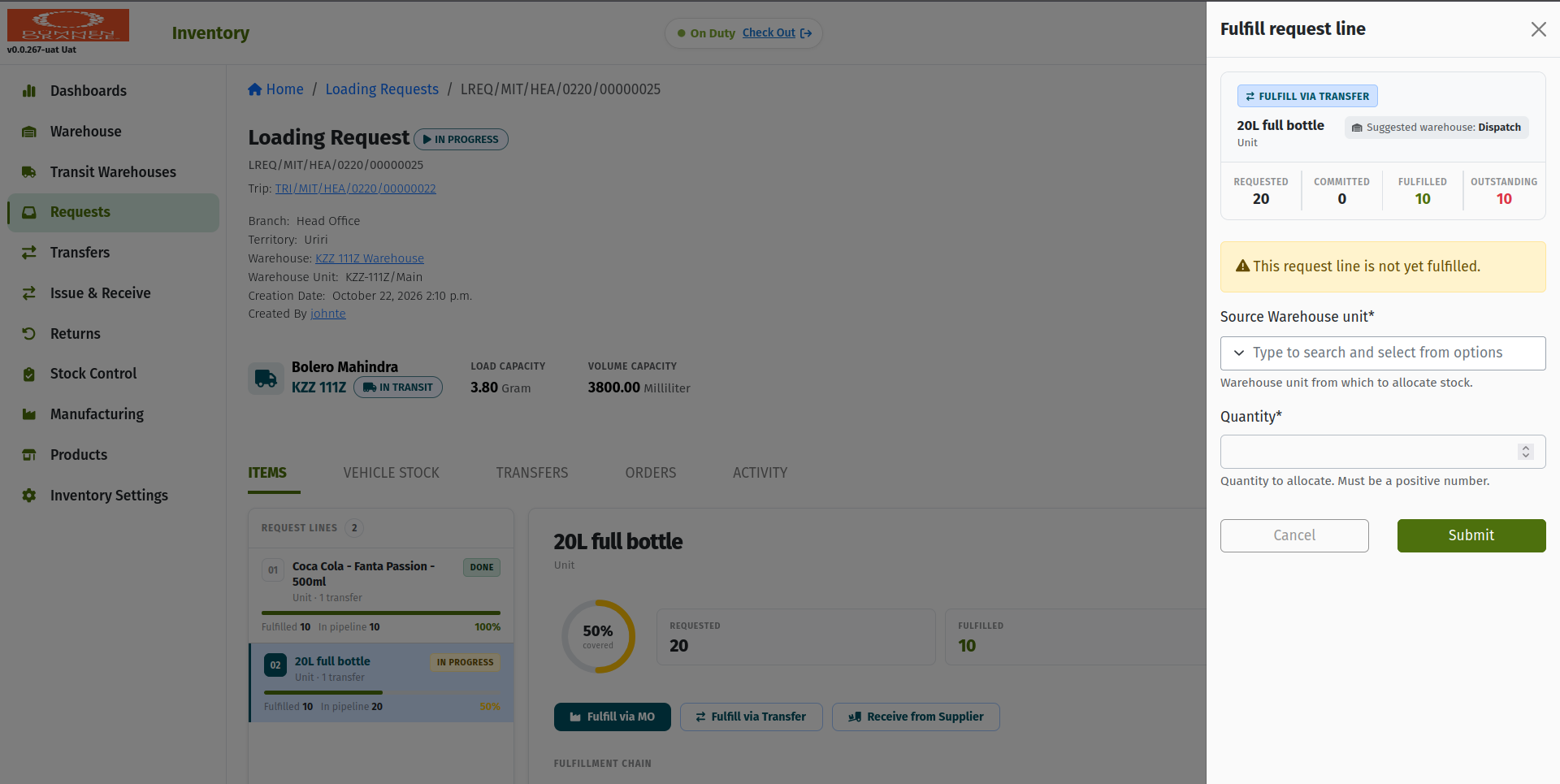 The "Fulfill request line" panel: pick the Source Warehouse unit and Quantity to send onto the vehicle.
What the system does automatically:
- It creates the Transfer, ready for approval.
- It updates the line's issued quantity once the Transfer is complete.
- It won't let you fulfil more than is still outstanding on the line.
What happens next: finish loading (Stage 15).
Common mistakes:
- Assuming that clicking Fulfill via Transfer moved the stock. It didn't. The Transfer must be approved and completed.
- Not having enough stock in the source warehouse. The Transfer can't be approved or completed without it.
Detailed guide: Loading Requests and Stock Movements.
4.15 Stage 15 — Finish Loading: the Trip becomes Loaded
What is created or changed:
- The Loading Request moves to COMPLETE.
- When it is the Trip's last open Loading Request, the Trip becomes LOADED automatically.
- The Shipments become Loaded too.
Why it is required: it confirms the vehicle is ready to depart, and it is what unlocks Start Trip.
What must already exist: a fulfilled Loading Request whose Transfers are all finished.
Required states: Loading Request IN_PROGRESS. Every fulfilment operation settled.
What you do:
- On the Loading Request, click Complete ("Finish Loading").
- Confirm. If nothing was loaded at all, you must add a note explaining why.
What the system does automatically: it moves the Trip to Loaded once no other Loading Request on the Trip is still open (Draft, Ready, Approved or In Progress).
There are also two manual ways to move the Trip to Loaded:
- Load Trip on an In Progress Loading Request, while the Trip is still Approved.
- Mark Trip as Loaded on the Trip, when it is still Approved, has more than one Loading Request, and at least one of them is In Progress or Complete.
Use them only when the team has agreed the vehicle is ready.
What happens next: dispatch (Stage 16).
Common mistakes:
- Leaving an extra Draft Loading Request untouched. It keeps the Trip from becoming Loaded. Submit and load it, or cancel it if it really isn't needed.
- Forgetting that a Loaded Trip can't take more orders. See Section 5.
Detailed guide: Loading Requests.
4.16 Stage 16 — Start Trip
What is created or changed:
- The Trip moves to IN_PROGRESS.
- The Shipments and Delivery Orders move to In Progress.
- The vehicle becomes In Transit.
- The departure time and start mileage are recorded.
Why it is required: it records the actual departure, puts the Trip in the crew's hands, and starts the delivery phase.
What must already exist: a Loaded Trip (or an Approved one, if the loading-sheet setting is off).
Required states:
- Trip LOADED.
- The vehicle has no other Trip in progress and no unreconciled earlier Trip.
What you do:
- On the Trip, click Start Trip.
- Enter Mileage (km). It can't be lower than the vehicle's current mileage.
- Confirm.
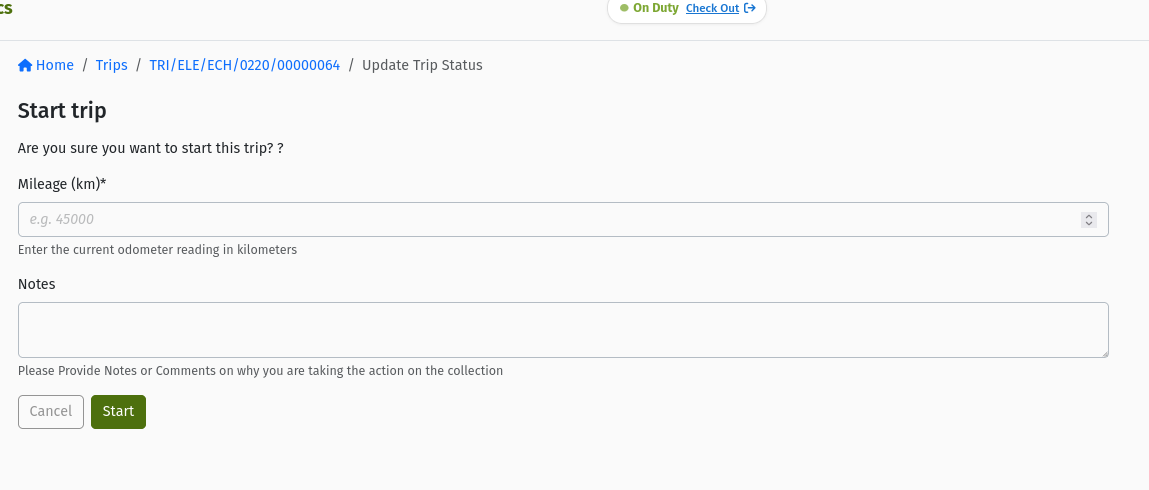 The Start Trip confirmation on a Loaded Trip, asking for the starting Mileage (km).
What the system does automatically:
- It moves the Shipments, Delivery Orders, vehicle and crew into their on-the-road statuses.
- It notifies the people involved.
- It cancels any Approved Loading Request that was never started, with the note "Trip departed.". Draft and Ready Loading Requests are kept, in case the vehicle is reloaded on the way.
What happens next: the crew delivers (Stage 17).
Common mistakes: entering the wrong mileage. It is used for the vehicle's running mileage.
Detailed guide: Trips.
4.17 Stage 17 — Deliveries
What is created or changed:
- Each Shipment becomes COMPLETE (or FAILED, or is skipped and visited again).
- The delivered quantities flow back to the Delivery Order, which becomes COMPLETE when all its quantity is delivered.
- A Goods Issue Note issues the delivered stock out of the Vehicle Warehouse.
Why it is required: this is the delivery itself, and it is what accounts for the stock that left the vehicle.
What must already exist: an In Progress Trip, and the stock in the Vehicle Warehouse.
Required states: Shipments IN_PROGRESS.
What you do: the crew records each delivery on the mobile app, including proof of delivery where your organisation uses it. In the console, follow progress on the Trip's Delivery Activities tab. Use Log Offload if stock has to come off the vehicle mid-trip, for example spoilage or returns.
What the system does automatically: it completes the Delivery Orders, creates the Goods Issue Notes (and any return Goods Receive Notes), and sends delivery notifications.
What happens next: End Trip (Stage 18).
Common mistakes: delivering goods that were never loaded through a Transfer. The Goods Issue Note needs the stock to be in the Vehicle Warehouse, and End Trip stays blocked until the Note is complete.
Detailed guide: Shipments.
4.18 Stage 18 — End Trip
What is created or changed:
- The Trip moves to COMPLETE.
- The return time and end mileage are recorded.
- The vehicle becomes Awaiting Reconciliation.
Why it is required: it closes the delivery phase and holds the vehicle until its stock has been counted.
What must already exist: finished Shipments and their inventory documents.
Required states:
- Every Shipment is Complete, Failed or Cancelled.
- Every delivered Shipment's Goods Issue Note (and any return or pickup receipt) is complete.
What you do:
- When End Trip appears, click it.
- Enter Mileage (km) and confirm.
If the button is missing, the Trip shows "This trip can not be ended yet. Some shipments are still in progress…".
What the system does automatically: it completes any remaining in-progress Shipments, holds the vehicle for reconciliation, and cancels any Loading Requests that were never started.
What happens next: Reconciliation (Stage 19).
Common mistakes: trying to end the Trip with a Shipment still open, or with a delivery whose stock was never loaded.
Detailed guide: Trips.
4.19 Stage 19 — Reconciliation
What is created or changed:
- A Reconciliation session records a count of what is left on the vehicle, explains the differences, and lets you transfer surplus stock back to a depot.
- Closing the session moves the Trip to RECONCILED and releases the vehicle.
Why it is required: until it is reconciled, the vehicle can't be loaded or dispatched for any other Trip. This makes sure the stock the vehicle carries forward is correct.
What must already exist: a Complete (or Failed) Trip.
Required states: Trip COMPLETE or FAILED.
What you do:
- On the Trip, click Start Reconciliation. This needs reconciliation-lead permission.
- Work through the steps: count, explain the differences, and optionally move stock back.
- Close the reconciliation.
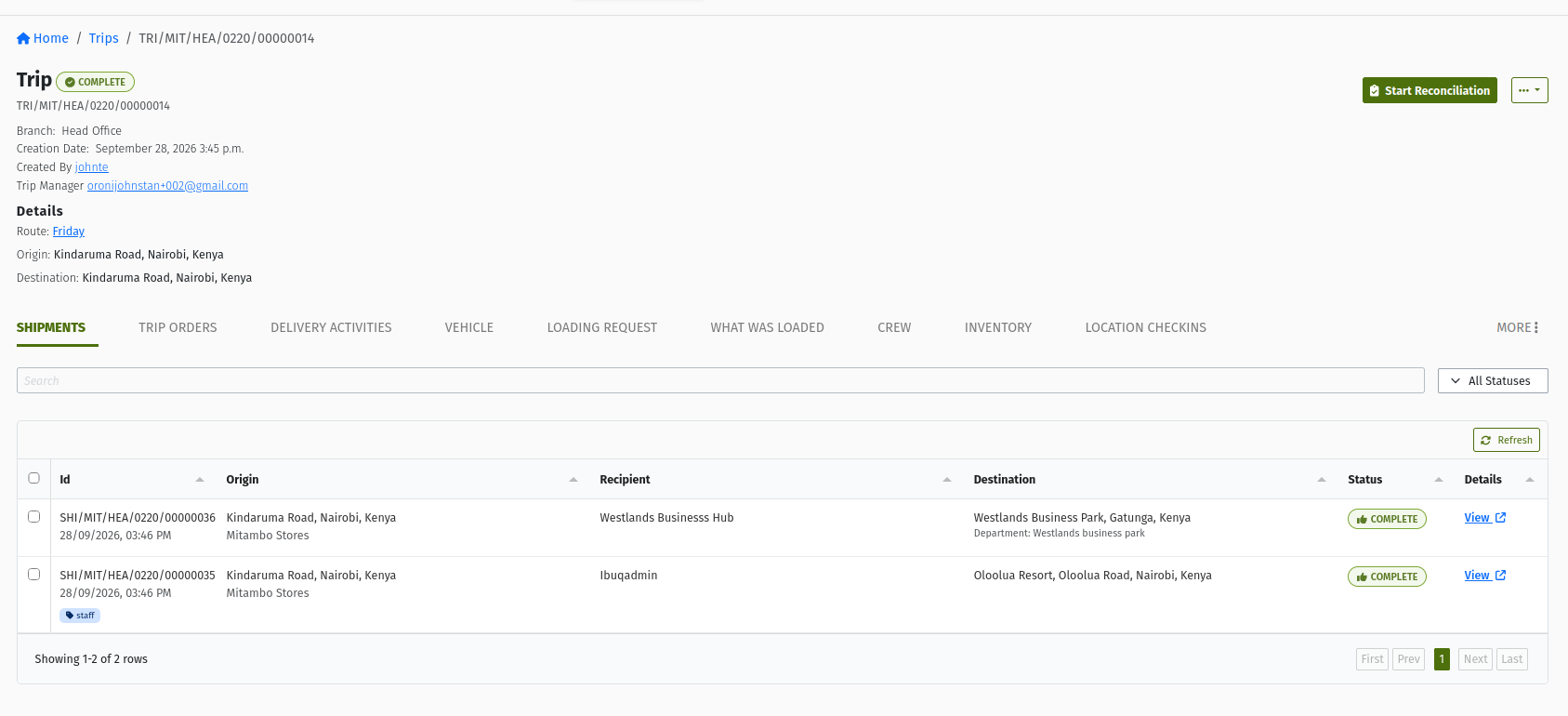 A Complete Trip showing Start Reconciliation. While it is unreconciled, the vehicle can't serve another Trip.
What the system does automatically: it moves the vehicle back to Available, or to Reserved if other approved Trips have it booked.
What happens next: Archive (Stage 20).
Common mistakes: leaving Trips unreconciled. The next Trip on that vehicle then shows a blocking banner and can't load.
Detailed guide: Trips.
4.20 Stage 20 — Archive
What is created or changed: the Trip moves to ARCHIVED.
Why it is required: it takes the finished Trip out of day-to-day work.
What must already exist: a Reconciled Trip.
Required states: RECONCILED. A Complete Trip can't be archived directly.
What you do: click Archive Trip in the Trip's ⋯ menu.
What the system does automatically: nothing further.
What happens next: the lifecycle is finished.
Common mistakes: trying to archive before reconciling.
Detailed guide: Trips.
5. Adding orders to an ongoing trip
Orders often arrive after a Trip has been planned: a late order, a top-up, an order moved off another Trip. TradeStack lets you add them, but what you have to do next depends on how far the Trip has got and what state its Loading Requests are in. Read this section carefully. It is the most common source of vehicles leaving without the goods.
5.1 When an order can be added
| Trip status | Can you add orders? | What happens |
|---|---|---|
| DRAFT / RETURNED | Yes | The order is held on the Trip. Its Shipment is created when the Trip is approved. You can still Remove it. |
| READY | No | The Trip is waiting for approval. Approve it (then add), or return it to the planner. |
| APPROVED | Yes | The Shipment is generated straight away, then the Loading Request rules in 5.3 apply. |
| LOADED | No | The vehicle has been declared ready to leave. See 5.5. |
| IN_PROGRESS | Yes | The Shipment is generated straight away and goes directly to In Progress. The goods must already be on the vehicle, or be loaded mid-route (5.5). |
| Complete, Failed, Reconciled, Archived, Cancelled | No | The Trip is finished. |
The order must be APPROVED or IN_PROGRESS (an In Progress order is one already partly on the road), and it must still have undispatched quantity. An order can't be added twice to the same Trip. Use Add or Update to change the quantity on a Draft Trip instead.
Does the Trip status matter? Yes, in three ways:
- It decides whether the order is accepted at all.
- It decides whether a Shipment is created now (Approved or In Progress) or later (Draft or Returned).
- It decides whether any loading can still happen before departure.
5.2 What happens when you add the order
You can add an order from the Trip's Trip Orders tab (Add or Update), or from the Delivery Order (Assign Trip). Either way:
- The quantity is reserved on the Delivery Order lines (Dispatched), so it can't be put on another Trip.
- The Delivery Order's status does not change. It stays Approved until its Shipment departs.
- On an Approved or In Progress Trip, the Shipment is generated immediately in the background. It appears on the Shipments tab within moments, and its Trip line is flagged as added after approval.
- The system then tries to put the new quantities on a Loading Request, following the rules below.
5.3 The Loading Request rules (decision table)
Look at the Trip's Loading Request tab before and after adding the order. What you see there tells you which row applies.
| What the Trip's Loading Requests look like when you add the order | What the system generates | New Loading Request needed? | What you should do |
|---|---|---|---|
| No Loading Request yet (Trip Approved, tab says "No Loading Request For Trip") | The Shipment only. No Loading Request lines. | Yes, but it is just the first one | Wait until the new Shipment shows on the Shipments tab, then click Create Loading Request. It sums all the Shipments, including the new order. Then submit and load as normal. |
| A Draft Loading Request exists | The new quantities are added into the Draft: merged into a matching product line, or added as new lines tagged "post trip approval". | No | Open the Draft, check the quantities and set the Warehouse on any new lines, then click Submit Request. |
| An Approved or In Progress Loading Request exists, and no Draft | A new Draft Loading Request is created automatically, holding only the new order's quantities. The existing request is not touched. The tab now shows New Requests and Approved Requests. | No, the system made it. Don't create another one. | Open New Requests, set the warehouses, click Submit Request, then Start Loading and fulfil it. It can be loaded alongside the first one. The Trip becomes Loaded only once both are complete. |
| Only a Ready Loading Request (submitted but not yet approved) | The Shipment only. The Ready request is not changed and no Draft is created. | Yes, a manual one | Get the Ready request approved as it is. Then click the additional Create Loading Request button, use Add Item to add each product and quantity of the new order, and submit it. |
| Only Complete or Cancelled Loading Requests (Trip still Approved) | The Shipment only. Nothing is added to any Loading Request. | Yes, a manual one (unless the goods are already on board) | Click the additional Create Loading Request button, Add Item for each product of the new order, then Submit Request, Start Loading, Fulfill via Transfer (and complete the Transfer), and Complete. If the stock is already on the vehicle, use the "does not require a loading request" option instead (5.4). |
| Trip In Progress (on the road) | The Shipment goes straight to In Progress. Usually nothing is added to a Loading Request, because the unstarted ones were cancelled at departure. If a Draft or In Progress Loading Request is still open, the Draft and Approved/In Progress rows above apply. | Yes, a manual top-up, unless the goods are already on board | Either confirm the stock is already on the vehicle (5.4), or raise a manual top-up Loading Request: Create Loading Request, Add Item, Submit Request, and Start Loading when the vehicle is at the warehouse. Then Fulfill via Transfer, complete the Transfer, and Complete. |
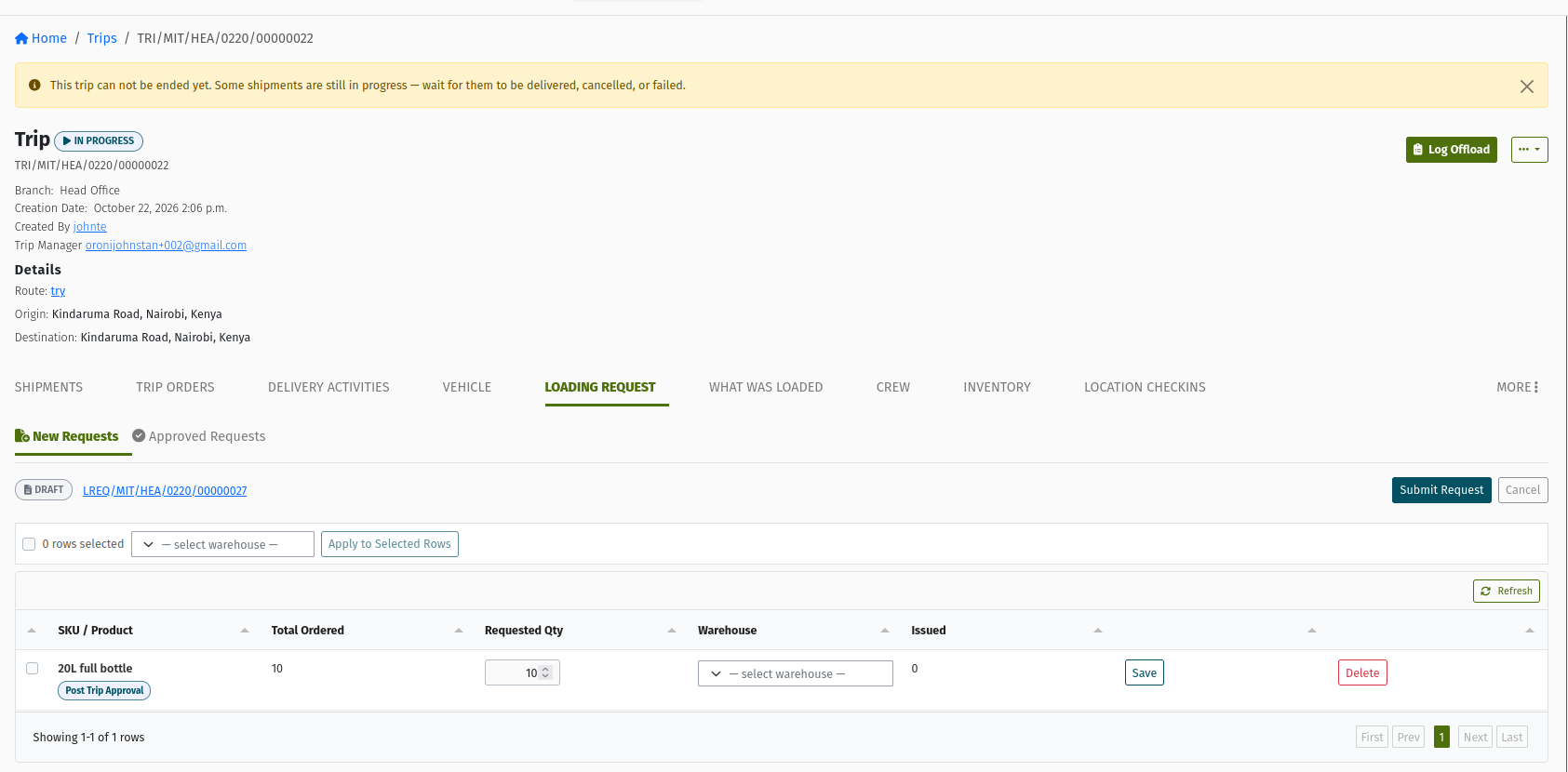 After adding an order to a Trip whose Loading Request is already approved: the system's new Draft sits under New Requests, and the original stays under Approved Requests.
Existing Approved, In Progress and Complete Loading Requests are never changed when you add an order. Only a Draft Loading Request is updated. If you see no Draft after adding an order, and the Trip has only Complete, Cancelled or Ready Loading Requests, nothing has been asked of the loading team. You must raise the manual Loading Request yourself, or confirm that the stock is already on the vehicle.
5.4 "This order does not require a loading request"
When you add orders, TradeStack can offer an option to skip loading:
- On the Trip Orders tab: when the Trip has an open Loading Request, a small Loading Request panel appears after you click Add or Update. Tick "These orders do not require a loading request" and click Confirm.
- On the Delivery Order: the Assign Trip screen has a checkbox, "This order does not require a loading request".
When you tick it:
- The order is tagged Loading Request Bypassed, so it stays traceable.
- The order is left out of the Trip's Loading Requests: none of the automatic behaviour in 5.3 happens for it.
When it is correct:
- The goods are already on the vehicle. For example, the Vehicle Warehouse holds surplus from an earlier load or a manual top-up, and the Trip's Vehicle tab shows the stock under "Stock on this vehicle".
- The quantity is already covered by a Loading Request you have deliberately raised for it, for example a manual top-up you already created for this product.
When it is wrong:
- The goods are still in the warehouse and you just want to "get the order on the Trip". The vehicle will leave without them, the delivery's Goods Issue Note can't be completed, and End Trip stays blocked.
- You aren't sure what is on the vehicle. Check the Vehicle tab first.
If you leave the box unticked on the Delivery Order's Assign Trip screen and the Trip already has a Loading Request, you'll be asked for a Collection warehouse for each item ("Assign a collection warehouse to every item before submitting."). Afterwards, always open the Trip's Loading Request tab and check the source Warehouse on the new lines before submitting.
 The Delivery Order's "Add order to trip" screen: pick the Trip, and tick "This order does not require a loading request" only if the goods are already on the vehicle.
5.5 When the vehicle is already loaded or already dispatched
The Trip is Loaded (ready to leave, not yet departed). You can't add orders to a Loaded Trip. Choose one of these:
- Plan the order on another Trip. This is the recommended option and is usually the cleanest.
- Take it on this vehicle after departure. Start the Trip, then add the order while it is In Progress, and either:
- load the stock with a manual top-up Loading Request at a warehouse on the way, or
- if you deliberately put the extra stock on board before departure with a manual Loading Request (manual Loading Requests are allowed on Loaded Trips), tick "does not require a loading request" when you add the order.
The Trip is In Progress (on the road). You can add the order. Its Shipment goes straight to In Progress, and the crew sees it on their next sync. For the goods:
- If they are already on the vehicle (surplus), use the "does not require a loading request" option.
- If they are not, raise a manual top-up Loading Request: Create Loading Request, Add Item, Submit Request. When the vehicle reaches the warehouse, click Start Loading. Mid-route loading is allowed for the vehicle's own In Progress Trip. Then Fulfill via Transfer, complete the Transfer, and Complete the Loading Request.
5.6 How additional orders affect loading and inventory documents
- Approved, In Progress and Complete Loading Requests are never edited. What they asked for, and what was loaded against them, stays exactly as it was.
- Only a Draft Loading Request is updated. If there is no Draft but an Approved or In Progress one exists, the system creates a new Draft for the extra quantities.
- A new Draft holds the Trip back. The Trip only becomes Loaded automatically when every Loading Request on it is finished. A Draft or Approved one that is waiting keeps it Approved.
- Deliveries always issue from the Vehicle Warehouse. Stock that was never moved onto the vehicle with a completed Transfer can't be delivered: the Goods Issue Note fails its stock check, and End Trip stays blocked until it is resolved.
- Orders can't be removed once the Trip is approved. Only add orders you really mean to send.
5.7 Do and don't
Do:
- Do check the Trip's Loading Request tab every time you add an order to an Approved or In Progress Trip.
- Do submit the Draft Loading Request that the system creates. It already holds exactly the new order's quantities.
- Do wait for the new Shipment to appear before you create the first Loading Request.
- Do set the source Warehouse on new lines before you submit.
- Do use a manual Loading Request (Create Loading Request → Add Item) when the earlier ones are already Complete, and add only the new order's products and quantities.
- Do check the Vehicle tab's "Stock on this vehicle" before claiming the goods are already on board.
- Do plan a new Trip when the vehicle is already Loaded and there is no sensible way to load more.
Don't:
- Don't create a second full Loading Request while one is Approved, In Progress or Complete. Additional requests are for the extra stock only.
- Don't tick "does not require a loading request" unless the goods are already on the vehicle, or already covered by a Loading Request you raised for them.
- Don't leave an auto-created Draft unsubmitted. The goods won't be loaded, and the Trip won't move to Loaded on its own.
- Don't assume that adding an order changed the Delivery Order's status. It stays Approved until it departs.
- Don't add orders and approve the Trip "to sort out later". Orders can't be removed after approval.
5.8 Worked examples
Example 1 — Order added before loading has started
Trip TRI-1 is Approved. Its Loading Request was created and is still a Draft. A new order for 20 crates of juice comes in.
- What you do: on Trip Orders, tick the order, check To Dispatch = 20, and click Add or Update. Leave the bypass box unticked. Open the Loading Request tab, set the Warehouse on the juice line, and click Submit Request.
- What the system generates: a Shipment for the new order, and +20 juice on the Draft Loading Request (as a new line tagged "post trip approval", or merged into an existing juice line).
- New Loading Request? No. The existing Draft absorbed it.
Variation: the Loading Request hasn't been created at all yet. Add the order, wait for its Shipment to appear, then click Create Loading Request. The first Loading Request includes the new order. No extra request is needed.
Example 2 — Order added while loading is in progress
Trip TRI-2 is Approved. Its Loading Request is In Progress and the vehicle is Loading. A new order for 10 bags of flour comes in.
- What you do: add the order. Open the Loading Request tab and go to New Requests: there is a new Draft holding only the 10 bags. Set the warehouse, click Submit Request, then Start Loading on it, Fulfill via Transfer, complete the Transfer, and Complete it. Finish the original Loading Request as normal.
- What the system generates: a Shipment, plus a new Draft Loading Request with only the flour. The In Progress request is untouched.
- New Loading Request? Yes, but the system created it. Don't create another one. The Trip becomes Loaded when both requests are Complete.
Example 3 — Order added after the original loading has already been completed
Case A: Trip TRI-3 is still Approved, and its only Loading Request is Complete.
- What you do: add the order (leave the bypass box unticked if you use Assign Trip). On the Loading Request tab, click the additional Create Loading Request. Use Add Item to add only the new order's products and quantities, click Submit Request, then Start Loading, Fulfill via Transfer, complete the Transfer, and Complete.
- What the system generates: the Shipment only. Nothing is added to the Complete Loading Request, and no Draft is created.
- New Loading Request? Yes, a manual one, made by you, unless the goods are already on the vehicle. In that case tick "does not require a loading request" instead.
Case B: Trip TRI-3 has already become Loaded.
- What you do: you can't add the order to a Loaded Trip. Put it on another Trip. Or, if it must go on this vehicle, start the Trip, add the order while it is In Progress, and follow Example 4.
- What the system generates: nothing until the order is accepted.
- New Loading Request? Only if you take the In Progress route and the goods aren't already on board.
Example 4 — Order added after departure
Trip TRI-4 is In Progress. A customer on the route calls with an urgent order.
- What you do: add the order on Trip Orders. If the goods are not on the vehicle, click Create Loading Request, Add Item for the products, and Submit Request. When the vehicle is at the warehouse, click Start Loading, then Fulfill via Transfer, complete the Transfer, and Complete the Loading Request. The crew then delivers.
- What the system generates: a Shipment that goes straight to In Progress (the order moves to In Progress too). Normally no Loading Request lines, because the unstarted requests were cancelled at departure.
- New Loading Request? Yes, a manual top-up, unless the goods are already on board.
Example 5 — Order whose stock is already on the vehicle
Trip TRI-5 is In Progress. The Vehicle tab shows 30 spare crates of water on board, and a new order wants 12.
- What you do: on the Delivery Order, click Assign Trip, pick TRI-5, tick "This order does not require a loading request", and click Submit. (On the Trip Orders tab, the bypass option appears only when the Trip has an open Loading Request. If it doesn't appear, nothing is generated anyway, so simply add the order.)
- What the system generates: the Shipment, and the Loading Request Bypassed tag on the order. No Loading Request lines.
- New Loading Request? No. The delivery issues the 12 crates from the Vehicle Warehouse.
Example 6 — The wrong way (what not to do)
Trip TRI-6 is Approved with an Approved Loading Request. A dispatcher adds an order, doesn't look at the tab, and clicks Create Loading Request again "to include it".
- What goes wrong: the system had already created a Draft for the new order. The extra request duplicates quantities, so the vehicle is asked to carry more than it needs.
- What to do instead: after adding the order, open New Requests and submit the Draft the system made. If an extra request was created by mistake, cancel it before loading starts.
6. Loading Requests and dispatch
Trip (APPROVED)
  ↓ automatic
Shipment(s)  — what each Delivery Order sends on this Trip
  ↓ Create Loading Request (manual)
Loading Request — one line per product, destination = Vehicle Warehouse
  ↓ Submit Request → Start Loading → Fulfill via Transfer
Transfer(s) — source warehouse → Vehicle Warehouse (approve & complete)
  ↓
Vehicle Warehouse stock — what the vehicle actually carries
  ↓ Complete (Finish Loading) → Trip LOADED → Start Trip
Dispatch — Trip IN_PROGRESS, vehicle IN_TRANSIT
  ↓ crew delivers
Delivery — Shipment COMPLETE → Goods Issue Note out of the Vehicle Warehouse
Why a Loading Request exists. Shipments say what the customer should receive. The Loading Request says what the loading team must put on the vehicle, summed per product across all Shipments, and where each product comes from. It is how the warehouse knows what to send to the vehicle.
When it is created and what triggers it. The first one is created by a person, by clicking Create Loading Request on an Approved Trip. Trip approval never creates one. After that, extra Loading Requests come from two sources:
- The system: a new Draft, when orders are added while an Approved or In Progress Loading Request exists (see 5.3).
- You: a manual one, with the additional Create Loading Request button and Add Item. This is allowed while the Trip is Approved, Loaded or In Progress, and only when the Trip already has at least one Loading Request and none of them is a Draft.
What approval does. Submit Request approves the Loading Request in one step. The request is now fixed and visible to the loading team. Approval alone moves no stock. Start Loading reserves the vehicle for loading (the vehicle becomes Loading) and unlocks fulfilment.
Link to Shipments. The first Loading Request's lines are the totals of the Trip's delivery Shipments. Orders marked "does not require a loading request", and collection orders, are left out. Orders added later reach a Loading Request only through the rules in 5.3.
Inventory movement.
- In: each Fulfill via Transfer creates a Transfer into the Vehicle Warehouse. The stock moves when that Transfer is approved and completed.
- Out: each delivered Shipment produces a Goods Issue Note from the Vehicle Warehouse.
- Back: at reconciliation you count what is left and can transfer surplus back to a depot.
When a new Loading Request is appropriate:
- The Trip has no Loading Request yet. Create the first one.
- An order was added after the existing ones were Complete (or only Ready), and the goods aren't on board. Create a manual one with only the extra items.
- The vehicle needs a mid-route top-up while In Progress.
When a new Loading Request is incorrect:
- A Draft already exists. Use it. The system won't let you create a second Draft.
- The system has just created a Draft for added orders. Submit that one instead.
- You want to "refresh" an Approved, In Progress or Complete request. Don't. Additional requests are for extra stock only, never a full re-copy.
- The goods are already on the vehicle. Use the "does not require a loading request" option.
How loading enables dispatch.
- When the last open Loading Request is completed, the Trip becomes Loaded automatically, and Loaded is what shows Start Trip.
- With the loading-sheet setting off, Start Trip is available directly from Approved.
- Either way, deliveries take stock out of the Vehicle Warehouse, so what was loaded is what can be delivered.
See the Loading Requests guide for the loading sheet, fulfilment options, Change Vehicle and cancelling.
7. Status cheat-sheet
The usual status of each document at each stage, with the loading-sheet setting on.
| Stage | Delivery Order | Trip | Shipment | Loading Request | Vehicle (Status) |
|---|---|---|---|---|---|
| Delivery Order created | DRAFT | — | — | — | — |
| Delivery Order approved | APPROVED | — | — | — | — |
| Trip created, vehicle assigned | APPROVED | DRAFT | — | — | Unchanged (e.g. Available) |
| Orders added | APPROVED (quantity reserved) | DRAFT | — | — | Unchanged |
| Trip submitted | APPROVED | READY | — | — | Unchanged |
| Trip approved | APPROVED | APPROVED | APPROVED | — (create it) | Reserved |
| Loading Request created | APPROVED | APPROVED | APPROVED | DRAFT | Reserved |
| Loading Request submitted | APPROVED | APPROVED | APPROVED | APPROVED | Reserved |
| Start Loading / fulfilling | APPROVED | APPROVED | APPROVED | IN_PROGRESS | Loading |
| Finish Loading | APPROVED | LOADED | LOADED | COMPLETE | Loading |
| Start Trip | IN_PROGRESS | IN_PROGRESS | IN_PROGRESS | COMPLETE | In Transit |
| Delivered | COMPLETE | IN_PROGRESS | COMPLETE | COMPLETE | In Transit |
| End Trip | COMPLETE | COMPLETE | COMPLETE | COMPLETE | Awaiting Reconciliation |
| Reconciliation closed | COMPLETE | RECONCILED | COMPLETE | COMPLETE | Available (or Reserved) |
| Archived | COMPLETE | ARCHIVED | COMPLETE | COMPLETE | Available (or Reserved) |
A Delivery Order generated from a Sales Order starts at READY rather than Draft. A Delivery Order that is split across Trips stays IN_PROGRESS until all of its quantity has been delivered. A failed delivery makes the Shipment FAILED and gives the quantity back to the order, so it can go on another Trip.
8. Roles and handoffs
The job titles below are typical. What a person can actually do depends on the permissions their user type has been given.
| Step | Typically done by | Hands off to | Key permission(s) |
|---|---|---|---|
| Create Customer and Customer Location | Sales / order desk | Approver | ADD_CUSTOMER |
| Approve Customer, activate Location | Approver / master-data owner | Route planner | APPROVE_CUSTOMER, permission to approve locations |
| Build Routes, Vehicle Types, Vehicles | Logistics administrator / dispatcher | Dispatcher | ADD_ROUTE, ADD_VEHICLE_TYPE, ADD_VEHICLE |
| Create Delivery Order | Sales / order desk | Approver | ADD_DELIVERY_ORDER |
| Approve Delivery Order | Order approver | Dispatcher | APPROVE_DELIVERY_ORDER |
| Create Trip, assign vehicle, add orders | Dispatcher / Trip Manager | Trip approver | ADD_TRIP |
| Approve Trip | Trip approver / logistics supervisor | Dispatcher | APPROVE_TRIP |
| Create and submit Loading Request | Dispatcher / Trip Manager | Loading team | CHANGE_TRIP |
| Start Loading, fulfil, finish loading | Loading team / warehouse | Dispatcher | APPROVE_TRANSFER_REQUEST (plus Transfer permissions) |
| Start Trip | Dispatcher / Trip Manager | Driver and crew | CHANGE_TRIP |
| Deliver, proof of delivery | Driver / crew (mobile app) | Dispatcher | Mobile app access |
| End Trip | Dispatcher / Trip Manager | Reconciliation lead | CHANGE_TRIP |
| Reconciliation | Reconciliation lead | Dispatcher (vehicle free again) | LEAD_TRIP_RECONCILIATION |
| Archive | Dispatcher / supervisor | — | CHANGE_TRIP |
Handoff checklist:
- Order desk → Dispatcher: the order is Approved, the recipient location is correct, and the quantities are final.
- Dispatcher → Loading team: the Trip is Approved, the Loading Request is submitted, and every line has a source warehouse.
- Loading team → Dispatcher: every Transfer is completed and the Loading Request is Complete, so the Trip shows Loaded.
- Dispatcher → Crew: Start Trip is done with the correct mileage, and the crew is on the Trip's Crew tab.
- Crew → Reconciliation lead: every Shipment is finished and End Trip is done, and the vehicle is back for counting.
9. Common mistakes and troubleshooting
| Message / symptom | Cause | What to do |
|---|---|---|
| New customer or location "missing" from the list | The list filters default to Approved customers and Active locations | Change the status filter. Approve the customer and activate the location. |
| Customer Location not offered on the Route or Delivery Order | The location isn't Active, or its customer isn't Approved | Activate Location and Approve the customer. |
| Delivery Order not listed on the Trip Orders tab | The order isn't Approved, it is fully dispatched already, or it belongs to another branch | Approve the order. Check the Dispatched quantity. Clear the route filter: the list opens showing only orders whose destination is on the Trip's Route. |
| Order shows an "Outside Route" tag | Its location isn't on the Trip's Route | You can still add it. Add the location to the Route if it should normally be on it. |
| "No trips available for assignment" on Assign Trip | No Trip in your branch is Draft, Returned, Approved or In Progress, or the order is already on them | Create a Trip, or approve the Ready one. |
| "This trip has no orders assigned yet. Consider assigning orders to it before approving." | No orders on the Trip | Add orders on Trip Orders. |
| "Only vehicles in AVAILABLE, RESERVED, LOADING, IN_TRANSIT or AWAITING_RECONCILIATION status can be assigned to a trip." | The vehicle is Unavailable or Under Maintenance | Pick another vehicle, or have the vehicle marked available. |
| "This trip has a loading request that hasn't been completed yet, so the vehicle can't be changed from here…" | An open Loading Request exists | Use Change Vehicle on the Loading Request instead. |
| "This trip is approved but doesn't have a loading request yet…" | Approval doesn't create one | Click Create Loading Request on the Loading Request tab. |
| "A loading request can only be created while the trip is Approved." | The Trip is Draft or Ready, or it is past Approved with no Loading Request at all | Approve the Trip first. For later stages, see Section 5. |
| "Fulfillment is locked. Use the Start Loading button to begin dispatching stock." | The Loading Request is Approved but loading hasn't started | Click Start Loading. |
| Banner: "Vehicle {plate} is awaiting reconciliation … on trip {trip}…" | The vehicle's previous Trip hasn't been reconciled | Reconcile that Trip. Until then, you can prepare and submit the Loading Request, but it can't be loaded. |
| "Vehicle warehouse is locked for a stock count…" | A stock count is open on the Vehicle Warehouse | Finish the stock count first. |
| Line still shows outstanding after Fulfill via Transfer | The Transfer isn't completed yet | Approve and complete the Transfer. |
| All loading finished, but the Trip is still Approved | Another Loading Request on the Trip (often a Draft) is still open | Submit and load it, or cancel it if it isn't needed. |
| Order added, but nothing new on the Loading Request | The Trip had only Complete, Cancelled or Ready Loading Requests, or none | Follow the decision table in 5.3. |
| Can't add an order to the Trip | The Trip is Ready or Loaded | Approve the Ready Trip first. For a Loaded Trip, plan another Trip, or see 5.5. |
| "Vehicle {plate} is already assigned to a trip that is currently in progress." | The vehicle is out on another Trip | Wait for that Trip to end, or use another vehicle. |
| "This trip can not be ended yet. Some shipments are still in progress…" | Shipments aren't finished, or a delivery's Goods Issue Note isn't complete | Finish or fail the remaining Shipments. Check that the delivered stock was loaded onto the vehicle. |
| Failing a Trip asks for a Failure Reason, but the list is empty | No Trip failure reasons have been set up | Ask your administrator to add them in Logistics → Logistics Settings → Failure Reasons. |
| Cancel isn't offered on an Approved Trip | Loading has already started | Use Fail Trip instead. |
10. Best practices
- Finish master data first. Approve customers, activate locations, and put locations on Routes before orders start arriving.
- Approve Delivery Orders promptly. A Trip can only take approved orders.
- Get the order list right before approving the Trip. Orders can't be removed afterwards.
- Wait for Shipments, then create the Loading Request, once per Trip. Check that every product is there.
- Treat "Create Loading Request" on a Trip that already has one as a top-up button, never a refresh.
- Always complete the Transfers. Fulfilling a line doesn't move stock until its Transfer is completed.
- Look at the Loading Request tab after every late order. Submit any Draft you find.
- Use "does not require a loading request" only for stock already on board. If in doubt, check "Stock on this vehicle".
- Reconcile promptly. An unreconciled Trip blocks the next Trip on that vehicle.
- Let the system move statuses. Delivery Orders, Shipments and vehicles move with the Trip. Avoid manual overrides such as completing an order by hand while it is on a Trip.
11. Out of scope for this manual
These features touch the lifecycle but are covered only briefly here:
- Mobile app. The crew records deliveries, proof of delivery, skips and failures on the mobile app. This manual covers the web console side only.
- Visit Plans. These are a separate kind of Trip, for customer visits rather than deliveries. They have no Shipments, and they are loaded only with manual Loading Requests.
- Recurring templates. Recurring Delivery Order schedules and recurring Trip templates create orders and Trips automatically on a schedule. The documents they create follow the lifecycle described here.
- Pickup / Collection orders. These collect goods from a location instead of delivering them. They aren't part of Loading Requests, because the goods arrive onto the vehicle at the customer.
12. Quick reference
| Step | Action | Watch out for |
|---|---|---|
| 1 | Create and Approve the Customer | KYC documents. The list defaults to Approved. |
| 2 | Create and Activate Location | Pick the address from the dropdown. |
| 3 | Create the Route, then + Add Customer | Routes don't restrict orders. |
| 4 | Vehicle Type and Vehicle | Capacity is information only. |
| 5 | Create the Delivery Order and add lines | It is for a specific location. |
| 6 | Approve Order | Orders from a Sales Order start at Ready. |
| 7 | + Trip: Route Details, then Vehicle | A vehicle is needed for every status change except Cancel. |
| 8 | Trip Orders → Add or Update | Remove is possible only while Draft or Returned. |
| 9 | Approve Trip | Needs at least one order. |
| 10 | Shipments generate automatically | Wait for them to finish. |
| 11 | Create Loading Request | Manual, and only while the Trip is Approved. |
| 12 | Submit Request | Set the source warehouses. |
| 13 | Start Loading | Earlier Trips on the vehicle must be reconciled. |
| 14 | Fulfill via Transfer, then complete the Transfer | Stock moves only when the Transfer is complete. |
| 15 | Complete (Finish Loading) → Trip Loaded | Any open sibling Loading Request blocks Loaded. |
| 16 | Start Trip + mileage | Unstarted Approved Loading Requests are cancelled. |
| 17 | Deliveries (mobile app) | Goods Issue Notes need stock on the vehicle. |
| 18 | End Trip + mileage | All Shipments and Goods Issue Notes must be finished. |
| 19 | Start Reconciliation, then close | Releases the vehicle. |
| 20 | Archive Trip | Only after Reconciled. |
Status meanings
| Status | On a Trip, it means… |
|---|---|
| DRAFT | Being planned. Orders can be added and removed. |
| READY | Submitted, waiting for approval. Orders can't be added. |
| RETURNED | Sent back by the approver. Fix it and resubmit, or cancel it. |
| APPROVED | Committed. Shipments exist and the vehicle is reserved. Time to load. |
| LOADED | Loading finished. Ready to start. Orders can't be added. |
| IN_PROGRESS | On the road. Deliveries are happening. Orders can still be added (5.5). |
| COMPLETE | Ended. The vehicle is waiting for reconciliation. |
| FAILED | Stopped after loading started. Still needs reconciling. |
| RECONCILED | The vehicle has been counted and released. |
| ARCHIVED | Closed and filed. |
| CANCELLED | Called off before loading started. Orders and vehicle are released. |
Glossary
- Customer — a business partner you deliver to. It must be Approved before it can be used.
- Customer Location — a specific delivery point belonging to a customer. It must be Active.
- Route — a named run from an Origin to a Destination, with a list of Customer Locations. The Trip Orders list opens filtered to it, but it doesn't restrict which orders you can add.
- Delivery Order — the instruction to deliver products to a Customer Location.
- Trip — a planned run of one Vehicle on one Route, carrying Delivery Orders.
- Trip Manager — the user responsible for the Trip, chosen when the Trip is created.
- Shipment — the part of one Delivery Order carried on one Trip. It is generated automatically once the Trip is approved.
- Loading Request — the request to the loading team to put products onto the vehicle. Its destination is the Vehicle Warehouse.
- Loading Sheet — the editable table of a Loading Request on the Trip's Loading Request tab.
- Manual (top-up) Loading Request — an additional, initially empty Loading Request that you fill with Add Item. Use it for extra stock only.
- Vehicle Warehouse — the vehicle's own stock location. Everything on board is held here.
- Transfer — the stock movement that takes goods from a warehouse into the Vehicle Warehouse during loading.
- Goods Issue Note — the stock movement that issues delivered goods out of the Vehicle Warehouse.
- Loading Request Bypassed — the tag on an order added with "does not require a loading request".
- Reconciliation — the count of the vehicle after a Trip. Closing it releases the vehicle.
- Loading-sheet process — the organisation setting Enable Loading Sheet Process (on by default) that turns the Loading Request stage on or off.
13. Frequently asked questions
Does approving a Trip create the Loading Request?
No. Approval creates the Shipments and reserves the vehicle. Someone must click Create Loading Request on the Trip's Loading Request tab. The Trip shows a banner until they do.
Does adding an order to a Trip change the Delivery Order's status?
No. It reserves the quantity (shown as Dispatched), but the order stays Approved. It becomes In Progress when its Shipment departs, and Complete when it has been delivered.
Can I add an order after the Trip has been approved?
Yes, while the Trip is Approved or In Progress, but not while it is Ready or Loaded. The Shipment is created straight away. Then check the Loading Request tab and follow 5.3.
I added an order and a new Draft Loading Request appeared. Should I keep it?
Yes. The system made it because the existing Loading Request was already approved or loading. It holds exactly the new order's quantities. Set the warehouses, submit it, and load it. Don't create another one.
The original loading is finished. How do I load a late order?
If the Trip is still Approved, click the additional Create Loading Request, use Add Item for the new products only, then submit and load it. If the Trip is already Loaded, put the order on another Trip, or add it after departure and top up mid-route. See 5.5.
When should I tick "does not require a loading request"?
Only when the goods are already on the vehicle (check "Stock on this vehicle" on the Vehicle tab), or when a Loading Request you have deliberately raised already covers them. Otherwise the vehicle may leave without the goods, and End Trip will be blocked.
Can I remove an order from an approved Trip?
No. Remove is only available while the Trip is Draft or Returned. Check the order list carefully before approving.
Why can't the vehicle be loaded for its next Trip?
Its previous Trip is Complete or Failed but hasn't been reconciled. Reconcile that Trip, and the vehicle is released.
Does the system stop me from overloading a vehicle?
No. Vehicle Type capacity is shown on the Trip for information, but it isn't checked. Planners must judge the load themselves.
What changes if my organisation has switched off the loading-sheet process?
The Loading Request stage disappears: an Approved Trip shows Start Trip directly. Deliveries still issue stock from the Vehicle Warehouse, so the stock must reach the vehicle another way, for example a Transfer.