Trips
This guide walks you through the Trip, the document that takes goods out of your branch on a vehicle and delivers them to your customers. You will learn how to create a trip, give it a vehicle and crew, put Delivery Orders on it, get it approved and loaded, send it on the road, end it, and close it out with a reconciliation. Along the way, each section explains what the system does for you automatically and which rules apply at each stage.
If you are new to logistics in TradeStack, read the Trip Lifecycle overview first. It shows how Customers, Routes, Delivery Orders, Vehicles, Trips, Shipments and Loading Requests fit together.
1. What is a Trip?
A Trip is one journey by one Vehicle, starting from your branch and following a Route. It carries one or more Delivery Orders. When the trip is approved, the system turns each Delivery Order on it into a Shipment: the record of delivering that order on this trip. The Shipments are the stops the crew works through on the road.
Sales Order → Delivery Order (Approved) → added to a Trip
                                              ↓  trip approved
                                   one Shipment per Delivery Order
                                              ↓
                       Loading Request → vehicle loaded → trip started
                                              ↓
                        shipments delivered → trip ended → reconciled
A trip brings together:
- A Route. You choose it when you create the trip. It names the origin and destination depots and the Customer Locations usually served, and it decides which orders are suggested first.
- A Vehicle. It carries the stock. Every vehicle has its own Vehicle Warehouse, which holds the stock on board.
- A Trip Manager. The person responsible for the trip.
- Crew. The people who travel with the vehicle, copied from the vehicle when you assign it.
- Delivery Orders. These become Shipments when the trip is approved.
A trip relates to its neighbouring documents like this:
- Delivery Orders say what must be delivered, and to which Customer Location. See Delivery Orders.
- Shipments are generated from the trip's Delivery Orders, one per order. See Shipments.
- Loading Requests get the stock from your warehouse into the Vehicle Warehouse before the trip leaves. See Loading Requests.
- Routes and Vehicles are set up beforehand. See Routes and Vehicles.
Visit Plans are a separate kind of trip used for sales visits rather than deliveries. They are not covered in this guide.
2. Before you start
| Requirement | Details |
|---|---|
| Logged-in branch | Trips are created for the branch you are logged into. The trip's starting point is that branch's own location, filled in for you. |
| An active Route | Only active routes in your organisation can be chosen. See Routes. |
| A Vehicle | You choose it in the second step of creating the trip. It must be in one of these statuses: Available, Reserved, Loading, In Transit or Awaiting Reconciliation. See Vehicles. |
| A Trip Manager | A user whose user type has "Can manage deliveries" enabled. Only those users appear in the picker. |
| Approved orders | Delivery Orders must be APPROVED or IN_PROGRESS, belong to your branch, and still have quantity that is not yet on a trip. See Delivery Orders. |
| Failure reasons (optional but recommended) | To fail a trip you must choose a reason. Your administrator sets these up in Logistics → Logistics Settings → Failure Reasons. If none exist, trips cannot be failed. |
| Permissions | See Permissions reference. |
3. Accessing Trips
- In the side menu, open Logistics → Trips.
- The Trips list opens. It shows the trips of your organisation.
- Use Search trip... to look up a trip by its number. Use the filters to narrow the list by status, schedule date (Filter by schedule date), route (Filter by route), manager (Filter by manager) or vehicle (Filter by vehicle).
- Click a trip to open its detail page.
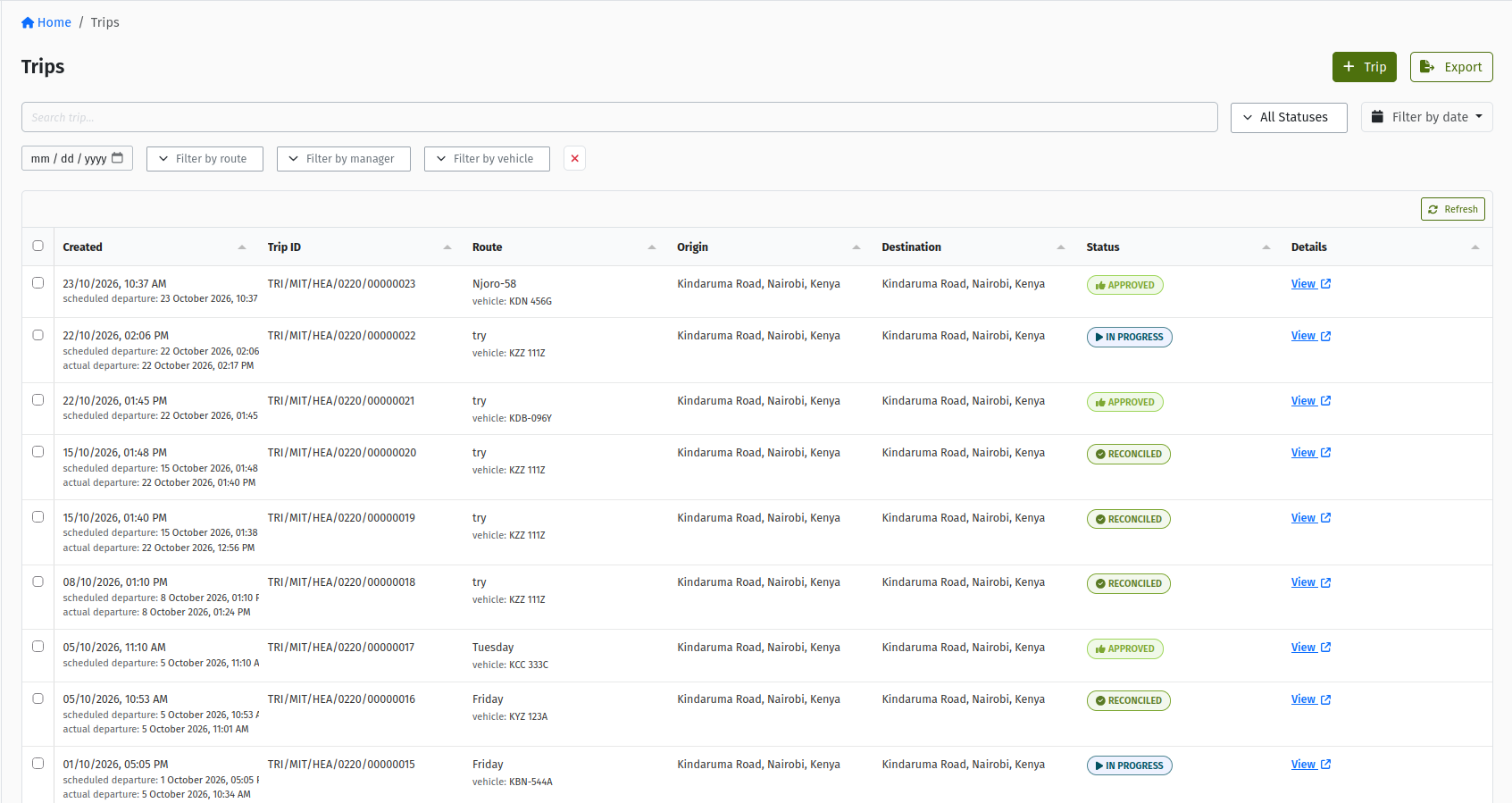 The Logistics → Trips list, with the search box, the status, schedule date, route, manager and vehicle filters, and the + Trip button.
4. Creating a Trip
Creating a trip takes two short steps. You choose the route, schedule and manager first, then the vehicle. Orders and crew come afterwards.
4.1 Step 1: Route Details
- On the Trips list, click + Trip. The New Trip page opens on the Route Details step.
- Fill in the fields below.
- Click Next. The trip is saved in DRAFT and you move straight on to step 2.
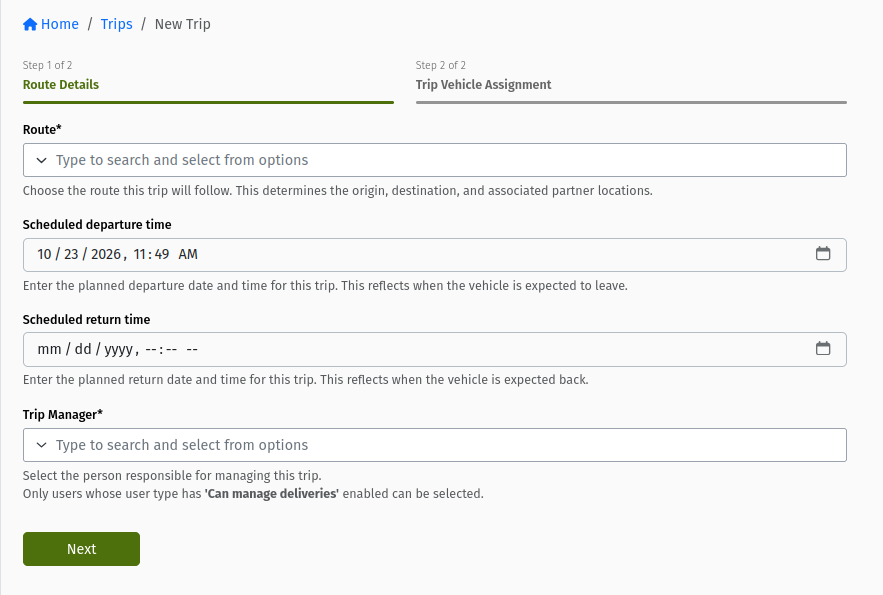 The Route Details step of New Trip, showing Route, Scheduled departure time, Scheduled return time and Trip Manager, and the Next button.
| Field | Required? | Meaning and rules |
|---|---|---|
| Route | Yes | The route the trip follows. Only your organisation's active routes are listed. You cannot change the route on the next step. |
| Scheduled departure time | No | When the vehicle is planned to leave. It cannot be earlier than the current hour: "Departure time cannot be in the past, choose today or a future date." If you leave it empty, it is set to the moment you save. |
| Scheduled return time | No | When the vehicle is planned to be back. If you fill it in, it cannot be in the past, cannot be the same as the departure time, and must be later than the departure time. |
| Trip Manager | Yes | The person responsible for the trip. Only users whose user type has "Can manage deliveries" enabled are offered. The Trip Manager is also copied onto every Shipment of the trip and is notified when the trip is submitted for approval. |
The scheduled times are for planning. The real departure and return times are recorded automatically when you start and end the trip.
4.2 Step 2: Trip Vehicle Assignment
-
On the Trip Vehicle Assignment step, the Route you chose is shown read-only.
-
Pick a Vehicle. The list is split into two groups:
- Preferred for this Route: vehicles that are assigned to this route.
- Other Vehicles: every other eligible vehicle.
Each entry reads plate (make model) - STATUS, so you can see at a glance whether the vehicle is free.
-
Click Submit. You land on the trip's detail page.
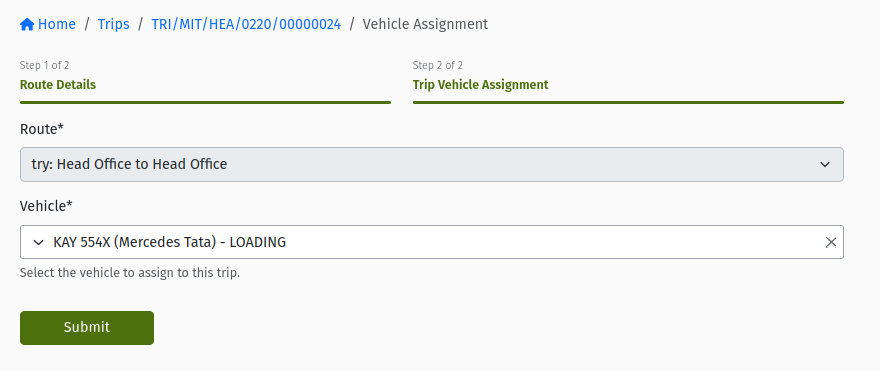 The Trip Vehicle Assignment step: the Route is greyed out and the Vehicle picker shows the "Preferred for this Route" and "Other Vehicles" groups, each entry ending with the vehicle's status.
What happens when you assign a vehicle:
- The vehicle's crew is copied onto the trip in the background. It can take a moment to appear on the Crew tab.
- The route becomes the vehicle's active route.
- On a DRAFT or READY trip, the vehicle's own status does not change yet. The vehicle is reserved only when the trip is approved.
A trip needs a vehicle before it can move to any status other than Cancelled. Even Submit Trip needs one. If you skip this step, use Assign Vehicle on the trip's Vehicle tab before you submit.
You can assign a vehicle that is still busy (Reserved, Loading, In Transit or Awaiting Reconciliation for another trip). This lets you plan its next trip early. The system checks for conflicts later: the trip cannot be loaded or started while the vehicle is still out on another trip or waiting for another trip's reconciliation. See Banners on the trip page.
5. The trip detail page
The detail page is where you run the trip. At the top you see:
- the word Trip, the status chip and the trip number;
- Branch, Creation Date, Created By and Trip Manager;
- a Details block with the Route, its Origin and its Destination;
- the action buttons for the current status (see Actions per status);
- a ⋯ menu with Sync Trip (asks the mobile devices to pull the latest trip data on their next sync), Trip Manifest (a download, available once the trip has left Draft), and Cancel Trip or Fail Trip when those apply.
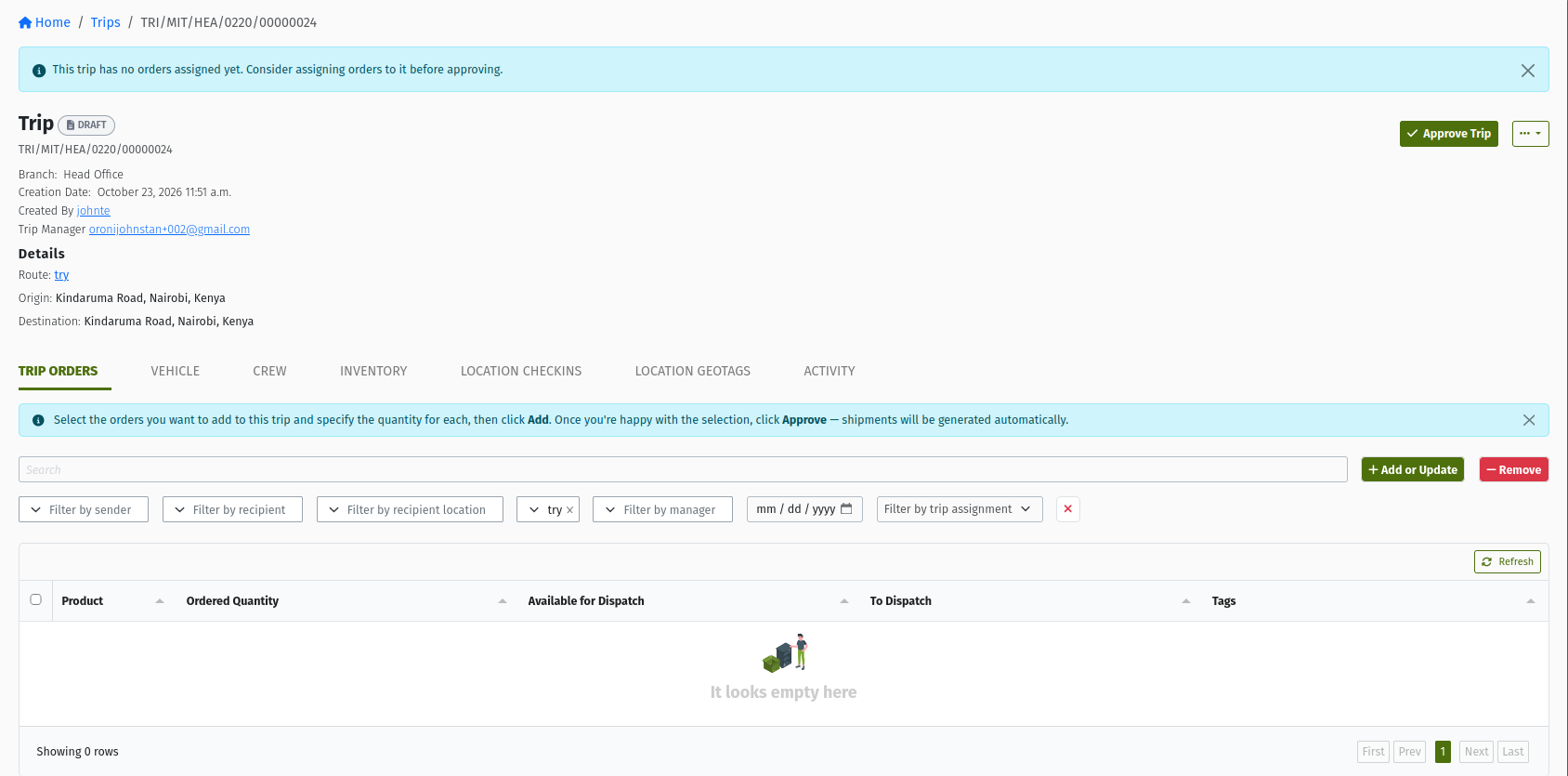 A trip in DRAFT: the status chip, the meta block with the Trip Manager, the Route details, the Submit Trip button and the info banner "This trip has no orders assigned yet…".
5.1 Tabs
Tabs appear and disappear depending on the trip's status.
| Tab | When you see it | What it is for |
|---|---|---|
| Shipments | From Approved onwards | The trip's Shipments, one per Delivery Order. Shows progress while shipments are being generated. |
| Trip Orders | Always (the default tab in Draft) | Add, update and remove orders. The order table is available in Draft, Returned, Approved and In Progress. |
| Delivery Activities | In Progress, Complete, Failed, Reconciled, Archived | What the crew did at each stop on the road. |
| Sales Activities | When there are any | Sales recorded during the trip. |
| Vehicle | Always | The assigned vehicle, its capacity, Assign Vehicle / Change Vehicle, and the stock on board. |
| Vehicle Changes | When the vehicle has been switched during loading or on the road | The history of vehicle switches. |
| Loading Request | From Approved onwards, when your organisation uses the Loading Request process | Create and follow the trip's Loading Requests. |
| What Was Loaded | From Loaded onwards | The stock actually loaded onto the vehicle. |
| Crew | Always | The people assigned to the trip. |
| Offloads | When offload sessions exist | Spoilage and returns logged during the trip. |
| Inventory | Always | The stock documents linked to the trip. |
| Location Checkins | Always | Where the crew checked in. |
| Location Geotags | When there are any | Location geotags captured on the trip. |
| Activity | Always | The trip's history. |
6. Assigning and changing the vehicle
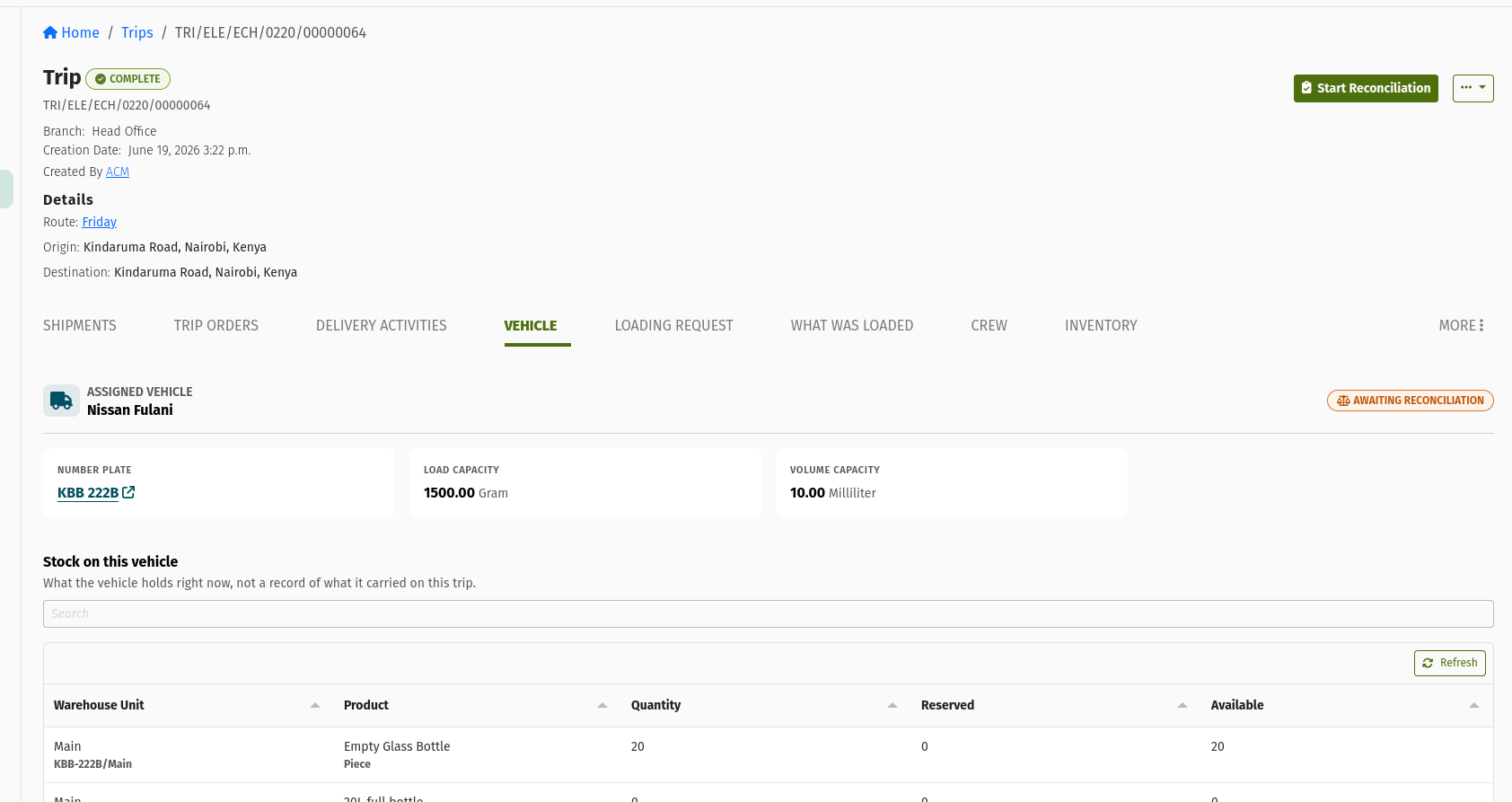
Open the Vehicle tab to see the Assigned Vehicle with its Number Plate, Load Capacity and Volume Capacity, and the Stock on this vehicle. If no vehicle is set yet, the tab says "No Vehicle Assigned" and offers Assign Vehicle.
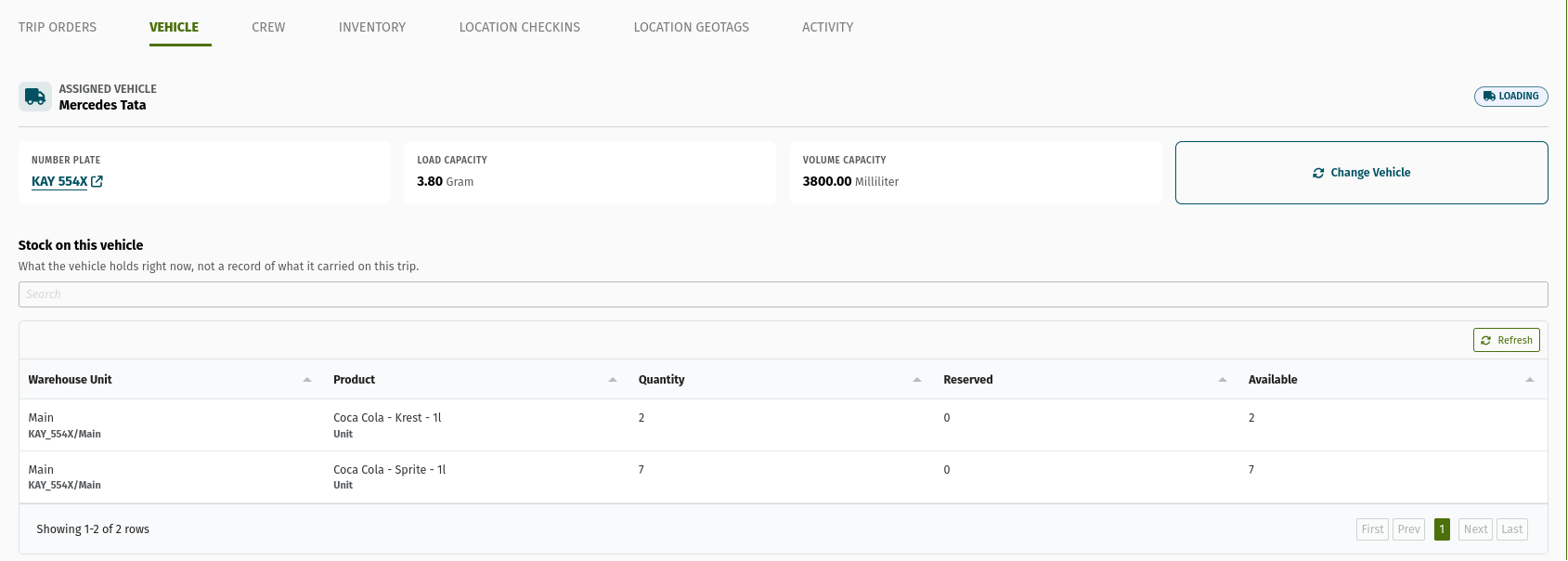 The Vehicle tab of a Draft trip, showing the assigned vehicle's number plate and capacities, the Change Vehicle button and the "Stock on this vehicle" section.
6.1 When you can change the vehicle from the trip
Click Change Vehicle to pick a different vehicle using the same screen as step 2. These rules apply:
- The trip must be DRAFT, READY or APPROVED.
- On an Approved trip, only users who can approve trips see Change Vehicle.
- The trip must not have a Loading Request that is still open (anything other than Complete, Cancelled or Archived).
- The new vehicle must be Available, Reserved, Loading, In Transit or Awaiting Reconciliation.
When you change the vehicle, the old vehicle's crew is removed from the trip and the new vehicle's crew is copied on. If the trip is already approved, the reservation moves from the old vehicle to the new one.
6.2 Once loading is underway: the Change Vehicle wizard
When the trip has an open Loading Request, Change Vehicle disappears from the trip page. This is on purpose: by then stock may already be on the old vehicle and has to move with the trip. Use the Change Vehicle wizard on the Loading Request page instead. It takes you through three steps:
- Choose the new vehicle and arrange a stock transfer of everything on the old vehicle (or skip the transfer, giving a reason, when there is nothing to move).
- Reassign Crew ("Who's staying").
- Summary ("Review & finish").
The new vehicle must be Available or Reserved, must not be waiting for another trip's reconciliation, and must not be out on another trip. The switch takes effect when the stock transfer completes. The trip then points at the new vehicle, the open Loading Request is redirected to the new Vehicle Warehouse, and the crew changes are applied. Switches appear on the trip's Vehicle Changes tab. See Loading Requests and Vehicles for details.
7. Crew
A trip has no single "driver" field. Instead, it has a crew list on the Crew tab.
- Automatic: when you assign a vehicle, the vehicle's crew is copied onto the trip.
- Manual: on the Crew tab, add people with Create Trip Crew Assignment. The form asks you to "Select crew members to be assigned to this trip". Only users in these statuses can be selected: ON DUTY, OFF DUTY, APPROVED, DELIVERING.
- Everyone on the crew is given access to the Vehicle Warehouse, so they can work with the stock on board in the mobile app.
- When the trip starts, crew members are marked as delivering. When the trip ends or fails, they go back to on duty.
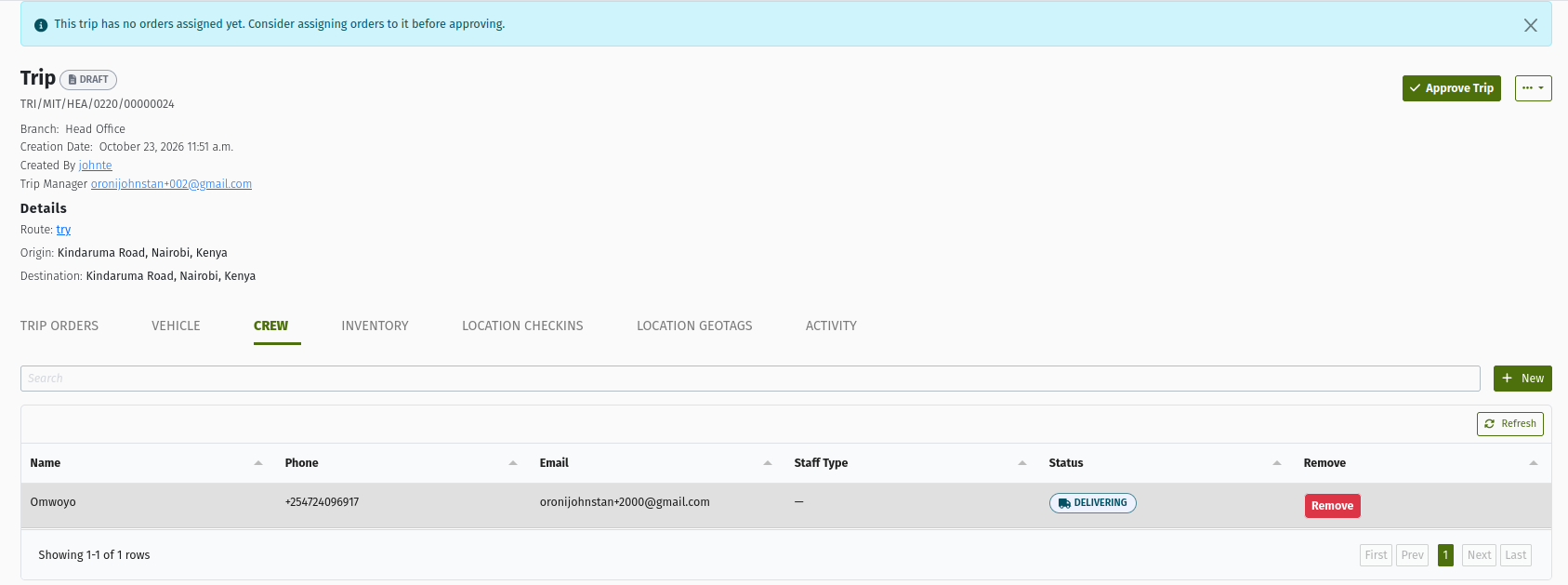 The Crew tab listing the crew copied from the vehicle, and the button that opens Create Trip Crew Assignment.
Check the crew before you submit the trip. Crew members are the people who will see the trip and its shipments in the mobile app.
Crew members do not need to approve the trip. Trip status changes are made in the console by users with the right permissions (see Permissions reference).
8. Adding orders
A trip's cargo comes from Delivery Orders. While the trip is still being planned, adding an order only reserves its quantity for this trip. The order's own status does not change. The Shipments are created when the trip is approved.
8.1 From the Trip Orders tab
- Open the trip's Trip Orders tab. In Draft and Returned, an info banner reminds you: "Select the orders you want to add to this trip and specify the quantity for each, then click Add. Once you're happy with the selection, click Approve — shipments will be generated automatically."
- The table lists the order lines you can add. The route filter is pre-set to the trip's route, so when the tab first opens you only see orders whose delivery location is on the route. To see other orders, clear the route filter. Orders that are not on the trip's route then appear with an Outside Route tag. You can still add them, because the route is a guide and not a restriction.
- For each line, check Available for Dispatch and set To Dispatch to the quantity you want on this trip. You can send part of a line now and the rest on another trip.
- Select the lines and click Add or Update. The Tags column changes to "Added to trip".
- To change a quantity, edit To Dispatch and click Add or Update again.
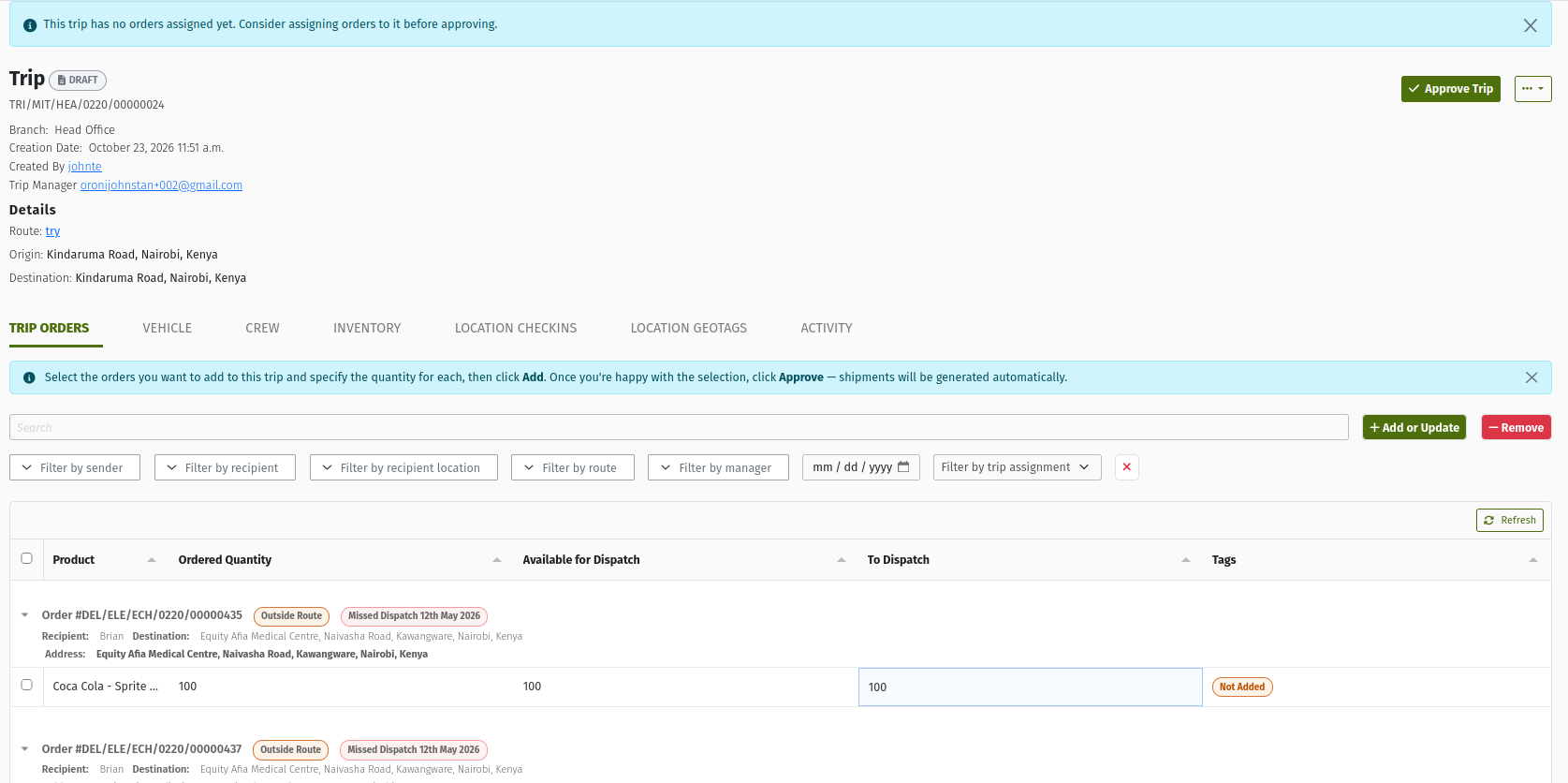 The Trip Orders tab of a Draft trip: the route filter pre-set to the trip's route, an order line with the "Outside Route" tag, the editable To Dispatch column, and the Add or Update and Remove buttons.
Only these lines are listed:
- lines of Delivery Orders that are Approved or In Progress;
- in your logged-in branch and territory;
- that still have quantity that is not on any trip (lines already on this trip stay visible so you can update them);
- whose order has not used up its redelivery attempts, when your organisation has redelivery retries switched on (see Shipments).
The quantity you enter cannot be more than what is still available. Otherwise you see "Cannot dispatch {n}. Maximum allowed is {m}."
8.2 From the Delivery Order
You can also start from the order. On an Approved or In Progress Delivery Order that still has quantity to send, click Assign Trip and pick a trip on the Add order to trip screen. This adds all the order's remaining quantity to the trip. Only delivery trips in Draft, Returned, Approved or In Progress, in your branch, that don't already carry the order are offered. See Delivery Orders.
8.3 Removing orders
Select the lines on the Trip Orders tab and click Remove. Remove is only available while the trip is DRAFT or RETURNED. The quantity becomes available again for other trips.
Once a trip is approved, its orders have become Shipments and can no longer be removed from the trip. If a delivery will not happen, the Shipment is failed instead, and its quantity goes back to the Delivery Order (see Shipments).
8.4 Adding orders to an approved or ongoing trip
You can keep adding orders while the trip is APPROVED or IN_PROGRESS. You cannot add orders while it is READY (return it first) or LOADED.
On a live trip, the Shipment for the new order is generated straight away. The stock for it still has to get onto the vehicle:
- if the trip has a draft Loading Request, the new quantities are added to it;
- if the trip has an approved or in-progress Loading Request but no draft, a new draft Loading Request is created for the new quantities;
- otherwise, nothing is created for you. If the trip has no Loading Request yet and is still Approved, use Create Loading Request. If it already has Loading Requests and none of them is a draft, use the manual Create Loading Request button on the Loading Request tab and add the products. Or tick "These orders do not require a loading request" when the stock is already on the vehicle.
The rules, with worked examples, are in Trip Lifecycle and Loading Requests.
9. Submitting and approving
9.1 Submit
When the trip has its vehicle, crew and orders, click Submit Trip. The trip moves to READY, and the approvers and the Trip Manager are notified that it is waiting for approval.
If you can approve trips yourself, the Draft trip shows Approve Trip instead of Submit Trip. This takes the trip through Ready to Approved in one step.
While a trip is Ready, its orders cannot be changed. If something needs fixing, the approver returns it.
9.2 Return and Resubmit
An approver who finds a problem clicks Return Trip and must write a note explaining why. The trip goes to RETURNED. You can then add or remove orders and click Resubmit Trip to send it back to Ready, or Cancel Trip if it is no longer needed.
The vehicle can only be changed in Draft, Ready or Approved. If a returned trip needs a different vehicle, cancel it and create a new trip.
9.3 Approve
The approver clicks Approve Trip. A confirmation page asks "Are you sure you want to Approve this trip?". Click Approve to confirm, or Cancel to go back.
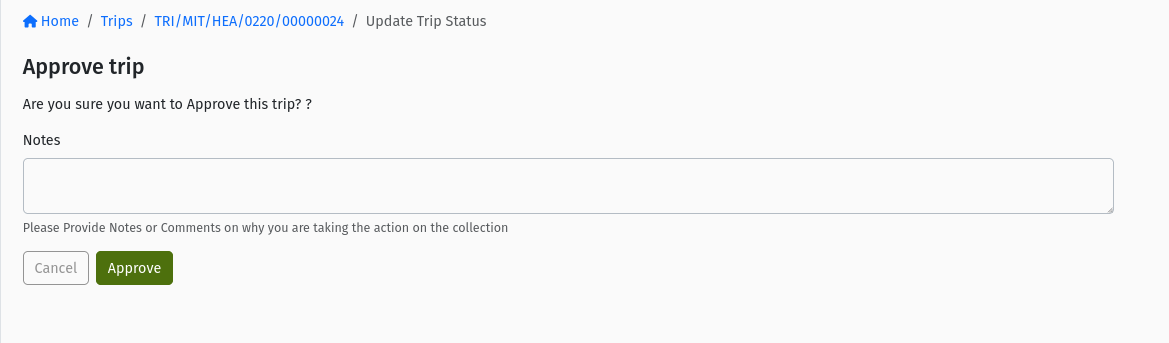 The approval confirmation page with the question "Are you sure you want to Approve this trip?" and the Approve and Cancel buttons.
A trip cannot be approved without orders. The confirmation page then says "This trip has no orders assigned yet…" and shows no form. Add orders first.
9.4 What approval does
Approval is the point where the plan becomes real:
- Shipments are generated in the background, one per Delivery Order on the trip, with the quantities you set on the Trip Orders tab. Open the Shipments tab to follow the progress. A progress panel shows the steps ("Creating shipments for each order", "Building shipment line items", "Approving the shipments", "Assigning the trip manager to each shipment", "Updating the loading request, if one exists", "Sending notifications") and the page updates itself. Each new Shipment is APPROVED.
- The vehicle is reserved. An Available vehicle becomes Reserved for this trip.
- Notifications tell the team the trip is approved and the shipments are ready.
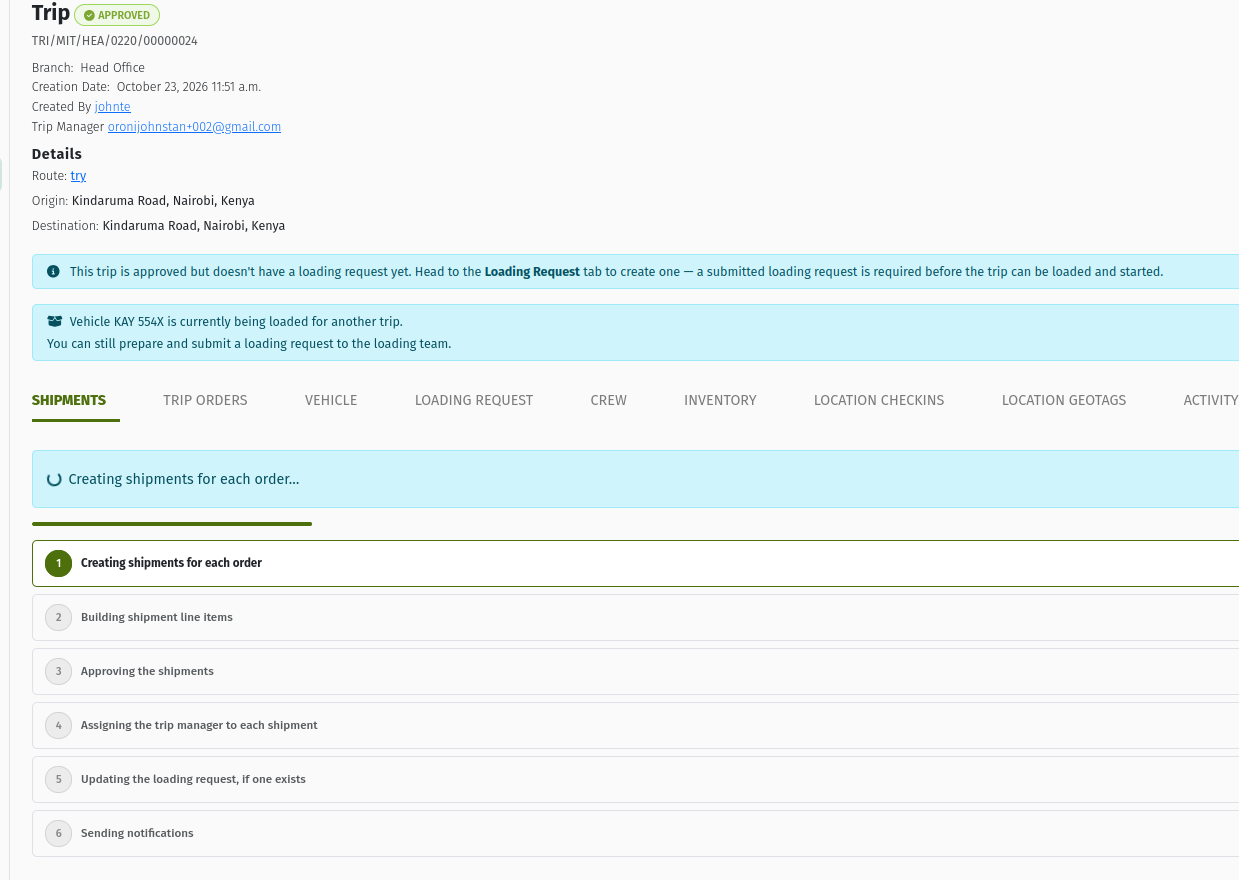 The Shipments tab just after approval, showing the progress panel and its named steps while shipments are being generated.
Approval does not create the Loading Request. When your organisation uses the Loading Request process, the approved trip shows: "This trip is approved but doesn't have a loading request yet. Head to the Loading Request tab to create one — a submitted loading request is required before the trip can be loaded and started." See Loading the trip.
10. Loading the trip
Loading is how the stock gets from your warehouse into the Vehicle Warehouse. It is handled by a Loading Request, covered in full in Loading Requests. In short:
- On the trip's Loading Request tab, click Create Loading Request. This is only possible while the trip is Approved. Otherwise the tab says "A loading request can only be created while the trip is Approved." The request gets one line per product, adding up the quantities of all the trip's delivery shipments.
- Complete the loading sheet and submit it to the loading team.
- The loading team clicks Start Loading (the vehicle becomes Loading), fulfils the lines with stock transfers into the Vehicle Warehouse, and completes the request.
- When a Loading Request is completed and every other Loading Request on the trip is also finished, the trip becomes LOADED automatically. A second Loading Request that is still Draft, Ready, Approved or In Progress keeps the trip Approved until it is finished too.
You can also move the trip to Loaded yourself:
- with Load Trip on a Loading Request that is in progress, while the trip is still Approved;
- with Mark Trip as Loaded on the trip page. This appears when the trip has more than one Loading Request and at least one of them has started or finished.
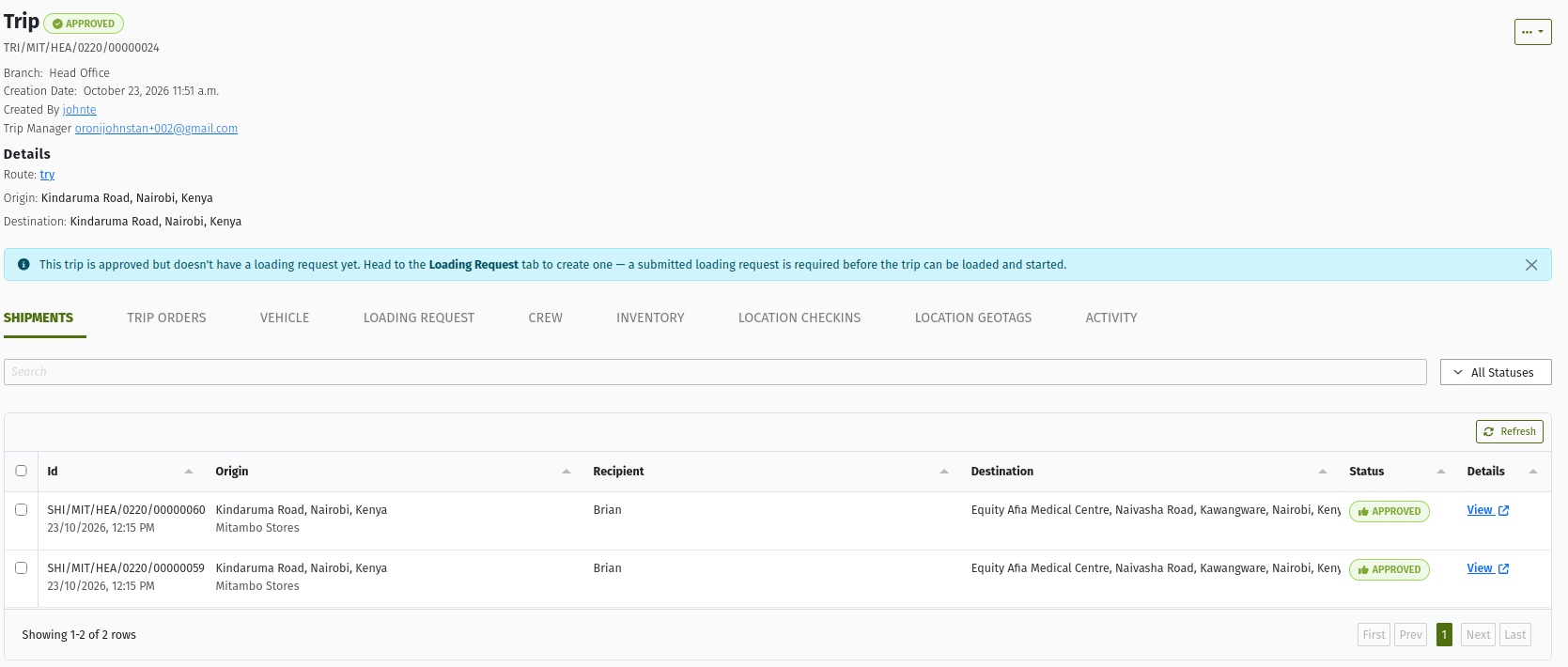 An Approved trip with the banner "This trip is approved but doesn't have a loading request yet…" and the Loading Request tab showing "No Loading Request For Trip" with Create Loading Request.
The Loading Request process is an organisation setting (Enable Loading Sheet Process, under Logistics → Logistics Settings). It is on by default. When your organisation has switched it off, there is no Loading Request tab and Start Trip is available straight from Approved. Start Trip is also available straight from Approved when the trip carries pickup (collection) orders.
If the trip has a draft Loading Request, the page reminds you: "This trip has a loading request that is still in draft and has not been submitted to the loading team yet." Submit that draft rather than creating another one.
11. Starting the trip (dispatch)
When the vehicle is loaded and ready to leave:
- Click Start Trip on the Loaded trip (or on the Approved trip when loading is not needed, see above).
- Enter Mileage (km), the current odometer reading. It must be at least the vehicle's last recorded mileage. Otherwise you see "The mileage entered is lower than the vehicle's last recorded mileage."
- Confirm.
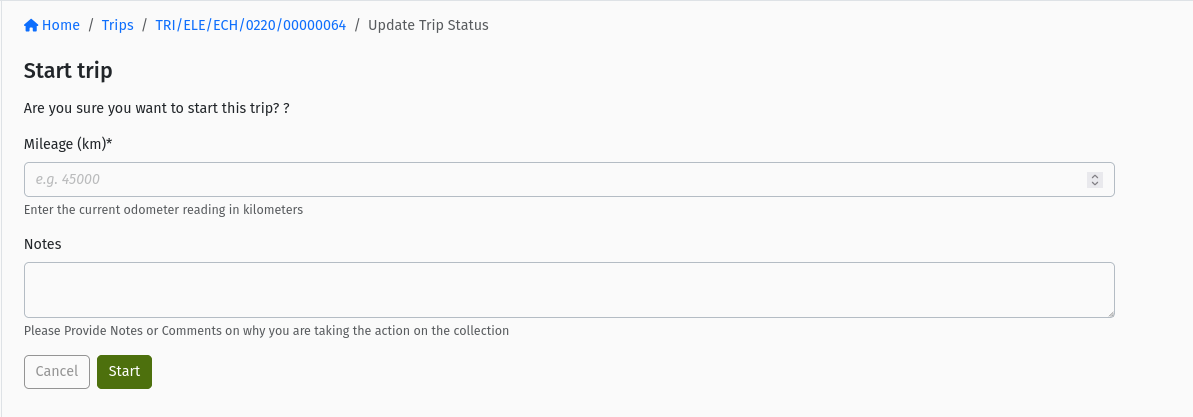 The Start Trip confirmation page with the required Mileage (km) field ("Enter the current odometer reading in kilometers").
What the system does when the trip starts:
- The trip becomes IN_PROGRESS. The actual departure time and the start mileage are recorded, and the vehicle's mileage is updated.
- The vehicle becomes In Transit.
- Every Shipment moves to IN_PROGRESS, and so does every Delivery Order that was Approved. When a loaded shipment is dispatched, the recipient is emailed that it is on its way.
- Crew members are marked as delivering.
- If the trip was Loaded, any approved Loading Request that was never started is cancelled with the note "Trip departed.". Draft and ready Loading Requests are kept, in case you need to top up the vehicle on the road.
A trip cannot start while its vehicle is still out on another trip or waiting for another trip's reconciliation. You see a message such as "Vehicle {plate} cannot be used until trip {id} (complete) is reconciled."
12. On the road
While the trip is In Progress, the crew delivers in the TradeStack mobile app. For each Shipment the driver records what was delivered and returned, captures proof of delivery if your organisation has it switched on, or skips or fails the stop. See Shipments.
In the console you can:
- follow progress on the Shipments and Delivery Activities tabs;
- Log Offload to record spoilage and returns taken off the vehicle ("This begins logging spoilage and returns for this trip."). If a session is already open, the button reads Continue Offload. It only appears while the vehicle still has stock on board;
- add more orders (their Shipments go straight to In Progress) and, if they need stock, top up the vehicle with a manual Loading Request. The manual Create Loading Request button appears on the Loading Request tab when the trip already has a Loading Request and none of them is a draft. If the trip has never had a Loading Request, the tab only says "A loading request can only be created while the trip is Approved." See Trip Lifecycle and Loading Requests.
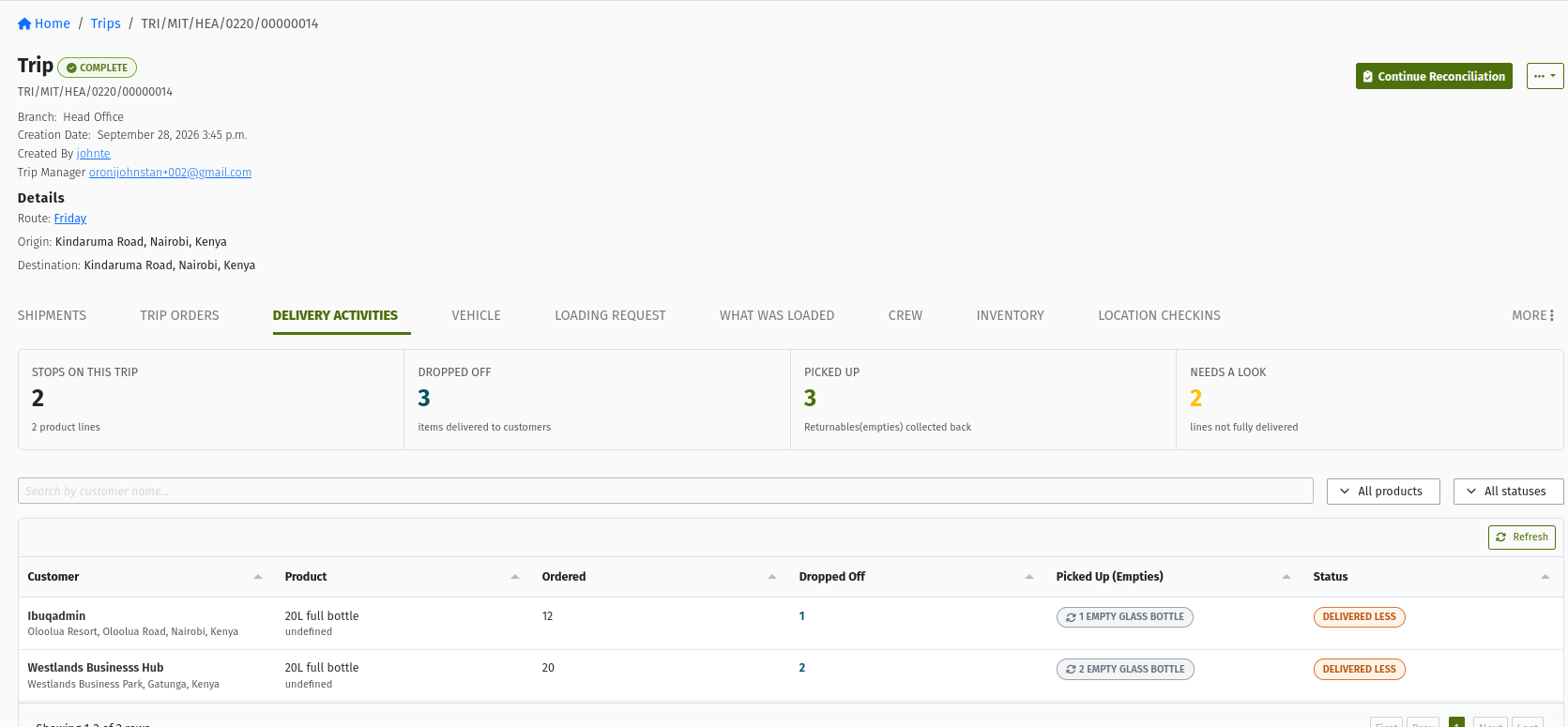 The Delivery Activities tab of an In Progress trip, listing the crew's activity at each stop, with the Log Offload and Fail Trip actions available.
13. Ending the trip
13.1 End Trip
End Trip appears only when every Shipment on the trip is finished: Complete, Failed, Cancelled, Rejected or Archived. A Skipped shipment is not finished, because the crew still has to complete or fail it. Until then the page shows: "This trip can not be ended yet. Some shipments are still in progress — wait for them to be delivered, cancelled, or failed."
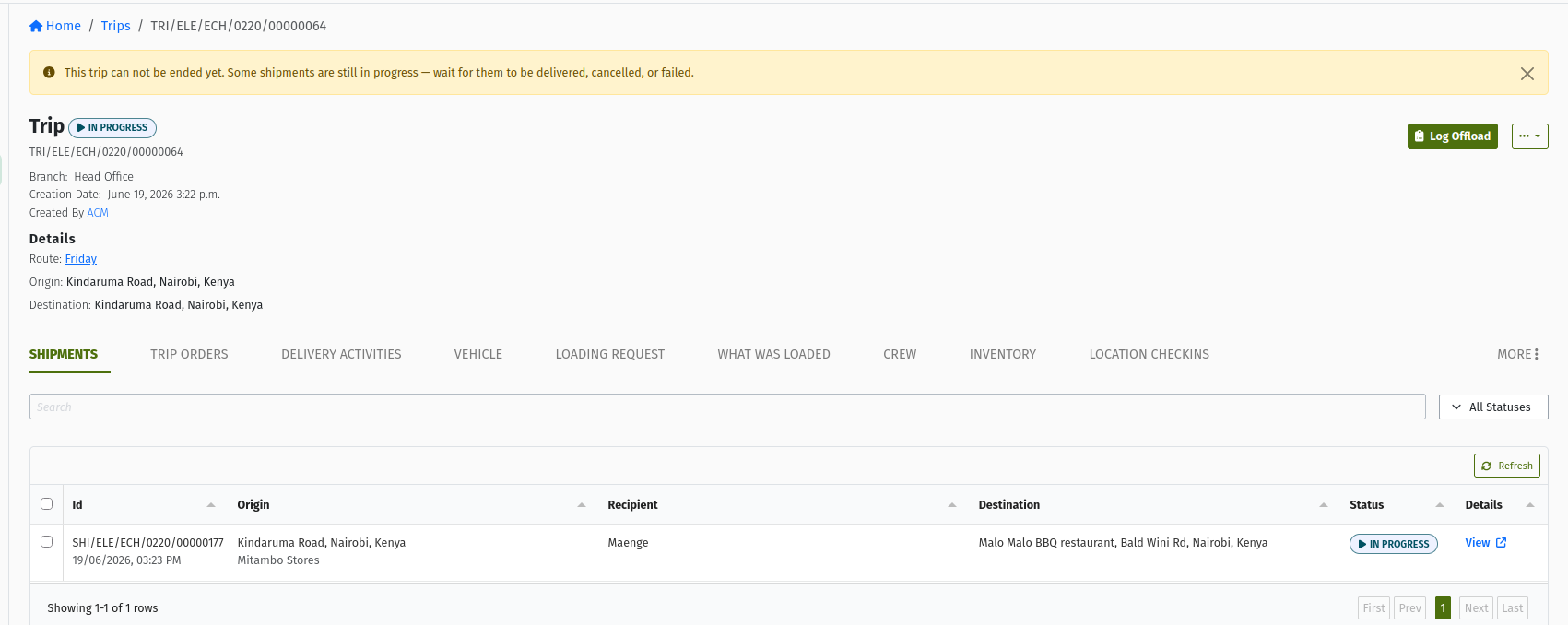 An In Progress trip showing the warning "This trip can not be ended yet. Some shipments are still in progress…" and no End Trip button.
The delivery stock documents must also be complete. Each delivered shipment creates a Goods Issue Note from the Vehicle Warehouse, and a return Goods Receive Note when returnables came back. If any of them is not complete, ending is refused with a message such as "Trip {id} has shipments with incomplete goods issue notes." See Shipments.
To end the trip:
- Click End Trip.
- Enter Mileage (km), at least the vehicle's last recorded mileage.
- Confirm with Complete.
The trip becomes COMPLETE. The actual return time and end mileage are recorded. The vehicle becomes Awaiting Reconciliation, crew go back to on duty, and any Loading Request that never got going (draft, ready or approved) is cancelled.
13.2 Fail Trip
Use Fail Trip (in the ⋯ menu) when the trip cannot be completed as planned:
- Approved trip, loading already started. If stock has already gone onto the vehicle, the trip can no longer be cancelled and must be failed. No Loading Request may be in progress at the time: "Trip {id} can't fail while loading request {lr} is in progress. Complete or fail the loading request first."
- In Progress trip. Every Shipment must already be finished. Fail or complete the remaining shipments first.
A LOADED trip cannot be failed. Start the trip first. Once it is In Progress, you can move stock off the vehicle (for example with Log Offload), finish or fail its Shipments, and then fail the trip.
You must choose a Failure Reason. The list comes from Logistics → Logistics Settings → Failure Reasons. If your organisation has none, the form says "No failure reasons have been defined for Trip. Ask your admin to add them in Logistics Settings › Failure Reasons" and the trip cannot be failed until a reason is added.
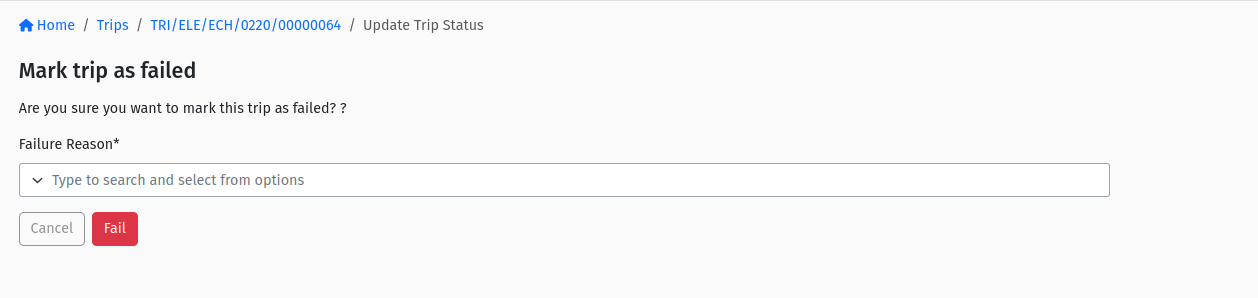 The Fail Trip confirmation page with the required Failure Reason picker.
The trip becomes FAILED. The vehicle is held as Awaiting Reconciliation and open Loading Requests are cancelled. When an Approved trip is failed, its shipments, which never left, are cancelled, and their quantity goes back to the Delivery Orders so they can go on another trip. A failed trip still has to be reconciled, because stock may be on the vehicle.
14. Cancelling vs failing
| Trip status | Can you cancel? | Can you fail? |
|---|---|---|
| Draft | Yes: Cancel Trip in the ⋯ menu | No |
| Ready | No. Return it first, then cancel | No |
| Returned | Yes: Cancel Trip | No |
| Approved | Only before loading has started | Only after loading has started |
| In Progress | No | Yes, once every shipment is finished |
"Loading has started" means a Loading Request for the trip has been started (or finished), so stock may already be on the vehicle. Cancelling would pretend nothing happened, so the system asks you to fail instead: "Stock has been loaded onto trip {id}'s vehicle — fail it instead of cancelling." The opposite also applies: "No stock has been loaded for trip {id} — cancel it instead of failing." The ⋯ menu of an Approved trip shows only the option that applies.
Cancelling needs a note. Cancelling a Draft or Returned trip releases its orders' quantities. Cancelling an Approved trip also cancels its Loading Requests and shipments, releases the quantities back to the Delivery Orders, and frees the vehicle reservation. CANCELLED is final.
15. Reconciliation
After a trip is Complete or Failed, you count what is left on the vehicle and account for any differences. Until that is done, the vehicle stays Awaiting Reconciliation and cannot be loaded or sent out on its next trip.
- On the Complete or Failed trip, click Start Reconciliation. You need the
LEAD_TRIP_RECONCILIATIONpermission. This opens the trip's reconciliation session. Each trip has only one. Later, the button reads Continue Reconciliation or View Reconciliation. - Click Record Stock Round ("Start a new stock count round?"). This starts a stock count of the Vehicle Warehouse. If you are not checked into a warehouse, you are asked to select one first.
- Work through the six-step wizard. It takes you from confirming who leads the count, through the physical stock count and explaining any differences, to recording spoilage and returns, and ends with Handover & Close.
- The count is blind: "the system's expected figure isn't shown here. You'll see the gap on the next step." This keeps the count honest.
- When the round is resolved, click Close Session. The button stays disabled while a round is open: "Resolve the open round before this session can close."
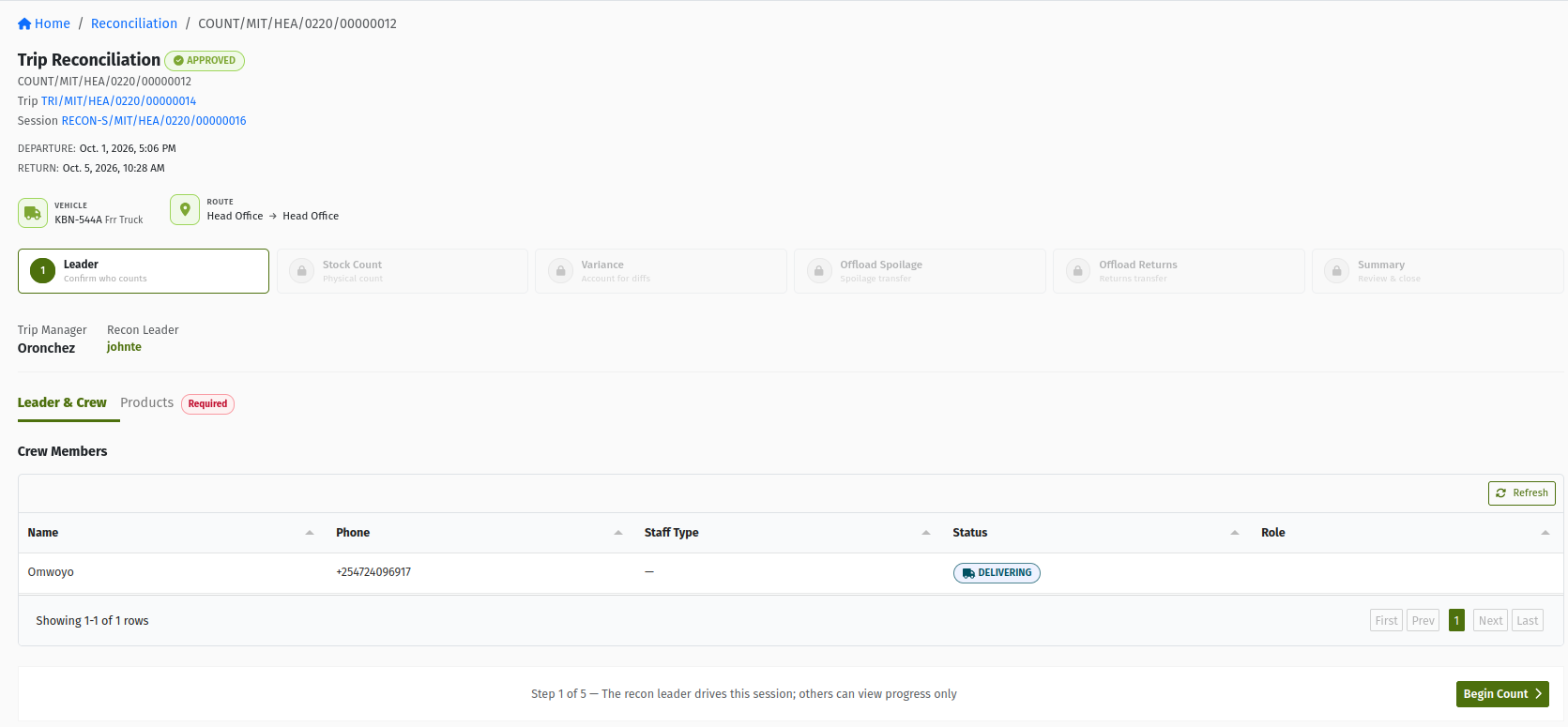 A trip's reconciliation session with Record Stock Round, the Counts tab and the Close Session button.
Closing the session moves the trip to RECONCILED and releases the vehicle. It becomes Available, or Reserved if other approved trips are waiting for it. A trip can only become Reconciled this way: "Trip {id} can only be reconciled by closing its reconciliation session."
The session can also hold a cash count round for money collected on the trip. For how stock counts work in general, see Stock Take.
16. Archiving
A Reconciled trip shows Archive Trip in the ⋯ menu. Archiving moves it to ARCHIVED, the final status, which takes the trip out of day-to-day work.
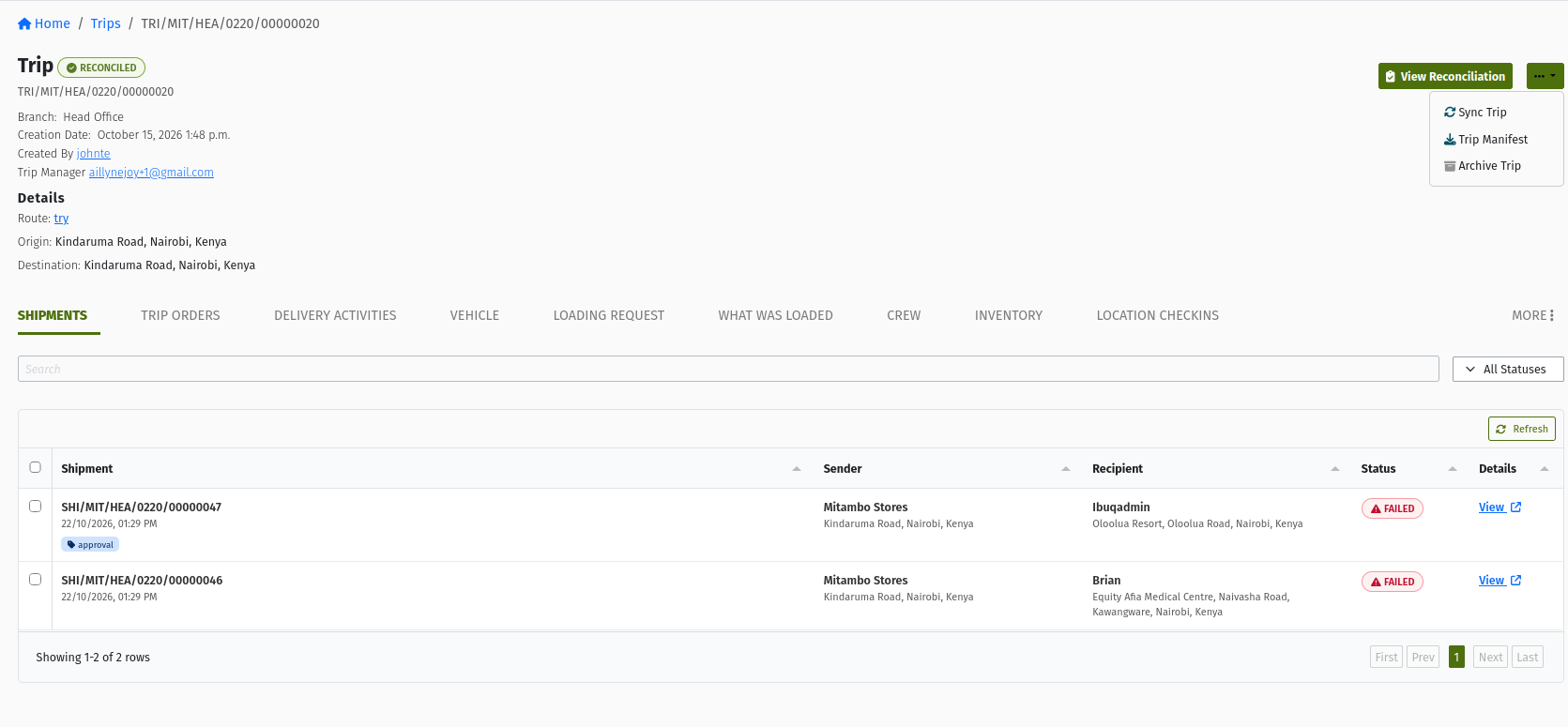 A RECONCILED trip with the ⋯ menu open, showing Archive Trip.
17. Trip statuses
A trip has thirteen statuses.
| Status | What it means |
|---|---|
| DRAFT | Being planned. Set the vehicle, crew and orders. |
| READY | Submitted and waiting for approval. Orders are frozen. |
| RETURNED | Sent back by the approver with a note. Fix and resubmit, or cancel. |
| REJECTED | Turned down. It can only be cancelled. Approvers normally use Return in the console. |
| APPROVED | Signed off. Shipments are generated and the vehicle is reserved. Loading happens now. |
| LOADED | The stock is on the vehicle. Ready to start. |
| IN_PROGRESS | On the road. The vehicle is In Transit and the crew is delivering. |
| COMPLETE | Ended. Every shipment is finished. Waiting for reconciliation. |
| FAILED | Could not be completed. Still needs reconciliation. |
| RECONCILED | The vehicle's stock has been counted and the vehicle released. |
| ARCHIVED | Closed and filed. Final. |
| CANCELLED | Called off before anything went on the vehicle. Final. |
| TEMPLATE | A recurring trip template from which real trips are generated. A template never changes status itself. |
17.1 Status graph
DRAFT       → READY, CANCELLED
READY       → APPROVED, RETURNED          (REJECTED exists but is not a console action)
RETURNED    → READY, CANCELLED
REJECTED    → CANCELLED
APPROVED    → LOADED, IN_PROGRESS, CANCELLED (before loading starts), FAILED (after loading starts)
LOADED      → IN_PROGRESS
IN_PROGRESS → COMPLETE, FAILED
COMPLETE    → RECONCILED
FAILED      → RECONCILED
RECONCILED  → ARCHIVED
CANCELLED, ARCHIVED → final
TEMPLATE    → no transitions (recurring template)
The usual path is:
DRAFT → READY → APPROVED → LOADED → IN_PROGRESS → COMPLETE → RECONCILED → ARCHIVED
Rules that apply across the graph:
- A vehicle must be assigned for every move except to Cancelled.
- A note is required to Return or Cancel. Failing requires a Failure Reason.
- Approve Trip on a Draft trip passes through Ready automatically.
- Start Trip on an Approved trip, when loading is not needed, passes through Loaded automatically.
18. Actions per status
| Action | From | Preconditions | Result |
|---|---|---|---|
| Submit Trip | Draft | Vehicle assigned | READY; approvers and Trip Manager notified |
| Approve Trip | Draft, Ready | You can approve trips; vehicle assigned; at least one order | APPROVED; shipments generated; vehicle reserved |
| Return Trip | Ready | You can approve trips; note required | RETURNED |
| Resubmit Trip | Returned | Vehicle assigned | READY |
| Cancel Trip | Draft, Returned, Approved | Note required; on Approved only before loading has started | CANCELLED; quantities released; on Approved, shipments, Loading Requests and reservation cancelled |
| Create Loading Request | Approved (Loading Request tab) | Loading Request process on; no draft Loading Request | A draft Loading Request with the trip's quantities |
| Mark Trip as Loaded | Approved | More than one Loading Request, at least one started or finished; vehicle not held for another trip's reconciliation | LOADED; shipments Loaded |
| Start Trip | Loaded; or Approved when loading is not needed | Mileage (km) at least the vehicle's last reading; vehicle not out on, or awaiting reconciliation for, another trip | IN_PROGRESS; vehicle In Transit; shipments and orders In Progress |
| Log Offload | In Progress | Vehicle has stock on board | An offload session for spoilage and returns |
| End Trip | In Progress | Every shipment finished; delivery stock documents complete; Mileage (km) | COMPLETE; vehicle Awaiting Reconciliation |
| Fail Trip | Approved (after loading started), In Progress | Failure Reason; no Loading Request in progress; on In Progress, every shipment finished | FAILED; vehicle Awaiting Reconciliation |
| Start Reconciliation | Complete, Failed | LEAD_TRIP_RECONCILIATION | Opens the reconciliation session |
| Close Session | Reconciliation session | No round left open | RECONCILED; vehicle released |
| Archive Trip | Reconciled | None | ARCHIVED |
You can also do these at any status where they make sense: Change Vehicle (Draft, Ready, Approved, see section 6), crew changes, Sync Trip and Trip Manifest.
19. Banners on the trip page
The trip page shows banners that tell you what is holding the trip up. Most of them say what to do next.
| Banner | When it appears | What it means and what to do |
|---|---|---|
| "This trip has no orders assigned yet. Consider assigning orders to it before approving." | Draft or Ready, no orders | Add orders on the Trip Orders tab. A trip without orders cannot be approved. |
| "Vehicle {plate} is awaiting reconciliation {count} on trip {trip} … You can proceed to create a loading request and submit to the loading team — it will not be acted on until the reconciliation is done." | The trip's vehicle has another trip that is Complete or Failed but not yet reconciled | The earlier trip must be reconciled first. This does not block approval or preparing and submitting a Loading Request, but loading cannot start and the trip cannot be loaded or started until that reconciliation is closed. Follow the link to the other trip or its stock count. |
| "Vehicle warehouse is locked for a stock count. … You can proceed to create a loading request and submit to the loading team — it will not be acted on until the stock count is done." | Approved or Loaded, while the Vehicle Warehouse is being counted | Wait for the stock count to finish before loading. |
| "This trip is approved but doesn't have a loading request yet. …" | Approved, Loading Request process on, no Loading Request | Create the Loading Request on the Loading Request tab. |
| "This trip has a loading request that is still in draft and has not been submitted to the loading team yet." | Approved or Loaded with a draft Loading Request | Review and submit that draft so loading can begin. |
| "Vehicle {plate} is currently being loaded for another trip. … You can still prepare and submit a loading request to the loading team." | Approved, and the vehicle is loading for a different trip | Your loading can only start after the other trip's loading is done and that trip has left. |
| "Vehicle {plate} is out on another trip. … You can proceed to create a loading request and submit to the loading team." | Draft, Ready or Approved, and the vehicle is on the road for a different trip | Prepare everything now. Loading and departure must wait until the vehicle is back and that trip is reconciled. |
| "This trip can not be ended yet. Some shipments are still in progress — wait for them to be delivered, cancelled, or failed." | In Progress with unfinished shipments | Make sure every shipment is completed or failed, then End Trip appears. |
 An Approved trip showing the warning "Vehicle … is awaiting reconciliation … on trip …", with links to the other trip and its stock count.
20. Permissions reference
| Permission | What it lets you do |
|---|---|
VIEW_TRIP | See Logistics → Trips and the trips list. |
ADD_TRIP | Create trips (+ Trip), add and update orders, and assign crew. |
CHANGE_TRIP | Open and work on a trip: assign the vehicle, submit, resubmit, cancel, load, start, end, fail, sync and archive the trip, and continue or view a reconciliation. |
APPROVE_TRIP | Approve Trip and Return Trip, and Change Vehicle on an Approved trip. |
START_OR_END_TRIP | Start and end trips from the TradeStack mobile app. |
LEAD_TRIP_RECONCILIATION | Start Reconciliation and record stock count rounds. |
LOG_TRIP_OFFLOAD | Log Offload / Continue Offload on an In Progress trip. |
Loading Requests and Shipments have their own permissions. See Loading Requests and Shipments.
21. Troubleshooting
| Message / symptom | Cause | What to do |
|---|---|---|
| "Departure time cannot be in the past, choose today or a future date." | The scheduled departure is earlier than the current hour. | Choose a time from now onwards. |
| "Return time cannot be in the past." / "…cannot be the same as the departure time." / "…must be later than the departure time." | The scheduled return time is not after the departure time. | Pick a later return time, or leave it empty. |
| The Trip Manager you want is not in the list. | Their user type does not have "Can manage deliveries". | Ask your administrator to enable it for their user type. |
| "Only vehicles in AVAILABLE, RESERVED, LOADING, IN_TRANSIT or AWAITING_RECONCILIATION status can be assigned to a trip." | The vehicle is Unavailable, Under Maintenance or retired. | Choose another vehicle, or bring this one back into service. See Vehicles. |
| "Vehicle can only be assigned to trips in DRAFT, READY or APPROVED status." | The trip is past the stage where the vehicle can be swapped from the trip page. | If loading or the trip is underway, use the Loading Request's Change Vehicle wizard. |
| "This trip has a loading request that hasn't been completed yet, so the vehicle can't be changed from here…" | An open Loading Request exists. | Use Change Vehicle on the Loading Request page. |
| "A trip must have a vehicle assigned before transitioning." / "Cannot process this trip because no vehicle is assigned. Please assign a vehicle first." | No vehicle on the trip. | Use Assign Vehicle on the Vehicle tab. |
| "Trip {id} has no orders assigned and cannot be approved." / "This trip has no orders assigned yet…" | Approving a trip with no orders. | Add orders on the Trip Orders tab. |
| "Cannot dispatch {n}. Maximum allowed is {m}." | To Dispatch is more than the quantity still available. | Lower the quantity. |
| An order you expect is not in the Trip Orders table. | The pre-set route filter hides orders outside the route, the order isn't Approved, it's for another branch, or it's already fully on trips. | Clear the route filter; approve the order; check its Dispatched quantity. |
| The Trip Orders tab says "No Trip Orders For Trip". | The trip is Ready, Loaded or later. | Orders can be changed only in Draft, Returned, Approved and In Progress. Return a Ready trip to change it. |
| "Notes are required for the transition from {from} to {to}. Please provide relevant notes." | Returning or cancelling without a note. | Write a short reason. |
| The Shipments tab still shows a progress panel after approval. | Shipments are being generated in the background. | Wait. The page updates itself. |
| No Start Trip button on an Approved trip. | The Loading Request process is on and the trip has not been loaded. | Create, submit and complete the Loading Request. See Loading the trip. |
| "Vehicle {plate} cannot be used until trip {id} (…) is reconciled." | The vehicle's previous trip is not reconciled. | Reconcile the previous trip first. |
| "Vehicle {plate} is already assigned to a trip that is currently in progress.(Ref: {id})" | The vehicle is on the road for another trip. | Wait for it to return, or use another vehicle. |
| "The mileage entered is lower than the vehicle's last recorded mileage." | The odometer reading is lower than the last one recorded. | Enter the correct current reading. |
| "Stock has been loaded onto trip {id}'s vehicle — fail it instead of cancelling." | Loading has started on an Approved trip. | Use Fail Trip. |
| "No stock has been loaded for trip {id} — cancel it instead of failing." | Nothing has been loaded yet. | Use Cancel Trip. |
| "Trip {id} can't fail while loading request {lr} is in progress. Complete or fail the loading request first." | A Loading Request is mid-loading. | Finish or fail the Loading Request, then fail the trip. |
| "No failure reasons have been defined for Trip. Ask your admin to add them in Logistics Settings › Failure Reasons" | No trip failure reasons are set up. | Ask your administrator to add them. |
| "Trip {id} has shipments that are not in a terminal state." | Some shipments are still in progress or skipped. | Complete or fail each remaining shipment. |
| "Trip {id} has shipments with incomplete goods issue notes." (or return / trackable asset goods receive notes) | A delivered shipment's stock document is not complete. | Open the shipment's Inventory tab and complete the document. See Shipments. |
| "Trip {id} can only be reconciled by closing its reconciliation session." | Trying to reconcile without the session. | Use Start/Continue Reconciliation and Close Session. |
| "Sorry! You cannot perform this action on trip {id}." | The action does not apply to the trip's current status. | Refresh the page and use the buttons shown for the current status. |
22. Best practices
- Assign the vehicle straight away (step 2) and check the crew before you submit.
- Use the route filter on the Trip Orders tab, and only add Outside Route orders on purpose.
- Give the Shipments tab a moment after approval. Generation runs in the background.
- Create the Loading Request as soon as the trip is approved. Approval does not create one for you.
- Submit the auto-created draft Loading Request when you add orders to a live trip. Don't create a second one.
- Cancel early, fail late. If a trip won't happen, cancel it before loading starts. Once stock is on the vehicle, fail it so the stock is reconciled.
- Enter accurate mileage at start and end. Later readings can't be lower.
- Reconcile promptly. A vehicle can't be loaded or sent out again until its last trip is reconciled.
- Ask your administrator to set up trip and shipment failure reasons before you need them.
23. Quick reference
| Step | Action | Watch out for |
|---|---|---|
| 1 | + Trip → Route Details | Route and Trip Manager required; times can't be in the past; return after departure. |
| 2 | Trip Vehicle Assignment | Needed before any status change except Cancel. |
| 3 | Check the Crew tab | Copied from the vehicle; add people if needed. |
| 4 | Trip Orders → Add or Update | Orders must be Approved; set To Dispatch; mind the Outside Route tag. |
| 5 | Submit Trip / Approve Trip | Approval needs at least one order; shipments are generated in the background. |
| 6 | Create Loading Request → load | Setting-driven; the trip becomes Loaded when its Loading Requests finish. |
| 7 | Start Trip | Mileage (km) required; vehicle must be free of other trips. |
| 8 | End Trip (or Fail Trip) | Every shipment finished; delivery stock documents complete; failure reason for Fail. |
| 9 | Start Reconciliation → Close Session | Blind count of the Vehicle Warehouse; releases the vehicle. |
| 10 | Archive Trip | From Reconciled. |
Status meanings
- DRAFT — being planned.
- READY — waiting for approval.
- RETURNED — sent back for changes.
- APPROVED — shipments generated, vehicle reserved, loading can start.
- LOADED — stock on the vehicle.
- IN_PROGRESS — on the road.
- COMPLETE — ended, waiting for reconciliation.
- FAILED — could not be completed, waiting for reconciliation.
- RECONCILED — vehicle counted and released.
- ARCHIVED — filed away.
- CANCELLED — called off.
- TEMPLATE — recurring trip template.
Glossary
- Route — the planned path, chosen at creation, with origin and destination depots and the Customer Locations usually served.
- Trip Manager — the user responsible for the trip. They need "Can manage deliveries".
- Crew — the people assigned to the trip, copied from the vehicle and editable on the Crew tab.
- Trip order — a Delivery Order line reserved on a trip before approval, with its To Dispatch quantity.
- Outside Route — a tag on order lines whose location is not on the trip's route. You can still add them.
- Shipment — the delivery of one Delivery Order on one trip, generated automatically at approval.
- Loading Request — the request that moves stock into the Vehicle Warehouse before departure.
- Vehicle Warehouse — the vehicle's own warehouse, holding the stock on board.
- Change Vehicle wizard — the Loading Request tool for switching a trip to another vehicle once loading is underway.
- Offload — a session during the trip to log spoilage and returns taken off the vehicle.
- Reconciliation — the blind stock count of the Vehicle Warehouse after the trip, which moves the trip to Reconciled and releases the vehicle.
- Failure Reason — a reason set up in Logistics → Logistics Settings → Failure Reasons, required to fail a trip.
24. Frequently asked questions
Why doesn't my trip have a Loading Request after approval?
Approval generates the Shipments and reserves the vehicle. It never creates the Loading Request. Open the Loading Request tab and click Create Loading Request. If your organisation has switched off the Loading Request process, there is no such tab, and you can start the trip straight from Approved.
Can I put an order on a trip if its customer isn't on the route?
Yes. The Trip Orders tab opens with the route filter set to the trip's route, so at first you only see on-route orders. Clear the route filter: the order then appears with an Outside Route tag and can be added like any other.
Can one Delivery Order go on two trips?
Yes. Set a partial To Dispatch quantity on the first trip, and add the rest to another trip later. Each trip gets its own Shipment for that order.
How do I take an order off a trip that is already approved?
You can't remove it from the trip. Fail its Shipment instead. The quantity goes back to the Delivery Order so it can go on another trip. See Shipments.
The vehicle is still on another trip. Can I plan its next trip?
Yes. You can create the trip, assign the vehicle, add orders, get it approved and prepare the Loading Request. The banners explain what is waiting. Loading and departure must wait until the earlier trip is back and reconciled.
Do crew members need to sign off the trip?
No. Status changes are made in the console by users with the right permissions. Crew members deliver the shipments in the mobile app.
Why can't I end my trip?
End Trip only appears when every Shipment is finished. Skipped shipments still need to be completed or failed. If ending is refused afterwards, a delivered shipment's Goods Issue Note or return Goods Receive Note is not complete yet.
What's the difference between Cancel Trip and Fail Trip?
Cancel is for trips that never got going: nothing has been loaded. Fail is for trips where stock has gone onto the vehicle (or the trip is on the road) but the trip can't be completed. A failed trip is reconciled like a completed one so the stock on the vehicle is accounted for.