Vehicles & Vehicle Types
This guide covers the two records every delivery depends on: the Vehicle Type, which describes a class of vehicle and its carrying capacity, and the Vehicle, the actual truck or van your crew drives. You will learn how to set both up, how a vehicle gets its own stock location (its Vehicle Warehouse), how default crew and preferred routes work, and, most importantly, how a vehicle's status changes as Trips use it, and what each status lets you do.
If you are new to logistics in TradeStack, read the Trip Lifecycle overview first. It shows where vehicles fit in the journey from Delivery Order to delivered goods.
1. What are Vehicles and Vehicle Types?
A Vehicle Type is a template that describes a kind of vehicle: for example "10-tonne truck" or "Panel van". It records how much weight and volume that kind of vehicle can carry, and what fuel it uses. You create a type once and use it for every vehicle of that kind.
A Vehicle is one physical vehicle, identified by its number plate. Every vehicle belongs to exactly one Vehicle Type. A vehicle is more than a description of a truck:
- It is a stock location. When you create a vehicle, the system creates a Vehicle Warehouse for it in the background. Everything loaded onto the vehicle is held in that warehouse until it is delivered, offloaded or moved.
- It has a live status. As Trips are approved, loaded, dispatched, completed and reconciled, the system moves the vehicle through statuses such as RESERVED, LOADING and IN_TRANSIT. That status tells dispatchers at a glance what the vehicle is doing.
- It carries defaults for trips. A vehicle can have a default crew and a list of preferred routes, which are used when you plan Trips.
How the records relate:
Vehicle Type  (capacity, fuel type)
     ↓ one type, many vehicles
Vehicle  (number plate, status, default crew, preferred routes)
     ↓ created automatically, one per vehicle
Vehicle Warehouse  ("<plate> Warehouse" — the stock on board)

Trip  → uses one Vehicle at a time
Loading Request → moves stock INTO the Vehicle Warehouse
Delivery (Goods Issue Note) → issues stock OUT of the Vehicle Warehouse
Reconciliation → counts what is left in the Vehicle Warehouse after the trip
2. Before you start
| Requirement | Details |
|---|---|
| Units of measure | Your organisation needs active units of measure in the Weight and Volume categories (for example kg and m³). The Vehicle Type form only offers active units from those categories. |
| A Vehicle Type | You must create at least one Vehicle Type before you can create a vehicle. The Vehicle form only lists active types. |
| Third-party partner | Only for leased vehicles. The leasing company must exist as an active, approved supplier business partner in the third-party logistics supplier segment, otherwise it will not appear in the Third Party Partner list. |
| Crew users | Only if you want a default crew. Crew members must be active users in your organisation whose profile status is On Duty, Off Duty or Approved. |
| Routes | Only if you want preferred routes. The routes must already exist. See Routes. |
| Permissions | VIEW_VEHICLE_TYPE / ADD_VEHICLE_TYPE / CHANGE_VEHICLE_TYPE / DELETE_VEHICLE_TYPE for types; VIEW_VEHICLE / ADD_VEHICLE / CHANGE_VEHICLE for vehicles. See section 13. |
Vehicles and Vehicle Types live in the Vehicles module. Its side navigation has three items: Dashboards, Vehicles and Vehicle Types.
3. Vehicle Types
3.1 What a Vehicle Type records
| Field | Required? | Meaning and rules |
|---|---|---|
| Vehicle Type Name | Yes | A name your team will recognise, such as "5T Truck" or "Motorbike". Names do not have to be unique, but duplicate names cause confusion: keep them distinct. |
| Description | No | Free text, for example the body type or any notes for planners. |
| Weight Capacity | Yes | How much weight this kind of vehicle can carry. Must be greater than zero. |
| Weight Unit of Measure | Yes | The unit the weight capacity is expressed in. Only your organisation's active weight units are listed. |
| Volume Capacity | Yes | How much volume (space) this kind of vehicle can carry. Must be greater than zero. |
| Volume Unit of Measure | Yes | The unit the volume capacity is expressed in. Only your organisation's active volume units are listed. |
| Fuel Type | Yes | Petrol, Diesel or Electric. |
3.2 Creating a Vehicle Type
- Go to Vehicles → Vehicle Types. The Vehicle Types list shows every type with its Name, Weight, Weight UOM, Volume and Volume UOM.
- Click New. The Create Vehicle Type form opens.
- Fill in the fields described above.
- Click Create Vehicle Type.
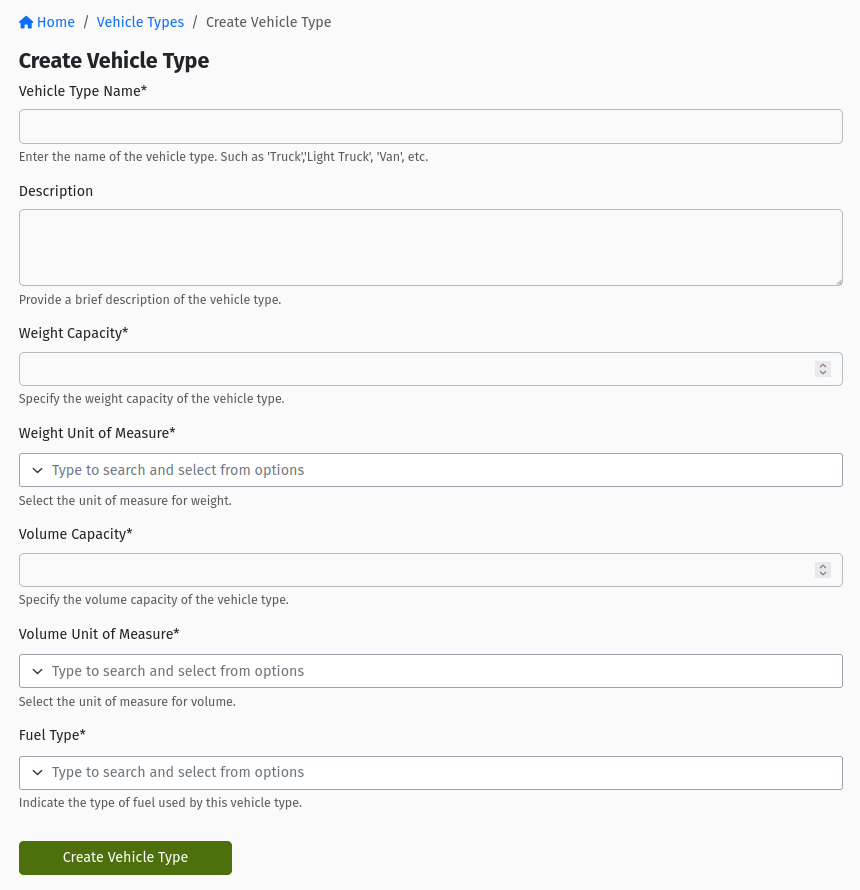 The "Create Vehicle Type" form, showing Vehicle Type Name, Description, Weight Capacity and Weight Unit of Measure, Volume Capacity and Volume Unit of Measure, and Fuel Type.
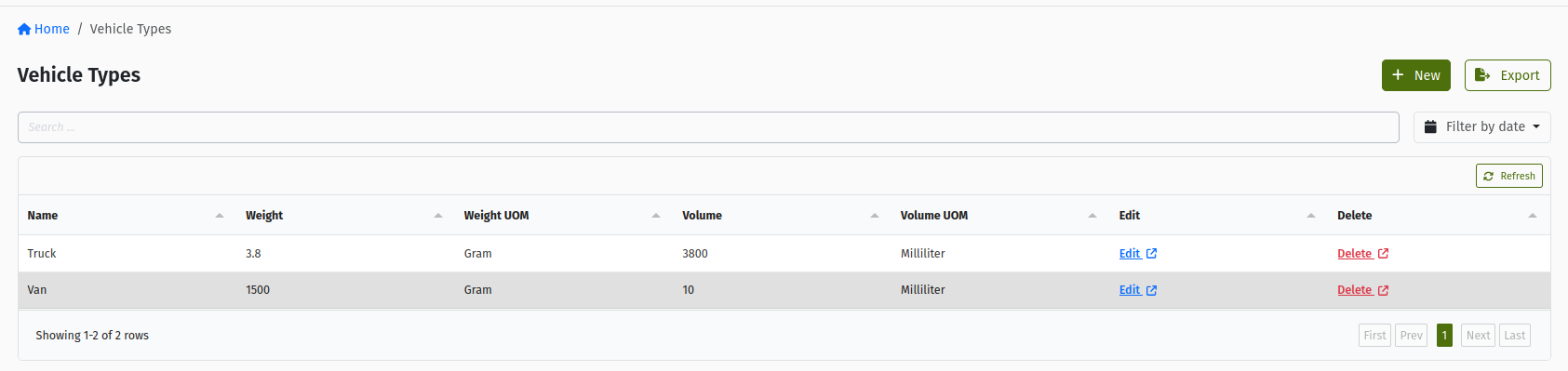 The "Vehicle Types" list with the Name, Weight, Weight UOM, Volume and Volume UOM columns, and the Edit and Delete links on each row.
3.3 Editing and deleting a Vehicle Type
- Edit: click Edit on the row, change the fields on the Edit Vehicle Type form and click Update Vehicle Type. The change applies straight away to every vehicle of that type, wherever the capacity is shown.
- Delete: click Delete on the row. The Confirm Delete page asks "Are you sure you want to delete … Vehicle Type?" Click Confirm. The type disappears from the list and from the Vehicle form's Vehicle Type dropdown.
Only delete a Vehicle Type that no vehicle uses any more. Before deleting, move every vehicle of that type to another type (edit each vehicle and change its Vehicle Type). A vehicle that still points at a deleted type will make you pick a new type the next time anyone edits it.
3.4 Where capacity is shown
The Vehicle Type's capacity appears wherever a planner or loader needs it:
- On the vehicle's detail page, in the Details tab under Type Information (Name, Current Mileage, Fuel Type, Weight, Volume).
- On a Trip's Vehicle tab, as Load Capacity and Volume Capacity of the assigned vehicle.
- In the vehicle information panel of a Loading Request.
- In the vehicle picker of the Change Vehicle wizard, so you can compare vehicles before switching.
- On the printed trip document.
TradeStack does not stop you from planning or loading more than a vehicle can carry. No check compares the weight or volume of a Trip's orders, or of a Loading Request, against the Vehicle Type's capacity. Approving a trip, starting loading and dispatching all work regardless.
It is the dispatcher's job to compare what is planned with Load Capacity and Volume Capacity before approving the trip, and the loading team's job to stop and raise it if goods do not fit. Keep your Vehicle Type capacities accurate so these numbers can be trusted.
4. Creating a Vehicle
4.1 Vehicle fields
| Field | Required? | Meaning and rules |
|---|---|---|
| Number Plate | Yes | The registration number. It must be unique within your organisation, and the check ignores upper/lower case (kba 123a and KBA 123A are the same plate). The plate of a retired vehicle is still taken. |
| Make | Yes | Manufacturer, for example "Isuzu". |
| Model | Yes | Model, for example "FRR 90". |
| Vehicle Type | Yes | One of your active Vehicle Types. This is where the vehicle's capacity and fuel type come from. |
| Ownership Type | Yes | Owned (the default) or Leased. |
| Third Party Partner | Only if Leased | The company you lease the vehicle from. Required when Ownership Type is Leased. The list shows approved, active third-party logistics suppliers. |
| Current Mileage in kilometers(KM) | Yes (defaults to 0) | The odometer reading on the day you add the vehicle. It cannot be negative. You set it only once, at creation. After that it is updated only by the mileage readings entered when Trips start and end (see section 10). |
| Image | No | A photo of the vehicle, shown on its detail page. |
4.2 Steps
- Go to Vehicles → Vehicles and click New. The Create Vehicle form opens.
- Enter the Number Plate, Make and Model.
- Choose the Vehicle Type.
- Choose the Ownership Type. If you choose Leased, pick the Third Party Partner.
- Enter the Current Mileage in kilometers(KM) from the odometer. Take care: you cannot correct it from the edit form later.
- Optionally upload an Image.
- Click Create Vehicle. You are taken to the new vehicle's detail page.
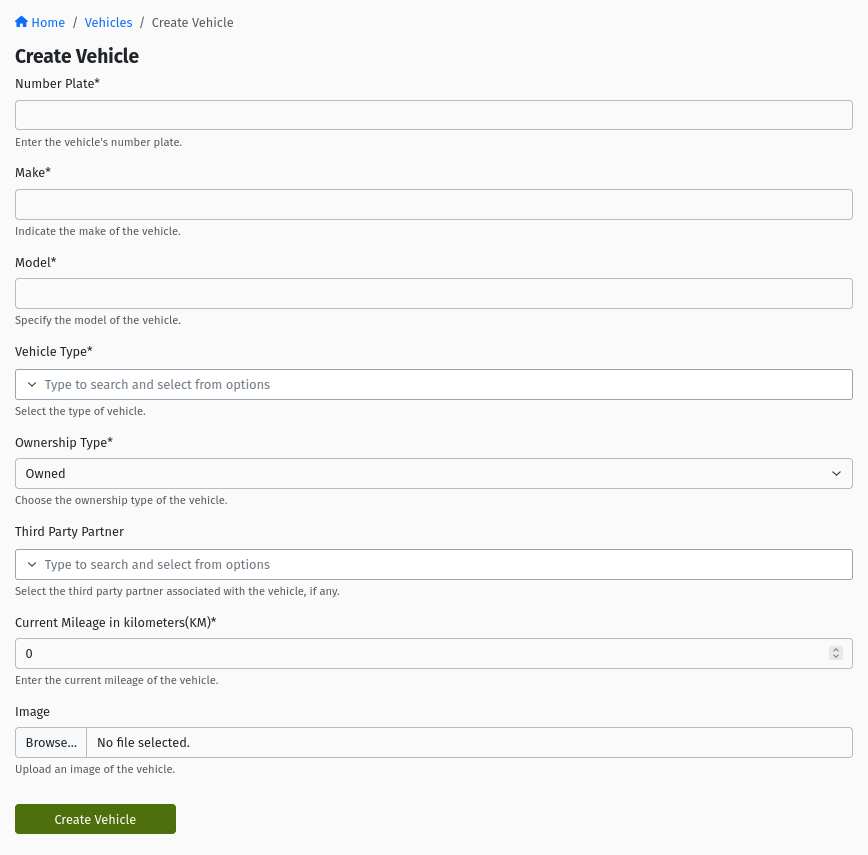 The "Create Vehicle" form with Number Plate, Make, Model, Vehicle Type, Ownership Type, Third Party Partner, Current Mileage in kilometers(KM) and Image.
A new vehicle starts with Status AVAILABLE and Availability ACTIVE.
4.3 Editing a vehicle
Click Edit on the vehicle's detail page (or on its row in the list). The Edit Vehicle form has the same fields as the create form except Current Mileage, which is not shown because mileage is maintained by trips from now on. Click Update Vehicle to save.
If you correct a number plate, the vehicle's Vehicle Warehouse keeps the name it was given when the vehicle was created. That is expected; the warehouse is still linked to the right vehicle.
5. The Vehicle Warehouse
Every vehicle has its own stock location, the Vehicle Warehouse. You never create it yourself: the system creates it automatically when you save a new vehicle.
- It is named "<plate> Warehouse" (for example "KBA 123A Warehouse"), with the plate as its code (spaces replaced by dashes).
- It is a transit (mobile) warehouse. You can find it under Inventory → Transit Warehouses.
- It has one default storage unit, Main.
What the Vehicle Warehouse holds is, at any moment, everything physically on board. That is why it matters so much:
| What happens | Effect on the Vehicle Warehouse |
|---|---|
| Loading a Trip (Fulfill via Transfer on a Loading Request) | A Transfer moves stock from your depot warehouse into the Vehicle Warehouse. Once the Transfer is completed, the stock is on board. |
| Delivering a Shipment | A Goods Issue Note issues the delivered quantity out of the Vehicle Warehouse. |
| Picking up or receiving returns on the road | A Goods Receive Note receives the goods into the Vehicle Warehouse. |
| Offloading mid-trip | Stock is moved out of the Vehicle Warehouse. |
| Changing the vehicle with Transfer stock | All stock is moved from the old vehicle's warehouse into the new vehicle's warehouse. |
| Reconciliation after the trip | The Vehicle Warehouse is counted and differences are recorded. |
On a Trip's Vehicle tab, the Stock on this vehicle section shows the current contents of this warehouse. As the screen itself says, it is "What the vehicle holds right now, not a record of what it carried on this trip."
Because deliveries are issued from the Vehicle Warehouse, a delivery can only be recorded if the goods are actually in it. If stock was never loaded through a Loading Request (or moved there with a Transfer), the delivery's Goods Issue Note cannot complete and the trip cannot be ended. See Loading Requests.
6. Default crew (Crews tab)
You can give each vehicle a default crew: the drivers and assistants who normally work on it.
6.1 Adding crew
- Open the vehicle and go to the Crews tab.
- Click New. The Create Vehicle Crew Assignment form opens.
- In Crew, pick one or more people ("Choose the crew members to assign to this vehicle."). The list shows active users in your organisation whose profile status is On Duty, Off Duty or Approved, and leaves out anyone already on this vehicle's crew.
- Save.
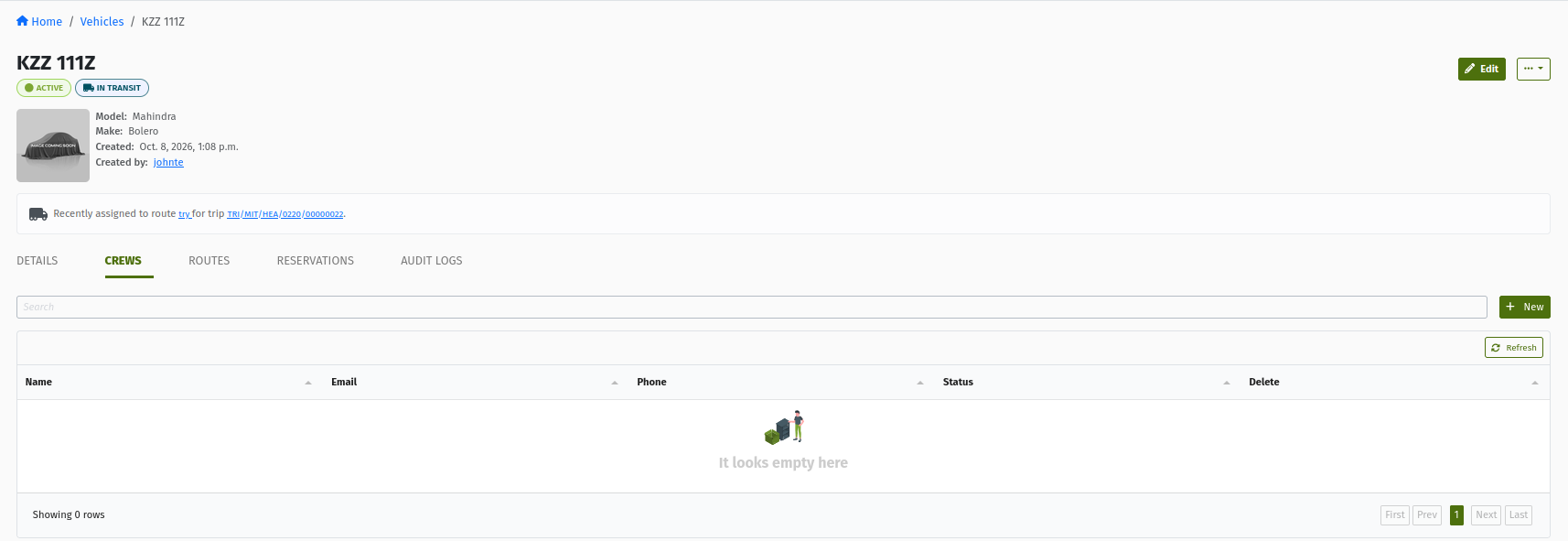 The vehicle detail page, "Crews" tab, listing crew members with Name, Email, Phone and Status, and the Delete link on each row.
A vehicle can have several crew members, and one person can be on the default crew of several vehicles.
6.2 What default crew does
- Copied onto Trips. When this vehicle is assigned to a Trip, its default crew is copied onto the Trip's crew automatically, in the background (it can take a moment to appear on the trip's Crew tab). You can still add or remove crew on the Trip itself. See Trips.
- Stock access. Adding someone to the vehicle's crew gives them access to the vehicle's stock (its Vehicle Warehouse), which they need to work with it on the road.
- Vehicle changes. If the Trip's vehicle is later changed, crew that came from the old vehicle is taken off the Trip and the new vehicle's crew is added.
6.3 Removing crew
Click Delete on the crew member's row and confirm. As the confirmation explains: "After deletion, this crew will no longer be assigned to this vehicle for any scheduling, customer activities, or dispatch operations." The person also loses access to the vehicle's stock.
Do not remove someone from a vehicle's crew while that vehicle is out on a Trip they are working on: they would lose access to the stock they are delivering. Make crew changes between trips.
7. Preferred routes (Routes tab)
The Routes tab lets you record which Routes a vehicle normally operates on.
- Open the vehicle and go to the Routes tab.
- Click New (or Edit Assignment if routes are already set). The Create Vehicle Route Assignment form opens.
- In the routes field ("Choose the routes this vehicle normally operates on.") pick one or more routes, and save.
The tab then lists each preferred route with its Name, Origin and Destination.
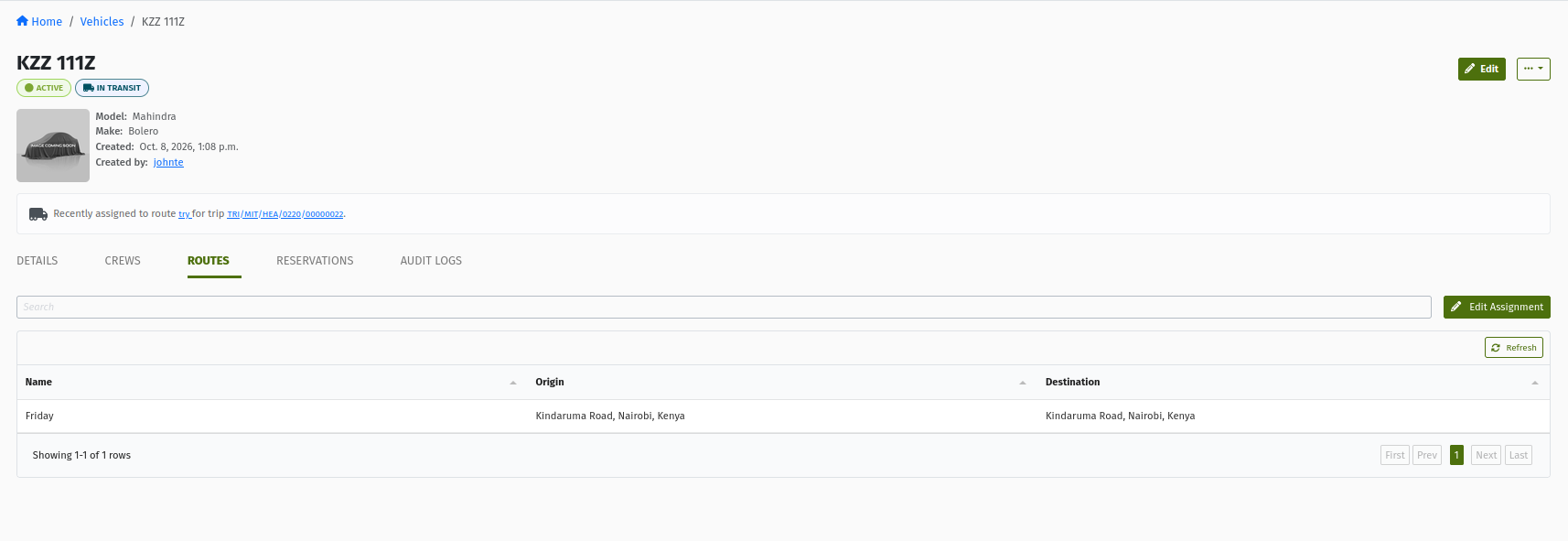 The vehicle detail page, "Routes" tab, listing preferred routes with Name, Origin and Destination, and the Edit Assignment button.
What it does: preferred routes only sort the vehicle picker on a Trip. When you assign a vehicle to a Trip, vehicles that prefer the Trip's route are listed first under Preferred for this Route, and the rest are listed under Other Vehicles. It does not stop you from picking any other vehicle.
The system also keeps track of the route each vehicle is currently serving: when a vehicle is assigned to a Trip, that Trip's route becomes the vehicle's active route. You will see this on the vehicle page as "Recently assigned to route … for trip …". This is the most recent trip assignment, which is not necessarily a trip that is running right now.
8. Vehicle Status and Availability
This is the most important section of this guide. A vehicle shows two separate indicators, both as chips next to the number plate on its detail page and as two columns in the Vehicles list.
| Indicator | Values | What changes it |
|---|---|---|
| Status | AVAILABLE RESERVED LOADING IN_TRANSIT AWAITING_RECONCILIATION UNAVAILABLE UNDER_MAINTENANCE | Mostly automatic: Trips and Loading Requests move it. A few manual actions on the vehicle page (see 8.3). |
| Availability | ACTIVE or INACTIVE | Only Retire Vehicle (makes it Inactive). |
In short: Status is what the vehicle is doing right now; Availability is whether the vehicle is still part of your fleet. Almost every vehicle you work with is Active, and its Status changes many times a day.
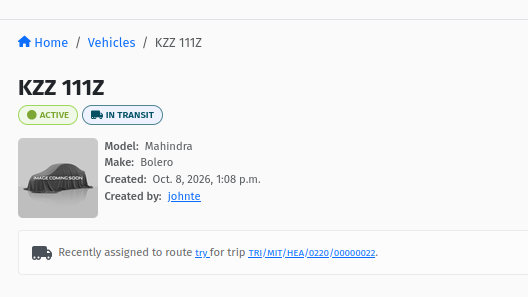 The vehicle detail page header: the number plate with the Availability chip (ACTIVE) and the Status chip next to it, the Edit button and the "…" actions menu.
8.1 The status map
 AUTOMATIC (driven by Trips and Loading Requests)

   AVAILABLE ──trip approved──→ RESERVED ←──── more approved trips can share it
       ↑      ←─last approved──    │   ↑
       │        trip cancelled     │   │ loading stopped / cancelled
       │                           │   │
       │             Start Loading ↓   │
       │                         LOADING
       │                           │
       │      Start Trip (from LOADING, or from RESERVED
       │      when the trip has no loading step)
       │                           ↓
       │                       IN_TRANSIT
       │                           │
       │      End Trip / Fail Trip ↓   (failing a trip before departure
       │                           │    also lands here)
       │              AWAITING_RECONCILIATION
       │                           │
       └──reconciliation closed────┘   (→ RESERVED instead if other
                                         approved trips still hold it)

 MANUAL (vehicle page, CHANGE_VEHICLE, notes required for the first two)

   AVAILABLE / AWAITING_RECONCILIATION / UNAVAILABLE
        ──Send to maintenance──→ UNDER_MAINTENANCE
   AWAITING_RECONCILIATION ──Mark as unavailable──→ UNAVAILABLE
   UNAVAILABLE / UNDER_MAINTENANCE ──Mark as available──→ AVAILABLE
        (only once every trip on the vehicle is reconciled)
   AVAILABLE ──Retire Vehicle──→ UNAVAILABLE + Availability INACTIVE
The same map as a simple list:
AVAILABLE               → RESERVED (trip approved)
                        → UNDER_MAINTENANCE (Send to maintenance)
                        → retired: UNAVAILABLE + INACTIVE (Retire Vehicle)
RESERVED                → LOADING (Start Loading on a Loading Request)
                        → IN_TRANSIT (Start Trip, when no loading step is used)
                        → AWAITING_RECONCILIATION (approved trip failed before departure)
                        → AVAILABLE (last approved trip cancelled)
LOADING                 → RESERVED (loading stopped or cancelled)
                        → IN_TRANSIT (Start Trip)
                        → AWAITING_RECONCILIATION (trip failed)
IN_TRANSIT              → AWAITING_RECONCILIATION (End Trip or Fail Trip)
AWAITING_RECONCILIATION → AVAILABLE or RESERVED (reconciliation closed)
                        → UNDER_MAINTENANCE (Send to maintenance)
                        → UNAVAILABLE (Mark as unavailable)
UNAVAILABLE             → AVAILABLE (Mark as available)
                        → UNDER_MAINTENANCE (Send to maintenance)
UNDER_MAINTENANCE       → AVAILABLE (Mark as available)
Notice two things the map makes clear:
- A vehicle never goes straight from Loading or In Transit back to Available. After a vehicle has been loaded or on the road, it must pass through Awaiting Reconciliation, so someone counts what is left on board before it is used again.
- You do not set Reserved, Loading, In Transit or Awaiting Reconciliation yourself. Those come from the Trip and the Loading Request. If a vehicle's status looks wrong, look at its trips first.
8.2 What each status means and allows
AVAILABLE
| Aspect | Details |
|---|---|
| Meaning | Free. No approved trip is holding the vehicle and nothing is waiting to be counted. |
| How it gets here | A new vehicle starts here. Automatically when a reconciliation closes and no other approved trip holds the vehicle, or when the only approved trip holding it is cancelled. Manually with Mark as available from Unavailable or Under Maintenance. |
| What you can do | Assign it to Draft, Ready or Approved trips. Use it as the target of a Change Vehicle wizard. Send to maintenance. Retire Vehicle. Edit it, its crew and its routes. |
| What you cannot do | Nothing is blocked. |
| How it leaves | Automatically to Reserved when a trip using it is approved. Manually to Under Maintenance, or retired. |
RESERVED
| Aspect | Details |
|---|---|
| Meaning | At least one approved Trip has booked this vehicle. Several approved trips can hold the same vehicle at once; the Reservations tab lists them. |
| How it gets here | Automatically when a Trip using the vehicle is approved. Also when loading is stopped or cancelled (back from Loading), or when a reconciliation closes while other approved trips still hold the vehicle. |
| What you can do | Assign it to more trips. Use it as a Change Vehicle target. Start loading it for one of its trips. Edit it, its crew and its routes. |
| What you cannot do | No manual status actions are offered: the vehicle is committed to trips. Retire is not available. |
| How it leaves | Start Loading on a Loading Request for one of its trips → Loading. Start Trip on a trip that has no loading step → In Transit. Failing an approved trip → Awaiting Reconciliation. Cancelling the last approved trip that holds it → Available. |
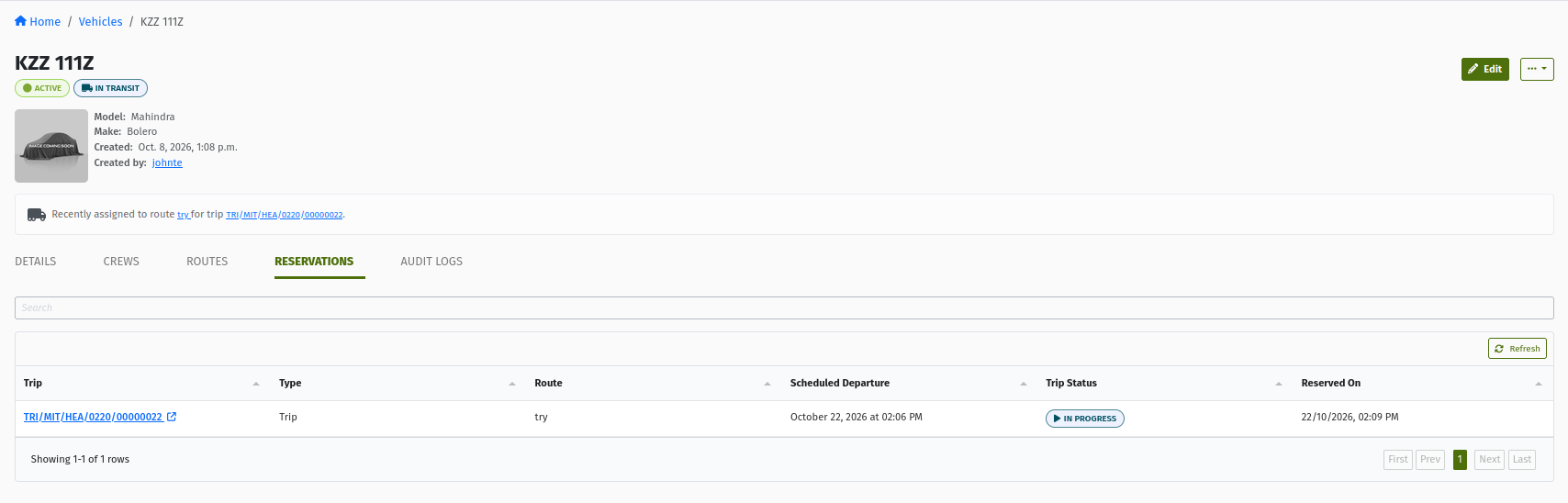 The vehicle detail page, "Reservations" tab, listing the approved trips holding the vehicle with Trip, Type, Route, Scheduled Departure, Trip Status and Reserved On.
LOADING
| Aspect | Details |
|---|---|
| Meaning | A Loading Request for one trip has been started: stock is being moved onto this vehicle. |
| How it gets here | Automatically when someone clicks Start Loading on a Loading Request for a trip using this vehicle. |
| What you can do | Keep loading for that trip (other Loading Requests of the same trip can be worked in parallel). Assign the vehicle to future trips for planning. |
| What you cannot do | Start loading or fulfil lines for any other trip. Use it as a Change Vehicle target. No manual status actions are offered and you should not retire it. |
| How it leaves | Start Trip → In Transit. If loading is stopped (the Loading Request is cancelled or failed) while the trip is still approved and no other loading is running → back to Reserved. Failing the trip → Awaiting Reconciliation. |
IN_TRANSIT
| Aspect | Details |
|---|---|
| Meaning | The vehicle is on the road for a trip that has started. |
| How it gets here | Automatically when someone clicks Start Trip on the trip. In Transit is always set by the trip, never by hand. |
| What you can do | Top up its own trip mid-route with a manual Loading Request. Pre-assign the vehicle to future trips for planning. |
| What you cannot do | Load it for another trip. Dispatch another trip with it. Use it as a Change Vehicle target. |
| How it leaves | End Trip or Fail Trip on its trip → Awaiting Reconciliation. |
AWAITING_RECONCILIATION
| Aspect | Details |
|---|---|
| Meaning | The vehicle's last trip has finished (Complete) or failed, and what is left on board has not yet been counted and settled. |
| How it gets here | Automatically when its trip is ended (End Trip) or failed, including a trip failed after approval or loading but before departure. You cannot set it by hand: "A vehicle is only held for reconciliation automatically, when its trip completes or fails." |
| What you can do | Assign it to future trips, and approve those trips (planning is not blocked). It is listed last in the trip vehicle picker. Mark as unavailable or Send to maintenance if it needs to come off the road after the trip. |
| What you cannot do | Start loading, mark loaded or start another trip with it. Use it as a Change Vehicle target. Mark as available. |
| How it leaves | Closing the trip's Reconciliation → Available, or Reserved if other approved trips still hold the vehicle. See Reconciliation. |
UNAVAILABLE
| Aspect | Details |
|---|---|
| Meaning | Temporarily out of use for a reason other than maintenance: for example impounded, without a driver, or waiting for paperwork. A retired vehicle also shows this status. |
| How it gets here | Manually with Mark as unavailable (notes required). Also set by Retire Vehicle. |
| What you can do | Mark as available, Send to maintenance, edit it. |
| What you cannot do | It is not offered in the trip vehicle picker, and cannot be the target of a Change Vehicle wizard. |
| How it leaves | Mark as available → Available (only once every trip on it is reconciled). Send to maintenance → Under Maintenance. |
UNDER_MAINTENANCE
| Aspect | Details |
|---|---|
| Meaning | In the workshop: being serviced or repaired. |
| How it gets here | Manually with Send to maintenance (notes required), from Available, Unavailable or Awaiting Reconciliation. |
| What you can do | Mark as available once the work is done; edit it. |
| What you cannot do | It is not offered in the trip vehicle picker and cannot be a Change Vehicle target. |
| How it leaves | Mark as available → Available (only once every trip on it is reconciled). |
Retired (Availability INACTIVE)
| Aspect | Details |
|---|---|
| Meaning | Permanently taken out of the fleet: sold, written off, or returned to the leasing company. |
| How it gets here | Retire Vehicle from the "…" menu of an Available vehicle. Status becomes Unavailable and Availability becomes Inactive. |
| What you can do | View it, its history and its past trips. "The vehicle will remain visible in your records and reports." and "Existing and past trips will not be affected." |
| What you cannot do | Use it on new trips. Reuse its number plate for a new vehicle. |
| How it leaves | Treat retiring as permanent. If the vehicle is only out of use for a while, use Mark as unavailable or Send to maintenance instead. |
8.3 Manual actions on the vehicle page
All manual actions need the CHANGE_VEHICLE permission. They appear as buttons or in the … menu next to Edit, depending on the current status:
| Vehicle status | Actions you will use |
|---|---|
| Available | Send to maintenance, Retire Vehicle (in the … menu) |
| Reserved | None: the vehicle is driven by its trips |
| Loading | None: the vehicle is driven by its trips |
| In Transit | None: manage the vehicle through its trip |
| Awaiting Reconciliation | Mark as unavailable, Send to maintenance (… menu) |
| Unavailable | Mark as available (button), Send to maintenance (… menu) |
| Under Maintenance | Mark as available (button) |
When you choose an action, the Update Vehicle Status page asks "Are you sure you want to mark vehicle … as …?" and offers a Notes box ("Please Provide Notes or Comments on why you are taking the action on the vehicle.").
- Notes are required when you send a vehicle to maintenance or mark it unavailable. Write something useful: the fault, the workshop, the expected return date.
- Click Mark as … to confirm, or Cancel.
- Every change, automatic or manual, is recorded on the Audit Logs tab with the from/to status, the user and the notes.
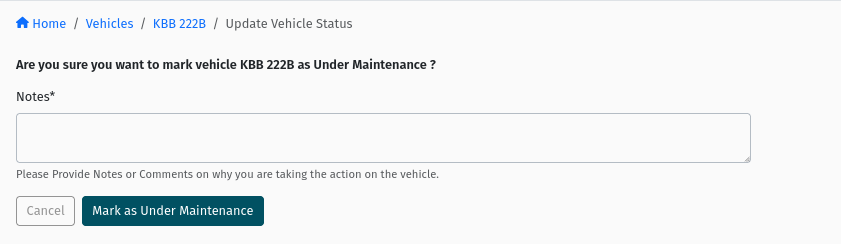 The "Update Vehicle Status" page for Send to maintenance: the confirmation question, the required Notes box, and the Cancel and "Mark as Under Maintenance" buttons.
If the action is not allowed from the vehicle's current status, the page says "Sorry! You cannot perform this action on vehicle …" instead.
Retiring a vehicle: choose Retire Vehicle from the … menu of an Available vehicle. The Retire Vehicle page asks "Are you sure you want to retire vehicle …?" and explains that "Retiring this vehicle will make it unavailable for all future trips." Click Confirm. Retire only a vehicle that is Available and is not named on any planned trip.
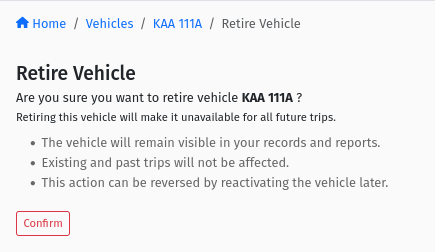 The "Retire Vehicle" confirmation page with the explanation that the vehicle will be unavailable for all future trips, and the Confirm button.
8.4 The reconciliation hold
When a vehicle's previous trip is Complete or Failed but not yet reconciled, the vehicle detail page shows a yellow banner:
"This vehicle cannot be loaded or dispatched until trip … is reconciled."
The trip number in the banner is a link to that trip.
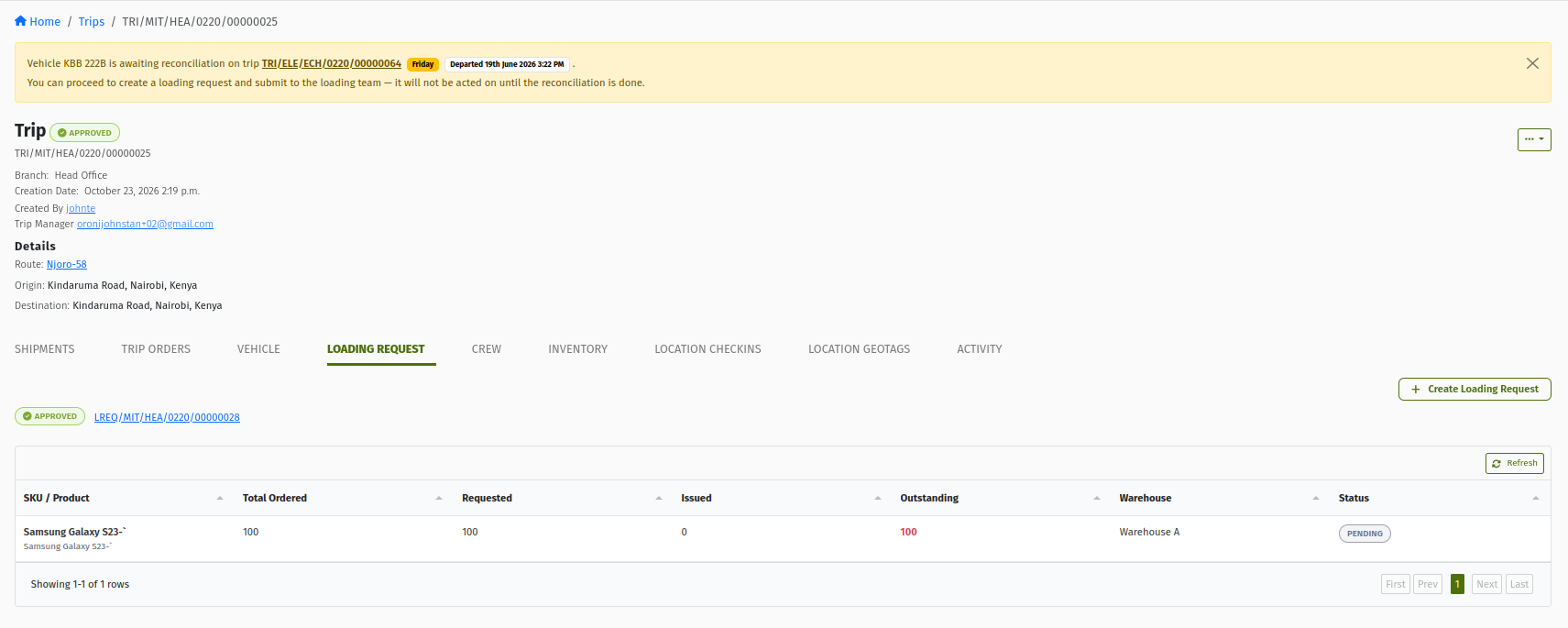 The vehicle detail page with the warning banner "This vehicle cannot be loaded or dispatched until trip … is reconciled." above the number plate, and the AWAITING_RECONCILIATION status chip.
Why it exists: after a trip, there is often something left on board: returns, undelivered goods, or a shortage. If the next trip were loaded on top, nobody could tell which stock belonged to which trip. The hold makes sure the vehicle is counted and settled first.
While the hold is in place:
| Blocked for other trips on this vehicle | Still allowed |
|---|---|
| Start Loading a Loading Request | Creating trips and assigning this vehicle to them |
| Mark Trip as Loaded / Load Trip | Adding orders to those trips and approving them |
| Start Trip | Creating and submitting their Loading Request (the loading team will act on it once the reconciliation is done) |
| Choosing this vehicle as a Change Vehicle target | Sending the vehicle to maintenance or marking it unavailable |
| Mark as available |
So you can plan ahead, but you cannot load or dispatch until the earlier trip is reconciled. A trip page waiting on the hold also tells you which earlier trip is awaiting reconciliation. If you try to release the vehicle by hand, you will see "Vehicle … cannot be released until … is reconciled."
8.5 One vehicle, several trips: the concurrency rules
| Stage | How many trips at once? | Rule |
|---|---|---|
| Planned (Draft, Ready) | Any number | Naming a vehicle on a Draft or Ready trip does not change the vehicle's status. |
| Approved (reserved) | Any number | Each approved trip adds a reservation. The vehicle shows Reserved, and the Reservations tab lists them all. |
| Loading | One trip at a time | While one trip's loading is in progress, Start Loading and fulfilment are refused for every other trip. Loading is also refused while another trip on the vehicle is Loaded or In Progress. |
| On the road | One trip at a time | A trip cannot start while another trip with the same vehicle is In Progress. |
| After the trip | Hold | A new trip cannot load or start until earlier Complete or Failed trips on the vehicle are reconciled. |
Example. Truck KBA 123A is on three approved trips: Monday, Tuesday and Wednesday. It shows Reserved. On Monday the loaders start loading for the Monday trip: the truck shows Loading, and nobody can start loading the Tuesday trip yet. The Monday trip starts (In Transit), then ends in the evening (Awaiting Reconciliation). On Tuesday morning the Tuesday trip's Loading Request cannot be started until Monday's trip is reconciled. Once the reconciliation is closed, the truck goes back to Reserved (Tuesday and Wednesday still hold it) and Tuesday's loading can begin.
8.6 Maintenance, unavailability and trips: the safe procedure
The trip vehicle picker does not offer vehicles that are Unavailable or Under Maintenance, but a trip that already names the vehicle keeps it. To keep your records and the vehicle's real situation in line, follow this procedure:
- Before sending a vehicle to maintenance or marking it unavailable, open its Reservations tab and check for trips that still need it. Also check Draft and Ready trips that name it.
- Reassign those trips first. For each one, change the vehicle on the trip (see section 9.2) to another vehicle. Cancel trips that will not run.
- If the vehicle has just come back from a trip, let the trip be reconciled first, or at least make sure the reconciliation is under way. You cannot mark it available again until it is.
- Only then use Send to maintenance or Mark as unavailable, with clear notes.
- When the vehicle is back, use Mark as available, and only then assign it to new trips.
Do not put a vehicle that is Under Maintenance or Unavailable on a trip, and do not send a vehicle that is assigned to a trip to maintenance. Always reassign the trip first. A vehicle in the workshop should never be the vehicle a trip is loaded or dispatched with.
9. Using vehicles on Trips
9.1 Which vehicles you can pick
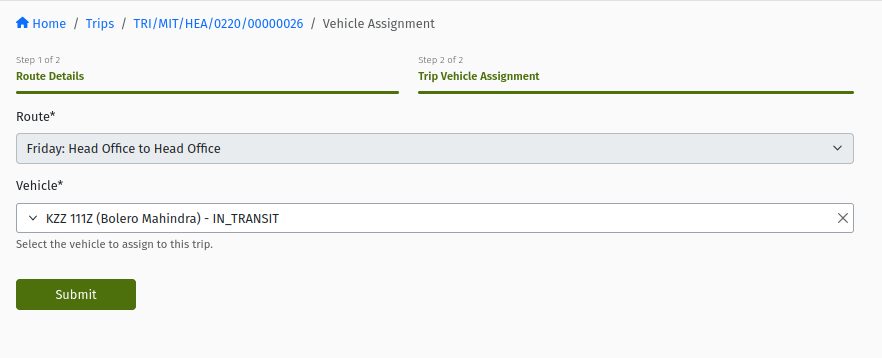
When you assign a vehicle to a Trip (step 2 of trip creation, Trip Vehicle Assignment, or Assign Vehicle / Change Vehicle on the trip's Vehicle tab), the Vehicle dropdown offers your organisation's vehicles whose status is:
- AVAILABLE
- RESERVED
- LOADING
- IN_TRANSIT
- AWAITING_RECONCILIATION
listed in that order, and grouped into Preferred for this Route and Other Vehicles. Each option reads "plate (make model) - STATUS", so you can see what each vehicle is doing before you choose. Vehicles that are Unavailable or Under Maintenance are not offered.
Why are busy vehicles offered at all? Because you are planning. You can plan Thursday's trip on a truck that is out on the road today. The concurrency rules in 8.5 make sure the truck is not loaded or dispatched for Thursday's trip until today's trip is finished and reconciled.
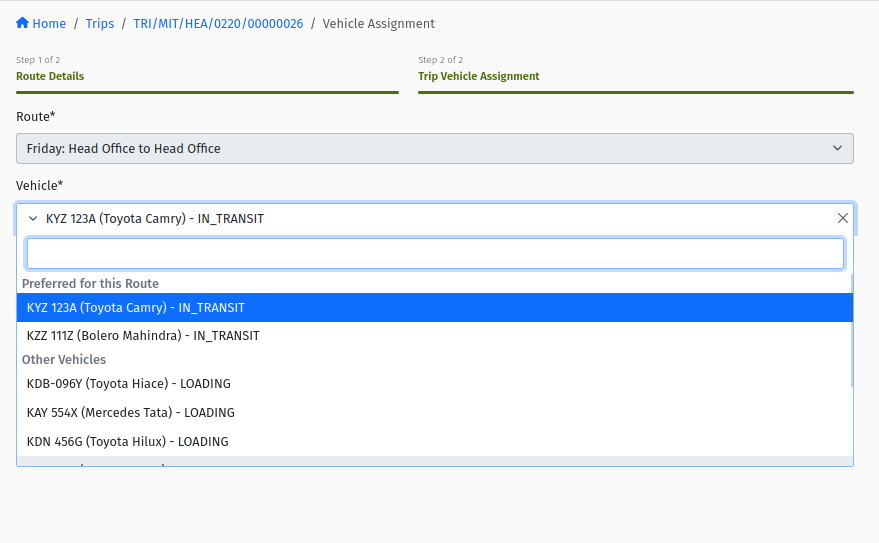 The "Trip Vehicle Assignment" step with the Vehicle dropdown open, showing the "Preferred for this Route" and "Other Vehicles" groups and labels such as "KBA 123A (Isuzu FRR) - AVAILABLE".
You can assign or change the vehicle on a trip while the trip is DRAFT, READY or APPROVED, and only while the trip has no unfinished Loading Request. A trip needs a vehicle before it can be submitted, approved or moved on in any way except being cancelled.
9.2 Changing the vehicle on a trip
There are two ways to change a trip's vehicle. Which one you use depends on whether loading has begun.
| Situation | Use | Where |
|---|---|---|
| Trip is Draft, Ready or Approved and no Loading Request is underway | Change Vehicle on the trip | Trip → Vehicle tab |
| A Loading Request exists and is Approved, In Progress or Complete (loading underway or done, trip not yet finished) | The Change Vehicle wizard | Loading Request detail page → Change Vehicle |
Before loading: Change Vehicle on the trip
- Open the trip and go to its Vehicle tab. It shows the Assigned Vehicle with its Number Plate, Load Capacity and Volume Capacity.
- Click Change Vehicle, choose the new vehicle and click Submit.
For a Draft or Ready trip, users with ADD_TRIP, CHANGE_TRIP or APPROVE_TRIP see the button; for an Approved trip, it needs APPROVE_TRIP. The button is hidden once the trip has a Loading Request that is not yet finished. You will then see: "This trip has a loading request that hasn't been completed yet, so the vehicle can't be changed from here. The dispatch team can still switch vehicles from the loading request while loading is underway."
What happens automatically when you change the vehicle:
- Crew that came from the old vehicle's default crew is removed from the trip, and the new vehicle's default crew is added.
- The trip's route becomes the new vehicle's active route.
- If the trip is Approved, its reservation moves from the old vehicle to the new one (the old vehicle goes back to Available if nothing else holds it).
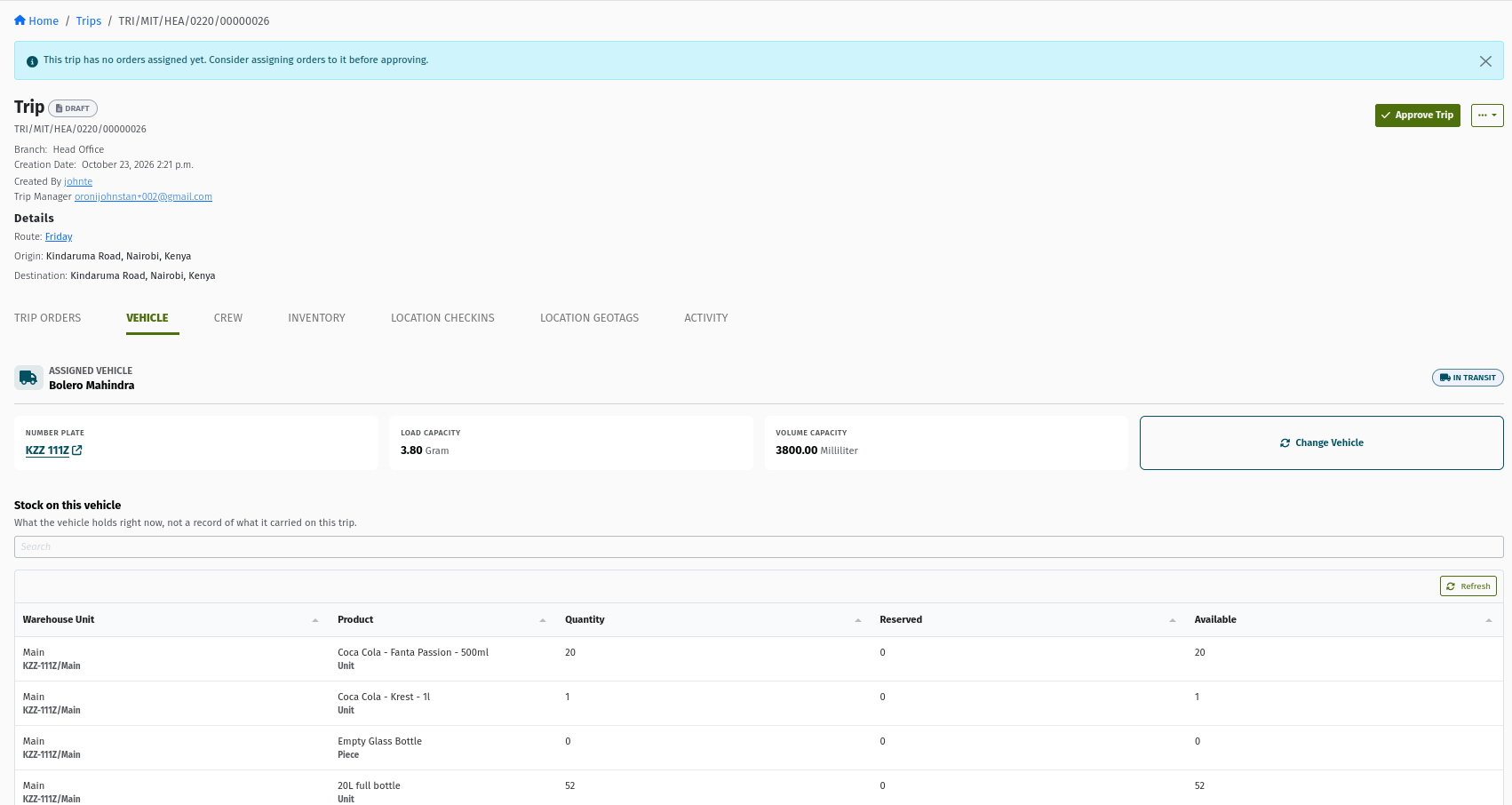 The trip detail page, "Vehicle" tab: "Assigned Vehicle" with Number Plate, Load Capacity and Volume Capacity, the Change Vehicle button, and the "Stock on this vehicle" section.
Once loading is underway: the Change Vehicle wizard
Once goods may already be on the old vehicle, changing the vehicle is not just a matter of picking another plate: the stock has to move as well. The wizard handles this.
-
Open the trip's Loading Request and click Change Vehicle.
-
On the Change Vehicle page, choose the new vehicle in Switch to and optionally add Notes, then click Switch vehicle. Only vehicles that are AVAILABLE or RESERVED are listed (with their capacity), and the new vehicle must not be waiting on a reconciliation or be out on another trip. If none qualifies, you will see "No available or reserved vehicles to switch onto right now."
-
Step 1, Pick & transfer stock. If the old vehicle has stock on board, choose how to handle it under Stock Handling:
- Transfer stock to <new plate> (the default). The Stock on board table shows what will move. Click Transfer stock & continue. A Transfer of all stock on the old vehicle into the new vehicle's warehouse is created.
- Switch without transferring. Choose a Reason for not transferring: "Wrong vehicle was assigned to trip" or "Will transfer the stock later", add an optional note, and click Switch without transfer.
If the old vehicle holds no stock, just click Continue.
-
Step 2, Reassign Crew ("Who's staying"). Decide which crew stay on the trip. These changes are only applied when the switch finishes.
-
Step 3, Summary ("Review & finish"). Check the details.
- If no stock transfer was created, click Finish switch.
- If a stock transfer was created, the switch finishes automatically when that Transfer is completed. Make sure the Transfer is approved and completed, as any other Transfer.
You can Cancel switch at any point before it finishes; any pending transfer is cancelled and crew changes are discarded. A trip can only have one switch open at a time.
When the switch finishes, the trip's vehicle is changed, the Loading Request now loads into the new vehicle's warehouse, the reservation moves to the new vehicle (it shows Loading if loading is in progress), the crew changes are applied, and the old vehicle is released.
 The Change Vehicle wizard, step "Pick & transfer stock", with the Stock Handling choice between "Transfer stock to …" and "Switch without transferring", and the "Stock on board" table.
Prefer Transfer stock. Deliveries are issued from the trip's current vehicle, so goods left on the old vehicle cannot be delivered on this trip. Choose Switch without transferring only when the old vehicle holds none of this trip's goods (for example, the wrong vehicle was picked and nothing was loaded yet), or if you choose "Will transfer the stock later", move the stock with a Transfer before the trip departs. Where possible, change vehicles before the trip leaves the depot.
See Loading Requests for the full loading process.
10. Mileage readings
A vehicle's Current Mileage is entered once, when the vehicle is created. From then on it is kept up to date by the trips:
- When you click Start Trip, you are asked for the Mileage (km) reading. It is saved as the trip's start mileage and becomes the vehicle's current mileage.
- When you click End Trip, you enter the reading again. It is saved as the trip's end mileage and becomes the vehicle's current mileage.
- The reading cannot be lower than the last one recorded for the vehicle: "The mileage entered is lower than the vehicle's last recorded mileage."
Read the odometer carefully: once a reading is saved, later readings must be at least that high. The current value is shown on the vehicle's Details tab under Type Information.
11. The vehicle screens
11.1 The Vehicles list
Vehicles → Vehicles shows the Vehicles table with these columns:
| Column | Shows |
|---|---|
| Number Plate | The registration. |
| Type | The Vehicle Type. |
| Model | The model. |
| Status | The current operational status (Available, Reserved, Loading, …). |
| Availability | Active, or Inactive if retired. |
| Ownership | Owned or Leased. |
| Edit | Opens the Edit Vehicle form. |
| View | Opens the vehicle detail page. |
| Deactivate | A Retire link. It is greyed out while the vehicle is Reserved, In Transit or Awaiting Reconciliation, and hidden for retired vehicles. |
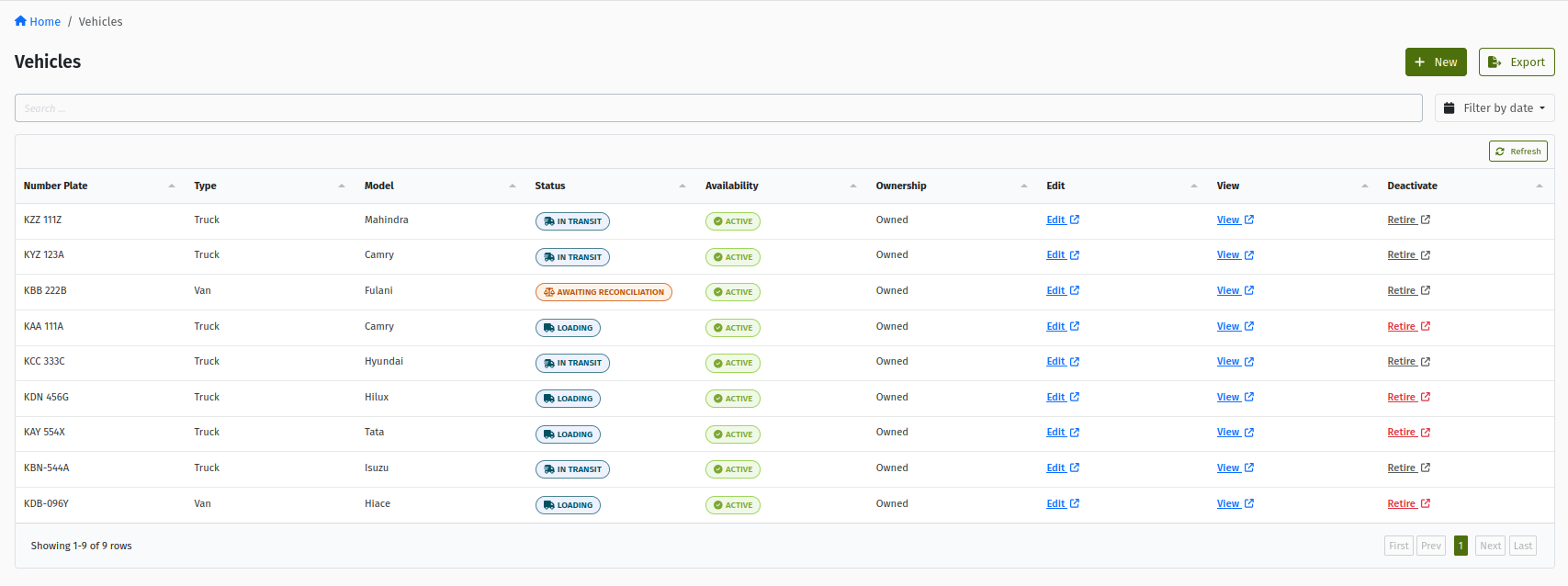 The "Vehicles" list with the Number Plate, Type, Model, Status, Availability, Ownership, Edit, View and Deactivate (Retire) columns, showing vehicles in different statuses.
11.2 The vehicle detail page
The header shows the number plate, the Availability and Status chips, the action buttons, the image (if any), and the Model, Make, Third Party Partner, Created and Created by details. Below that are five tabs:
| Tab | What it shows |
|---|---|
| Details | Type Information: the type's Name, the vehicle's Current Mileage, Fuel Type, Weight and Volume capacity. |
| Crews | The default crew: Name, Email, Phone, Status, and Delete. See section 6. |
| Routes | The preferred routes: Name, Origin, Destination. See section 7. |
| Reservations | The approved trips currently holding the vehicle: Trip, Type, Route, Scheduled Departure, Trip Status, Reserved On. |
| Audit Logs | Every status change: Created, Status From, Status To, User, Notes. This is the first place to look when you want to know why a vehicle is in its current status. |
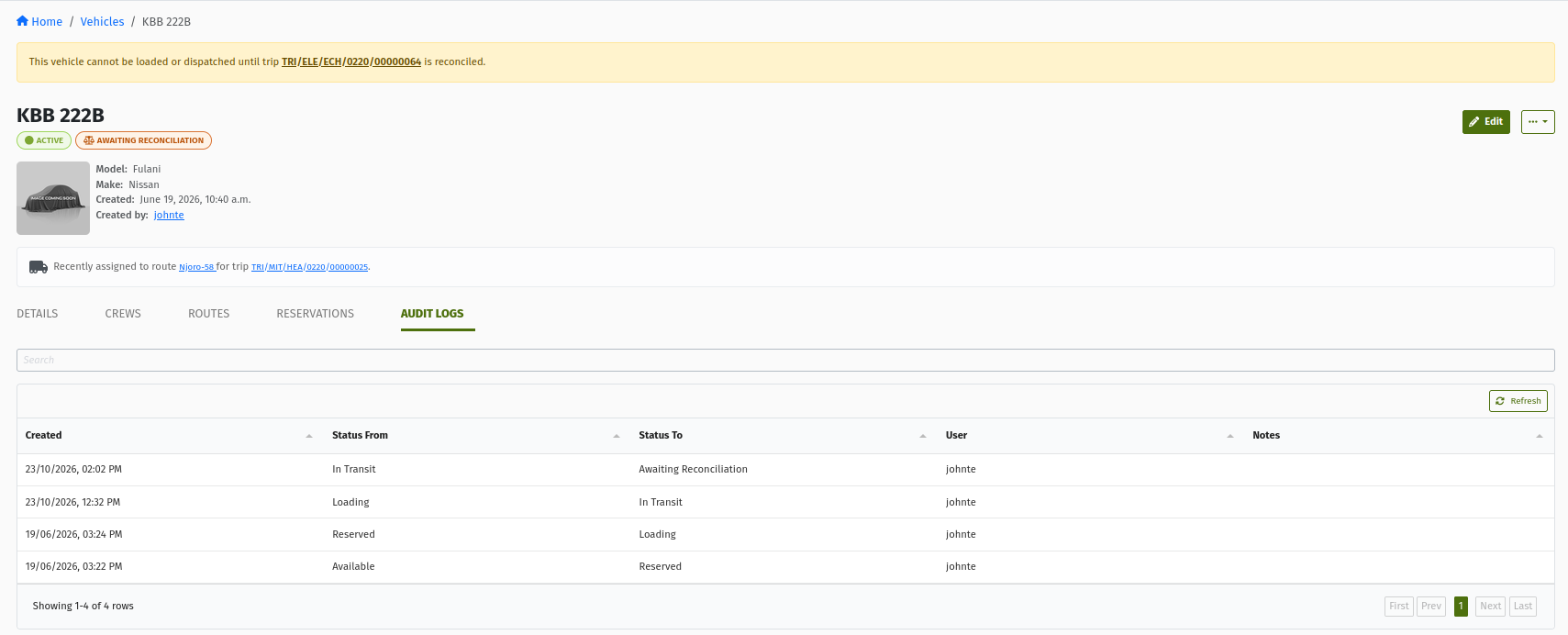 The vehicle detail page, "Audit Logs" tab, listing status changes with Created, Status From, Status To, User and Notes.
12. How vehicles interact with Trips, loading and reconciliation
Here is the vehicle's view of a typical delivery. Each step links to the guide that covers it in full.
Trip created, vehicle assigned (Draft/Ready)     vehicle status unchanged
        ↓ Approve Trip
Trip APPROVED, Shipments generated               vehicle → RESERVED
        ↓ Create Loading Request → Submit → Start Loading
Loading in progress                              vehicle → LOADING
        ↓ Fulfill via Transfer (stock into the Vehicle Warehouse) → Complete
Trip LOADED
        ↓ Start Trip (mileage)
Trip IN_PROGRESS                                 vehicle → IN_TRANSIT
        ↓ deliveries issue stock out of the Vehicle Warehouse
        ↓ End Trip (mileage)  — or Fail Trip
Trip COMPLETE / FAILED                           vehicle → AWAITING_RECONCILIATION
        ↓ Start Reconciliation → count the Vehicle Warehouse → close
Trip RECONCILED                                  vehicle → AVAILABLE (or RESERVED)
- Trips. A trip needs a vehicle for every status change except Cancel ("A trip must have a vehicle assigned before transitioning."). Approving reserves the vehicle; cancelling an approved trip (allowed only before loading starts) releases the reservation. See Trips.
- Shipments. Each Delivery Order on the trip becomes a Shipment. When a shipment is delivered, its goods are issued out of the trip vehicle's Vehicle Warehouse, so the trip can only be ended once those delivery documents are complete. See Shipments.
- Loading. The Loading Request always loads into the trip vehicle's Vehicle Warehouse. Starting it moves the vehicle to Loading; it is refused while the vehicle is loading or on the road for another trip, while an earlier trip is unreconciled, or while the Vehicle Warehouse is locked for a stock count ("Warehouse '…' is locked for a stock count. Loading cannot begin until the stock count is complete."). The loading process is controlled by an organisation setting (Enable Loading Sheet Process, on by default). When it is switched off, Start Trip is available straight from Approved and the vehicle goes from Reserved directly to In Transit. See Loading Requests.
- Reconciliation. After the trip is Complete or Failed, Start Reconciliation on the trip. Each counting round is a blind stock count of the Vehicle Warehouse, which is locked while the count runs. When the reconciliation is closed, the trip becomes Reconciled and the vehicle is released: to Available, or to Reserved if other approved trips are waiting for it. How counting works is explained in Stock Take.
Closing a reconciliation does not require the Vehicle Warehouse to be empty. Before you close it, make sure any leftover stock has been dealt with (returned to the depot with a Transfer, or the difference recorded through the count), so the next trip starts from a clean, known position.
For the end-to-end picture, see the Trip Lifecycle.
13. Permissions reference
| Permission | Controls |
|---|---|
VIEW_VEHICLE_TYPE | See Vehicles → Vehicle Types and the list. |
ADD_VEHICLE_TYPE | Create Vehicle Types. |
CHANGE_VEHICLE_TYPE | Edit Vehicle Types. |
DELETE_VEHICLE_TYPE | Delete Vehicle Types. |
VIEW_VEHICLE | See Vehicles → Vehicles, the list and vehicle detail pages. |
ADD_VEHICLE | Create vehicles. Also add default crew and set preferred routes. |
CHANGE_VEHICLE | Edit vehicles; manage crew and routes; all manual status actions (Send to maintenance, Mark as unavailable, Mark as available, Retire Vehicle). |
ADD_TRIP / CHANGE_TRIP / APPROVE_TRIP | Assign or change the vehicle on a Draft or Ready trip (Approved trips need APPROVE_TRIP). ADD_TRIP or CHANGE_TRIP to use the Change Vehicle wizard. See Trips. |
14. Common mistakes and troubleshooting
| Message / symptom | Cause | What to do |
|---|---|---|
| "A vehicle with this number plate … already exists in your organisation." | The plate is already used, possibly with different capitals, or by a retired vehicle. | Search the Vehicles list (including retired vehicles). Use the existing record rather than creating a duplicate. |
| "Third Party must be set if the vehicle is leased" | Ownership Type is Leased but no Third Party Partner is chosen. | Choose the partner. If it is not listed, ask for the leasing company to be set up as an approved third-party logistics supplier. |
| "Weight must be greater than zero. Please enter a valid value." | Weight (or volume) capacity is 0 or empty on a Vehicle Type. | Enter the real capacity. |
| The weight or volume unit I need is not in the list | The unit is inactive, or not in the Weight / Volume category. | Ask your administrator to set up the unit of measure. |
| I need to correct a vehicle's mileage | Mileage can only be set at creation; after that it comes from trip readings. | Enter the correct reading at the next Start Trip (it must not be lower than the last one). |
| "The mileage entered is lower than the vehicle's last recorded mileage." | The reading is below the vehicle's current mileage. | Re-read the odometer and enter the actual value. |
| A vehicle is missing from the trip vehicle dropdown | It is Unavailable, Under Maintenance or retired. | Check its status. If it is genuinely ready for work, Mark as available (once its trips are reconciled). |
| "Only vehicles in AVAILABLE, RESERVED, LOADING, IN_TRANSIT or AWAITING_RECONCILIATION status can be assigned to a trip." | The chosen vehicle is Unavailable or Under Maintenance. | Pick another vehicle. |
| "Vehicle can only be assigned to trips in DRAFT, READY or APPROVED status." | The trip has moved past Approved (or is Returned). | Once loading is underway, use the Change Vehicle wizard from the Loading Request. |
| "This trip has a loading request that hasn't been completed yet, so the vehicle can't be changed from here…" | An unfinished Loading Request exists. | Use Change Vehicle on the Loading Request. |
| "No available or reserved vehicles to switch onto right now." | No vehicle is Available or Reserved (without an unreconciled trip) to switch to. | Free up a vehicle (finish its reconciliation, or mark it available after maintenance) and try again. |
| Banner "This vehicle cannot be loaded or dispatched until trip … is reconciled." / "Vehicle … cannot be used until … is reconciled." | An earlier trip on this vehicle is Complete or Failed and not yet reconciled. | Open the linked trip, run and close its reconciliation. |
| "Vehicle … cannot be released until … is reconciled." | You tried Mark as available while a trip on the vehicle is unreconciled. | Reconcile the trip first. |
| "Vehicle '…' already has a loading request in progress (…) for trip …" or "Vehicle '…' is already being loaded for trip '…'. Cancel that loading request before fulfilling this one." | Another trip is loading this vehicle. | Finish (or cancel) the other trip's loading first, or move this trip to another vehicle. |
| "Vehicle … is already assigned to a trip that is currently in progress.(Ref: …)" | The vehicle is on the road with another trip. | Wait for that trip to end and be reconciled, or use another vehicle. |
| "Warehouse '…' is locked for a stock count. Loading cannot begin until the stock count is complete." | A reconciliation count on the Vehicle Warehouse is running. | Finish the count and close the reconciliation. |
| "A vehicle is only held for reconciliation automatically, when its trip completes or fails." | Awaiting Reconciliation cannot be set by hand. | End or fail the trip; the vehicle moves automatically. |
| "Sorry! You cannot perform this action on vehicle …" | The action is not allowed from the vehicle's current status. | Check the status map in 8.1. |
| A trip carries more than the truck can take | Capacity is not enforced by the system. | Compare the trip's orders with Load Capacity / Volume Capacity before approving; split orders across trips if needed. |
| Crew are missing on a new trip | The vehicle has no default crew, or the copy has not appeared yet. | Check the vehicle's Crews tab; refresh the trip's Crew tab after a moment; add crew directly on the trip if needed. |
15. Best practices
- Keep Vehicle Types accurate. Capacity is only useful if it is right. Review types when you buy new vehicles.
- Check capacity yourself before approving a trip. The system does not stop overloading.
- Enter the true odometer reading when you create a vehicle and at every Start Trip and End Trip.
- Set default crew and preferred routes so trip planning is faster and the right people automatically get access to the vehicle's stock.
- Let trips drive the status. Reserved, Loading, In Transit and Awaiting Reconciliation come from trips and loading. If a status looks wrong, look at the vehicle's trips and its Audit Logs, not at the manual buttons.
- Reconcile promptly. Every unreconciled trip blocks the vehicle's next loading and dispatch.
- Reassign before you take a vehicle off the road. Follow the procedure in 8.6.
- Write meaningful notes when you send a vehicle to maintenance or mark it unavailable; they appear in the Audit Logs for everyone.
- Change vehicles with the right tool: the trip's Change Vehicle before loading, the Loading Request's Change Vehicle wizard once loading is underway, and prefer Transfer stock.
- Retire only what has really left the fleet. For temporary absences, use Unavailable or Under Maintenance.
- Do not delete a Vehicle Type that vehicles still use. Move the vehicles to another type first.
16. Quick reference
| Step | Action | Watch out for |
|---|---|---|
| Create a Vehicle Type | Vehicles → Vehicle Types → New → Create Vehicle Type | Capacity must be greater than zero; pick the right units. |
| Create a Vehicle | Vehicles → Vehicles → New → Create Vehicle | Unique plate; Third Party Partner if leased; mileage set once. |
| Add default crew | Vehicle → Crews tab → New | Only On Duty / Off Duty / Approved users are listed. |
| Set preferred routes | Vehicle → Routes tab → New / Edit Assignment | Only sorts the trip vehicle picker. |
| Assign to a trip | Trip → Vehicle tab → Assign Vehicle / Change Vehicle | Trip Draft, Ready or Approved; no unfinished Loading Request. |
| Change vehicle during loading | Loading Request → Change Vehicle wizard | Target must be Available or Reserved; prefer Transfer stock. |
| Send to maintenance | Vehicle → … → Send to maintenance | Notes required; reassign its trips first. |
| Back in service | Vehicle → Mark as available | Only after every trip on it is reconciled. |
| Retire | Vehicle (Available) → … → Retire Vehicle → Confirm | Permanent; the plate cannot be reused. |
Status meanings
| Status | Meaning | Set by |
|---|---|---|
| AVAILABLE | Free for work. | Creation, reconciliation closed, last reservation released, Mark as available |
| RESERVED | Booked by one or more approved trips. | Trip approved |
| LOADING | Being loaded for one trip. | Start Loading |
| IN_TRANSIT | On the road for a started trip. | Start Trip |
| AWAITING_RECONCILIATION | Trip finished or failed; the stock on board still has to be counted. | End Trip / Fail Trip |
| UNAVAILABLE | Temporarily out of use (or retired). | Mark as unavailable, Retire Vehicle |
| UNDER_MAINTENANCE | In the workshop. | Send to maintenance |
| Availability ACTIVE | Part of the fleet. | Default |
| Availability INACTIVE | Retired. | Retire Vehicle |
Glossary
- Vehicle Type — a class of vehicle with its weight and volume capacity and fuel type.
- Vehicle — one physical vehicle, identified by its number plate.
- Vehicle Warehouse — the vehicle's own transit warehouse, created automatically, holding everything on board. Listed under Inventory → Transit Warehouses.
- Status — what the vehicle is doing now (Available, Reserved, Loading, In Transit, Awaiting Reconciliation, Unavailable, Under Maintenance).
- Availability — whether the vehicle is still in the fleet (Active) or retired (Inactive).
- Reservation — the booking an approved trip places on a vehicle; listed on the Reservations tab.
- Default crew — the people assigned on the vehicle's Crews tab, copied onto every trip that uses the vehicle.
- Preferred routes — routes a vehicle normally runs; used to sort the trip vehicle picker.
- Reconciliation hold — the block on loading and dispatching a vehicle until its earlier Complete or Failed trip is reconciled.
- Change Vehicle wizard — the three-step process (Pick & transfer stock, Reassign Crew, Summary) for changing a trip's vehicle once loading is underway.
- Reconciliation — counting and settling what is left in the Vehicle Warehouse after a trip.
17. Frequently asked questions
Will the system stop me from loading more than the vehicle can carry?
No. Capacity from the Vehicle Type is shown on the trip's Vehicle tab and on the Loading Request, but it is not checked. Compare the planned load with Load Capacity and Volume Capacity yourself before approving the trip.
Why can I pick a vehicle that is In Transit or Awaiting Reconciliation for a new trip?
So you can plan ahead. The vehicle will not be loaded or dispatched for the new trip until its current trip is finished and reconciled. The status in the dropdown label tells you what the vehicle is doing now.
Can the same vehicle be on several trips?
Yes, while they are being planned and approved. But only one trip can be loading it at a time, only one trip can be on the road with it, and each trip must be reconciled before the next one can load or start.
How do I mark a vehicle as In Transit?
You don't. The vehicle becomes In Transit automatically when you click Start Trip on the trip that uses it, and leaves it when the trip is ended or failed.
My vehicle has been Awaiting Reconciliation for days. How do I free it?
Open the trip named in the banner on the vehicle page, start its reconciliation, complete the count of the vehicle's stock and close the reconciliation. The vehicle then becomes Available, or Reserved if other approved trips are waiting for it.
A vehicle broke down. What should I do with the trips that use it?
Reassign the trips that have not started to another vehicle: on the trip's Vehicle tab before loading, or with the Change Vehicle wizard on the Loading Request once loading is underway. Let any finished trip be reconciled. Then Send to maintenance with notes, and Mark as available when the vehicle is repaired.
Why can't I edit a vehicle's mileage?
Mileage is set once when the vehicle is created. After that it is taken from the readings entered at Start Trip and End Trip, so it always reflects real trips. Enter the correct reading at the next Start Trip.
Where can I see the stock on a vehicle?
On any trip that uses the vehicle, in the Vehicle tab's Stock on this vehicle section, or under Inventory → Transit Warehouses by opening the vehicle's warehouse ("<plate> Warehouse").
I changed a trip's vehicle and the crew changed too. Why?
Crew that came from the old vehicle's default crew is taken off the trip and the new vehicle's default crew is added. Add anyone else you need on the trip's Crew tab.
Can I bring a retired vehicle back?
Treat retiring as permanent, and its number plate cannot be reused for a new vehicle. If a vehicle is only out of use for a while, mark it Unavailable or Under Maintenance instead of retiring it.